

Simprosys Google Shopping Feed
Pre-Installation & Setup

Initial App Configuration
Product Submission Controls
Product Attributes and Optimization
Automated Feed Rules
Troubleshooting & Issue Fixes
Advanced Setup Made Easy
Google Merchant Center Setup
Tracking Tags Setup (Google Ads & Google Analytics 4)
Google Ads & Campaign Setup
Multi-Country & Market Setup
Promotions and Discounts
Microsoft Advertising Integration
Meta (Facebook) Integration
Pinterest Integration


Enable AI-powered Feed Optimisation in Simprosys Google Shopping Feed for Shopify
Apr 02, 2026
On Google Shopping, your products show up more often when Google clearly understands what you’re selling. Simply listing items isn’t enough; your visibility depends on how complete and detailed your product data is.
When multiple merchants sell similar items, Google’s algorithm acts as a matchmaker. If your product data is thin, Google cannot confidently "recommend" your product for specific, high-intent searches.
The "Context" Gap: A shopper searches for a "slim-fit, linen button-down." If your data only mentions "Shirt" and "Blue," you miss the opportunity.
- The "Invisible" Listing: Incomplete attributes rarely lead to account suspensions, but they do cause "Search Shadowing"- where your products exist in the feed but never actually appear to customers.
This is where Simprosys AI-powered Feed Optimization can help. It goes beyond identifying feed errors by analyzing your product data and enhancing key attributes so Google can better understand what you’re selling.
Before we get started, let's review the eligibility requirements to ensure your store and products qualify for this feature.
Store Requirements
Products must be from the following supported categories:
- Apparels
- Jewellery
- Furniture
- Lighting
- Home Decor
- Hardware
- Health and Beauty
Store language must be "English"
Product Requirements
- Product description must be more than 200 characters
Other Conditions
- Minimum purchase is 25 products (1 USD)
- Any product updates made after optimisation will not automatically trigger re-optimisation
- Google Merchant Center should be active
- Make sure you have an active subscription for the Simprosys Google Shopping Feed app.
Let’s look at how to access this feature in the app.
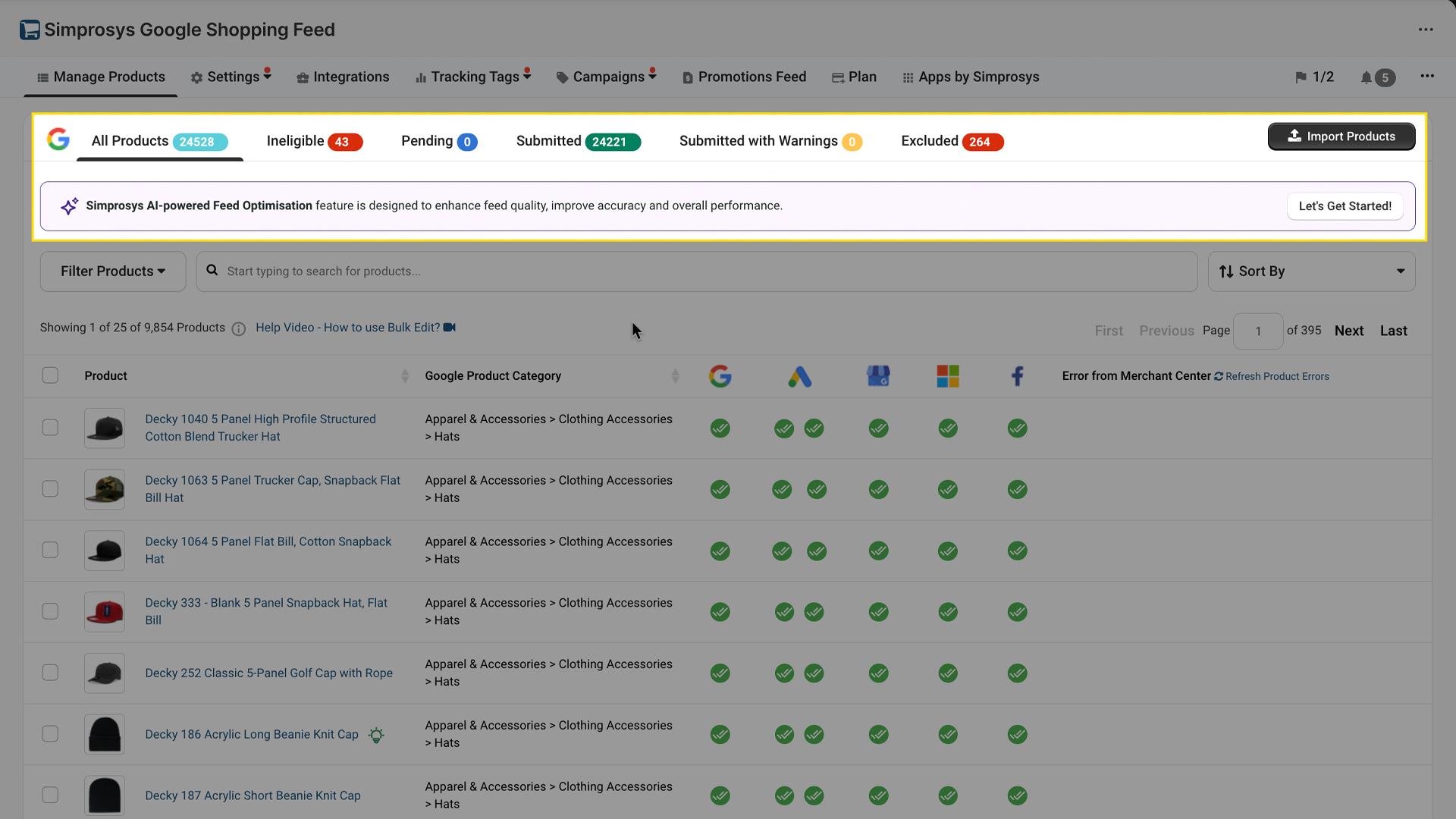
Click on the "Let’s Get Started" button appearing on the recommendation bar on the manage products page of Simprosys Google Shopping Feed App.
Click Let’s Proceed to continue with the feature.
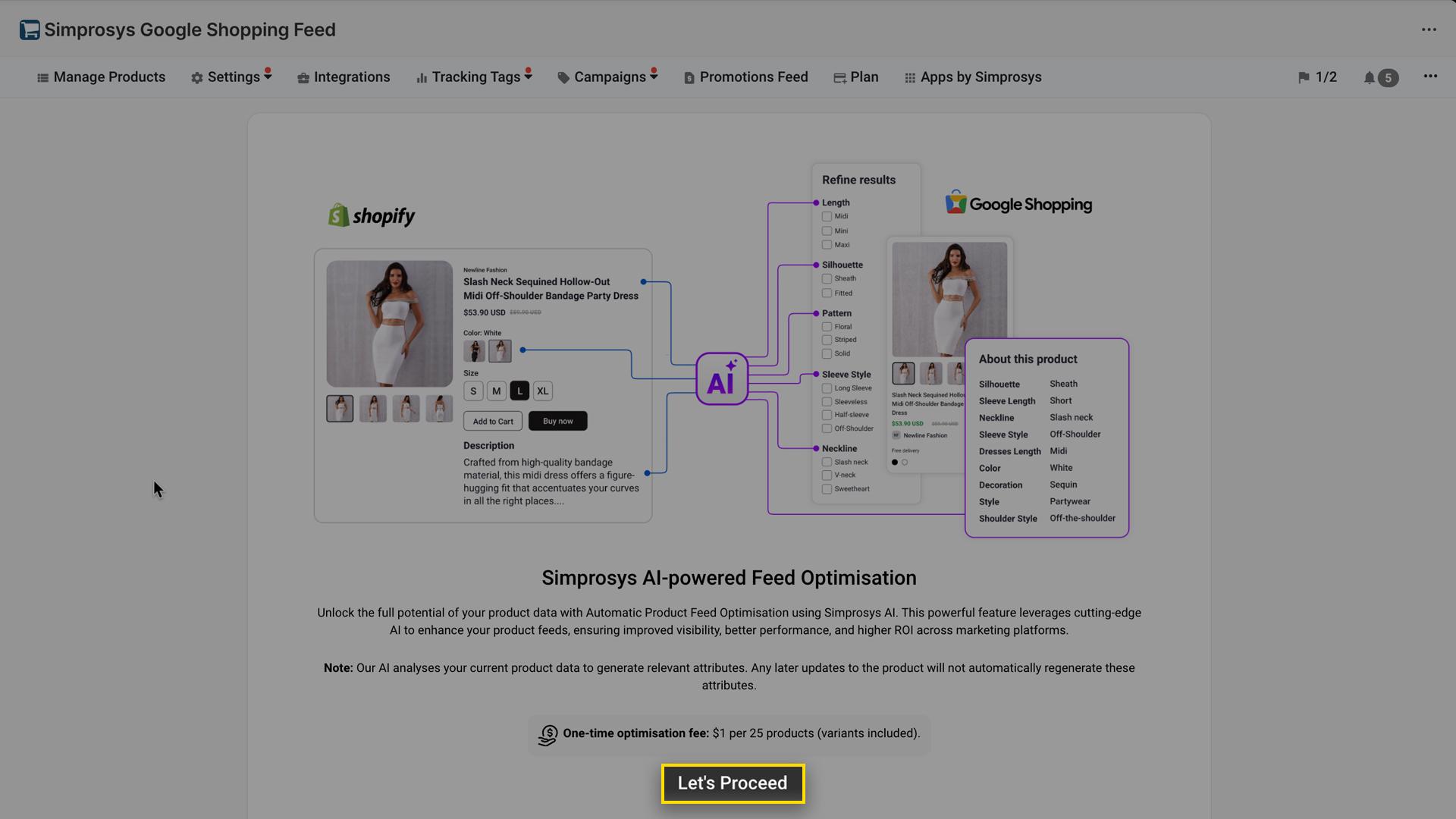
On the third step, you’ll see the option to configure your preferences for AI-powered feed optimization.
- Automatic selection and submission of AI-optimised data: The app will automatically select products for AI optimization and submits the optimised data to Google Merchant Center. No manual action is required.
- Manual selection and submission of AI-optimised data: You can choose which products to apply AI optimization to. After the optimization is generated, you can review and approve the changes before submitting them to Google Merchant Center.
Steps to Automate AI-powered Feed Optimization:
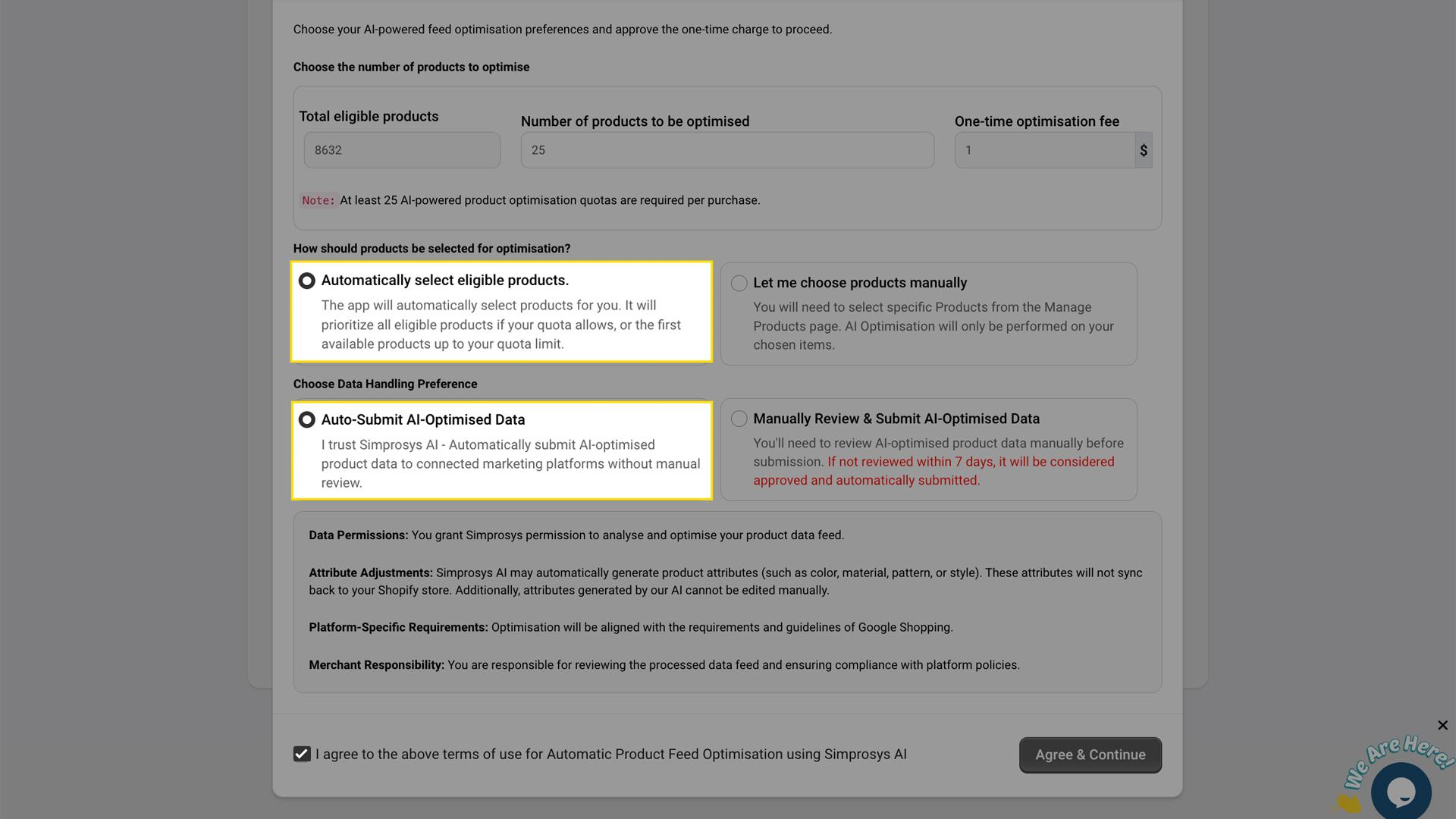
1. Enter the number of products you want to optimise in the “Number of products to be optimised” field. The one-time optimisation fee will be calculated automatically based on the count you enter.
2. Select the “Automatically select eligible products” option.
3. Choose the “Auto-Submit AI-Optimised Data” option.
4. Review and agree to the terms by checking the box, then click the “Agree & Continue” button.
5. You will be redirected to a new tab to approve the charge.
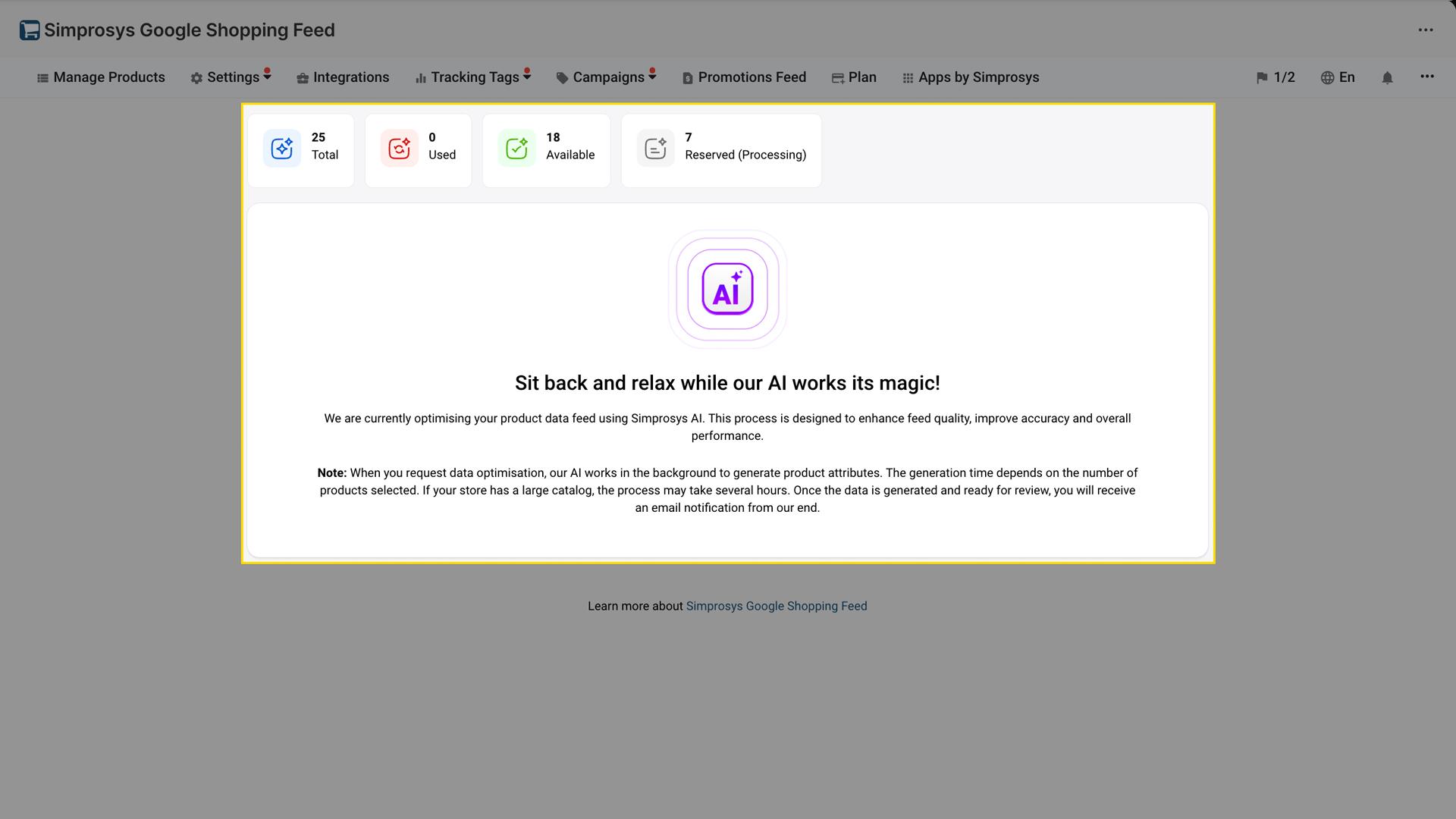
6. Once the charge is approved, you will be redirected to the landing page, where you can see an overview of:
- Total product quota
- Used
- available
- Reserves (Currently Processing)
The app may take a few minutes to process your request and generate AI-powered feed attributes.
7. While the optimisation is in progress, the selected products will display a “Generating” status on the “Manage Products” page.
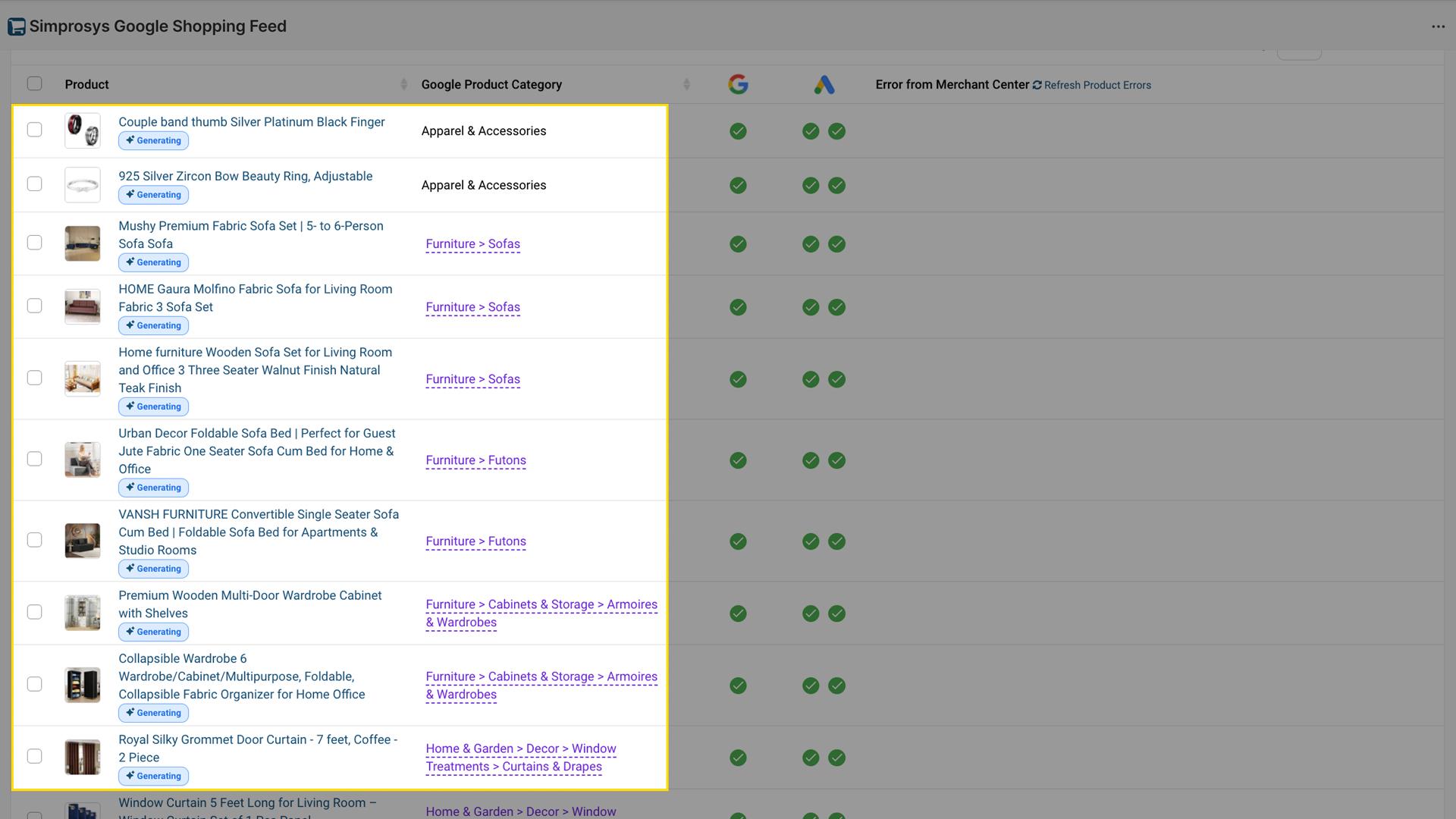
8. Once the processing is completed, the AI-optimized product data will be automatically submitted to Google Merchant Center.
Steps to Enable Simprosys AI-powered Feed Optimisation with Manual Controls
1. Enter the number of products you want to optimise in the “Number of products to be optimised” field. The one-time optimisation fee will be calculated automatically based on the count you enter.
2. Select the “Let me choose products manually” option.
3. Choose the “Manually Review & Submit AI-Optimised Data” option.
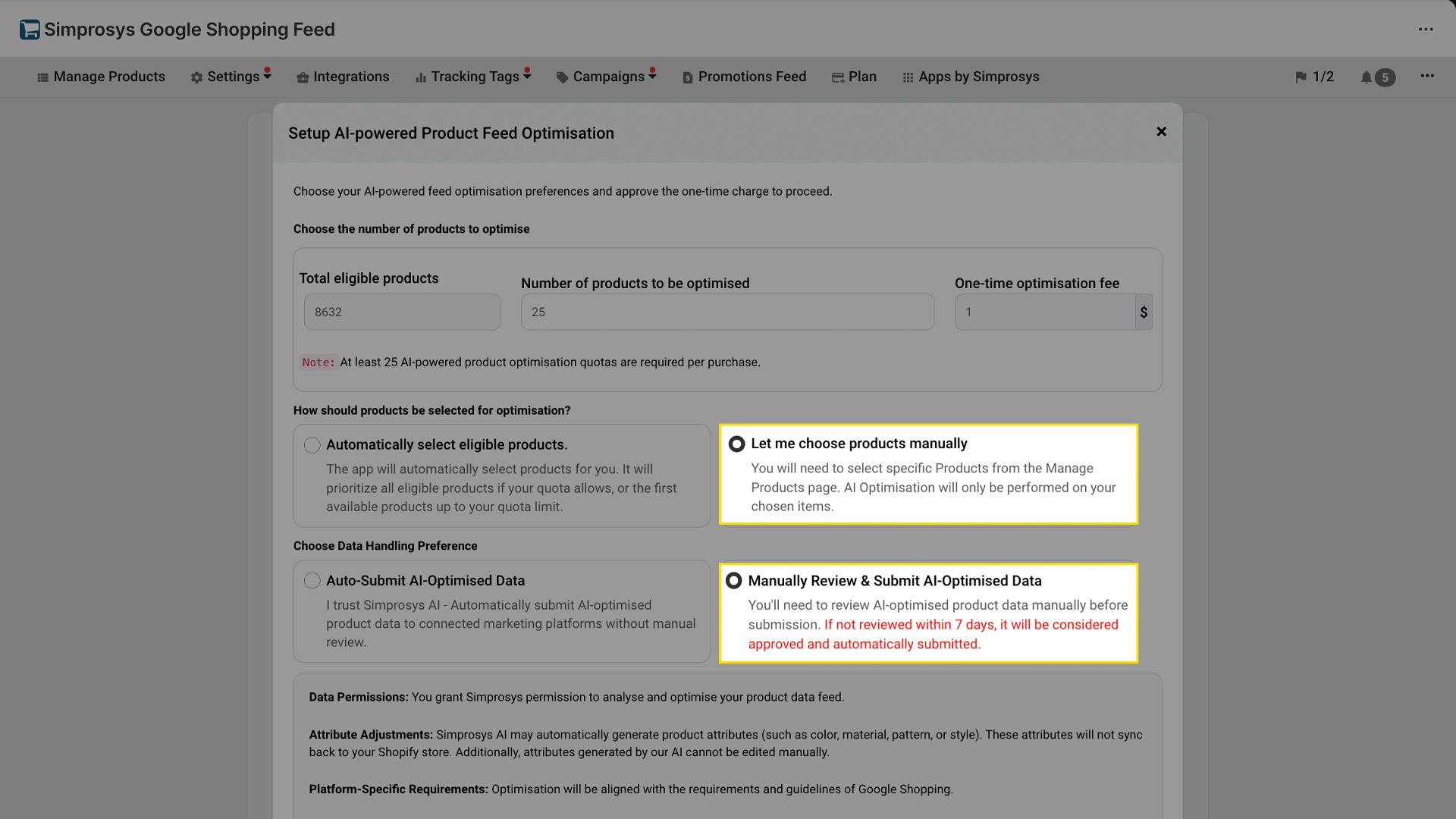
4. Review and agree to the terms by checking the box, then click the “Agree & Continue” button.
5. You will be redirected to the Shopify payment page to approve the charge.
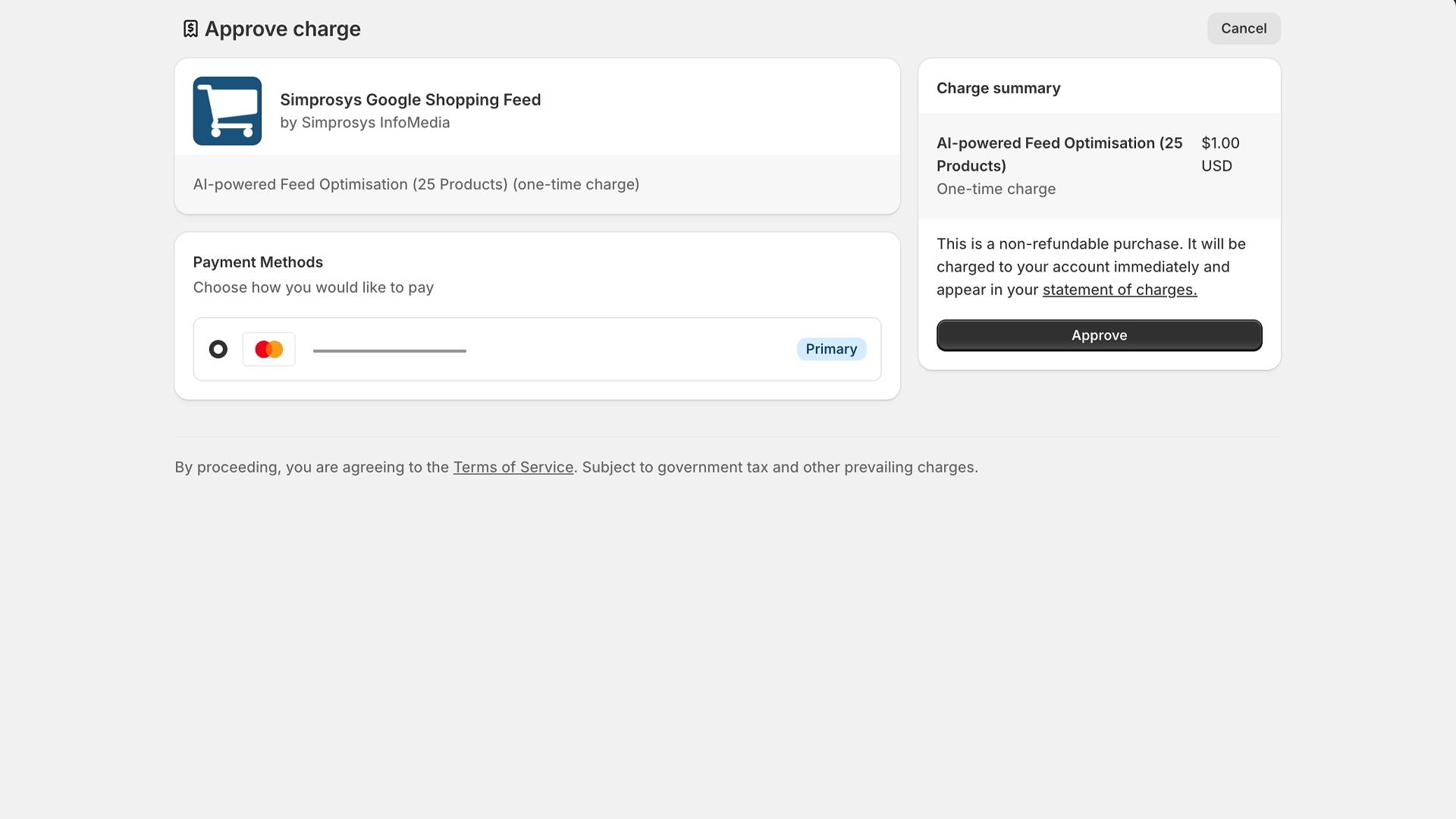
6. Once the charge is approved, you’ll be redirected to the landing page, where you can see an overview of:
- Total product quota
- Used quota
- Available quota
- Reserved (currently processing) products
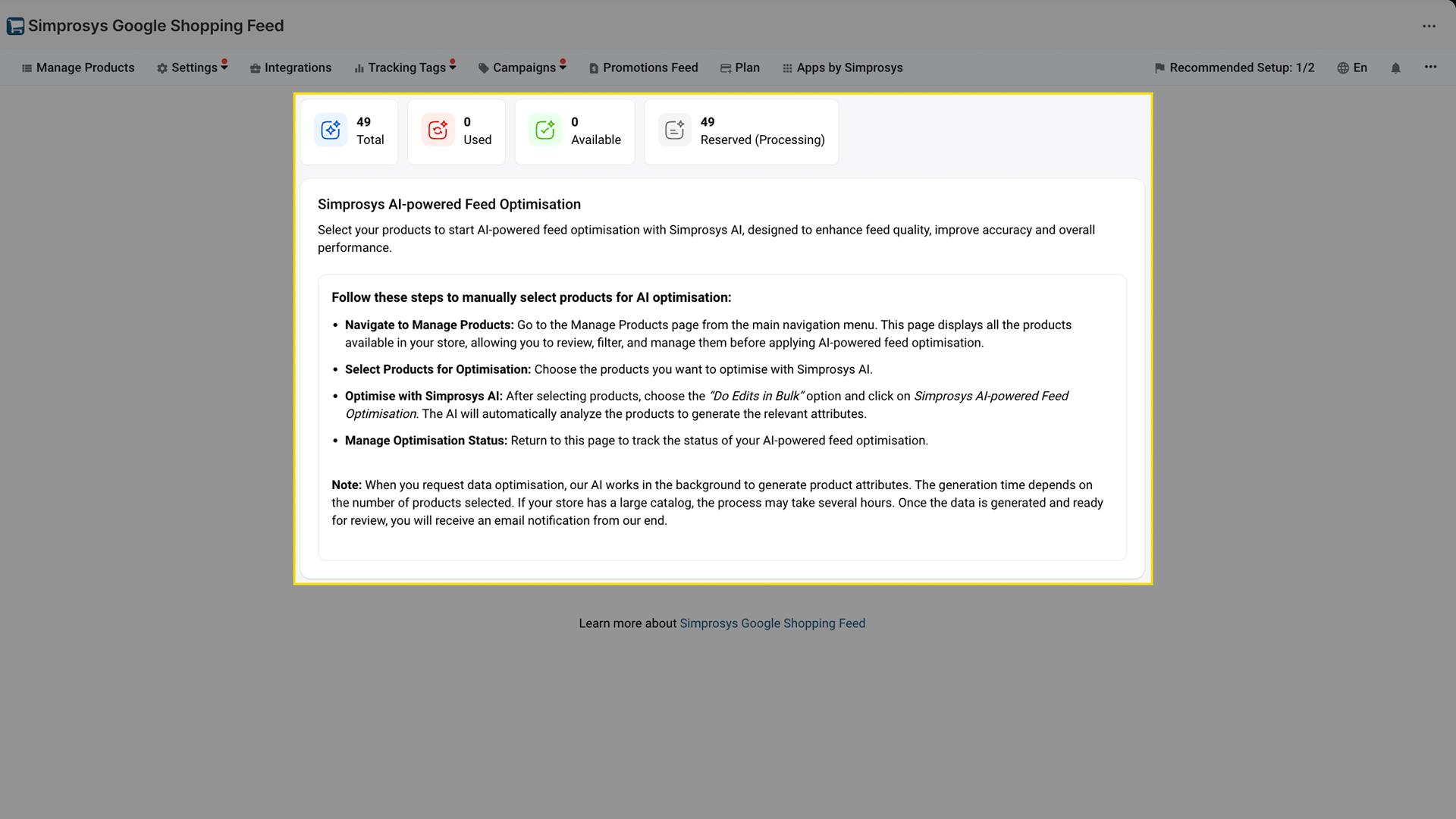
7. Navigate to the “Manage Products” page.
8. Click the button in the “Recommendation Bar” to filter and view all products that are eligible for AI optimisation.
Here, products eligible for AI optimization will be highlighted as “Eligible for AI” label as shown in the image below.
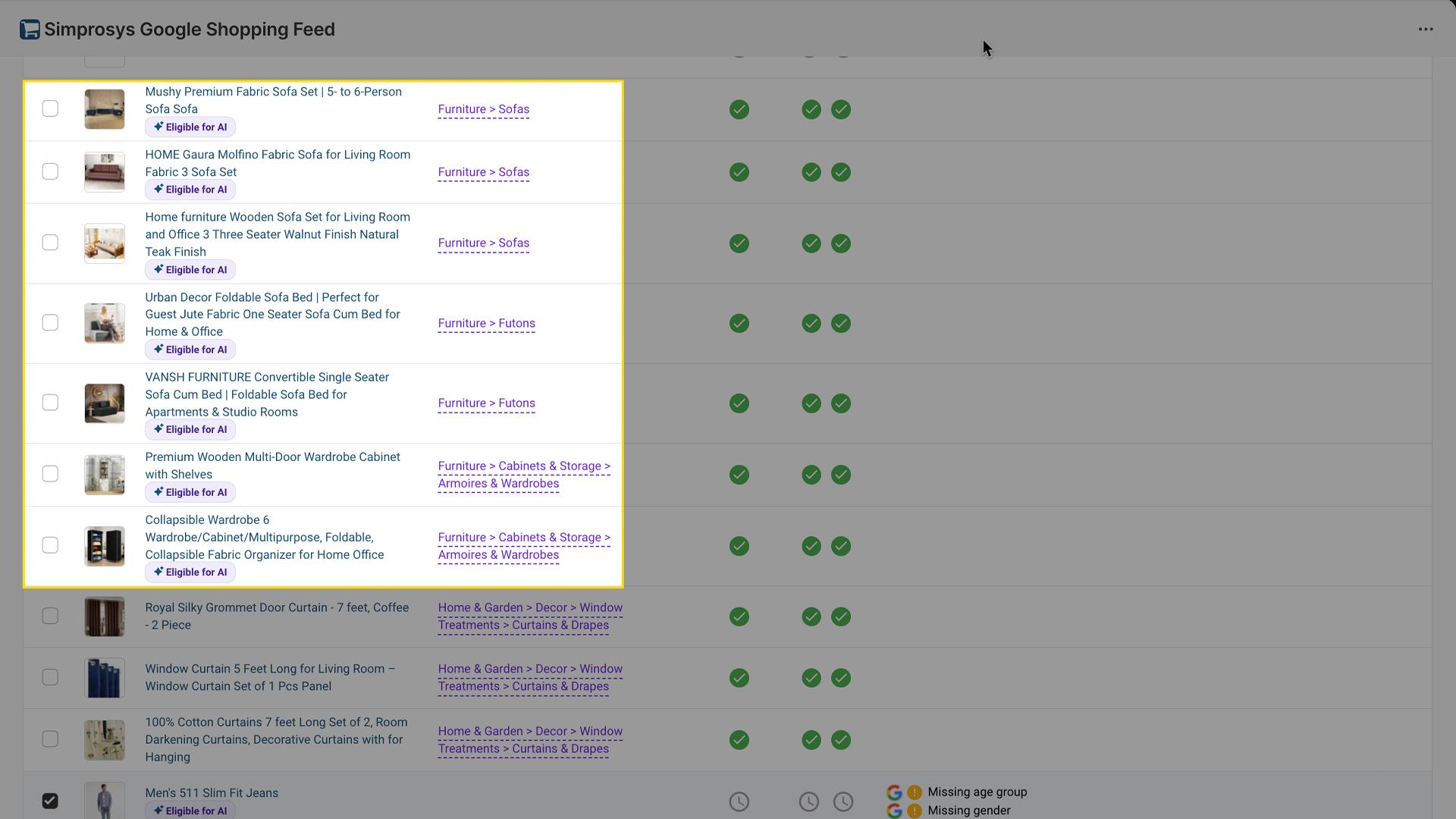
Select the products you want to optimize, then click “Do Edits in Bulk” and choose “Simprosys AI-powered Feed Optimisation.”
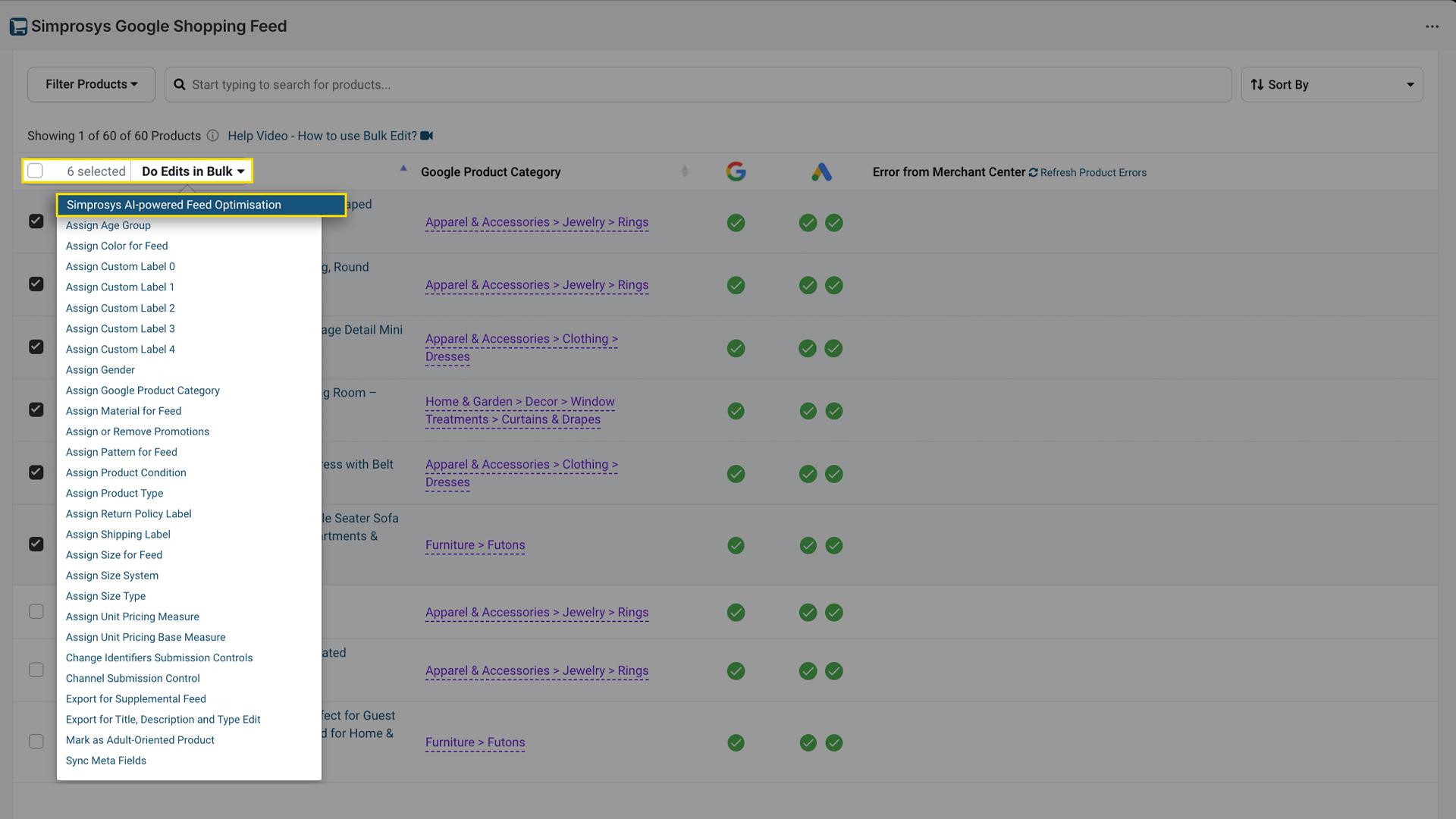
Note: If you don’t have enough product optimisation quota at this step, a pop-up will appear prompting you to add more.
Once the request is submitted successfully, Simprosys AI-powered feed optimisation will start in the background. The “Eligible for AI” tag will change to “Generating.”
Meanwhile, you can go to “Settings” → “Simprosys AI-powered Feed Optimisation” to view the updated landing page.
Here, you’ll see insights such as:
- Reserved - Number of products currently under processing.
- Available - Remaining product optimisation quota.
- Total quota - Total number of products you approved the charge for.
Depending on the number of products, processing may take some time. Once the process is complete, the product status tag will change to “AI Enhanced.”
To review and submit the AI-optimised feed attributes to Google Merchant Center, navigate to To review and submit the AI-optimised feed attributes to Google Merchant Center, navigate to Settings → Simprosys AI-powered Feed Optimisation.
On this page, you’ll see all products with AI-optimised data listed with a “View” option and a “Pending” status.
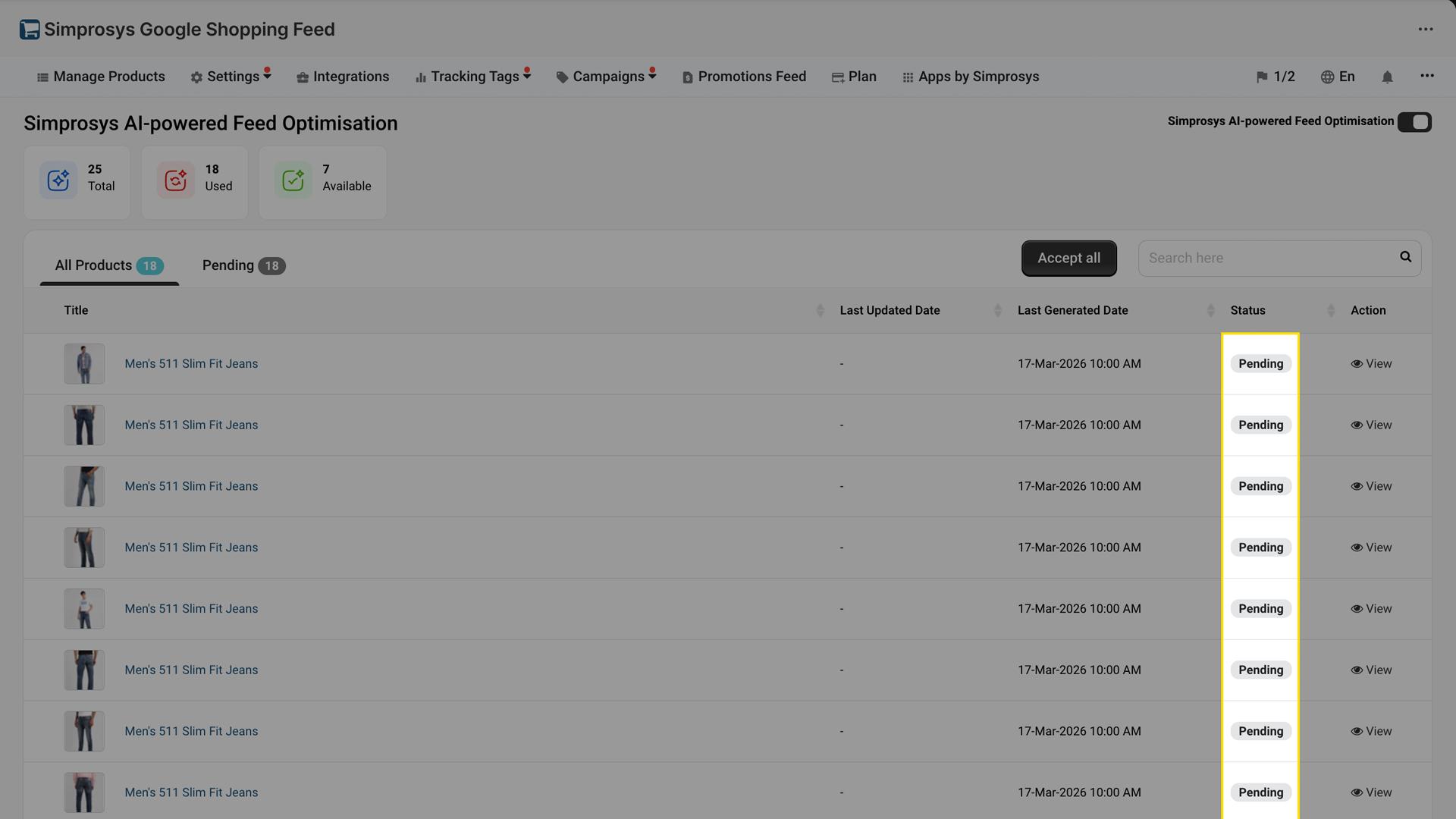
By clicking the “View” option, you can review the attributes generated by Simprosys AI and select or deselect the values you want to submit to Google Merchant Center, as shown in the image below.
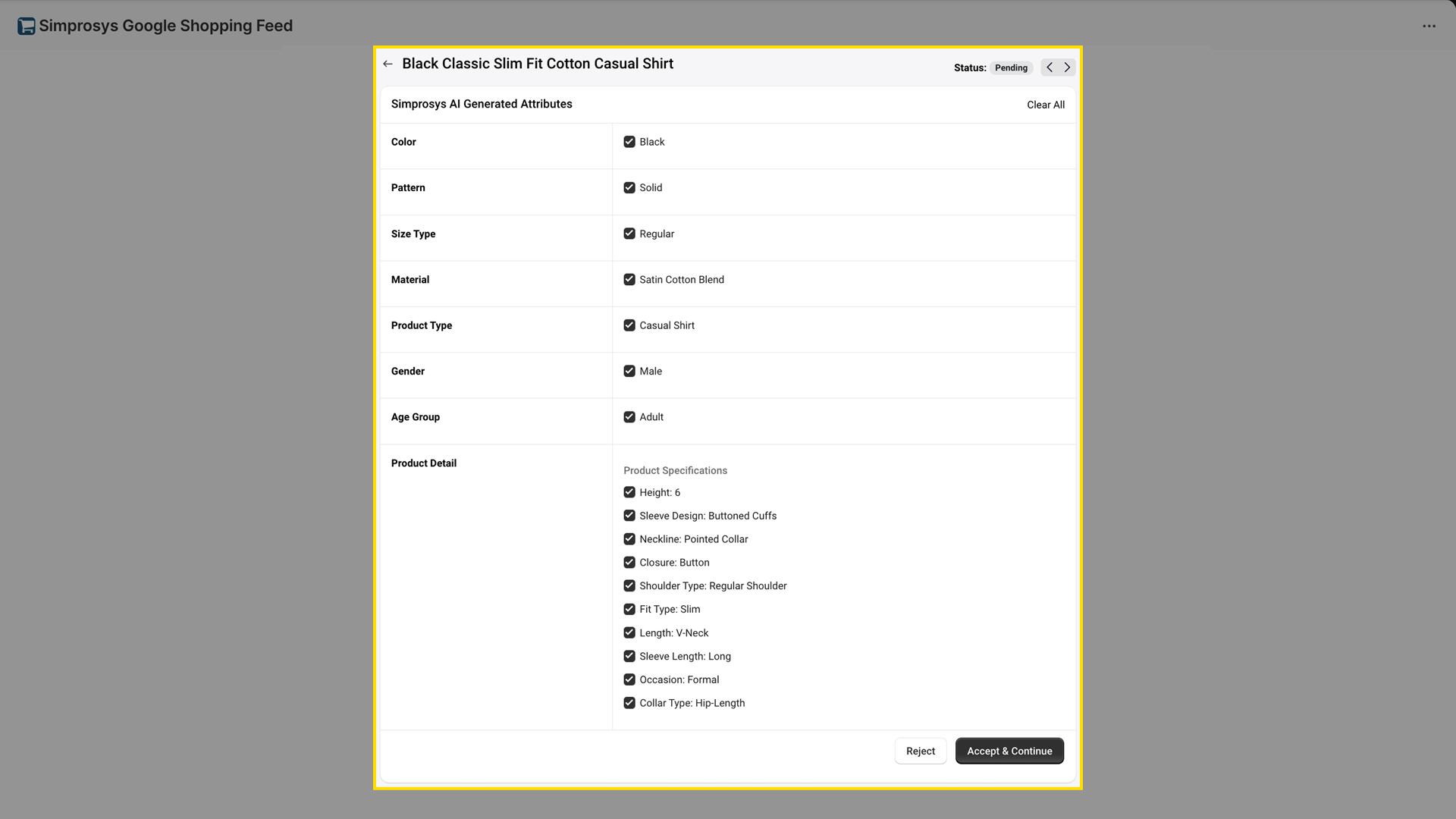
Click “Accept & Continue” to submit the AI-optimised data for the selected product to Google Merchant Center.
Alternatively, you can click “Accept All” to submit the AI-optimised data for all products at once.
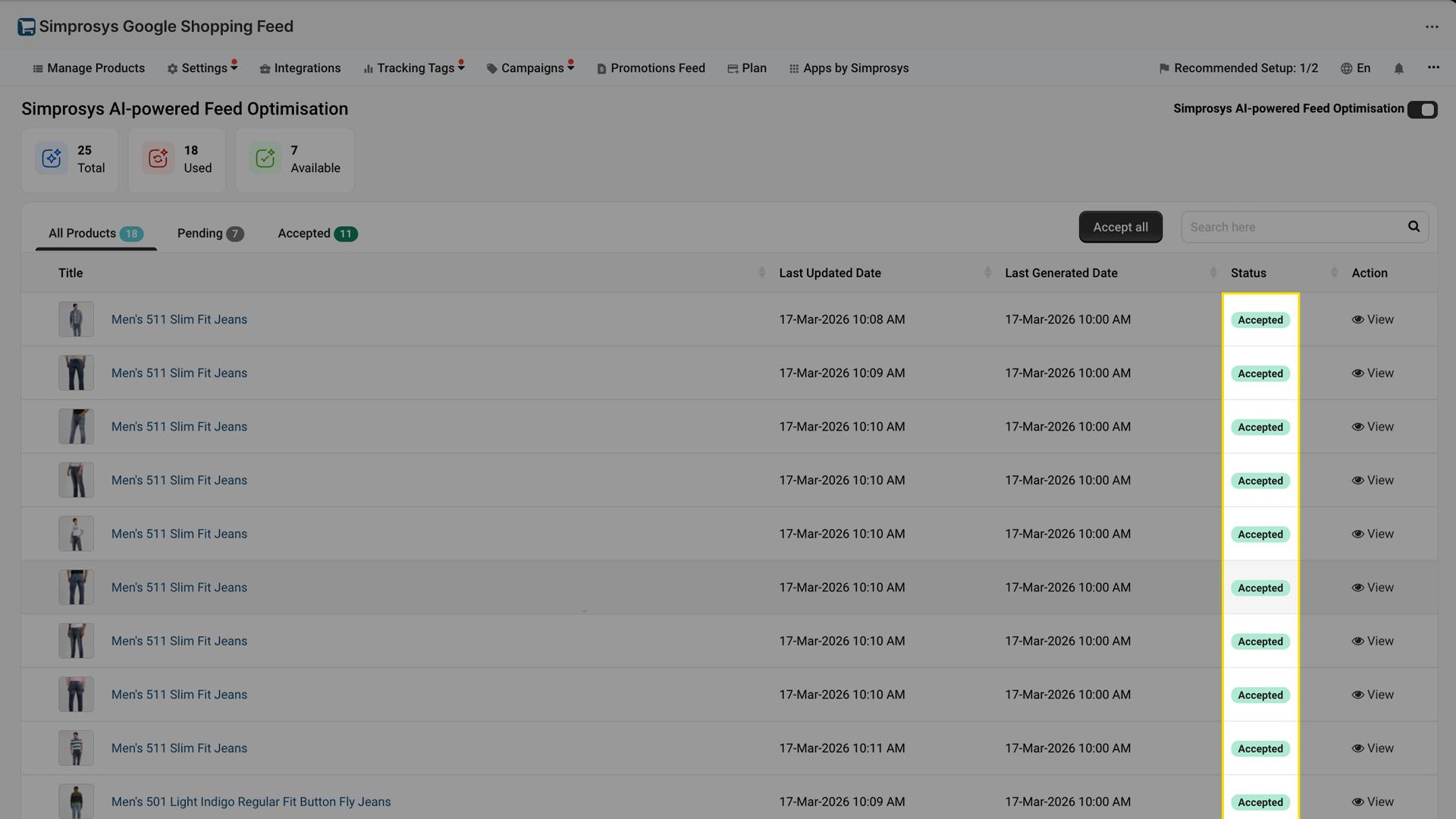
After clicking “Accept & Continue,” the product status will change to “Accepted,” and the AI-optimised data will be shared with Google Merchant Center.
If you have any questions about this feature, feel free to contact our support team at support@simprosys.com, and we will be happy to assist you.
Next article

Simprosys Google Shopping Feed
Pre-Installation & Setup
Initial App Configuration
Product Submission Controls
Product Attributes and Optimization
Automated Feed Rules
Troubleshooting & Issue Fixes
Advanced Setup Made Easy
Google Merchant Center Setup
Tracking Tags Setup (Google Ads & Google Analytics 4)
Google Ads & Campaign Setup
Multi-Country & Market Setup
Promotions and Discounts
Microsoft Advertising Integration
Meta (Facebook) Integration
Pinterest Integration


