

Simprosys Google Shopping Feed
Pre-Installation & Setup

Initial App Configuration
Product Submission Controls
Product Attributes and Optimization
Automated Feed Rules
Troubleshooting & Issue Fixes
Advanced Setup Made Easy
Google Merchant Center Setup
Tracking Tags Setup (Google Ads & Google Analytics 4)
Google Ads & Campaign Setup
Multi-Country & Market Setup
Promotions and Discounts
Microsoft Advertising Integration
Meta (Facebook) Integration
Pinterest Integration


Multiple Top-level Domain Support for Shopify Markets
Apr 13, 2026
If you're using Shopify Markets to sell internationally, setting up the correct domain structure for each region is important. Many merchants run into issues where product URLs, currency, or language don’t match when syncing feeds with Google Merchant Center, leading to product disapprovals or incorrect landing pages in Google Shopping.
This becomes important when using domains like yourstore.com (Top-Level Domain) or yourstore.co.uk (Country Specific Domain), where each market must be accurately mapped to the correct domain and feed configuration.
This guide walks you through setting up top-level and country-specific domains (such as yourstore.co.uk, yourstore.de, and yourstore.com) with Shopify Markets. You'll learn to:
- Map each domain to the correct market and dedicated Google Merchant Center account
- Ensure feeds sync with accurate currency and localized product data
- Avoid disapprovals and feed errors
- Maximize visibility in regional Google Shopping results
With this update, we've extended API support to include top-level and country-specific domains. You can now manage multiple domains (such as yourstore.co.uk, yourstore.de, and yourstore.com) directly through the app, giving you greater flexibility in managing international storefronts and submitting region-specific product data to the respective Google Merchant Center accounts.
Before beginning setup, ensure you have completed the following:
Shopify Setup
- Shopify Markets enabled (Shopify Admin → Markets).
- All domains added and verified (Shopify Admin → Markets → Domain/Language).
- Go to Shopify Admin → Markets → Select Market → Catalogs, and verify that the required products are part of the catalog.
Google Setup
- Separate Google Merchant Center account created for EACH domain.
- Each domain verified and claimed in its GMC account (Business Information → Website Verification).
Once the Shopify and Google Merchant Center setups are complete, you can proceed to configure the markets within the app.
1: Go to Market Settings
- Hover over the Settings menu
- Click Shopify Markets from the dropdown menu.
- Click on the Edit icon (Pencil Icon) against the respective market that you want to update.
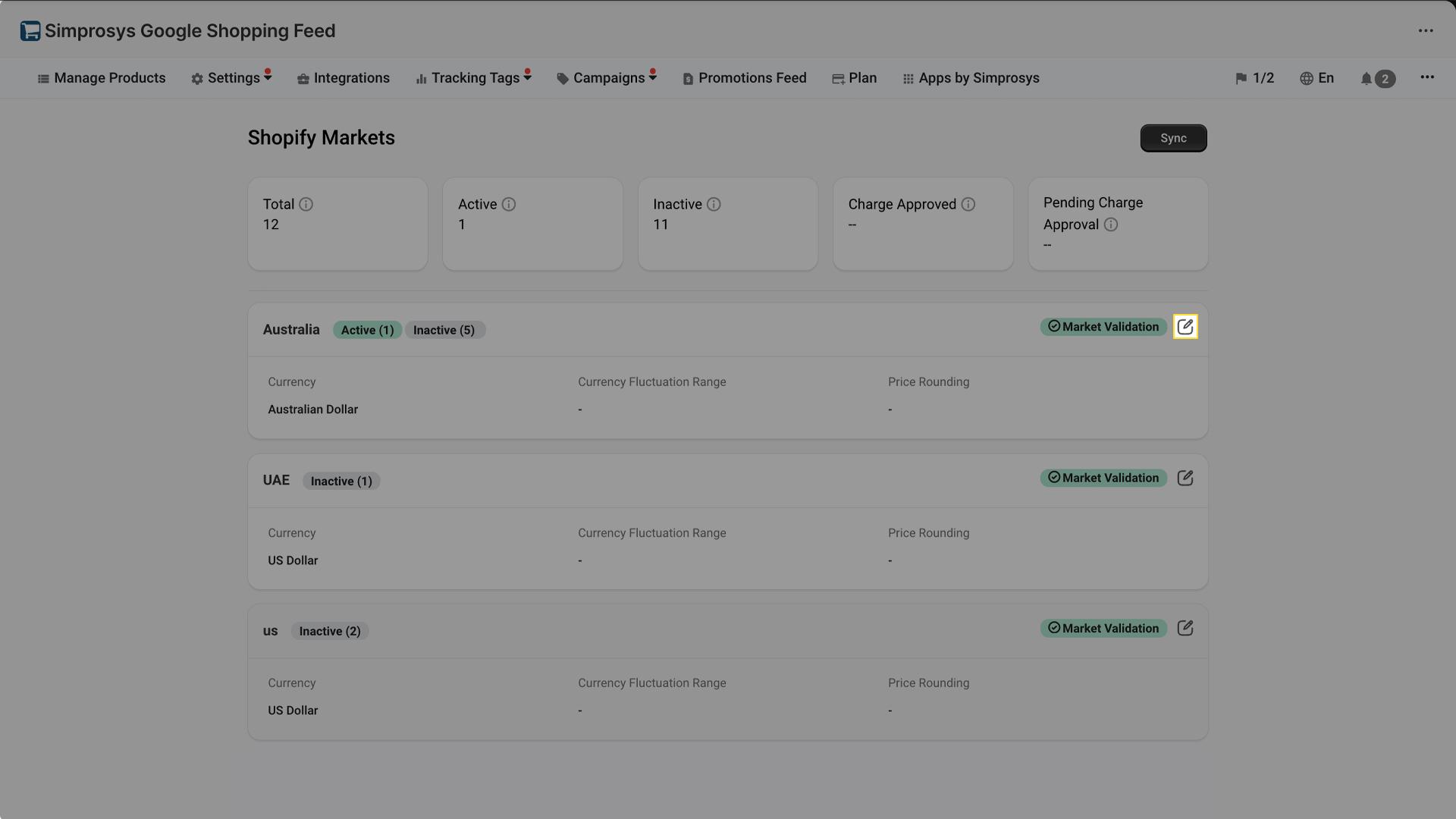
2: Connect Your Google Account
- Click Choose Account
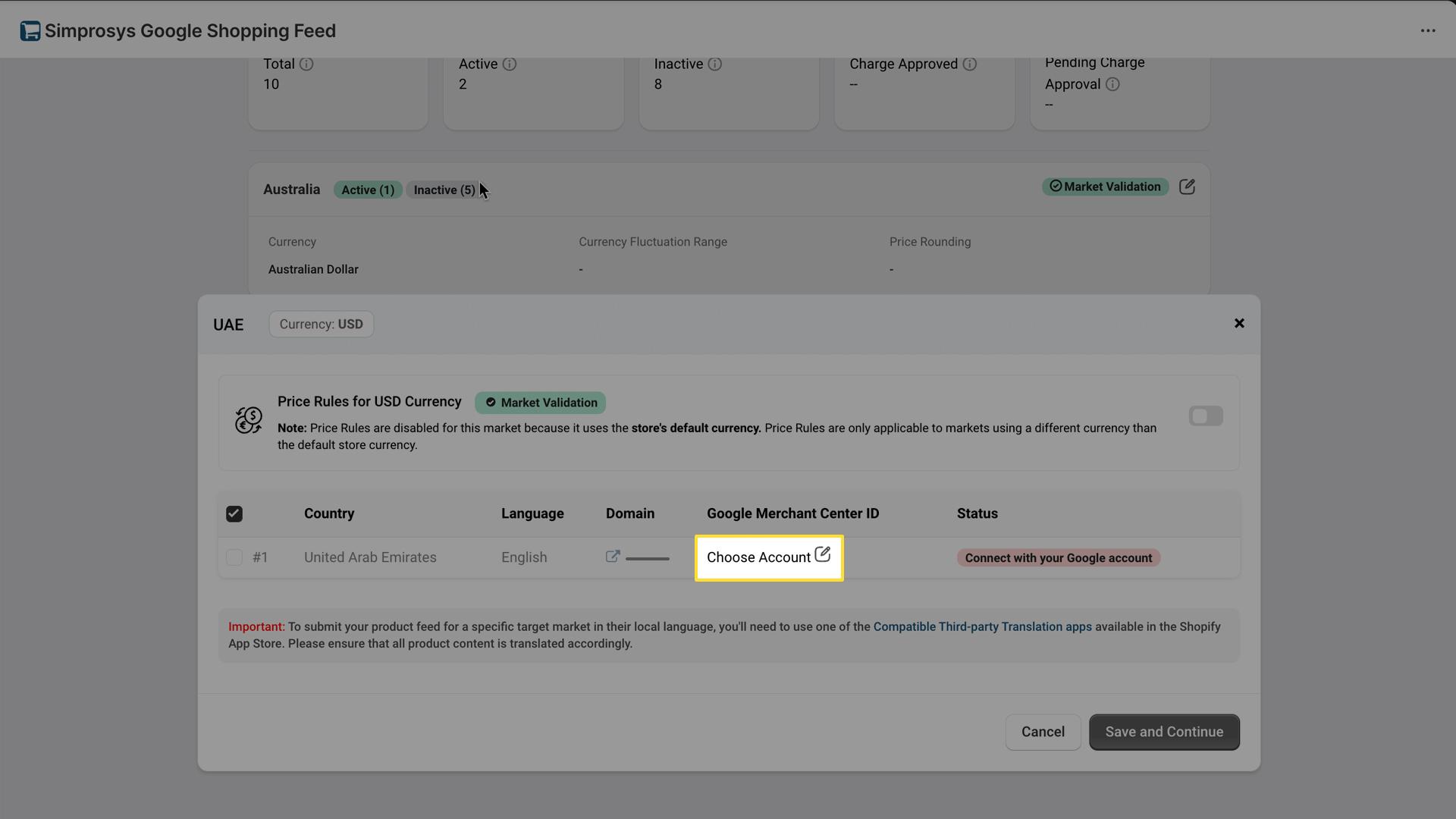
- Select your Google account from the dropdown or sign in with a new account.
- Click Confirm.
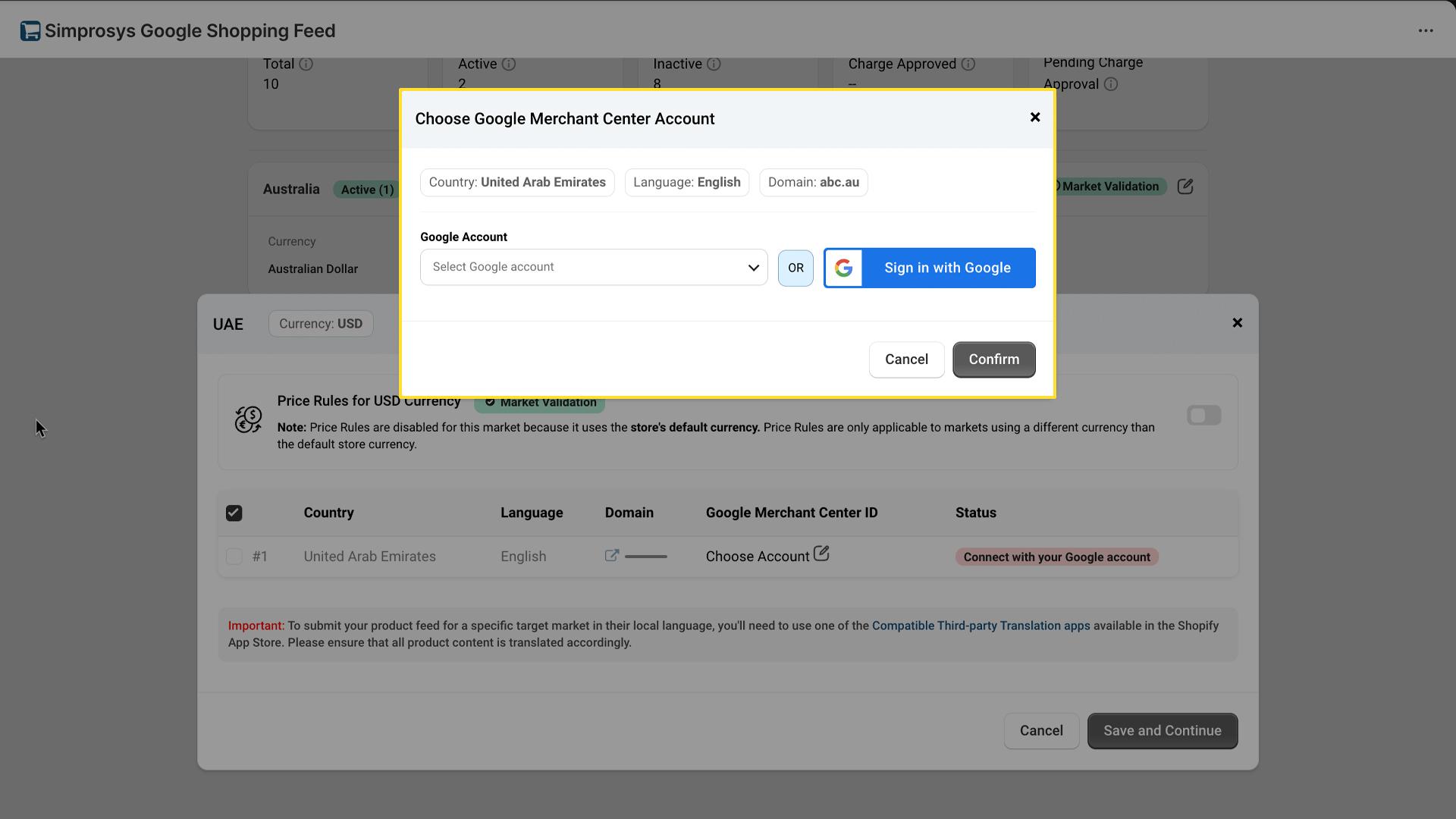
3: Select the GMC Account for This Market
- Click the dropdown: "Select Google Merchant Center account" for the domain.
- Click Save and Continue.
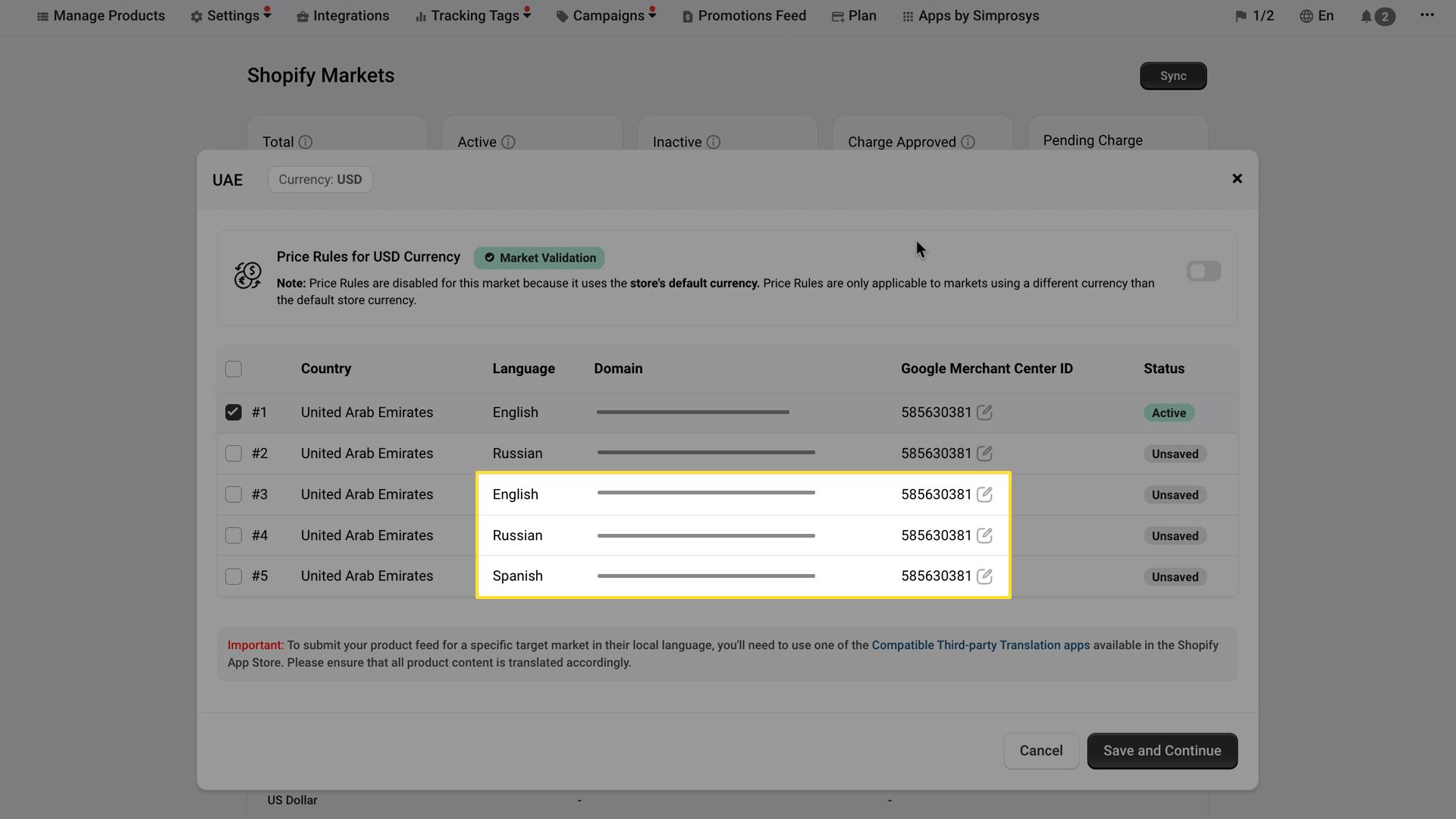
Important: Make sure you're selecting the GMC account that is created for the respective market.
4: Review and Save
- Check the summary showing: Market name, Domain, Connected GMC Account.
- Click "Save and Continue" to apply changes.
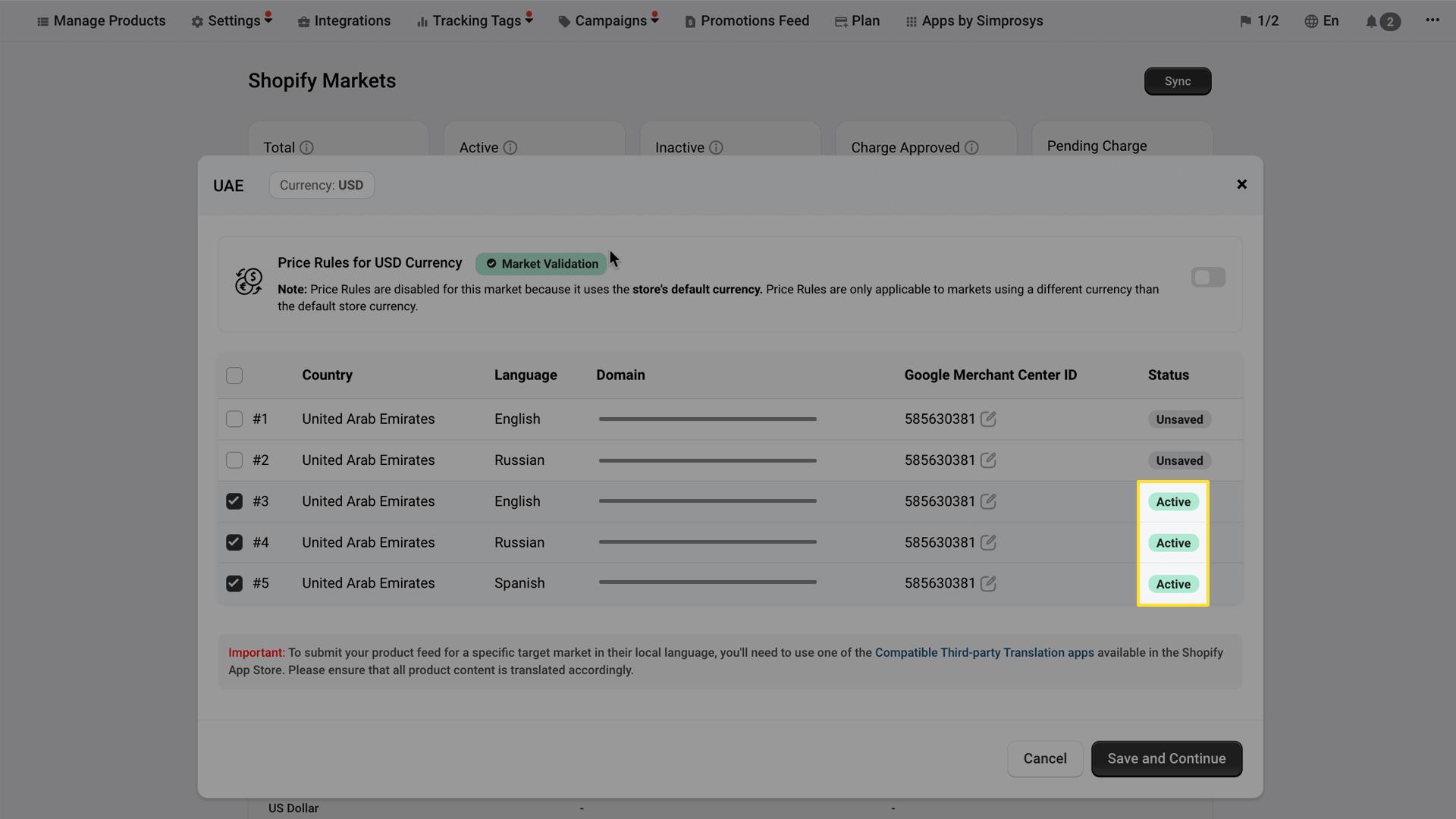
Feed sync starts automatically. Products will appear in Google Merchant Center within 2-4 hours.
5: Repeat for Other Markets
If you have multiple markets (UK, Germany, etc.), repeat Steps 1–4 for each one.
After setup, your configuration should look like:
| Market | Domain | Google Merchant Center Account |
| United States | example.com | US GMC Account |
| United Kingdom | example.co.uk | UK GMC Account |
| Germany | example.de | Germany GMC Account |
Post-Setup Steps
Once the setup is complete, verify your domain in Google Merchant Center and allow time for the feed to sync, then review your product data to ensure everything is updated correctly.
For further details, you may feel free to reach out to our support team at support@simprosys.com
Next article

Simprosys Google Shopping Feed
Pre-Installation & Setup
Initial App Configuration
Product Submission Controls
Product Attributes and Optimization
Automated Feed Rules
Troubleshooting & Issue Fixes
Advanced Setup Made Easy
Google Merchant Center Setup
Tracking Tags Setup (Google Ads & Google Analytics 4)
Google Ads & Campaign Setup
Multi-Country & Market Setup
Promotions and Discounts
Microsoft Advertising Integration
Meta (Facebook) Integration
Pinterest Integration


