

Proviews ‑ Product Reviews Q&A
Legal Policies

Setup & Configuration
Additional Information
Installation Processes
Feature Policies & Guidelines


View Orders of Proviews – Product Reviews Q&A
Jun 12, 2026
Overview
The Orders page displays all customer orders synced from your Shopify store. Use it to track order details, monitor review request statuses, and ensure review emails go out only for eligible, fulfilled orders, giving you full visibility over the review workflow from purchase to submission.
Past order sync: On installing Proviews, orders placed within the last 60 days are automatically synced. Orders older than 60 days are not included. You can also manually trigger a sync at any time.
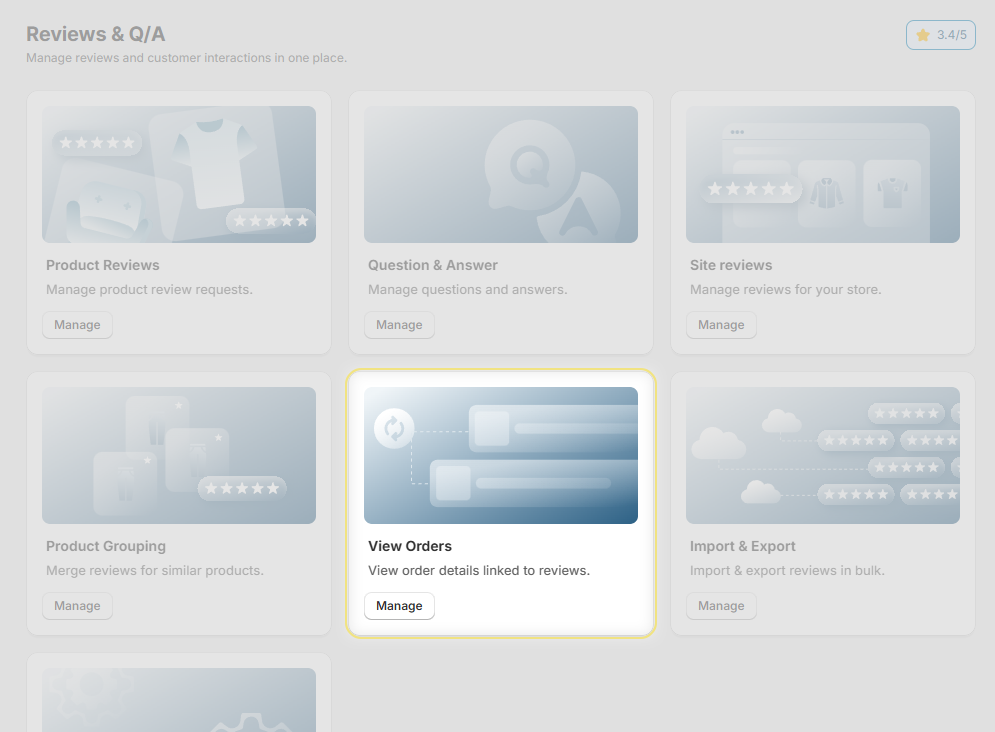
Order Status Tabs
Use the status tabs to filter orders by their current state in the review workflow:
All: Displays every order synced to Proviews, regardless of status, useful for a complete overview.
Pending: Orders eligible for a review request where the email has not yet been sent. Awaiting their scheduled send time.
Reviewed: Orders where the customer has already submitted a review. No further review requests will be sent.
Skipped: Orders excluded from review requests automatically or manually. You can resend a request by clicking Send this request anyway.
Deleted: Orders removed from the review workflow. Deleted orders are no longer processed for review requests.
Unfulfilled: Orders not yet fulfilled in Shopify. Review requests trigger only after fulfillment or delivery, based on your store settings.
Archived: Orders whose review request cycle is fully complete per your store's settings. These do not affect active review workflows.
Order Card
Each order appears as a card displaying the following details:
| Field | Description |
| Order Number | The unique order ID (e.g., #1019). Use this to identify and track specific orders quickly. |
| Product Information | The name of the product linked to the order. |
| Fulfilled On | The date and time the order was fulfilled in Shopify. |
| Buyer | The name of the customer who placed the order. |
| Quantity | The number of items included in the order. |
| Review Status | The current review-related state of the order. See the Review Status breakdown below. |
| Request Send Time | The scheduled date and time the review request email will be sent, based on your store's configuration. |
Review Status Breakdown
The review status on each order card indicates the current state of that order's review request:
| Status | What It Means |
| Pending | A review request is scheduled but not yet sent to the customer. |
| Reviewed | The customer has submitted a review. No further requests will be sent for this order. |
| Skipped | A review request was not sent. Common reasons: line item count per order exceeded the limit, or another variant of the same product was already selected for a request. |
| Deleted | Order has been removed from the review process entirely. |
| Unfulfilled | Order is not yet fulfilled. The review request will trigger automatically once fulfillment or delivery is confirmed. |
| Archived | The full review request cycle for this order is complete, as configured in your store settings. |
Tip: For Skipped orders, click Send this request again to manually trigger a review request, useful for recovering missed review opportunities.
Sync Past Orders:
Use the Sync Past Orders feature to import orders placed before Proviews was installed and send review requests to those customers.
| Detail | Description |
| Sync Window | Orders placed within the last 60 days prior to installation are eligible for sync. Orders older than 60 days are not included. |
| Manual Sync | Trigger a sync at any time from the Orders page to import recent past orders on demand. |
| Last Sync Date | Displayed in the sync panel after a sync completes, confirming the most recent sync timestamp. |
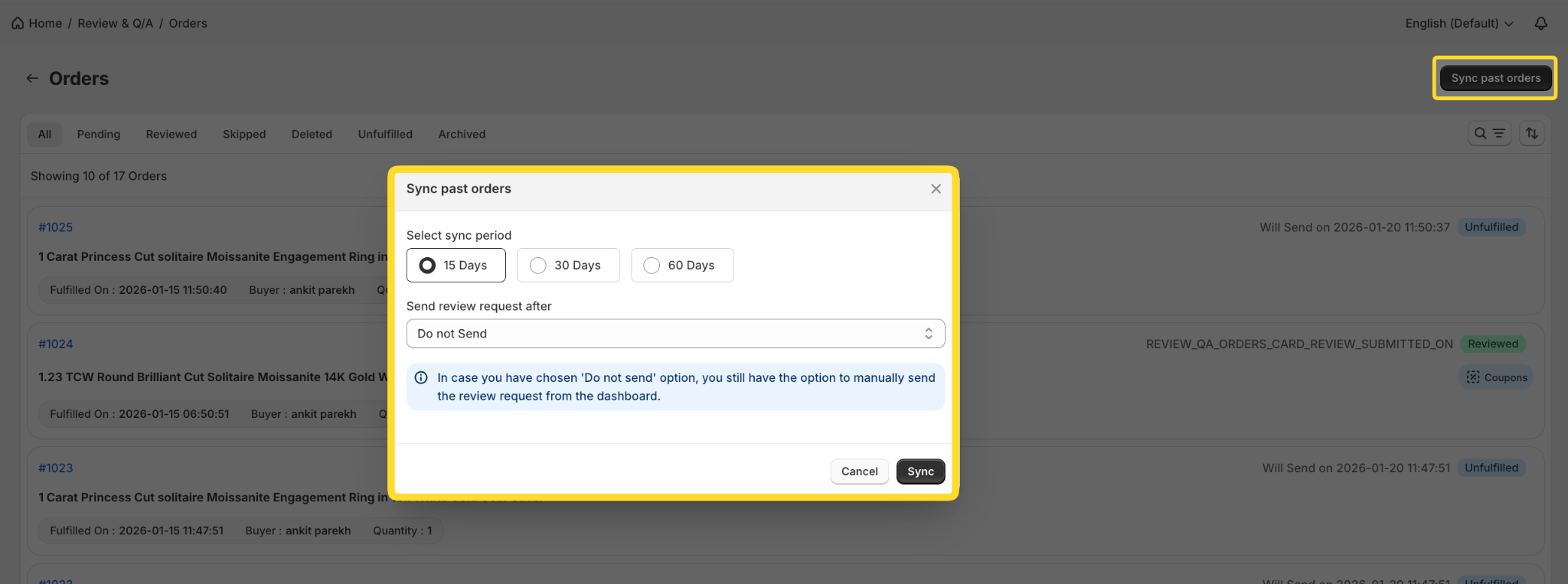
Note: Syncing a large number of past orders may take a few minutes. If the Last Sync Date does not appear immediately, the process is still running, wait a moment and refresh the page.
Search, Filter & Sort
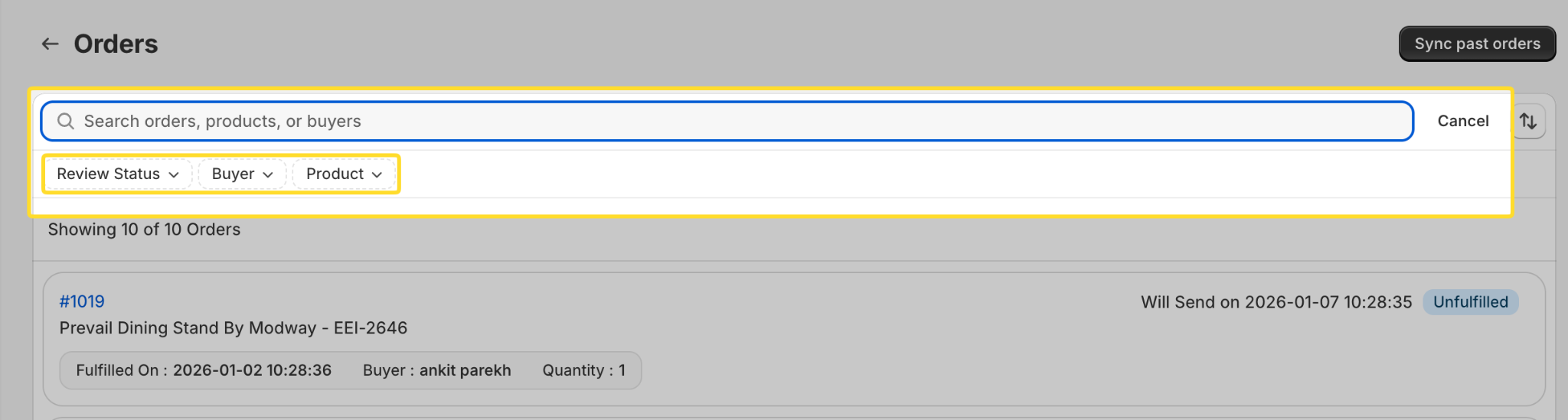
Search Bar:
Use the search bar to quickly locate specific orders. Search by any of the following:
| Search By | Description |
| Order Number | Enter the exact order ID to locate a specific order instantly. |
| Product Name | Find all orders linked to a specific product. |
| Buyer Name | Search orders placed by a particular customer. |
Filter Options:
| Filter | Description |
| Review Status | Filter orders by whether a review was received or not yet received. |
| Buyer | Narrow the list to orders placed by a specific customer. |
| Product | Show only orders linked to a particular product. |
Sort By:
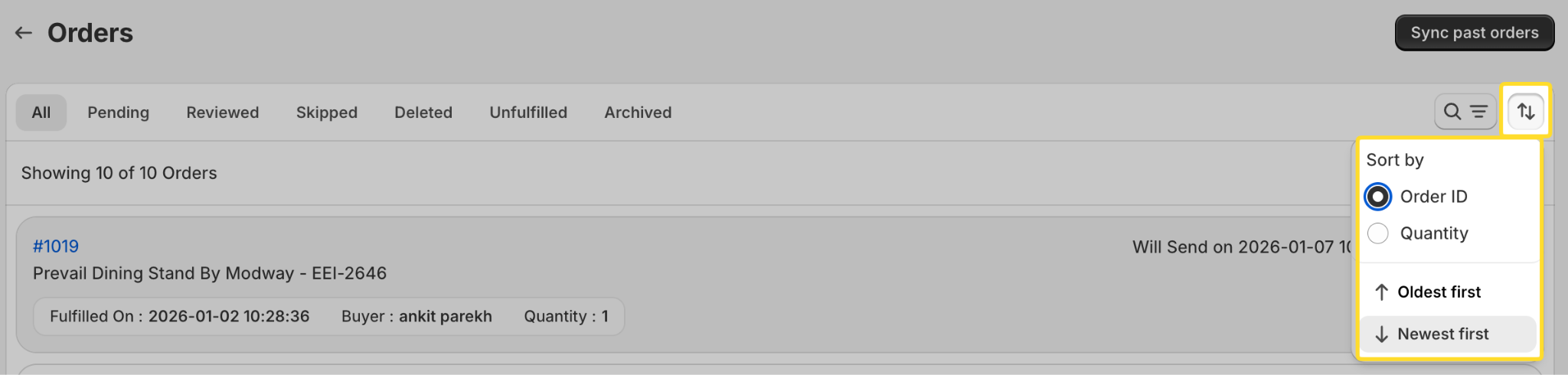
| Sort Option | Description |
| Newest First | Displays the most recently created or synced orders at the top. |
| Oldest First | Displays the earliest orders first, useful for processing a backlog. |
| Order ID | Sorts orders numerically by order ID in descending order. |
| Quantity | Sorts orders from highest to lowest item quantity. |
Need Help?
Click Help Me on the dashboard to open the support chatbot for real-time assistance.
For email support, contact us at support@simprosys.com
Previous article

Next article
Proviews ‑ Product Reviews Q&A
Legal Policies
Setup & Configuration
Additional Information
Installation Processes
Feature Policies & Guidelines


