

Proviews ‑ Product Reviews Q&A
Legal Policies

Setup & Configuration
Additional Information
Installation Processes
Feature Policies & Guidelines


Product Rating Feed with Proviews and Google Merchant Center
Sep 03, 2026
Overview
A Product Rating Feed is a structured data file containing your customer review information. Submitting it to Google Merchant Center (GMC) enables Google to display star ratings and review counts on your product ads and Shopping listings — giving shoppers the social proof they need to click and convert.
Star Ratings on Google Ads: Display 1–5 star ratings and total review counts directly on your Google Shopping listings and product ads.
Higher Click-Through Rates: Products with visible star ratings earn significantly more clicks compared to unrated listings.
Stronger Shopper Confidence: Review counts and ratings visible at the search stage help shoppers make confident purchase decisions earlier.
Competitive Advantage: Stand out from competitors without ratings by showcasing your store's authentic review data.
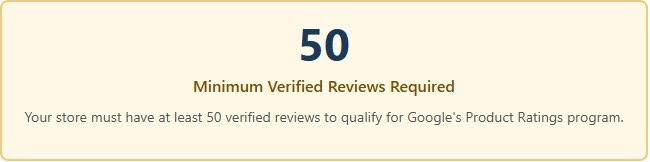
Eligibility Requirement
Setup Overview

What Proviews Includes in the Feed XML
Google Product Ratings Feed Policy — Important
Proviews now includes all review statuses in the product feed XML — including unpublished reviews, pending reviews (awaiting moderation), and blacklisted reviews. This ensures complete transparency in reporting and full compliance with Google's data submission requirements, which require all reviews to be reported regardless of their moderation status.
As per Google's Product Ratings Policies, Proviews selectively includes only eligible reviews in the XML feed. Specifically, only reviews collected directly through Proviews are passed to the feed. Reviews imported via web imports, API connections, third-party app integrations, or any external sources are excluded from the feed to maintain compliance with Google's data authenticity requirements.
1. Included in Feed XML
- Published reviews
- Unpublished reviews
- Pending reviews (awaiting moderation)
- Blacklisted reviews
2. Excluded from Feed XML
- Reviews imported via CSV or web import
- Reviews from API connections
- Reviews from third-party app integrations
- Reviews from any external sources
Why are all review statuses included? Google requires merchants to report their complete review dataset — not just published reviews. Including pending and blacklisted reviews ensures your feed meets Google's data submission requirements and maintains your eligibility in the Product Ratings program.
Part 1 – Generate the Rating Feed in Proviews
1. Log in to the Proviews app and go to Marketing & Social Sharing.
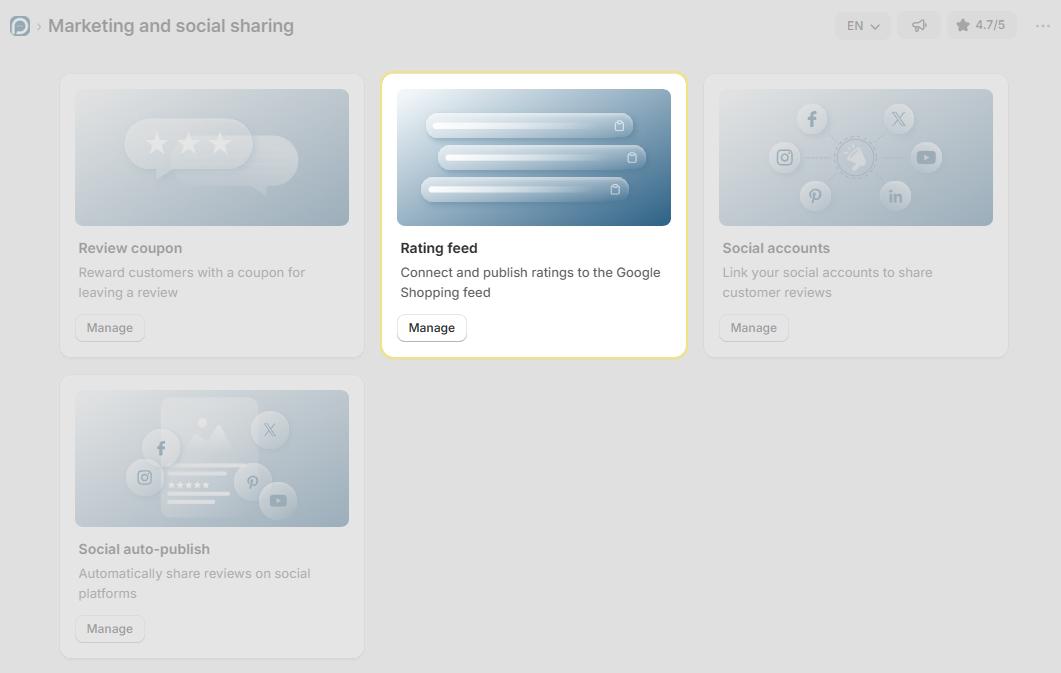
2. Locate the Rating Feed card and click Manage.
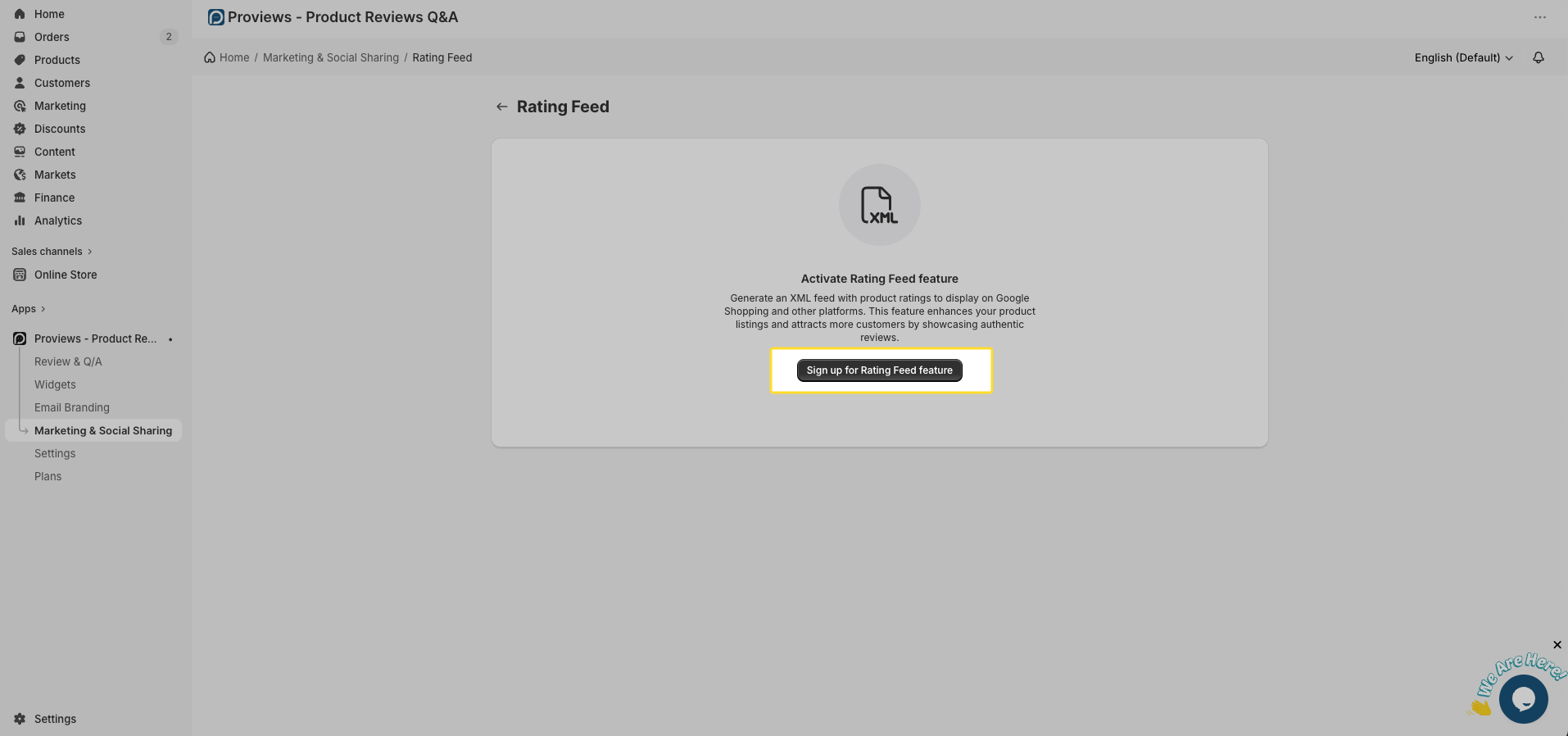
3. If a sign-up screen appears, you are on the Free plan — upgrade to a paid plan to access this feature.
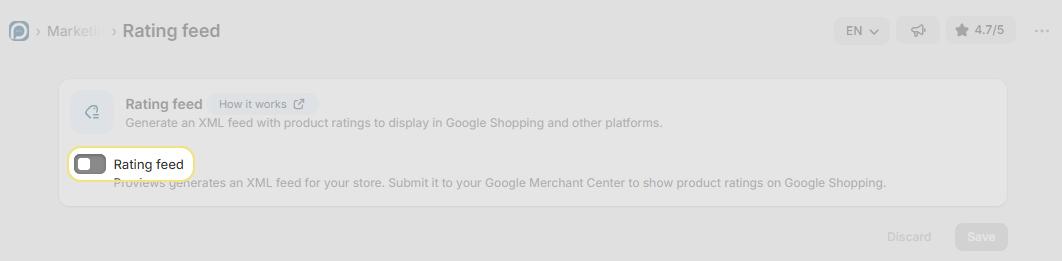
4. Toggle ON the Product Rating Feed switch.
5. Select the correct Product ID Format for your target country from the dropdown.
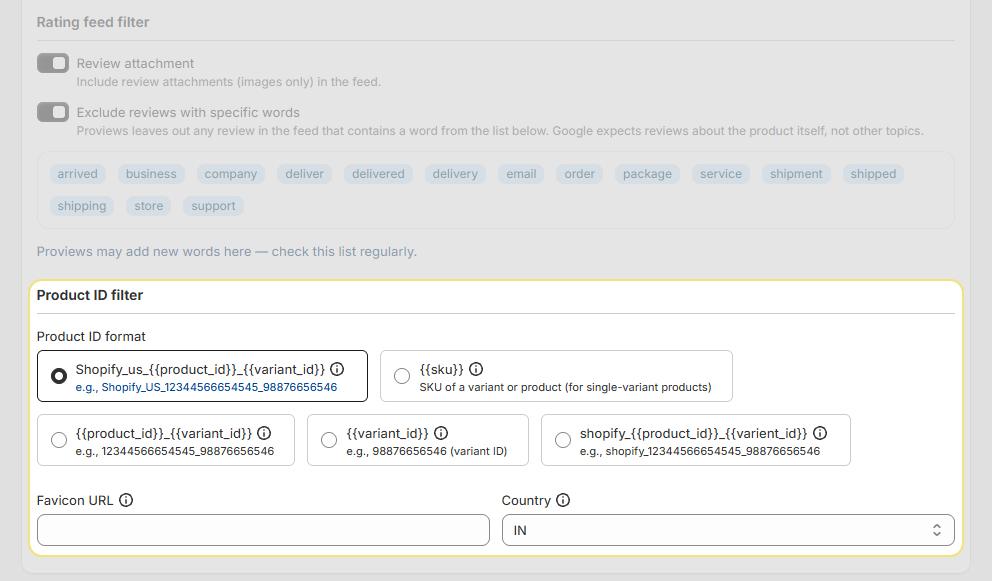
6. Click Save. Wait a few minutes for the XML feed to generate. Once ready, the feed URL appears in the XML Feed section.
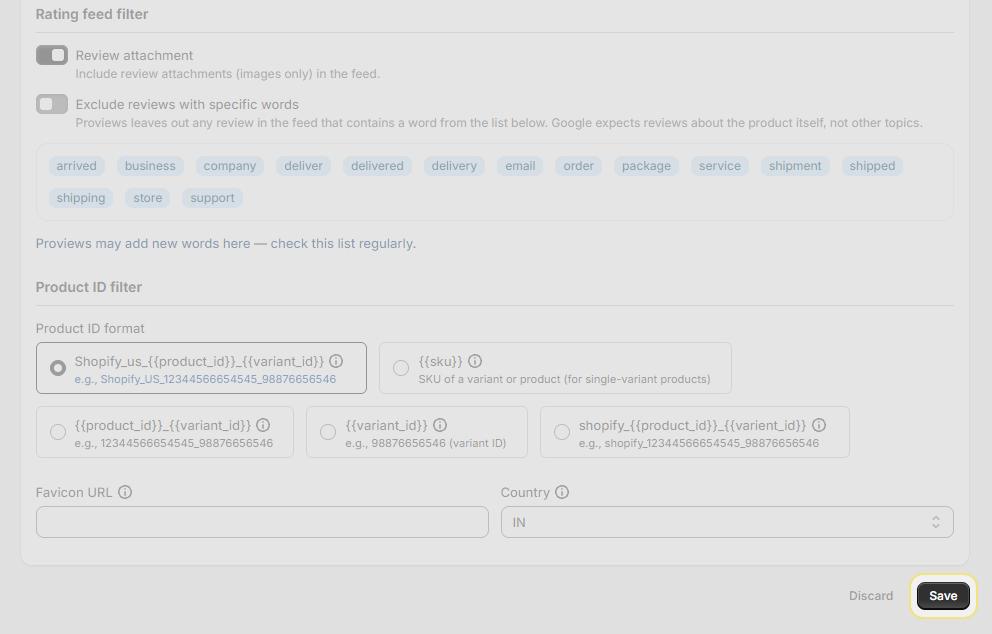
7. Copy the feed URL — you will need it when submitting the feed in GMC.

Part 2 – Submit the Feed to Google Merchant Center
Step A – Submit the Product Ratings Interest Form
1. Sign in to your Google Merchant Center Next account.
2. Click on the gear icon (⚙️) in the top-right corner and navigate to Add-ons.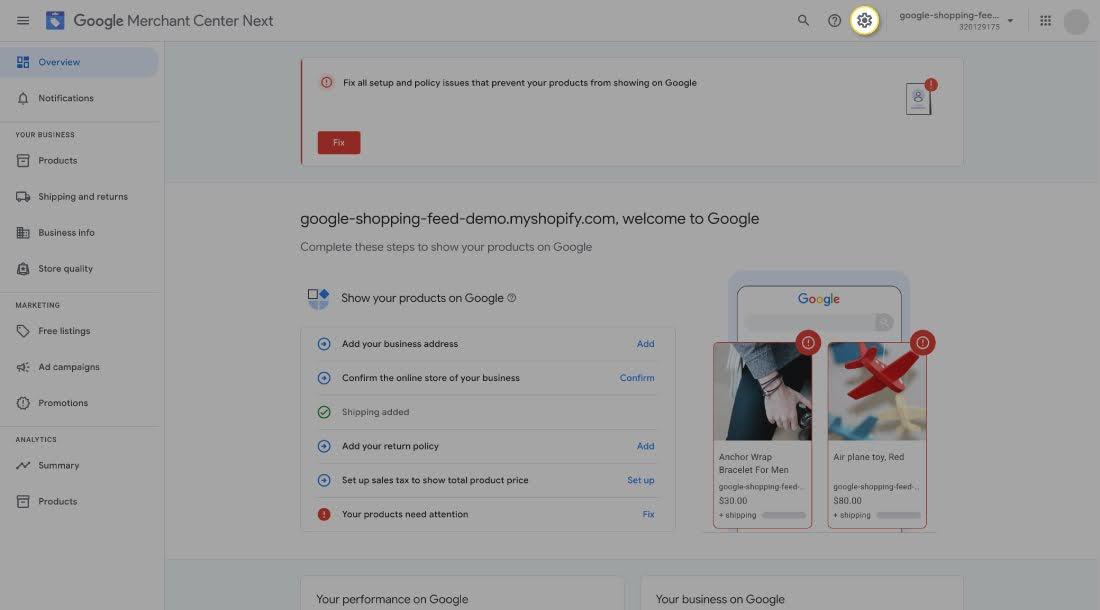
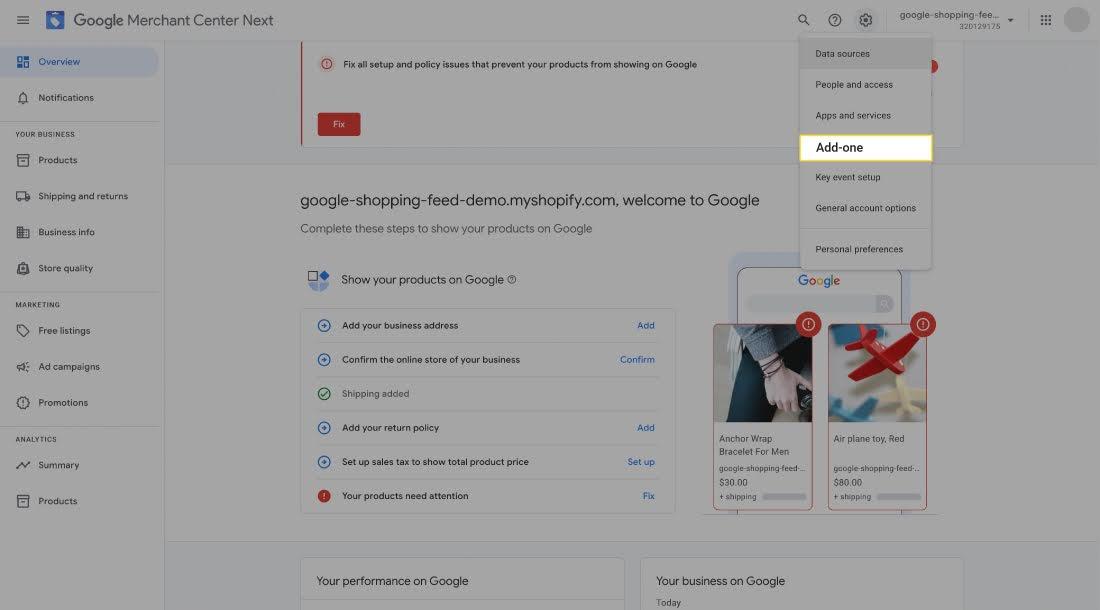
3. Locate Product Ratings and click Submit Product Ratings Interest Form.
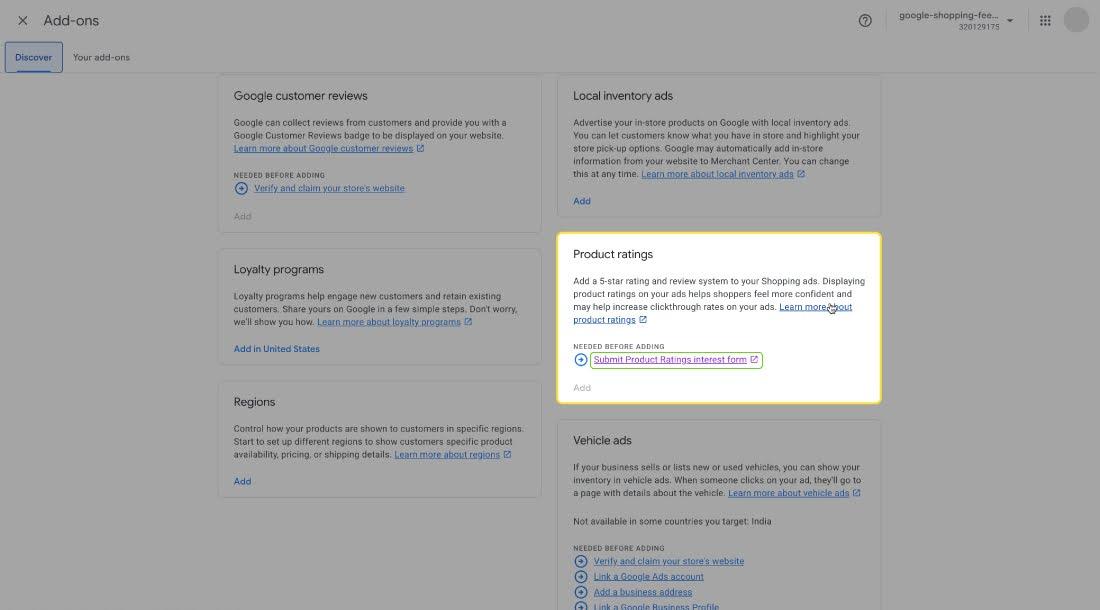
4. Complete the interest form using the field guide below, then submit it. Google typically responds within 2–4 hours.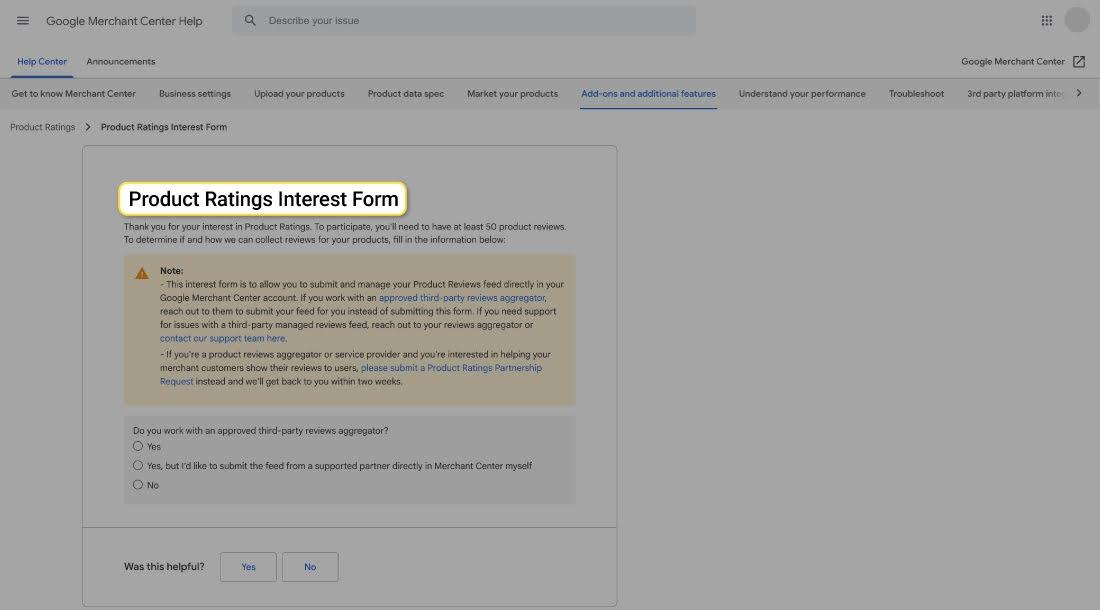
| Field | What to Enter |
| Review Aggregator | Select No |
| Types of Product | Select Physical and/or digital products and services |
| Review Count | Your total review count — must be 50 or more |
| Merchant Name | Must match the name shown in your GMC account exactly |
| Merchant Center Account ID | Your GMC account ID |
| Merchant Homepage URL | Your store URL (e.g., yourstore.com) |
| First & Last Name | Your name as the account holder |
| End Customer Company Name | Your store name |
| Email Address | The email Google will use to contact you about your application |
| CSS Program | Select as applicable to your account |
Tip: Ensure your Merchant Name matches your GMC account name exactly — mismatches can delay or reject the application.
Step B – Add the Feed After Approval:
5. After Google approves your application, go to Reviews → Product Reviews → Manage Product Review Sources in GMC.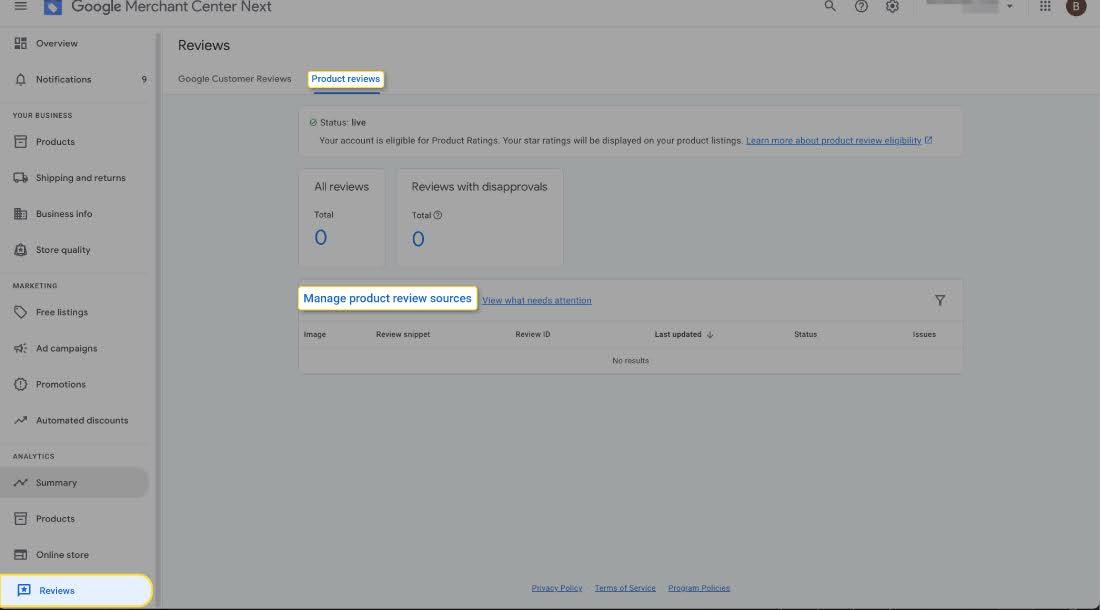
6. Click Add Product Reviews.
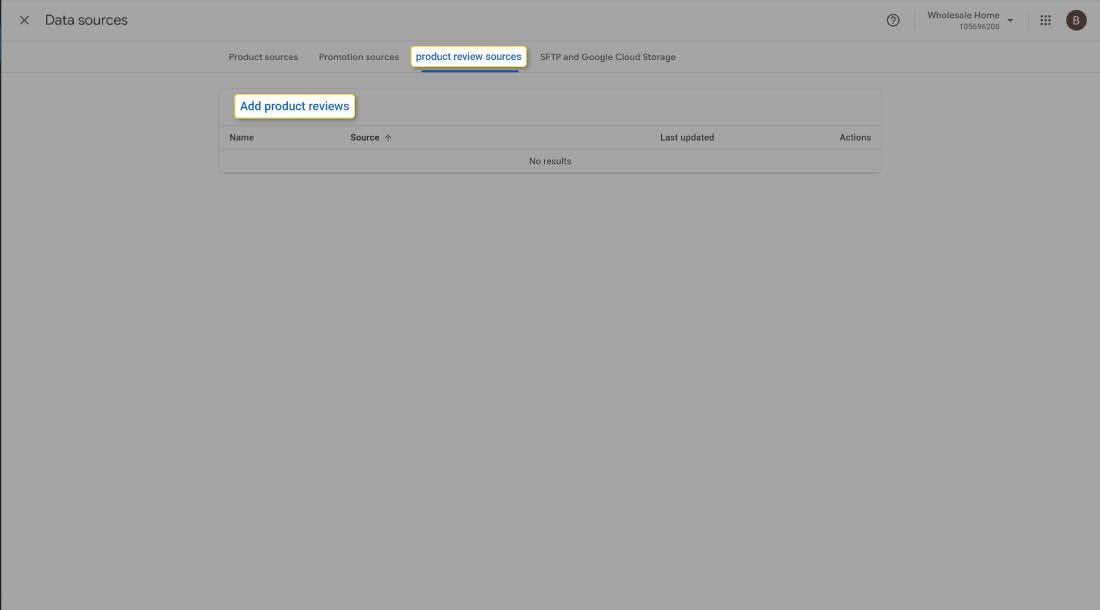
7. Enter the feed details as follows: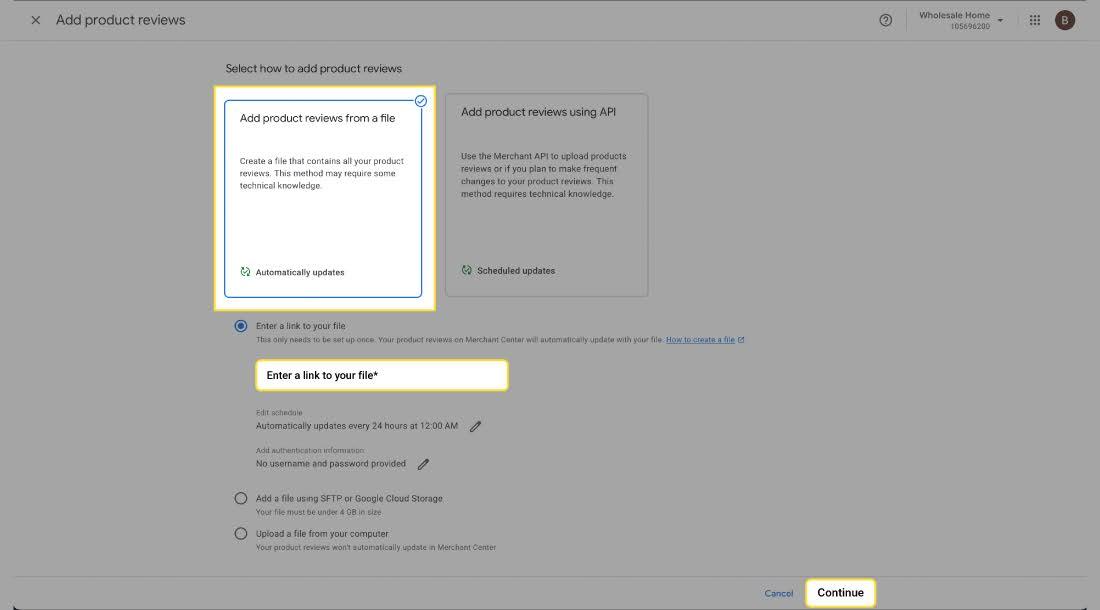
| Field | What to Enter |
| Feed Name | A recognizable name, e.g., Proviews_Review_Feed |
| Input Method | Select Scheduled Fetch |
| Feed URL | Paste the feed URL you copied from Proviews |
| Fetch Frequency & Time | Select your preferred fetch schedule |
| Login Credentials | Leave blank unless your feed URL requires authentication |
8. Click Save, then Submit to complete the feed submission.
Submitted! Google reviews and activates the feed within 2–4 weeks. A green status indicator in the feed section confirms successful processing. Star ratings will then begin appearing on your Google Shopping listings and product ads.
Need Help?
Click “Help Me” and our chatbot will appear. You can then ask questions or request assistance in real time.
For email support, feel free to reach out to us at support@simprosys.com
Previous article

Next article
Proviews ‑ Product Reviews Q&A
Legal Policies
Setup & Configuration
Additional Information
Installation Processes
Feature Policies & Guidelines


