

Proviews ‑ Product Reviews Q&A
Legal Policies

Setup & Configuration
Additional Information
Installation Processes
Feature Policies & Guidelines


Site Reviews of Proviews – Product Reviews Q&A
Sep 03, 2026
Overview
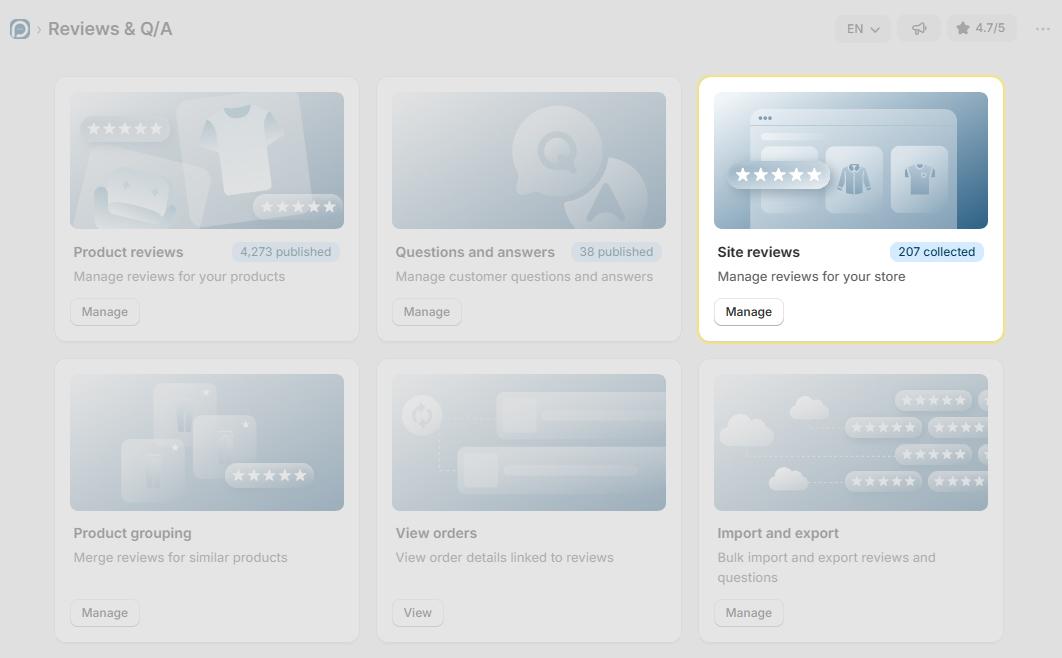
The Site Reviews section lets you view, manage, and analyze feedback customers submit about their overall shopping experience with your store. Unlike product reviews, site reviews reflect broader satisfaction with your brand — making them a valuable signal for identifying strengths and areas for improvement.
What you can do from this section:
- View all submitted site reviews
- Assess star ratings and NPS scores
- Search and sort feedback
- Flag inappropriate content for moderation
Review Listing Fields
Each entry in the Site Reviews list displays the following fields:
| Field | Description |
| Star Rating | The customer's overall satisfaction score displayed as stars. Higher ratings indicate a more positive experience — use this to assess sentiment at a glance. |
| Review ID | A unique system-generated identifier for each review. Reference this ID when contacting support or investigating a specific submission. |
| Review Content | The written feedback submitted by the customer. Provides context behind the star rating and surfaces specific experiences, suggestions, or concerns. |
| NPS Score | The customer's Net Promoter Score, a 0–10 rating indicating how likely they are to recommend your store. See the NPS breakdown below. |
| Reviewer Name | The name of the customer who submitted the review. Helps identify repeat customers and adds authenticity to the feedback. |
| Submission Date & Time | The exact date and time the review was submitted. Use this to track feedback chronologically and prioritize recent responses. |
| Flag as Inappropriate | Reports a review that violates content guidelines. See the flagging section below for details on when and how to use this. |
NPS Score Breakdown
The Net Promoter Score (NPS) measures customer loyalty on a scale of 0 to 10. Proviews classifies each score into one of three categories:
| Score Range | Category | What It Means | Recommended Action |
| 9 – 10 | Promoters | Highly satisfied, loyal customers who are likely to recommend your store to others. | Encourage them to leave a public review or share their experience on social media. |
| 7 – 8 | Passives | Neutral customers who are satisfied but not enthusiastic enough to actively promote your store. | Identify any friction points and address them to convert Passives into Promoters. |
| 0 – 6 | Detractors | Unhappy customers who may share negative feedback and discourage others from buying. | Follow up promptly with a personalized response to resolve concerns and rebuild trust. |
Tip: Focus follow-up efforts on Detractors (scores 0–6) first. A timely, personalized response can turn a negative experience into a recovered relationship.
Flag as Inappropriate
Use the flag option to report reviews that violate your store's content standards. Flag a review when it contains:
Offensive Content: Abusive, hateful, or inappropriate language directed at your store or other customers.
Spam or Promotions: Unsolicited advertising, promotional links, or repetitive spam submissions.
Misleading Information: Inaccurate, fabricated, or irrelevant content that misrepresents your products or store.
Policy Violations: Any content that breaches your store's review guidelines or applicable platform policies.
What happens after flagging: The review is marked for moderation and reviewed against content policies. Reviews confirmed as violations may be removed, helping maintain a safe and trustworthy review environment.
Search, Sort & Filter
Search Bar
Use the search bar to locate specific reviews quickly without scrolling through the full list. Search by any of the following:
| Search By | Description |
| Review ID | Enter the exact Review ID to locate a specific submission instantly. |
| Reviewer Name | Search by customer name to find all reviews from a specific shopper. |
| Review Content | Enter keywords or phrases to surface reviews that mention specific topics, issues, or feedback. |
Sort By:
Organize the review list by submission date to surface the most relevant feedback:
| Sort Option | Best Used For |
| Newest First | Monitoring the latest customer feedback and responding to recent submissions quickly. |
| Oldest First | Reviewing historical feedback and tracking how customer sentiment has evolved over time. |
Tip: Use Newest First during active campaigns or after major store changes to catch fresh feedback as it arrives.
Need Help?
Click Help Me on the dashboard to open the support chatbot for real-time assistance.
For email support, contact us at support@simprosys.com
Previous article

Next article
Proviews ‑ Product Reviews Q&A
Legal Policies
Setup & Configuration
Additional Information
Installation Processes
Feature Policies & Guidelines


