

Proviews ‑ Product Reviews Q&A
Legal Policies

Setup & Configuration
Additional Information
Installation Processes
Feature Policies & Guidelines


Question & Answer Management of Proviews– Product Reviews Q&A
Sep 03, 2026
Overview
The Q&A dashboard gives you a centralized view of every customer question submitted across your store's product pages. From here, you can answer questions, control their visibility, and moderate unwanted content, all in one place.
What you can do from this dashboard:
- Answer questions
- Publish or unpublish questions
- Mark questions as private
- Blacklist spam or inappropriate content
- Bulk-select and act on multiple questions at once
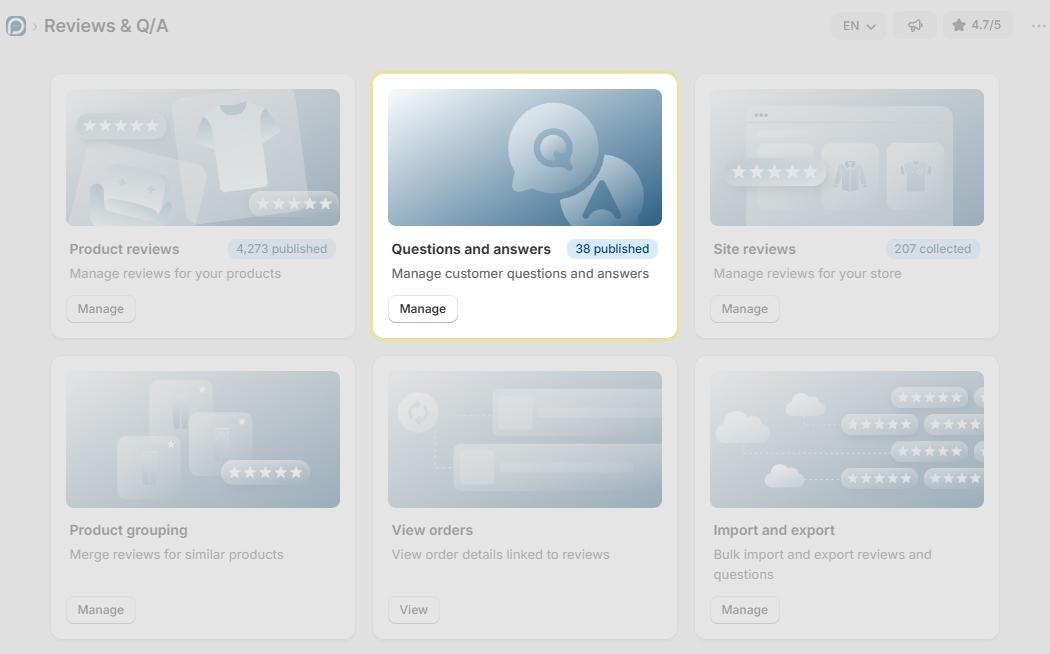
Status Tabs
All: Displays every question in the system regardless of status, useful for a complete overview of all customer inquiries.
Published: Shows questions and answers that are approved and live on the storefront, visible to shoppers on the product page.
Pending: Contains questions awaiting a response or approval. These are not visible to shoppers until you answer and publish them.
Unpublished: Shows questions you have manually hidden from public view. They remain in the admin panel for record-keeping but do not appear on the storefront.
Private: Shows questions marked for internal use only. Private questions are visible to store admins only and never appear on the storefront.
Blacklisted: Contains questions flagged as spam, inappropriate, or unwanted. Blacklisted questions are automatically excluded from the storefront.
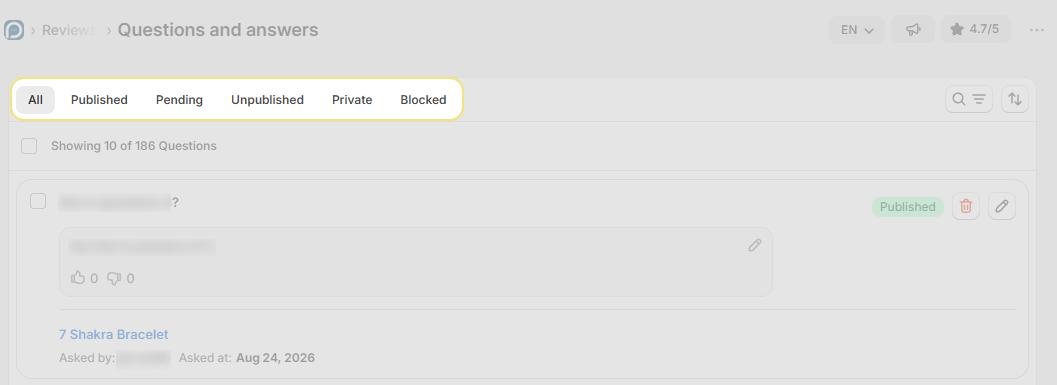
Question List Fields
Each entry in the question list displays the following information and controls:
| Field / Control | Description |
| Checkbox | Select one or multiple questions to perform bulk actions, publish, unpublish, or delete. |
| Question Content | The exact text of the customer's question, giving you immediate context for the inquiry. |
| Write an Answer | Opens a field to respond directly to the question. Once you answer and publish it, the response appears on the product page. |
| Product Name | The product the question relates to. Click the name to navigate directly to the product page for quick reference. |
| Asked By | The name of the customer who submitted the question. |
| Asked At | The date and time the question was submitted, useful for prioritizing recent or overdue questions. |
| Status Badge | Displays the question's current status (e.g., Pending, Published) so you can identify which ones need action at a glance. |
| Delete Icon | Permanently removes the question from the system. Deleted questions cannot be recovered. |
Caution: Deleting a question is permanent and irreversible. Use the Unpublish or Blacklist options if you want to hide a question without losing it.
Search, Filter & Sort
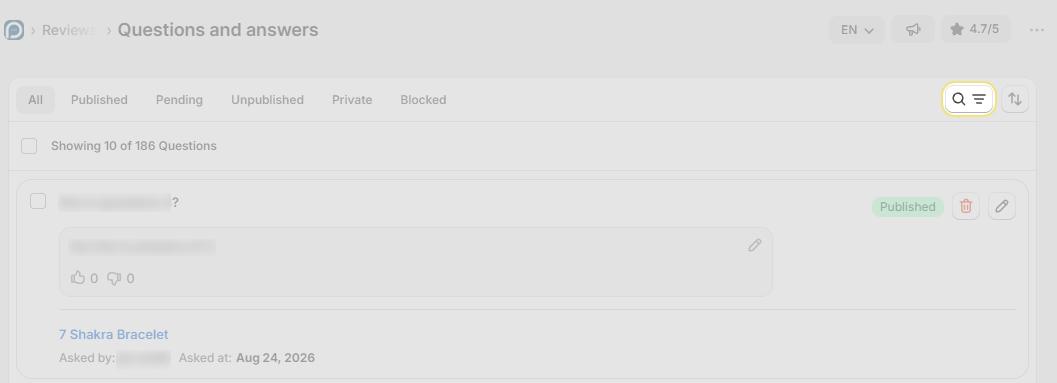
The dashboard includes a search bar, filter dropdowns, and sort controls to help you locate and prioritize questions quickly, even when managing large volumes.
Search Bar:
Search across the question list using any of the following:
| Search By | Description |
| Question text | Find questions containing specific words or phrases. |
| Product name | Locate all questions related to a specific product. |
| Asker name | Search by the customer who submitted the question. |
Filter Options:
Use the filter dropdowns to narrow results based on specific criteria:
| Filter | Description |
| Question Asked By | Filter questions by the customer who submitted them, useful for tracking inquiries from a specific shopper. |
| Question | Filter by question content to locate specific types of inquiries. |
| Answer | Filter by answer status or content, helpful for identifying questions that are still unanswered. |
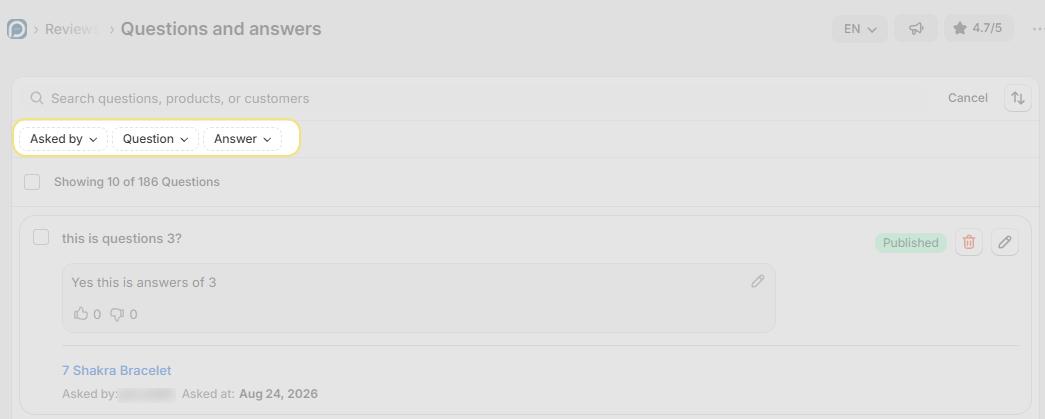
Tip: Click Cancel at any time to instantly clear all active filters and search terms, resetting the list to show all questions.
Sort By:
Use the Sort By control to order the question list by submission date:
| Sort Option | Description |
| Newest First | Displays the most recently submitted questions at the top — ideal for staying on top of incoming inquiries. |
| Oldest First | Displays the earliest submitted questions first, useful for clearing a backlog of unanswered questions. |
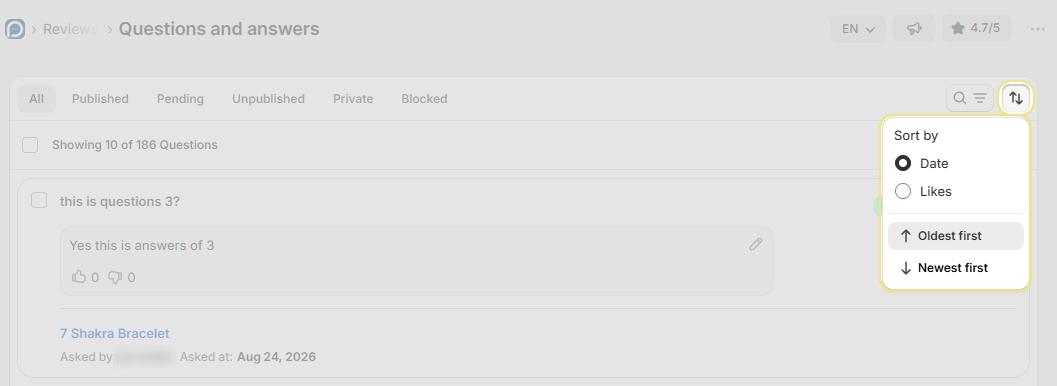
Tip: Combine search, filters, and sort together for precise results — for example, filter by unanswered questions and sort by oldest first to clear your backlog systematically.
Need Help?
Click Help Me on the dashboard to open the support chatbot for real-time assistance.
For email support, contact us at support@simprosys.com
Previous article

Next article
Proviews ‑ Product Reviews Q&A
Legal Policies
Setup & Configuration
Additional Information
Installation Processes
Feature Policies & Guidelines


