

Proviews ‑ Product Reviews Q&A
Legal Policies

Setup & Configuration
Additional Information
Installation Processes
Feature Policies & Guidelines


Review Drawer – Product Reviews Q&A
Aug 27, 2026
Overview
The Review Drawer is a floating side-panel widget that surfaces your best customer reviews without interrupting the shopping experience. It appears as a tab on the edge of your storefront and expands into a sleek slide-in drawer when a shopper clicks it — showcasing reviews from across your products to build trust at every stage of browsing.
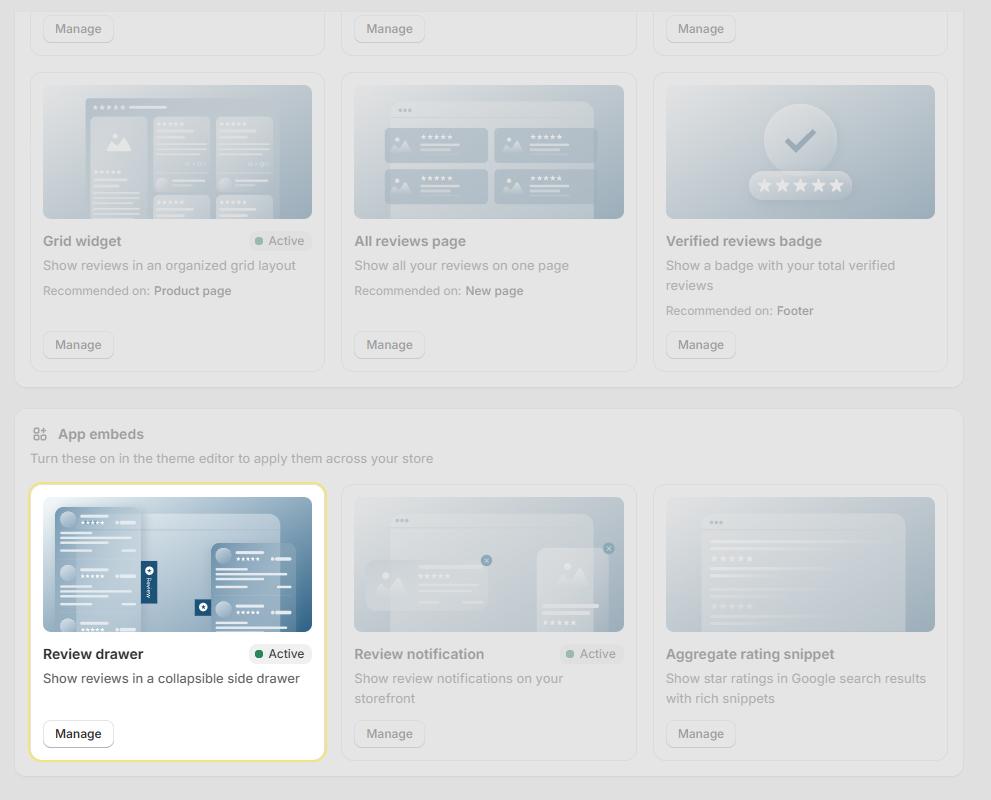
Non-Intrusive Display: Presents reviews in a slide-in panel — visible without disrupting the shopper's browsing or checkout flow.
Multi-Product Trust: Displays reviews from multiple products to build broader store credibility, not just product-level proof.
Desktop & Mobile Ready: Works seamlessly across all device types — control visibility per device from the settings panel.
Step 1 – Activate the Review Drawer
- In your Shopify admin, go to Apps → Proviews.
- Click Widgets in the left sidebar.
- Locate the Review Drawer card and click Manage.
- Click Review Drawer Activate. Proviews redirects you to the Shopify Theme Editor with the App Embed toggle automatically switched ON.
- Click Save in the top-right corner of the Theme Editor to apply the changes.
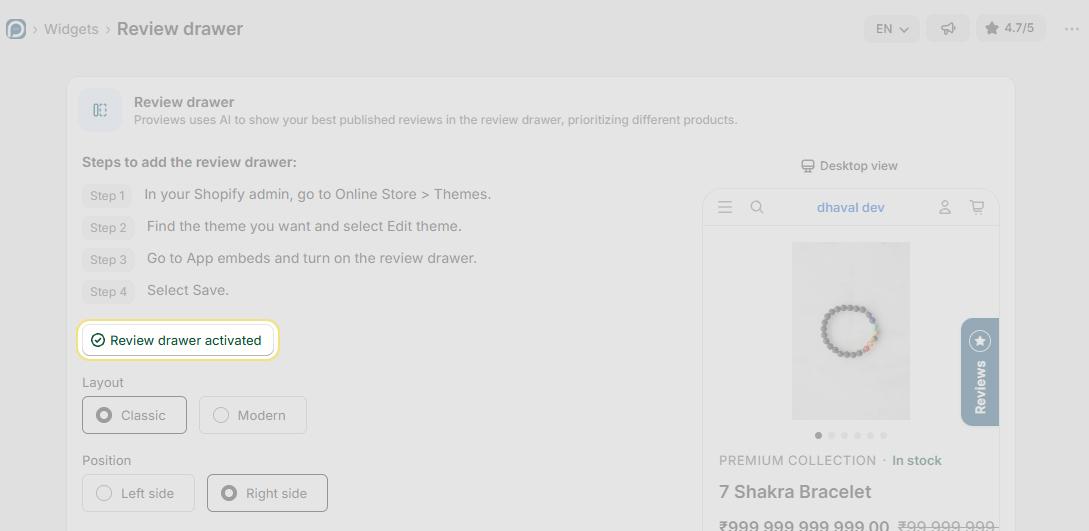
Live! The Review Drawer is now active on your storefront. Return to Proviews to configure its appearance and content settings.
Step 2 – Configure Layout & Position
Layout Style
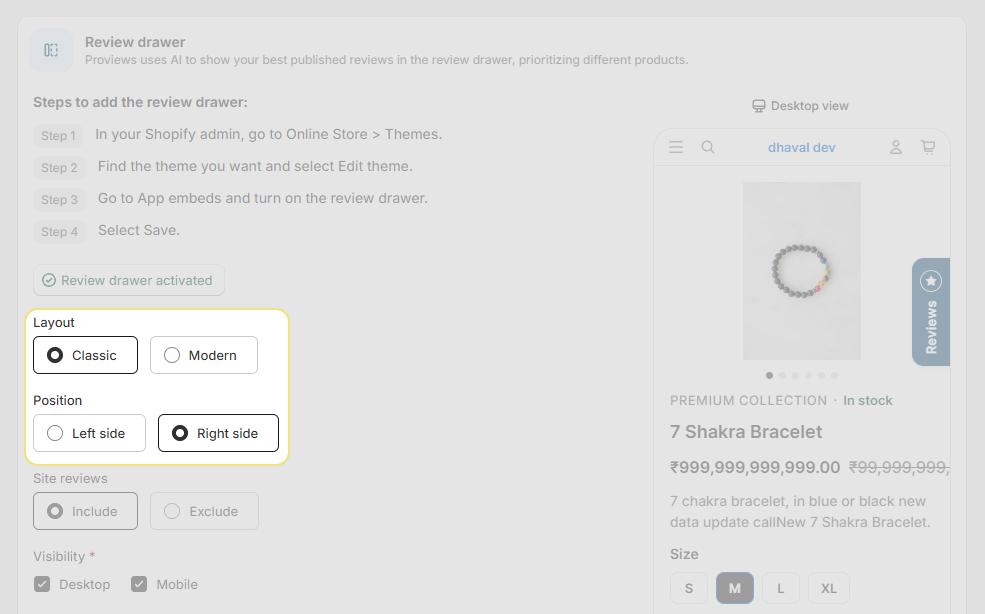
- Classic: A clean, minimal design that integrates subtly with any storefront theme.
- Modern: An enhanced, visually rich layout — recommended for a more engaging shopper experience.
Drawer Position
- Left Side: The drawer tab appears on the left edge of the screen and opens leftward.
- Right Side: The drawer tab appears on the right edge of the screen — recommended for better usability and less interference with navigation elements.
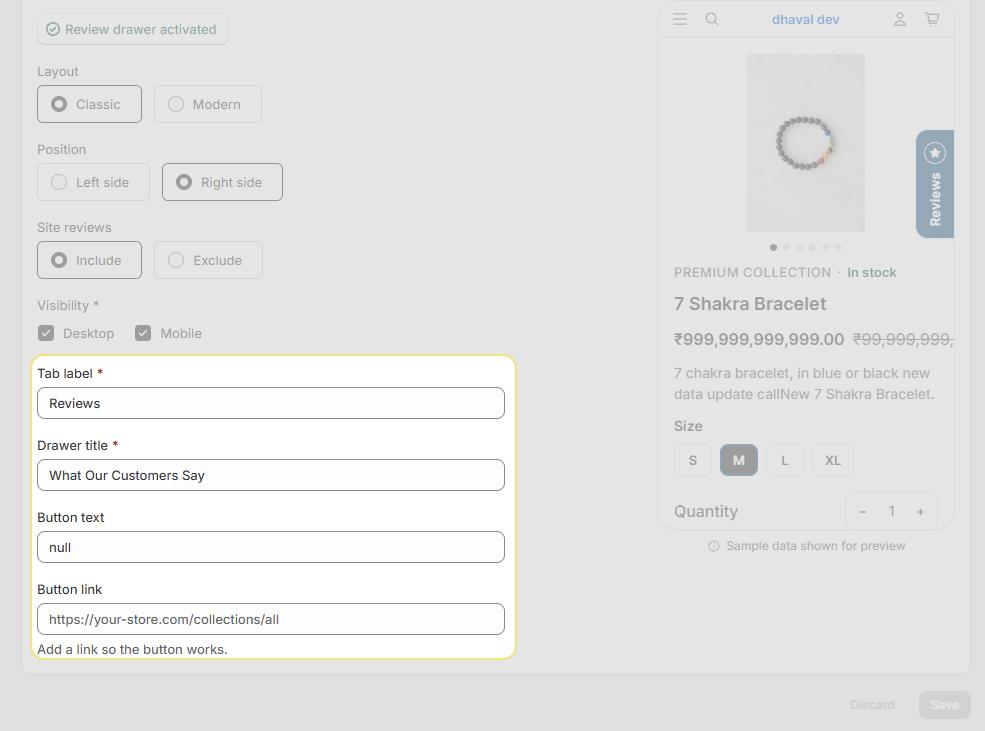
Step 3 – Configure Content & Visibility
| Setting | Options & Description |
| Store Reviews | Include — Displays both store-level and product-specific reviews in the drawer. Exclude — Displays product reviews only, omitting store-level feedback. |
| Desktop Visibility | Toggle ON to show the Review Drawer to shoppers on desktop devices. |
| Mobile Visibility | Toggle ON to show the Review Drawer to shoppers on mobile devices. |
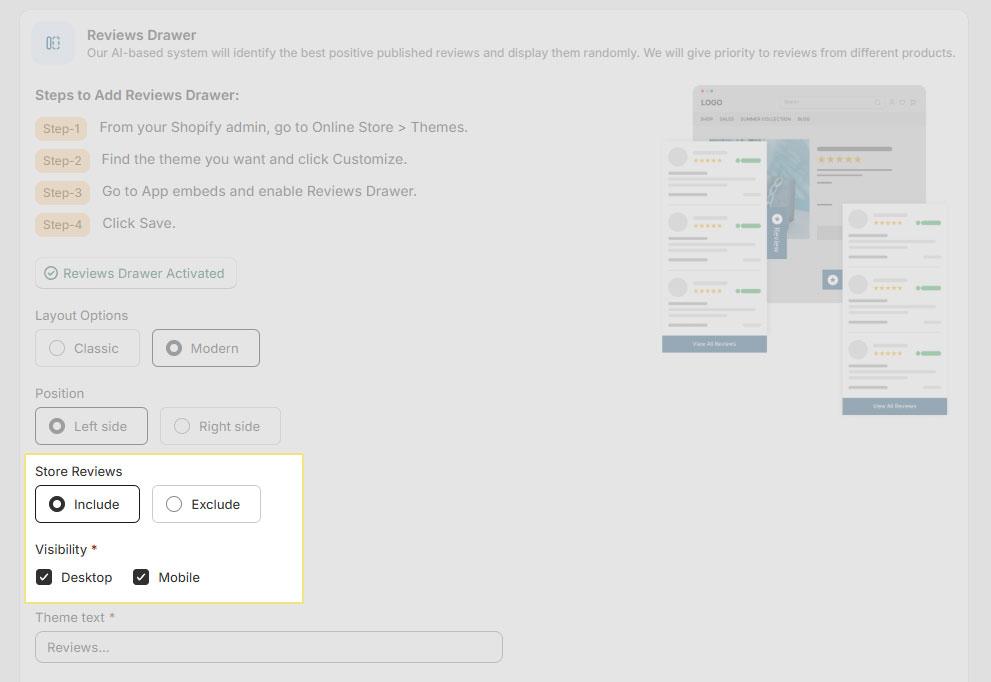
Tip: Enable visibility on both desktop and mobile to maximise reach. The drawer adapts its layout automatically to each screen size.
Step 4 – Customize Display Text
Tailor the labels and copy shown within the drawer to match your store's brand voice:
| Field | Default Value | Description |
| Theme Text | "Reviews" | The label shown on the floating drawer tab visible on your storefront edge. |
| Drawer Title | "What Our Customers Say" | The heading displayed at the top of the expanded drawer panel. |
| CTA Label | "Shop Now" | The text shown on the call-to-action button inside the drawer. |
| CTA Link | --- | The URL the CTA button navigates to when clicked. The button will not function if this field is left empty — enter a valid URL (e.g., https://yourstore.com). |
Best Practices
Use the Modern layout: The enhanced design creates a more polished, engaging experience for shoppers.
Position on the right: Right-side placement avoids interference with navigation and feels more natural to most users.
Enable on all devices: Activate both desktop and mobile visibility to reach every shopper regardless of device.
Add a strong CTA: A clear, action-oriented CTA link drives shoppers from the drawer directly to your products or collections.
Troubleshooting
| Issue | Solution |
| Drawer not visible on storefront | Confirm the App Embed is toggled ON in the Shopify Theme Editor and that you clicked Save. Also verify that visibility is enabled for your device type (desktop / mobile) and that at least one review is published in Proviews. |
| Drawer tab not opening | Verify the App Embed is active in the Theme Editor. Check for conflicts with other installed apps or theme scripts. Try switching the drawer position from right to left (or vice versa) to rule out a layout conflict. |
| CTA button not working | Confirm both the CTA Label and CTA Link fields are filled in. The link must be a valid full URL starting with https://. |
Need Help?
Click “Help Me” and our chatbot will appear. You can then ask questions or request assistance in real time.
For email support, feel free to reach out to us at support@simprosys.com
Previous article

Next article
Proviews ‑ Product Reviews Q&A
Legal Policies
Setup & Configuration
Additional Information
Installation Processes
Feature Policies & Guidelines


