

Proviews ‑ Product Reviews Q&A
Legal Policies

Setup & Configuration
Additional Information
Installation Processes
Feature Policies & Guidelines


Main Widget Settings - Product Reviews Q&A
Sep 01, 2026
Overview
The Main Widget settings control every aspect of how customer reviews are submitted, moderated, and displayed on your product pages. Use these settings to tailor the review experience to your store's brand, moderation preferences, and layout needs.
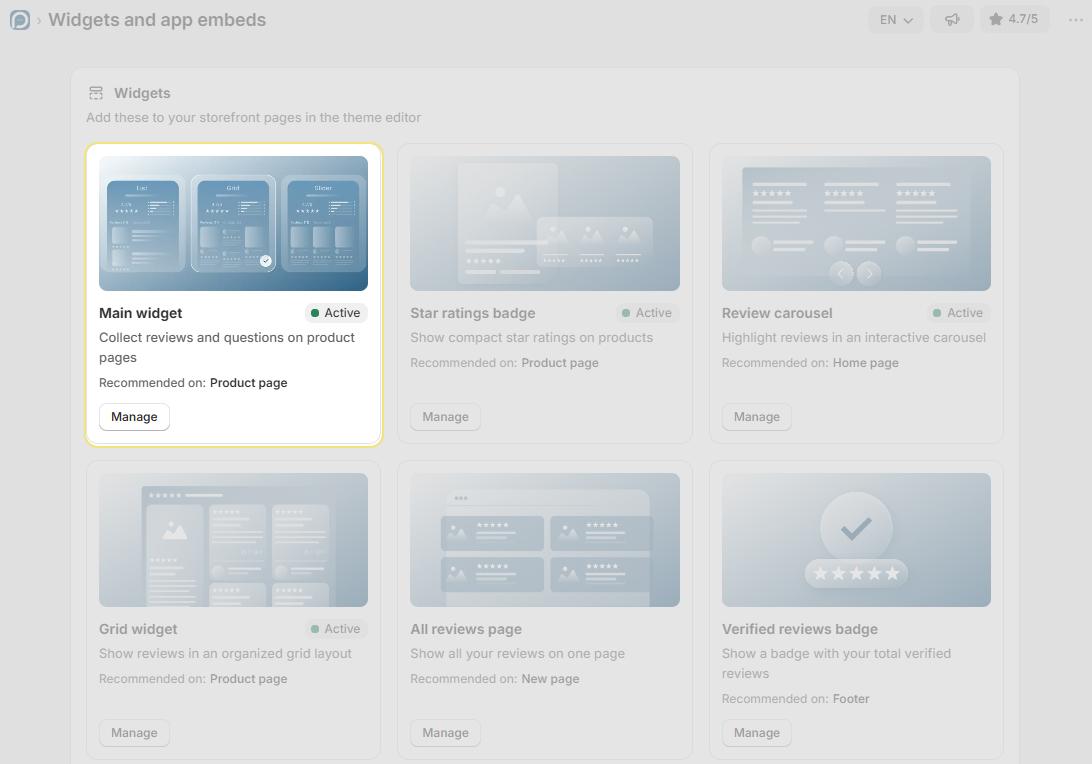
1. Review Control
Review Control determines how submitted reviews are approved and published on your storefront.
Write a Review Button
Show: Displays the Write a Review button on the product page, allowing customers to submit new reviews. Recommended to maximise review collection.
Hide: Removes the Write a Review button from the product page. Use this when the review collection is temporarily paused.
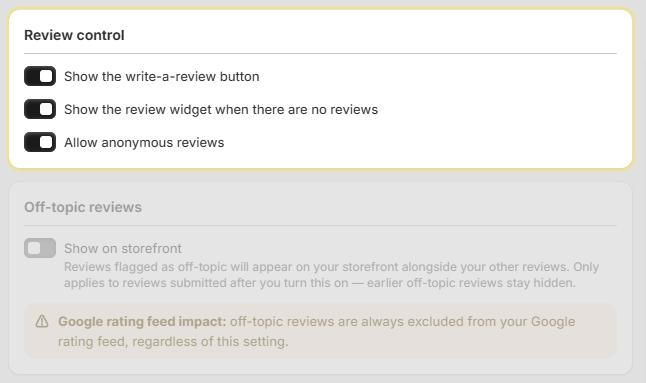
Show the review widget when there are no reviews
Enabled: The review widget is shown on your product pages even if a product has no reviews yet, which encourages customers to be the first to leave a review.
Disabled: The widget stays hidden until at least one review has been published for that product.
Anonymous Reviews
Control whether customers can submit reviews without publicly displaying their name.
Enabled: Customers can submit reviews anonymously. Only the review content and star rating appear — no name is shown. Increases submissions from privacy-conscious shoppers.
Disabled: Customers submit reviews with their name visible on the storefront. Adds credibility and transparency to your review section.
2. Off-Topic Reviews
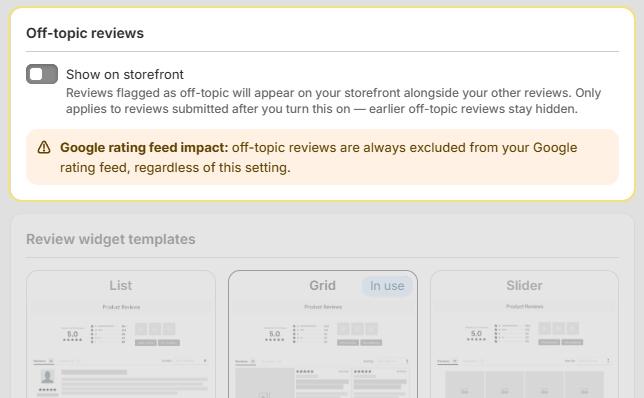
Control whether reviews flagged as off-topic are visible on your storefront. Off-topic reviews are reviews that do not relate directly to the product — for example, comments about shipping, packaging, or customer service.
Show on Storefront
When enabled, reviews flagged as off-topic appear publicly alongside your regular product reviews.
- Disabled — Off-topic reviews remain hidden from the storefront. This is the default state.
- Enabled — Off-topic reviews are visible on the storefront alongside all other product reviews.
| Google rating feed impact | Off-topic reviews are always excluded from your Google rating feed, regardless of whether this setting is enabled or disabled. This is a Google policy requirement. |
| Setting | Description | |
| Show on Storefront | Toggle: On / Off | Controls whether off-topic reviews appear publicly on the storefront. Default: Off — the storefront is unaffected unless this setting is explicitly enabled. |
| Important: This setting only applies to off-topic reviews submitted after it is enabled. Off-topic reviews submitted before enabling this setting remain hidden from the storefront. |
3. Review Attachments
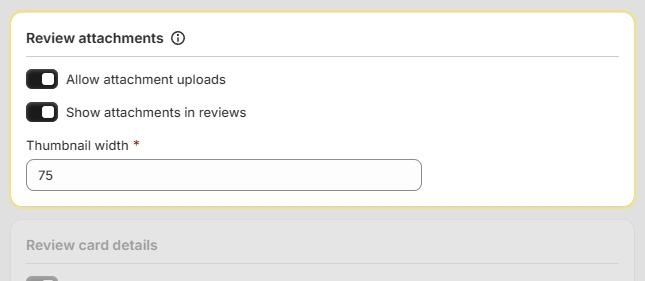
Configure whether customers can upload photos or videos alongside their reviews.
Attachment limits: Up to 5 images (max 5 MB each) and 1 video (max 25 MB) per review.
| Settings | Description | ||
| Activate Review Attachments | Enables customers to upload images or videos with their review. This must be turned ON for any attachment settings below to take effect. | ||
| Show Attachments | Yes — Displays uploaded attachments on the product page alongside the review. | No — Collects attachments but keeps them hidden from the storefront (internal reference only). | |
| Thumbnail Width | Sets the pixel width of attachment thumbnails displayed with reviews. Default: 75 px. Adjust to control how prominently images appear on the product page |
4. Review Widget Template
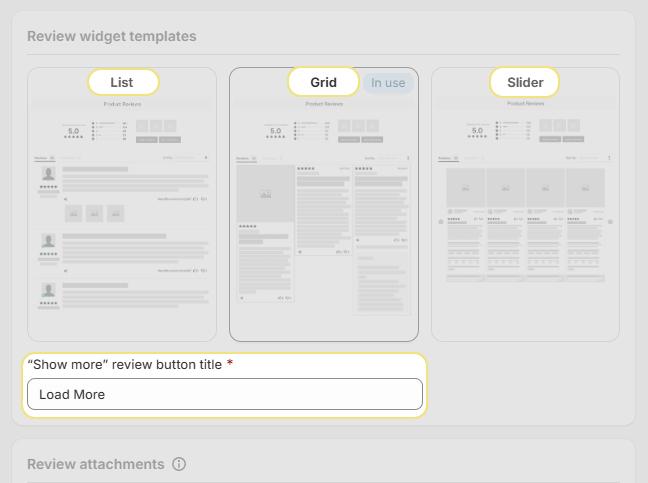
Choose how reviews are visually presented on your product page. Click Activate Template to apply the selected layout.
List: Displays reviews in a vertical list. Best for detailed, text-heavy reviews that are easy to read on all devices.
Grid: Displays reviews in a grid layout. Ideal for image-based reviews and modern storefronts — recommended for a visually engaging experience.
Slider: Displays reviews in a horizontal carousel. Saves space on the product page — best for showcasing featured reviews.
"Show More" Button Text: Customize the label on the button customers click to load additional reviews. Default: Show More Reviews. Adjust to match your store's tone (e.g., "View More Reviews", "Load More Feedback").
5. Show Vote Count
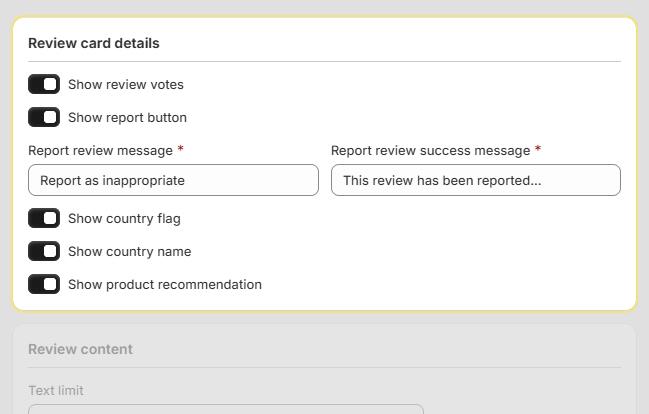
Configure review interaction features — voting, reporting, location display, and product recommendations.
| Settings | Description |
| Review Votes | Lets customers upvote or downvote reviews, helping surface the most helpful feedback at the top. |
| Review Inappropriate | Adds a report button to each review, allowing customers to flag inappropriate content for moderation. |
| Report Review Message | The text shown when a customer clicks the report button. Default: Report as inappropriate. Customizable |
| Report Review Success Message | The confirmation message shown after a review is successfully reported. Default: This review has been reported. Customizable. |
| Country Flag | Displays the reviewer's country flag next to their review, adding authenticity and geographic context. |
| Country Name | Displays the reviewer's country name alongside their review. |
| Review Recommend Product | Let customers indicate whether they recommend the product. |
6. Review Content
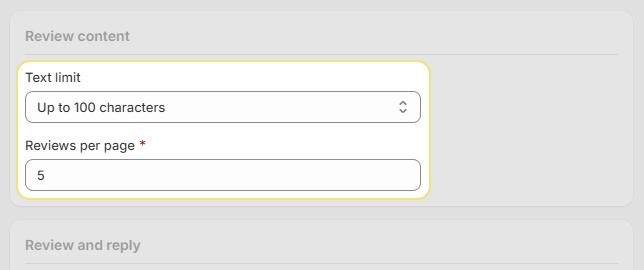
Control review length limits and how many reviews display per page.
| Settings | Description |
| Text Limit | Sets the maximum character count for review text. Click the character limit field to adjust. Maximum: Unlimited. Keeping a limit helps maintain concise, readable reviews and a consistent page layout. |
| Review Pagination | Controls how many reviews load per page. Maximum: 30 reviews per page. Pagination improves page load performance and makes long review lists easier to browse — especially on mobile. |
7. Review and Reply
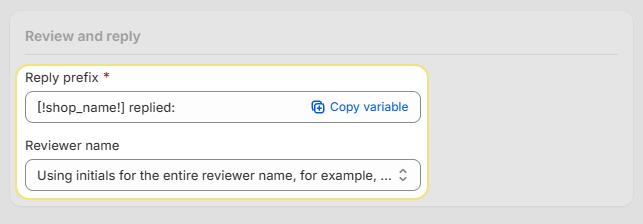
Configure how your store's replies appear on reviews and how reviewer names are displayed.
| Settings | Description |
| Replied Text | The label that appears when your store replies to a customer review. Default: [!shop_name!] replied: — the variable automatically replaces with your store name. Customize to match your brand's tone. |
| Reviewer Name | Controls how reviewer names appear on the storefront. Example: display exactly as entered by the customer (e.g., John Smith). Maintaining authentic name display builds credibility and transparency. |
Tip: Use a friendly, professional reply label — it reinforces your brand's customer service reputation every time a shopper reads a review thread.
Need Help?
Click “Help Me” and our chatbot will appear. You can then ask questions or request assistance in real time.
For email support, feel free to reach out to us at support@simprosys.com
Previous article

Next article
Proviews ‑ Product Reviews Q&A
Legal Policies
Setup & Configuration
Additional Information
Installation Processes
Feature Policies & Guidelines


