

Proviews ‑ Product Reviews Q&A
Legal Policies

Setup & Configuration
Additional Information
Installation Processes
Feature Policies & Guidelines


Grid Widget – Product Reviews Q&A
Jun 12, 2026
Overview
The Grid Widget displays all published customer reviews in a structured, multi-column layout on your product pages. Rather than a long vertical list, the grid format lets shoppers scan, compare, and read reviews at a glance — improving the browsing experience and reinforcing purchase confidence.
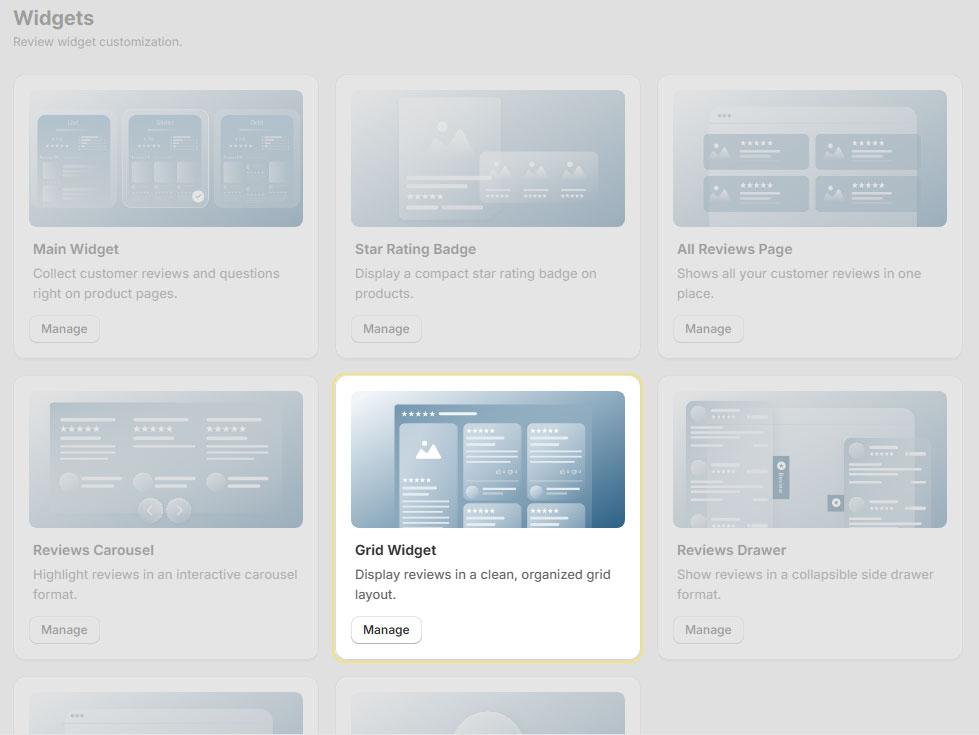
- Grid Layout: Multi-column format with consistent spacing and alignment — more scannable than a traditional list.
- Responsive Design: Automatically adapts to desktop, tablet, and mobile screen sizes for a seamless experience on every device.
- Flexible Placement: Position the widget anywhere on the product page to suit your store's layout and design preferences.
- No Coding Required: Installs directly via the Shopify Theme Editor — no theme modifications or custom code needed.
Installation
Choose either the automatic or manual installation method:
Install Automatically: Proviews adds the widget directly to your theme via one click — no manual steps required.
Install Manually: Add the widget yourself through the Shopify Theme Editor. Best for Shopify 2.0 themes requiring precise placement control.
Automatic Installation
- In your Shopify admin, go to Apps → Proviews.
- Click Widgets in the left sidebar.
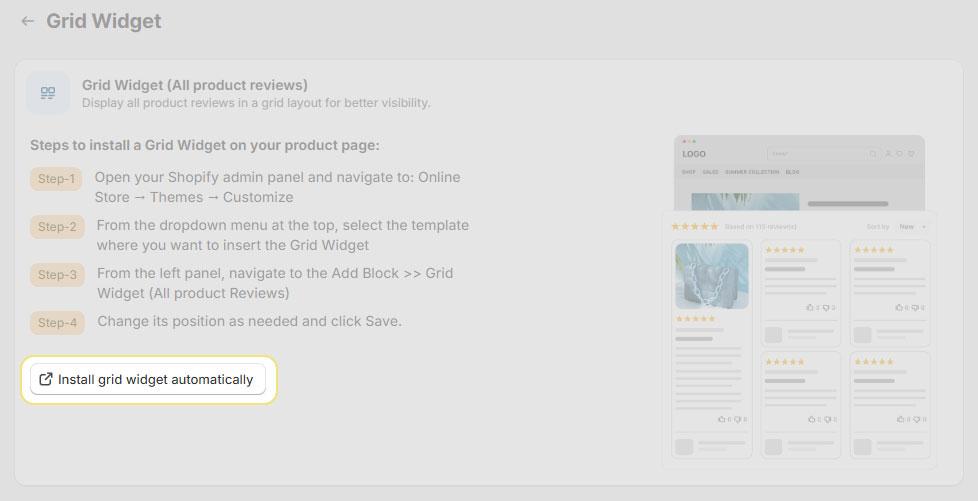
- Locate Grid Widget (All product reviews) and click Manage.
- Click Install grid widget automatically. Proviews redirects you to the Shopify Theme Editor with the widget already added to your product page layout.
- Click Save in the top-right corner of the Theme Editor to apply the changes.
Done! The Grid Widget is now live on your store's product pages.
Manual Installation (Shopify 2.0)
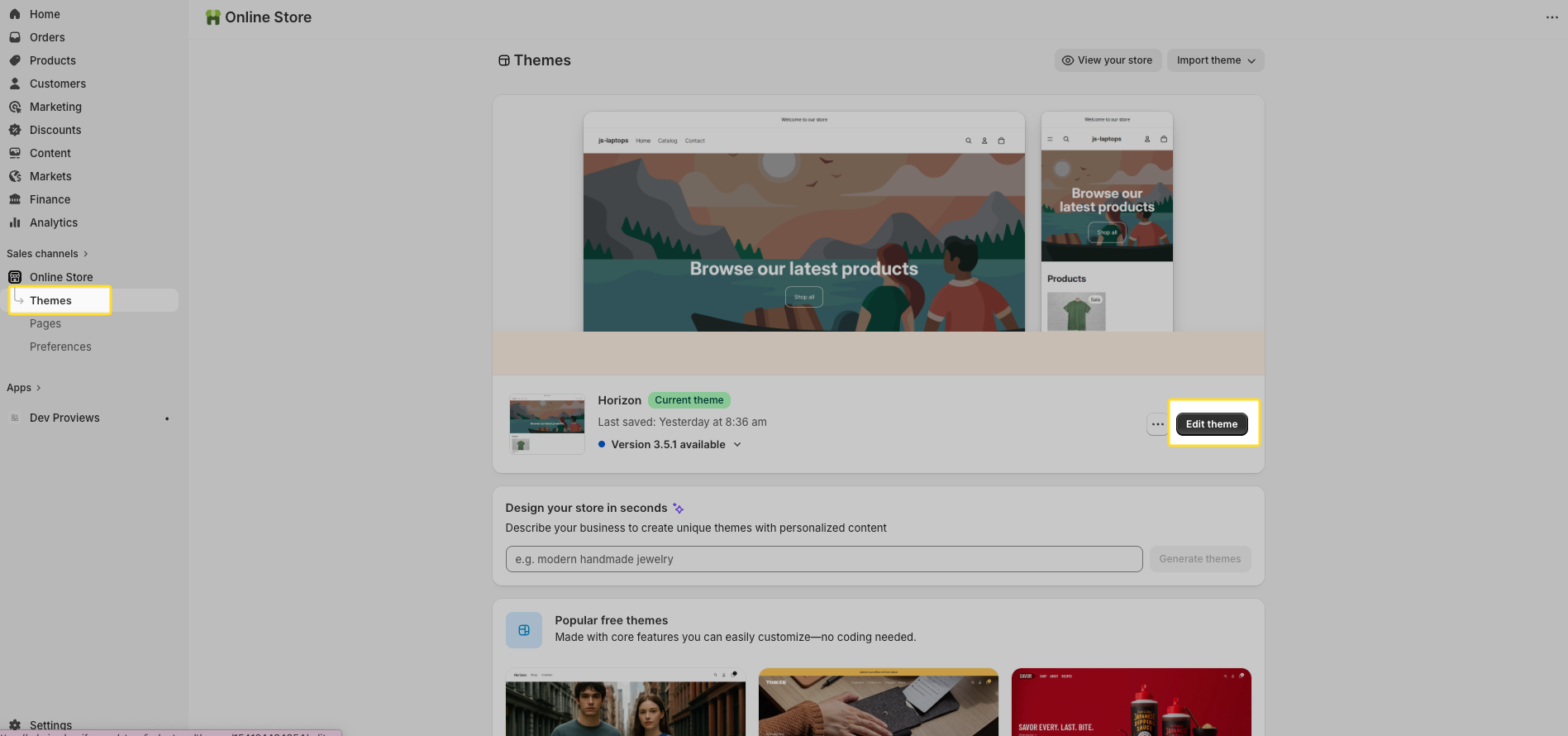
- In Shopify admin, go to Online Store → Themes and click Edit theme on your active theme.
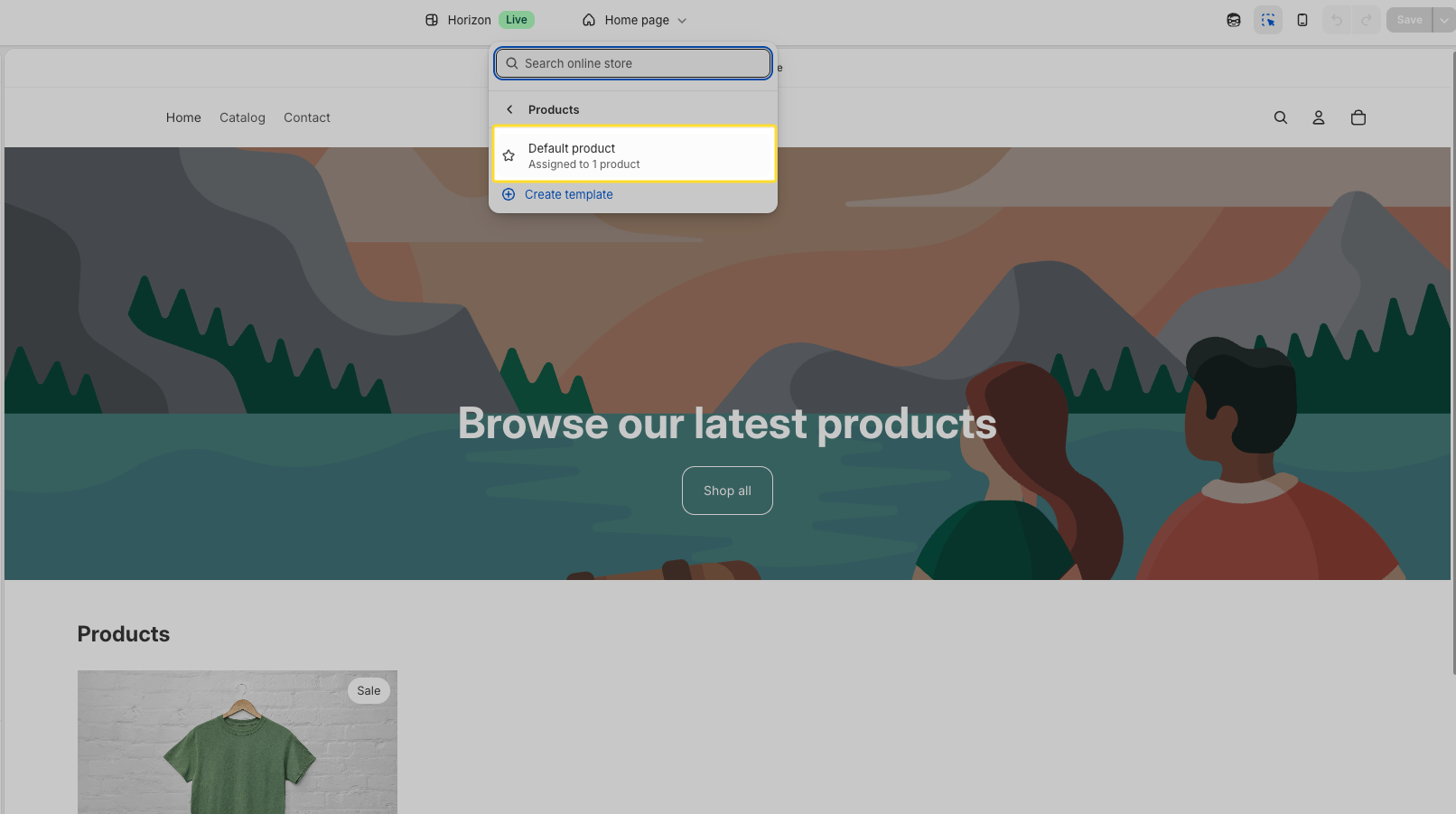
- From the dropdown at the top of the Theme Editor, select the Product template (or the specific page where you want reviews to appear).
- In the left panel, select the section where you want to place the widget and click Add Block or Add Section.
- Under the Apps section, select Grid Widget (All product reviews).
- Drag the widget to your preferred position on the page.
- Click Save to apply the changes.
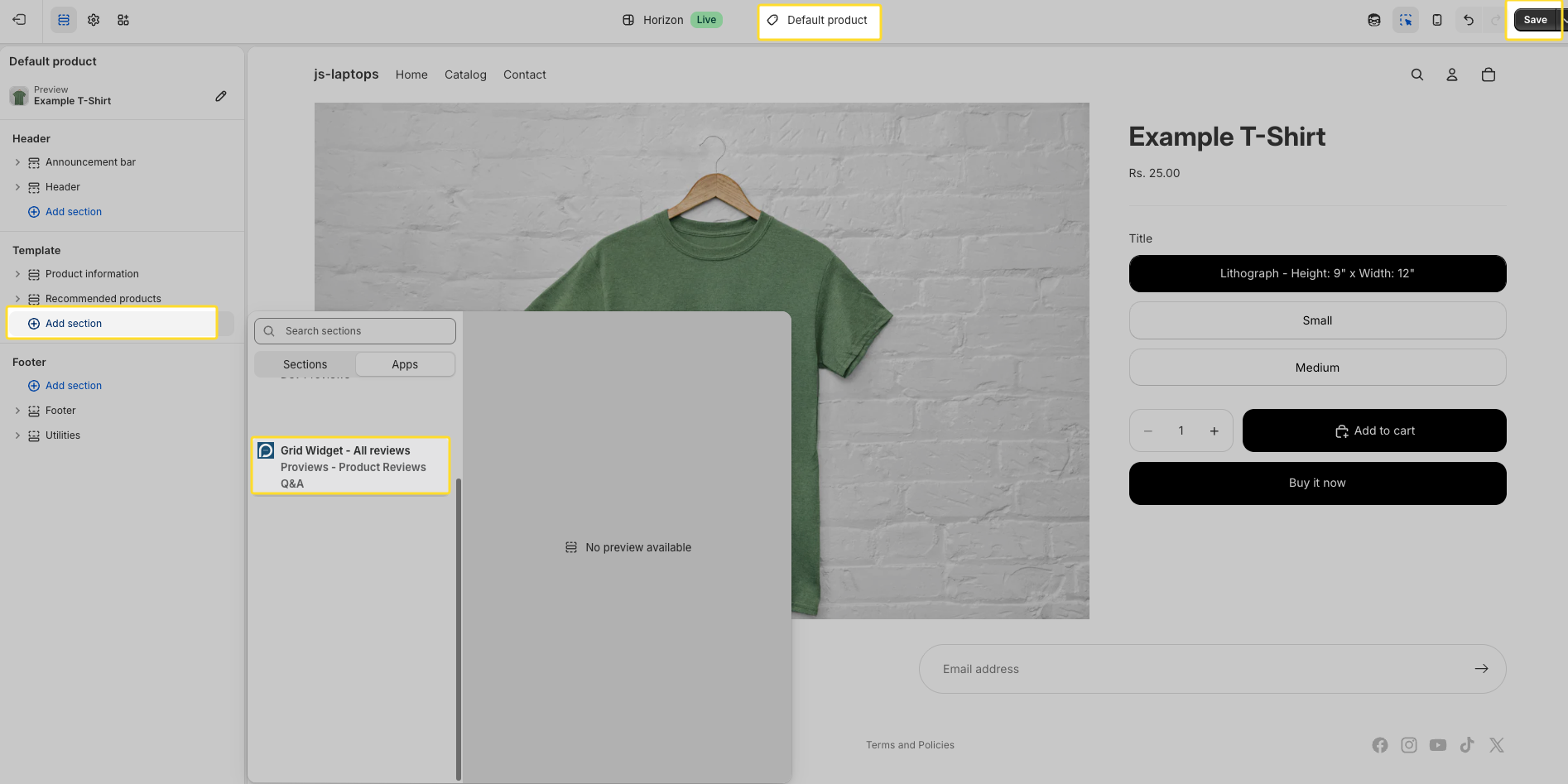
Recommended Placement
For the best impact on shopper confidence and conversion, place the Grid Widget in one of these locations on your product page:
- Below the product description — after shoppers understand what they're buying
- After key product details such as specifications or features
- Before or near related product recommendations
Tip: Positioning reviews after the product description ensures shoppers read the product details first, then see customer feedback that reinforces their decision — leading to higher conversion rates.
Troubleshooting
| Issue | Solution |
| Widget not visible | Confirm you clicked Save after adding the widget in the Theme Editor. Also verify the widget was added to the correct product template. |
| Widget in the wrong position | Open the Theme Editor and drag the widget to your preferred position, then click Save. |
| Reviews not displaying | Confirm the product has at least one published and approved review in Proviews. Unpublished or pending reviews do not appear in the widget. |
| Changes not reflecting | Clear your browser cache or preview the store in an incognito / private window to see the latest version. |
Need Help?
Click “Help Me” and our chatbot will appear. You can then ask questions or request assistance in real time.
For email support, feel free to reach out to us at support@simprosys.com
Previous article

Proviews ‑ Product Reviews Q&A
Legal Policies
Setup & Configuration
Additional Information
Installation Processes
Feature Policies & Guidelines


