Proviews Example Email Template - Help Guidelines

Jan 13, 2026

Proviews Review Request Email Template:

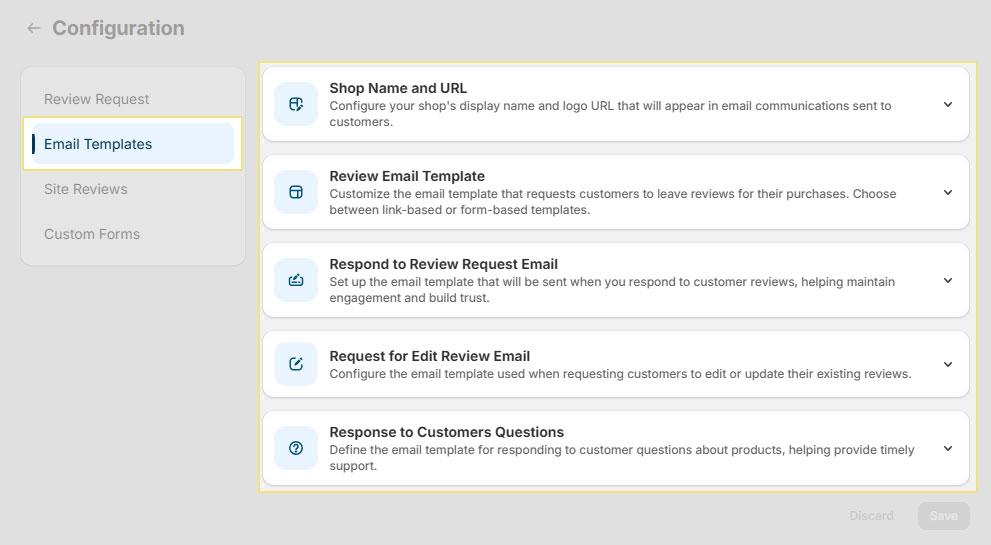
This guideline explains how to configure and use the Review Form Email Template shown in the Email Templates section. Proviews provides two types of review request email templates to help you collect customer feedback effectively after an order is delivered.

Purpose of the Review Form Template:

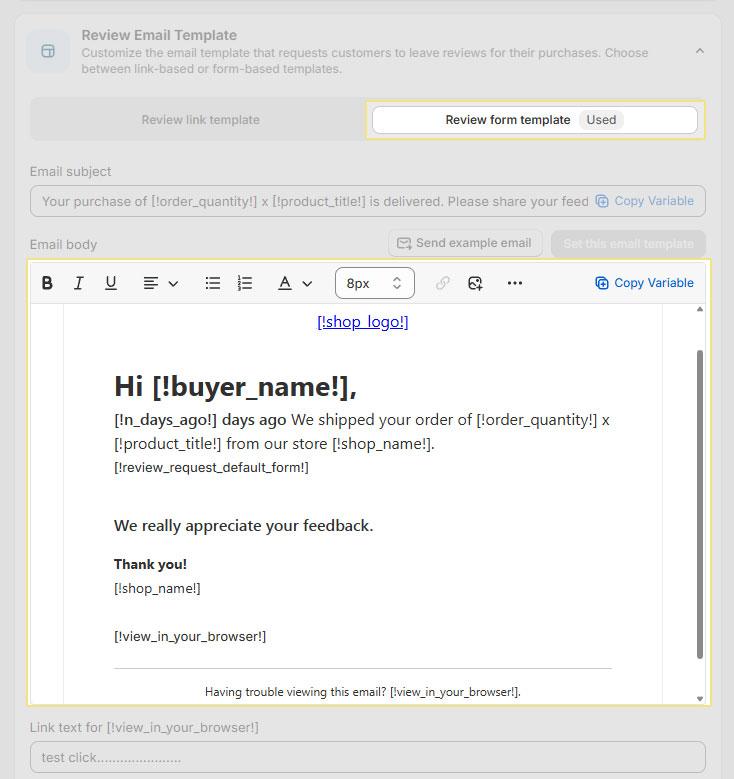
The Review Form Template sends customers an email containing a built-in review form, allowing them to submit feedback directly without needing to click an external link. This helps improve response rates and collect product reviews efficiently.    

Purpose of the Review LinkTemplate:

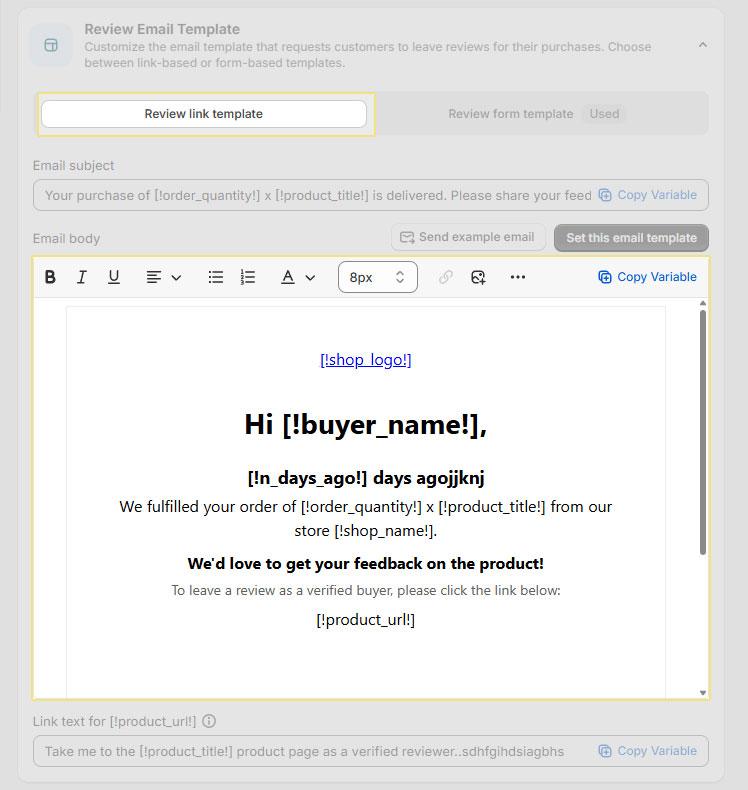
A Review Link Template is an email template used to request reviews from customers by sending them a clickable link instead of an embedded review form.

When a customer receives a review request email created using the Review Link Template, the email contains a link. Once the customer clicks this link, they are redirected to the product page on your store, where they can submit their review.

Template Type Selection:

At the top of the page, you will see two options:

  • Review link template – Sends customers a link to leave a review.
  • Review form template – Sends an embedded review form within the email.

Proviews Review Request Link Email Template

Proviews Review Request Link Email Template

Email Subject:

The Email Subject field defines the subject line customers will see in their inbox.

Example:

Your purchase of [!order_quantity!] x [!product_title!] is delivered. Please share your feedback.

Notes:

  • Always use supported system parameters (e.g, [!product_title!]).
  • Unsupported or custom parameters may prevent dynamic values from appearing correctly.
  • Keep the subject clear and friendly to encourage opens.

Proviews Review Request Link Email Template

Email Body:

The Email Body contains the main content of the review request email. It supports text formatting, images, links, emojis, and HTML.

To ensure the email is sent successfully, the following Mandatory parameters must be included in the email body.

Mandatory parameters for Review Form Template:

  • [!shop_name!]

Dynamically displays your store’s name in the email. This will be automatically replaced with your actual shop name when the email is sent.

  • [!product_title!]

Inserts the name of the product for which the review is being requested, helping customers clearly identify the item they are reviewing.

  • [!review_request_default_form!]

Embeds the default review submission form directly into the email, allowing customers to submit their review without visiting the product page.

Mandatory parameters for Review link Template:

  • [!product_url!]

This parameter inserts the direct link to the product page. When the email is sent, it is automatically replaced with the actual product URL, allowing customers to easily access the product for submitting a review.

  • [!product_title!]

This parameter displays the name/title of the product for which the review is being requested. It helps customers clearly identify which product they are reviewing.

Optional Parameters:

The following parameters are optional and can be used to further personalize the Coupon Email Template. These are not mandatory for the email to function correctly.

Where to find - click on the subject line of the email a dropdown list of optional template will appear.

[shop_logo]

  • Displays your store logo at the top of the email.
  • Helps maintain brand identity and improves email appearance.

[buyer_name]

  • Automatically replaces with the customer’s name.
  • Used to personalize the email greeting.
  • Example: Hi John,

[n_days_ago]

  • Shows the number of days since the order was delivered.
  • Useful for timing review requests appropriately.
  • Example: 7 days ago your order has been delivered.

[order_quantity]

  • Displays the total quantity of products purchased in the order.
  • Helps provide clarity when customers purchase multiple items.
  • Example: 2 x Product Name

[shop_name]

  • Displays your store name.
  • Useful for reinforcing brand recognition.

Email Templates Preview:

Email Templates Preview allows users to view a sample version of their email templates before they are sent to customers. This feature helps ensure that the email content, layout, and formatting appear as expected, including dynamic details such as customer names, product information, and review links. By using the preview, users can review how the email will appear to make any necessary adjustments, and ensure there are no errors before activating the template for live use.

Proviews Review Request Link Email Template

Proviews Coupon Template:

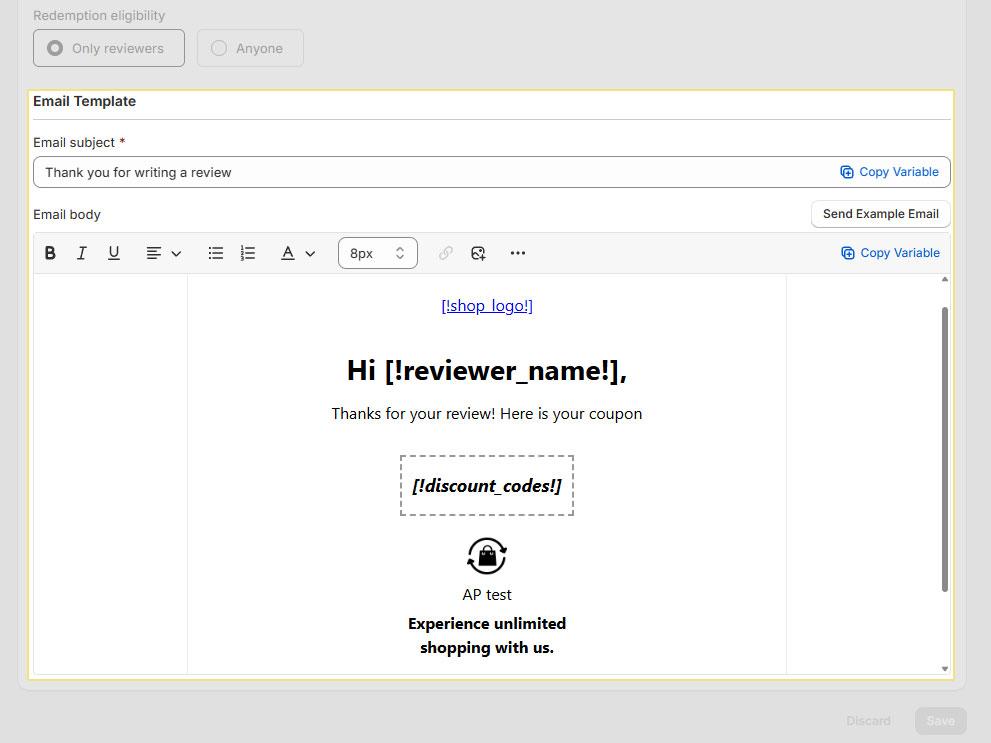
This guideline explains how to configure and customize the Coupon Email Template shown in the screenshot. This email is automatically sent to customers after they submit a review, rewarding them with a coupon code.

Proviews Review Request Link Email Template

Purpose of Coupon Email Templates:

The Coupon Email Template allows you to:

  • Thank customers for submitting a review
  • Automatically share a discount or coupon code
  • Maintain brand consistency using your shop logo and messaging

This helps increase customer engagement and encourages repeat purchases.

Mandatory parameters for Coupon Email Templates:

The following parameters are required for Coupon Email Templates to function correctly. Please ensure they are included in the email body:

  • [!shop_name!]

Automatically inserts your store’s name as configured in Shopify.

  • [!discount_codes!]

Displays the unique coupon code generated for the customer after submitting a review.

Proviews Coupon Email

Optional Parameters:

The following parameters are optional and can be used to further personalize the Coupon Email Template.

Where to find - click on the subject line of the email a dropdown list of optional template will appear.

  • [!buyer_name!]

Displays the full name of the customer who submitted the review.

  • [!buyer_first_name!]

Displays only the customer’s first name for a more friendly and personalized greeting.

  • [!buyer_email!]

Displays the customer’s email address.

  • [!shop_url!]

Displays your store’s website URL. Useful for adding a "Shop Now" or "Visit Store" link.

  • [!shop_logo!]

Displays your store logo automatically fetched from Shopify.

  • [!unsubscribe_url!]

Adds an unsubscribe link to comply with email communication best practices.

Proviews Other Email:

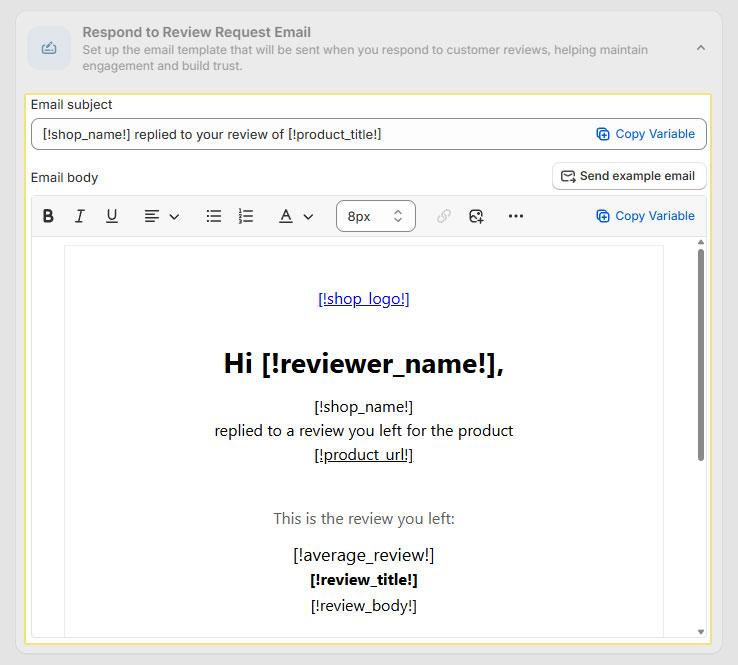
Respond to Review Request Email:

This document explains how to configure and use the Respond to Review Request Email feature. This feature allows store owners to automatically notify customers when a response is posted to their product review.

Purpose of This Feature:

The Respond to Review Request Email ensures transparency and engagement by informing reviewers whenever a merchant replies to their review. This helps:

  • Build trust with customers
  • Encourage further engagement
  • Maintain clear communication regarding feedback

Proviews Coupon Email Discount Code

Recipient Options:

You can choose who receives the email notification:

  • To Reviewers - Sends the email to all reviewers.
  • To Reviewers except for blacklisted emails - Excludes email addresses added to the blacklist.

Note: Use the second option if you want to avoid sending emails to opted-out or restricted addresses.

Proviews Respond to Review Request Email

Email Subject Configuration:

The Email Subject field defines the subject line customers will see in their inbox.

Default Subject Example

[!shop_name!] replied to your review of [!product_title!]

You may customize the subject, but dynamic and supported parameters should be used to keep it personalized.

Proviews Respond to Review Request Email’s Recipient Options

Email Body Configuration:

The Email Body is the message that is sent to the reviewer when a merchant responds to their product review. This content should clearly inform the customer about the response and provide a direct link to the reviewed product.

Mandatory Parameters:

The following parameters must be include in the email body for the notification to work correctly:

  • [!shop_name!] – Displays your store name so the reviewer knows who responded
  • [!product_url!] – Redirects the reviewer to the exact product page where the review and response are published

If these mandatory parameters are removed, the email may trigger a warning with missing parameters.

Proviews Respond to Review Request Email’s Mandatory Parameters

Optional Parameters:

Optional parameters allow you to personalize and enrich your email content. These placeholders automatically pull relevant store, product, review, and reviewer information when the email is sent.

Where to find - click on the subject line of the email a dropdown list of optional parameters will appear.

They are not mandatory, but highly recommended to improve clarity and engagement.

  • [!shop_logo!]

Displays your store logo at the top of the email for branding.

  • [!shop_name!]

Shows your store name within the email content.

  • [!product_title!]

Displays the name of the product that was reviewed.

  • [!product_url!]

Adds a clickable link to the product page where the review and reply are visible.

  • [!average_review!]

Displays the product’s average rating.

  • [!reviewer_name!]

Displays the full name of the reviewer.

  • [!reviewer_first_name!]

Displays only the reviewer’s first name for a more friendly greeting.

  • [!review_title!]

Displays the title of the customer’s review.

  • [!review_body!]

Displays the full content of the customer’s review.

  • [!reply_content!]

Displays the merchant’s response to the review.

  • [!unsubscribe_url!]

Adds an unsubscribe link, allowing customers to opt out of future emails.

Proviews Respond to Review Request Email’s Optional Parameters

How Optional Parameters Work:

  • If optional parameters are included, the system will automatically replace them with the relevant data when the email is sent.
  • If removed, the email will still be delivered successfully as long as mandatory parameters are present.

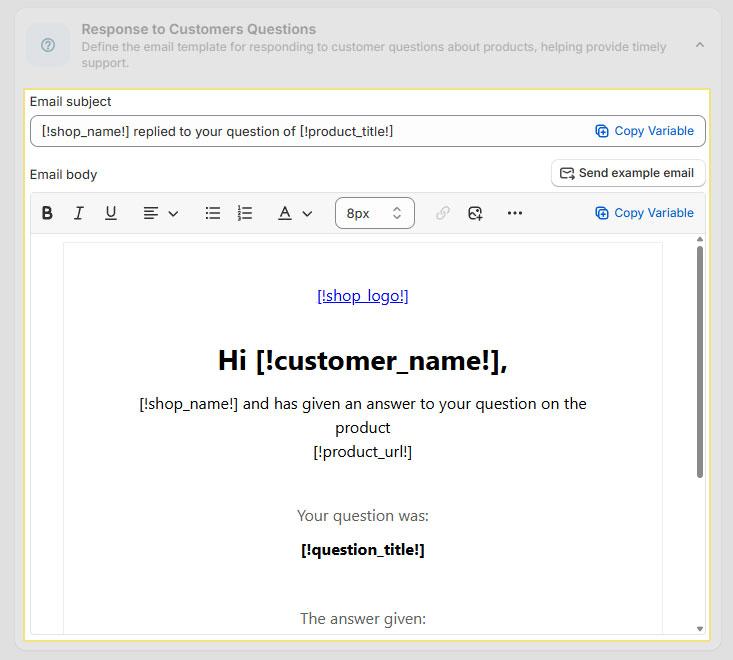
Response to Customer Questions:

This section allows you to customize the email notification that is automatically sent to customers when a merchant replies to a product-related question. You can configure the Email Subject, Email Body, and use dynamic parameters to personalize the message.

Poviews Response to Customer Questions Email

Email Subject:

The Email Subject defines what the customer sees in their inbox.

Example Subject:

[!shop_name!] replied to your question of [!product_title!]

Note - Using parameters ensures the subject line is automatically personalized for each customer.

Proviews Response to Customer Questions Email’s Subject

Email Body:

The Email Body is the main content of the email sent to the customer.

Mandatory Parameters:

The following parameters must be included in the email body for the notification to work correctly:

  • [!shop_name!] – Displays your store name so the reviewer knows who responded
  • [!product_url!] – Redirects the reviewer to the exact product page where the review and response are published

Proviews Response to Customer Questions Email’s Mandatory Parameters

Note - If these mandatory parameters are removed or not included in email body , Send example email may trigger a warning with missing parameters.

Optional Parameters:

Optional parameters allow you to personalize and enrich your email content. These placeholders automatically pull relevant store, product, review, and reviewer information when the email is sent.

Where to find - click on the subject line of the email a dropdown list of optional parameters will appear.

They are not mandatory, but highly recommended to improve clarity and engagement.

  • [!customer_name!]

Displays the customer’s name.

  • [!shop_url!]

Displays your store’s website URL.

  • [!product_title!]

Displays the product name related to the question.

  • [!question_title!]

Displays the original question asked by the customer.

  • [!answer!]

Displays the merchant’s response to the customer’s question.

  • [!shop_logo!]

Displays your store logo for branding.

  • [!unsubscribe_url!]

Displays the unsubscribe link (recommended for email compliance).

Proviews Response to Customer Questions Email’s Optional Parameters

How Optional Parameters Work:

  • If optional parameters are included, the system will automatically replace them with the relevant data when the email is sent.
  • If removed, the email will still be delivered successfully as long as mandatory parameters are present.

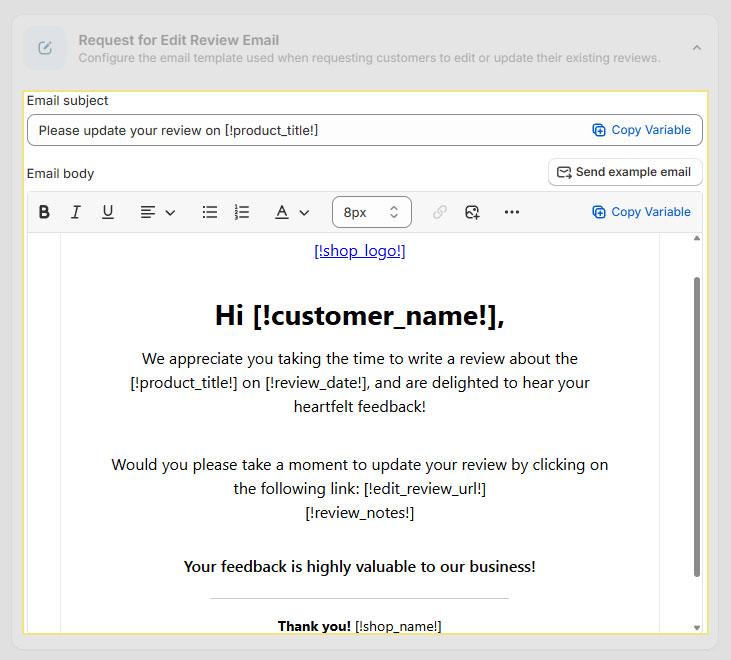
Edit Review Email:

The Edit Review Email feature allows you to customize the email sent to customers when you request them to update or edit an existing product review. You can modify the email subject, email body, and template layout using dynamic placeholders to personalize the message.

Proviews Edit Review Email

Email Subject:

The Email Subject defines the subject line customers see in their inbox.

Example:

Please update your review on [!product_title!]

Proviews Edit Review Email’s Subject

Email Body:

The Email Body is the main content of the email sent to the customer.

Mandatory Parameters:

The following parameters must be included in the email body for the notification to work correctly:

  • [!shop_name!] – Displays your store name so the reviewer knows who responded
  • [!product_url!] – Redirects the reviewer to the exact product page where the review and response are published

Proviews Edit Review Email’s Mandatory Parameters

Optional parameters:

The Edit Review Email feature allows you to customize the email sent to customers when you request them to update or edit an existing product review. You can modify the email subject, email body, and template layout using dynamic placeholders to personalize the message.

Where to find - click on the subject line of the email a dropdown list of optional parameters will appear.

They are not mandatory, but highly recommended to improve clarity and engagement.

  • [!shop_name!] – Displays your store name
  • [!store_name!] – Alternative store name variable (if configured)
  • [!shop_logo!] – Displays your store logo
  • [!shop_url!] – Redirects customers to your storefront
  • [!shop_owner!] – Store owner’s name
  • [!reviewer_name!] – Name of the reviewer
  • [!review_date!] – Date when the review was submitted
  • [!review_title!] – Review headline/title
  • [!review_body!] – Review content
  • [!review_notes!] – Internal or additional review notes
  • [!average_review!] – Product’s average rating
  • [!edit_review_url!] – Direct link to edit the review
  • [!request_id!] – Unique review request reference ID
  • [!unsubscribe_url!] – Allows customers to unsubscribe from emails

Need help?

Click “Help Me” and our chatbot will appear. You can then ask questions or request assistance in real time.

For email support, please mail us to  support@simprosys.com

Previous article

Previous-Arrow

Proviews ‑ Product Reviews Q&A

Raise a Ticket Icon

Can't find what you're looking for?

Raise a Ticket
Support Icon

Further assistance contact us at

support@simprosys.com