

Proviews ‑ Product Reviews Q&A
Legal Policies

Setup & Configuration
Additional Information
Installation Processes
Feature Policies & Guidelines


Proviews Widgets
Jun 12, 2026
Overview
Proviews offers four widgets built on Shopify OS 2.0 — two installed as Blocks within product page templates, and two as App Embeds that activate globally across your entire store.
Star Ratings: Displays a product's average star score near the title — delivering instant credibility at the point of decision.
Grid Widget: A structured, multi-column layout showcasing the full text and images of customer reviews on the product page.
Review Drawer: A slide-out panel letting customers view or submit reviews without losing their scroll position.
Review Notifications: Real-time pop-ups alerting visitors to recent reviews and activity — active store-wide.
| Widget | Type | Scope |
| Star Ratings | Block | Product page template — placed near the title or price |
| Grid Widget | Block | Product page template — placed below product specs or description |
| Review Drawer | App Embed | Store-wide — active on all pages once enabled |
| Review Notifications | App Embed | Store-wide — active on all pages once enabled |
Before You Begin
Prerequisite: Confirm the Proviews app is installed in your Shopify admin before proceeding. All widget installation takes place inside the Shopify Theme Editor.
Open the Theme Editor:
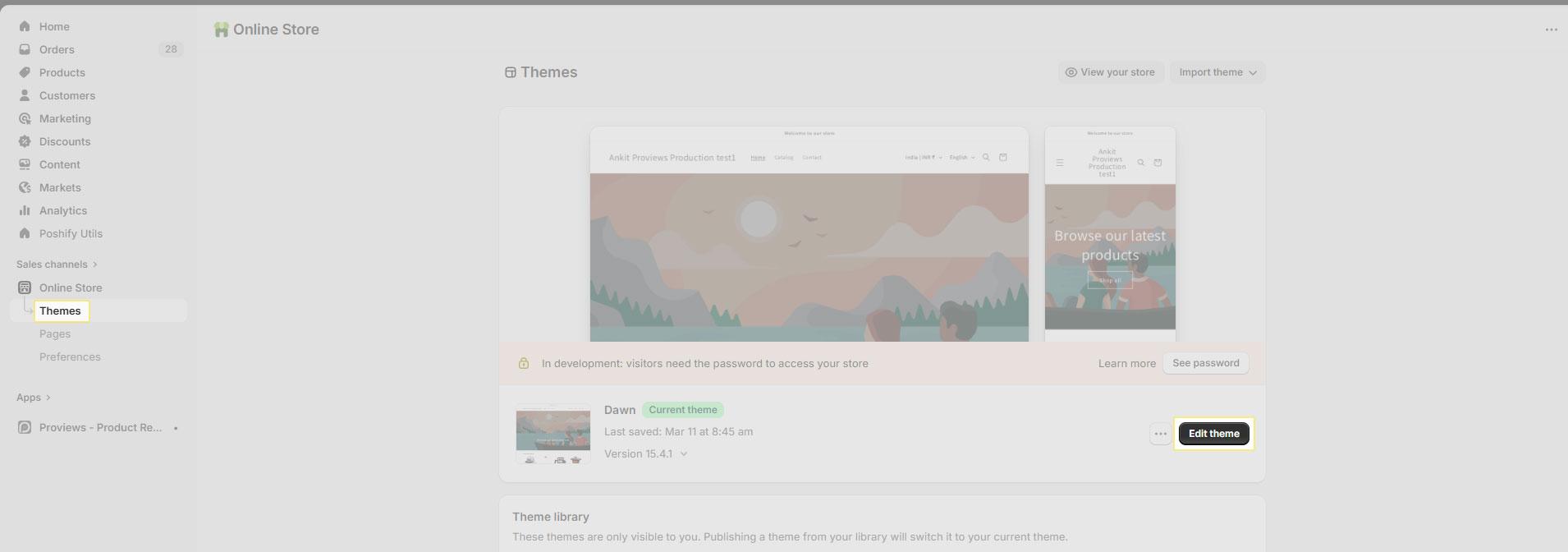
1. In your Shopify admin, go to Online Store → Themes.
2. Click Customize on your active theme to open the Theme Editor.
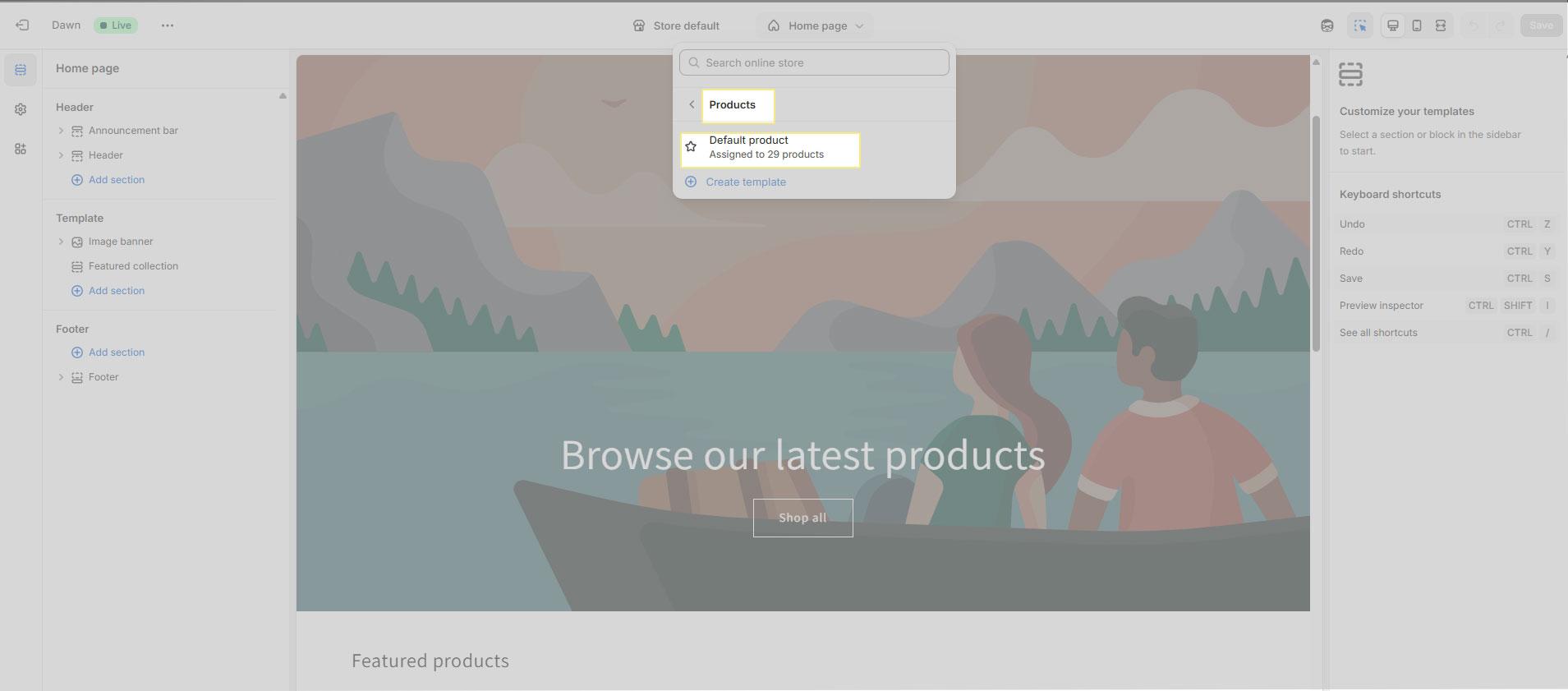
3. From the Templates dropdown at the top of the Editor, select Products → Default product.
Installing Block Widgets
Add both Block widgets to your product page template using the steps below. Use the checklist to confirm each step is complete.
Star Ratings:
1. In the Theme Editor sidebar, locate the Product Information section.
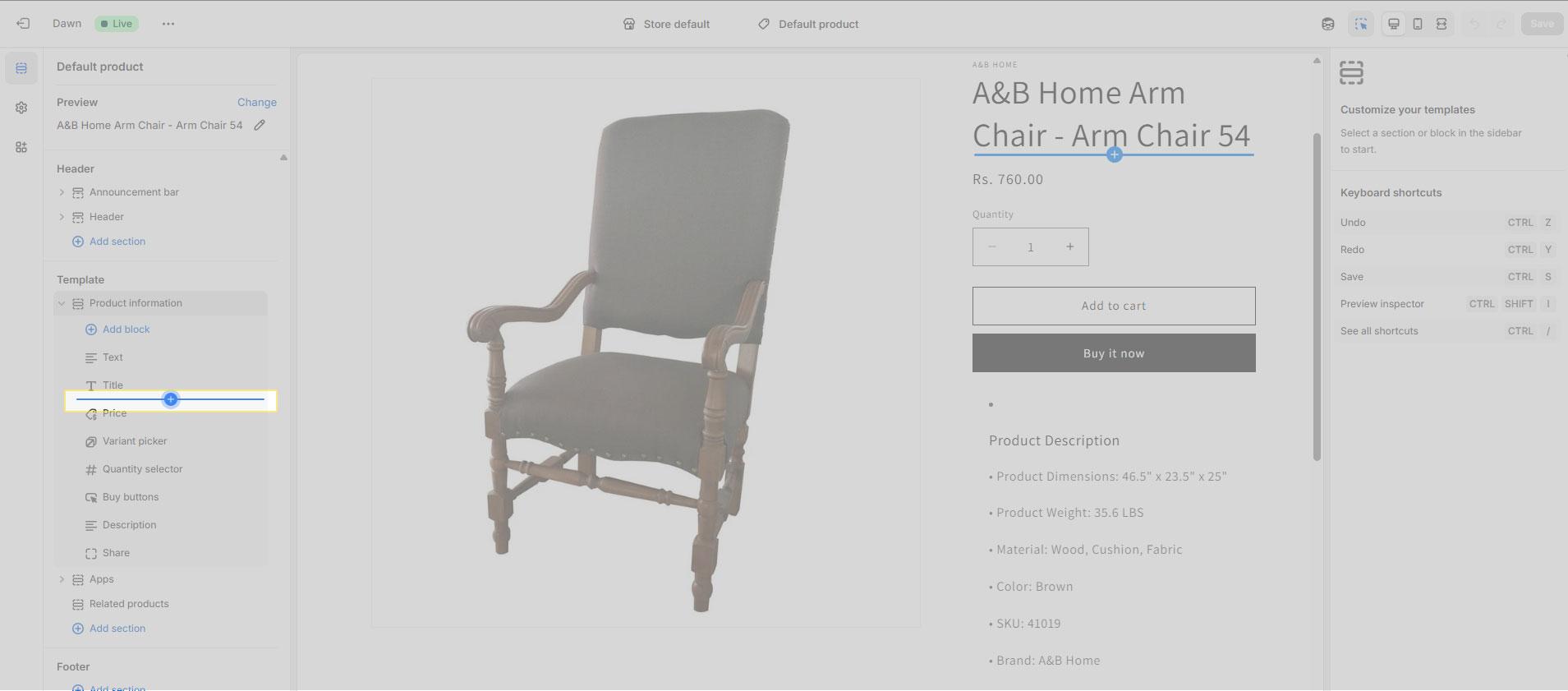
2. Click Add block within that section and select Star Rating.
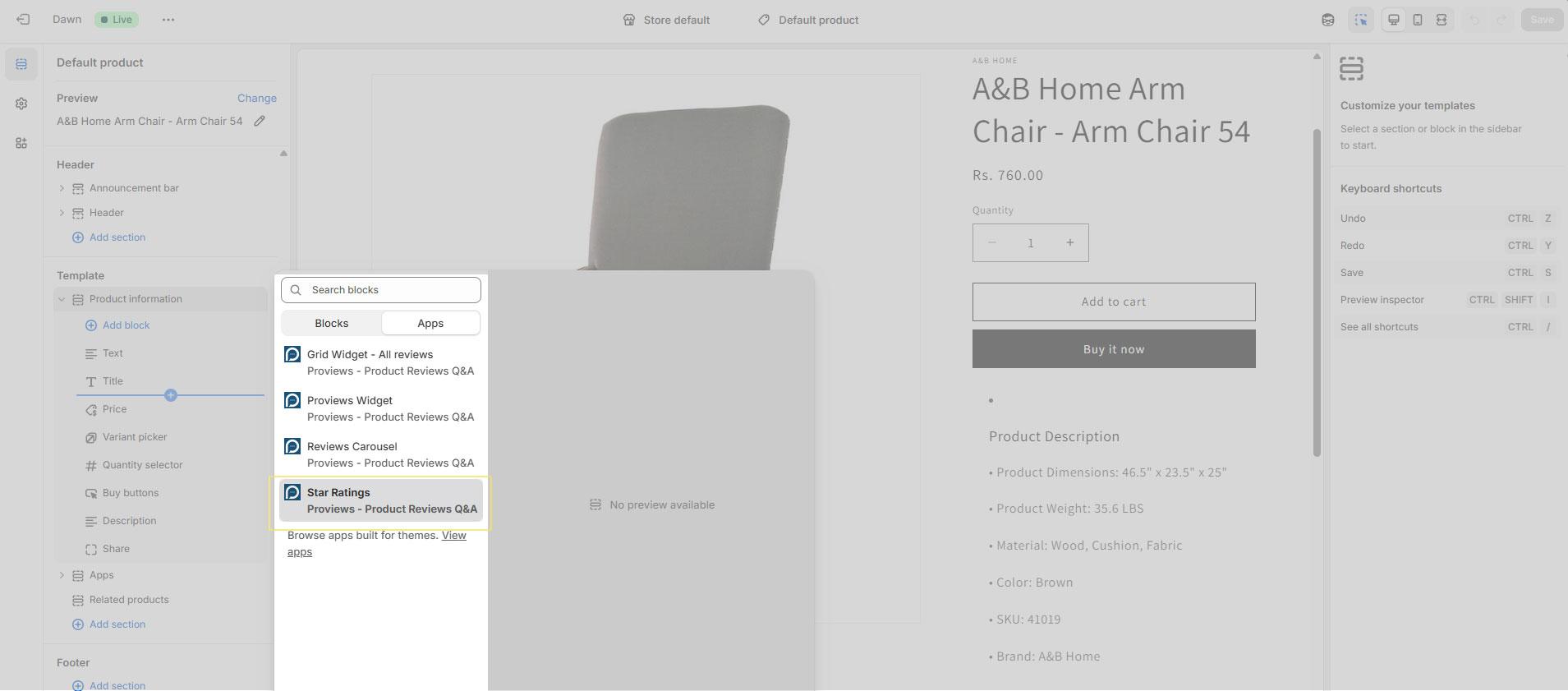
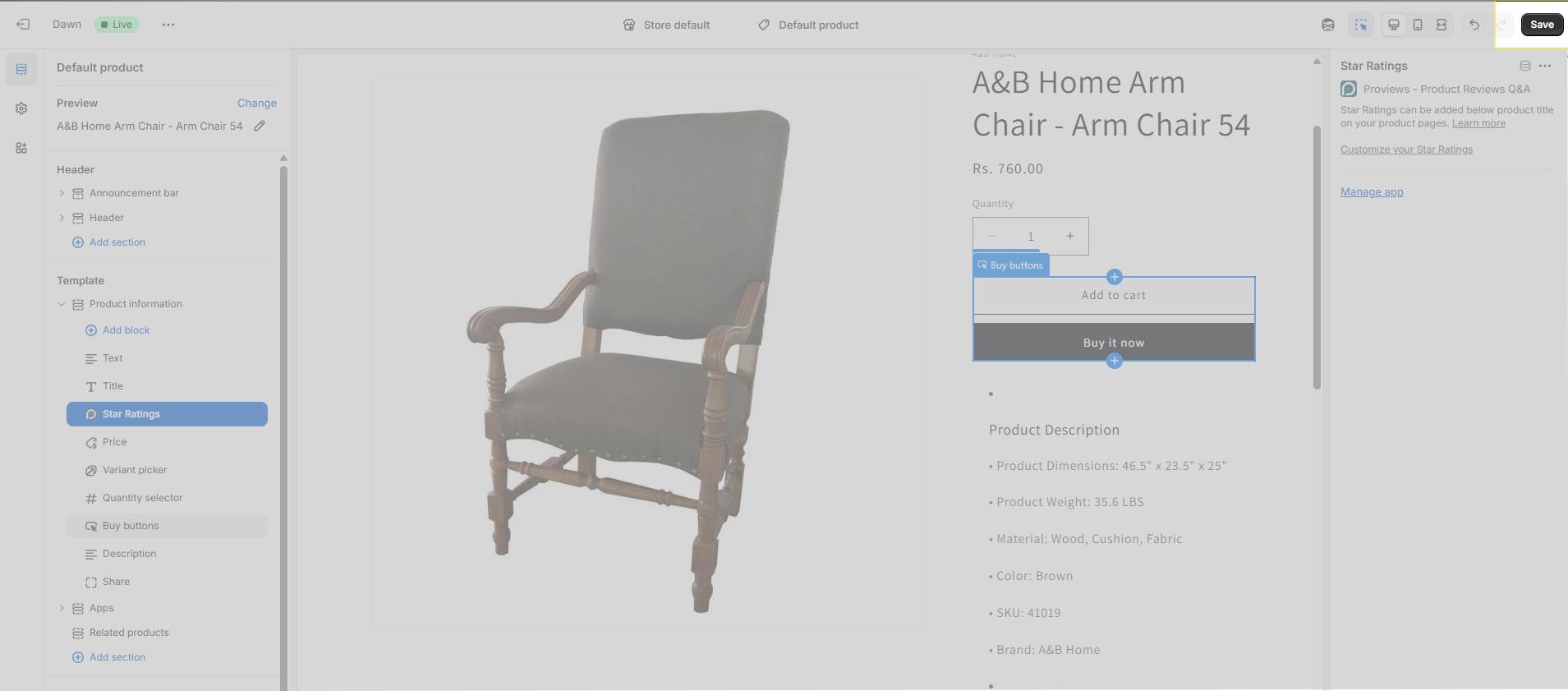
3. Drag the block to your preferred position — next to the product price or title works best for immediate visibility.
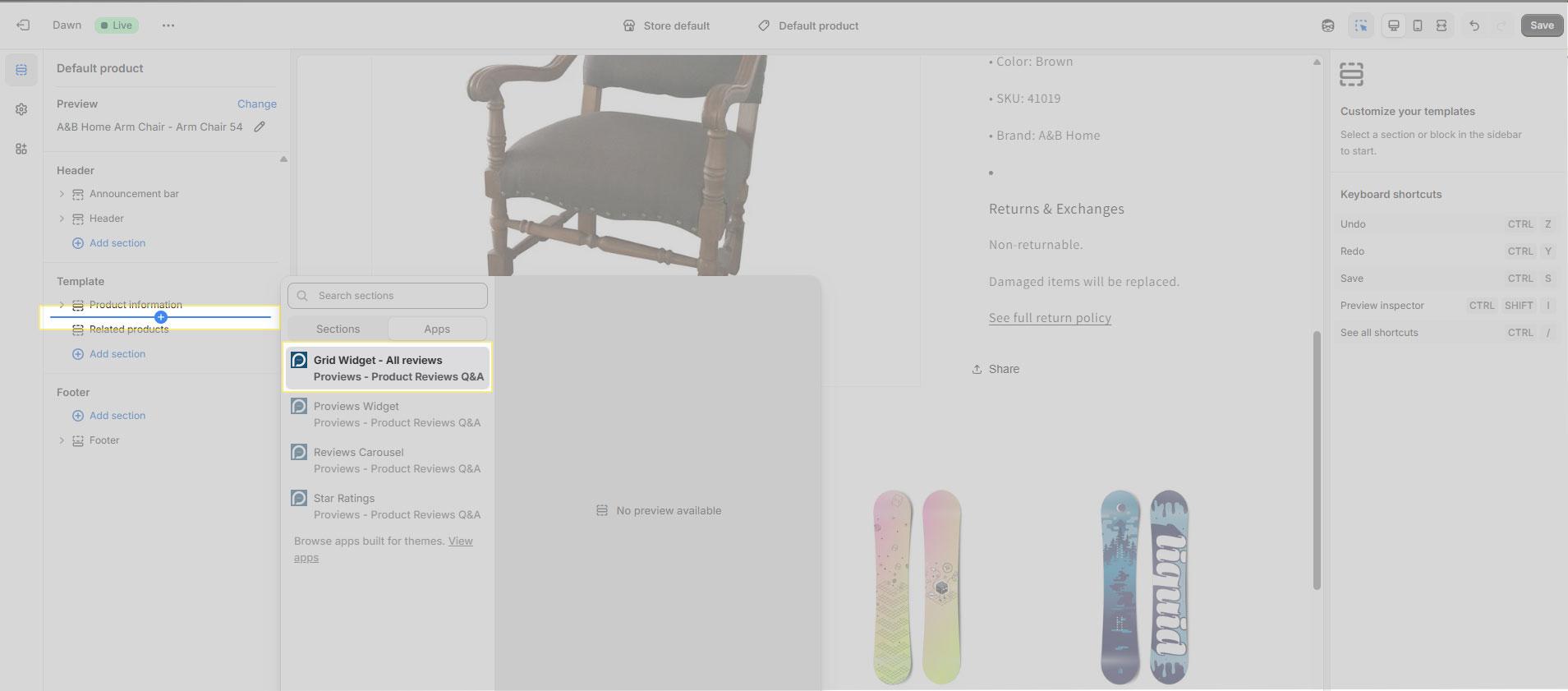
Grid Widget:
4. Scroll to the bottom of the sidebar and click Add section or Add block.
5. Select Grid Widget and position it below the product specs or description — so shoppers read the product details first, then see reviews.
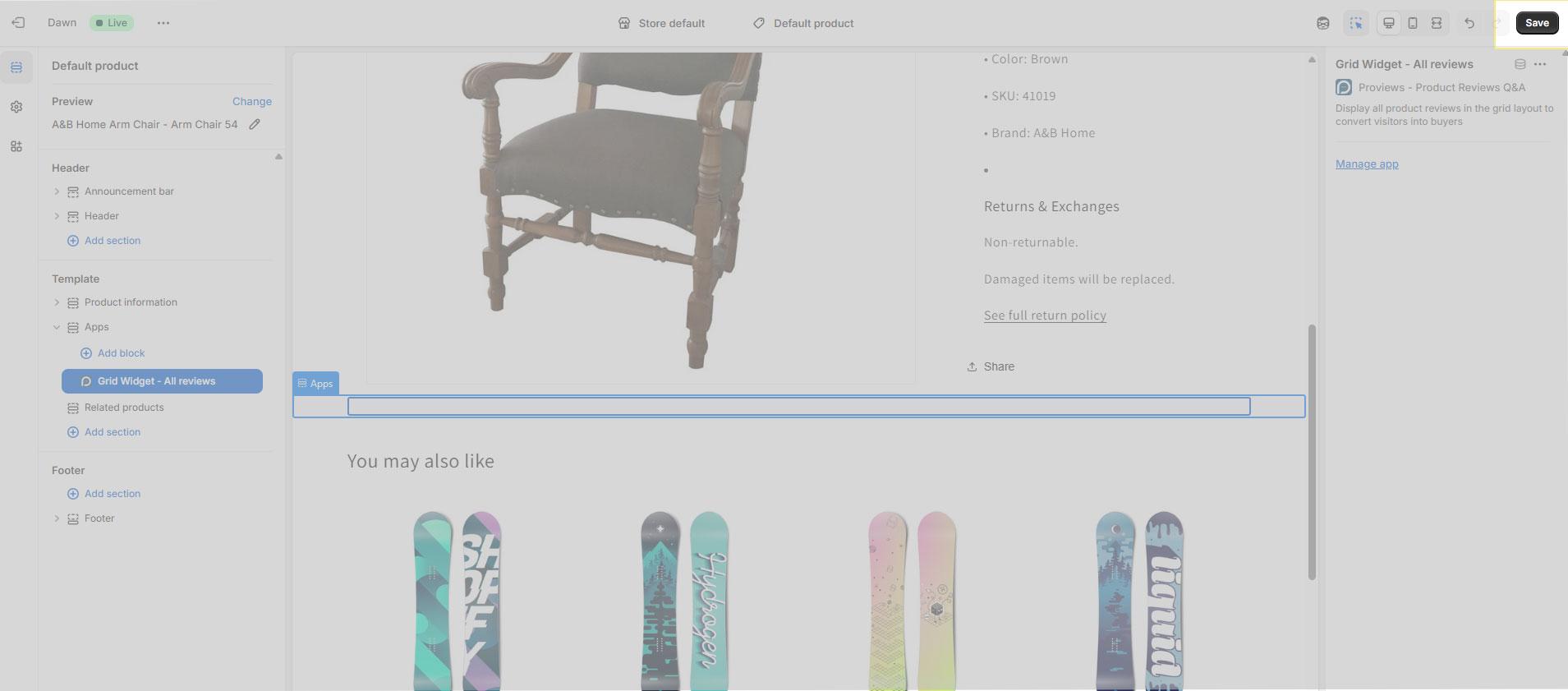
6. Click Save in the top-right corner to publish both widgets to your live storefront.
- Star Ratings block added within the Product Information section
- Star Ratings positioned near the product price or title
- Grid Widget added below product specs or description
- Changes saved — widgets are live on the product page
Installing App Embed Widgets
App Embeds activate globally across your store with a single toggle — no per-page placement required.
1. In the Theme Editor, click the App Embeds tab in the far-left sidebar.
2. Locate the toggles for Review Drawer and Review Notifications.
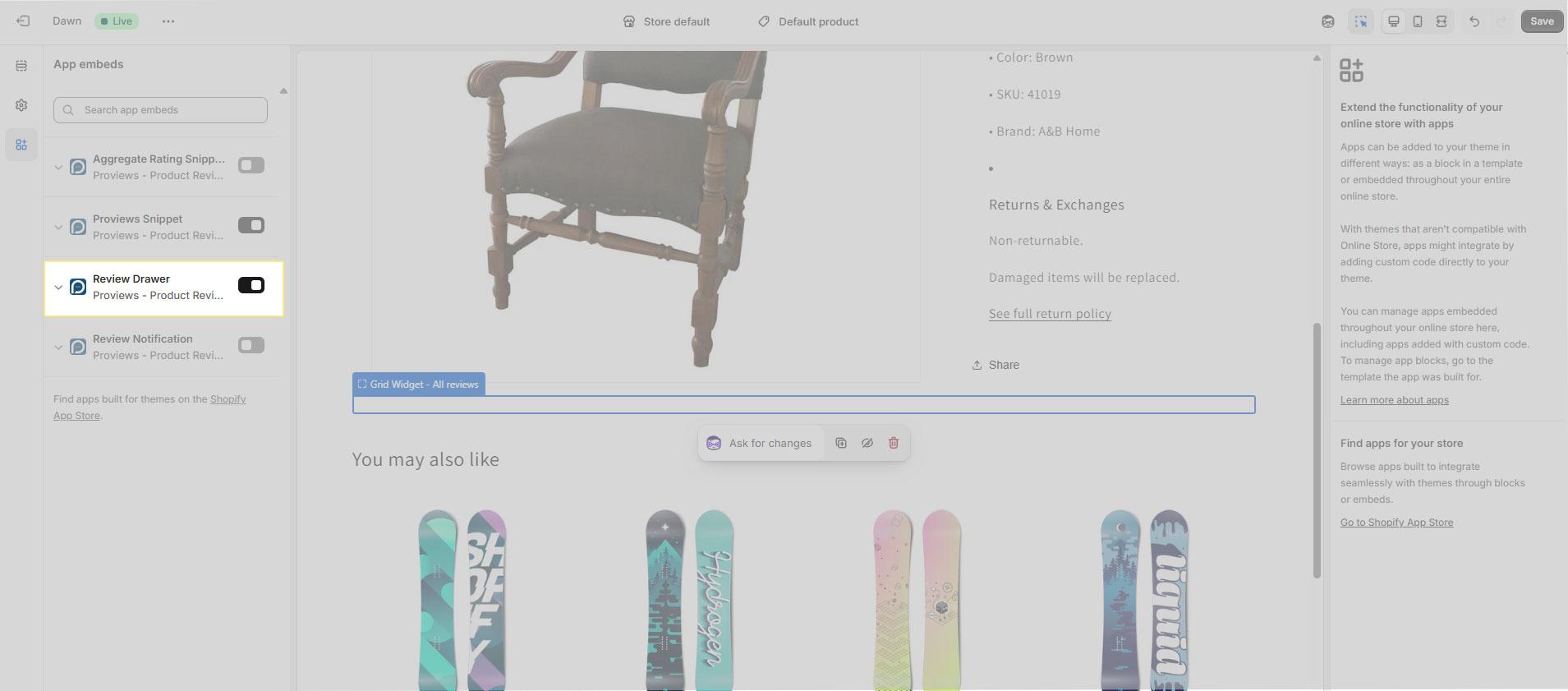
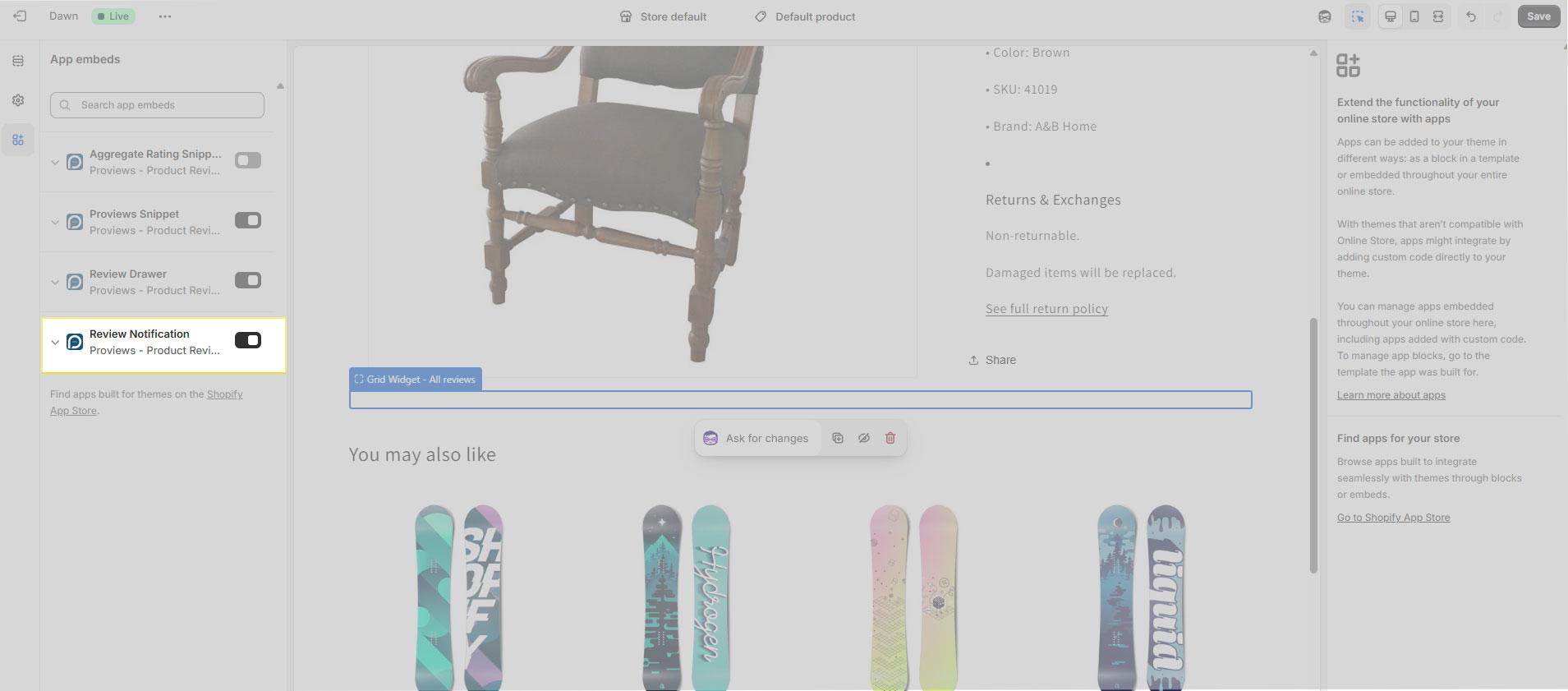
3. Switch both toggles to ON.
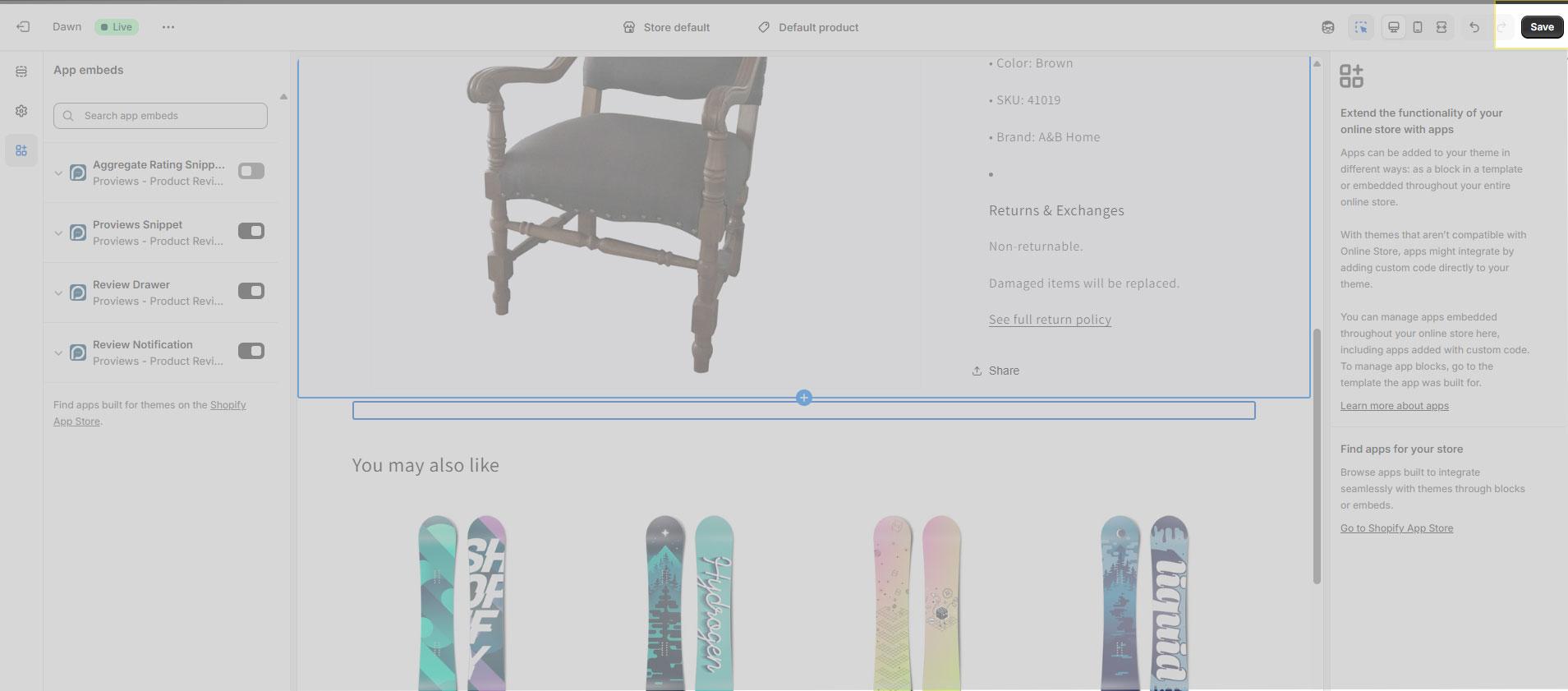
4. Click Save. Both widgets are now active across your entire store.
Need Help?
Click Help Me on the dashboard to open the support chatbot for real-time assistance.
For email support, contact us at support@simprosys.com
Previous article

Next article
Proviews ‑ Product Reviews Q&A
Legal Policies
Setup & Configuration
Additional Information
Installation Processes
Feature Policies & Guidelines


