

Proviews ‑ Product Reviews Q&A
Legal Policies

Setup & Configuration
Additional Information
Installation Processes
Feature Policies & Guidelines


Integrate Proviews Main Widget on Product Page in Shopify Theme
Jun 12, 2026
What this guide covers: Step-by-step instructions to install the Proviews reviews widget on your product pages. Choose the section that matches your theme type
Shopify 2.0 Themes
Integrating the Proviews widget into your Shopify 2.0 theme involves utilizing the theme editor's drag-and-drop functionality and app blocks, which is typically the recommended method for modern Shopify stores.
Step 1 — Access Theme Customization
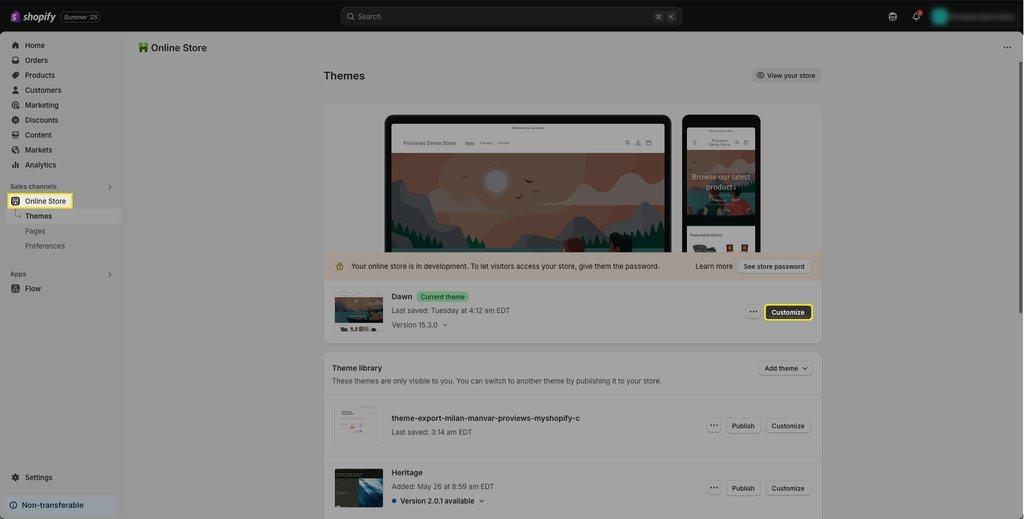
1. In your Shopify admin, go to Online Store → Themes.
2. Find your active theme and click Customize.
Step 2 — Select the Product Template
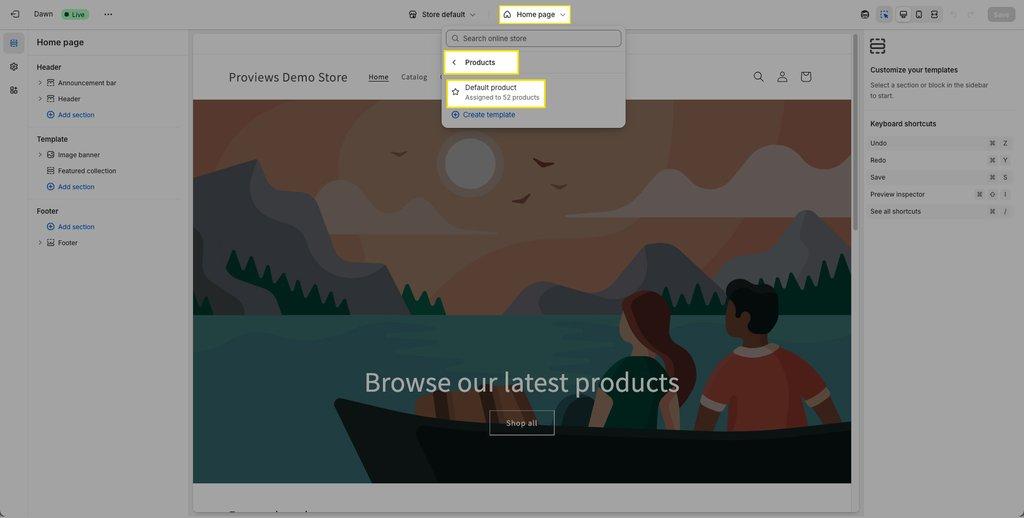
3. In the theme editor, click the dropdown at the top of the page.
4. Select the Product template where you want the widget to appear.
Step 3 — Add the Proviews Section
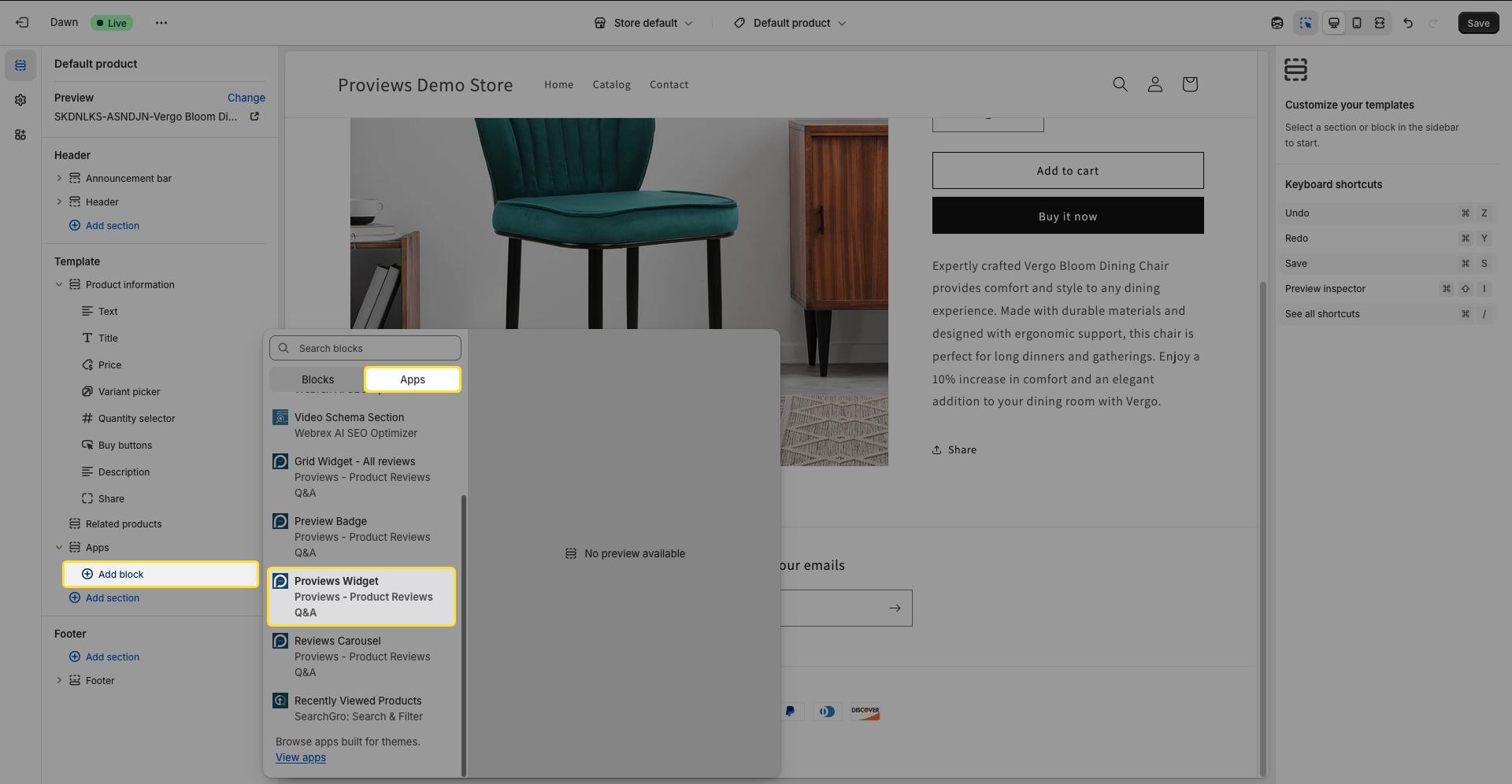
5. In the left sidebar, click Add Section or Add Block.
6. Search for and select Proviews Widget.
Step 4 — Position and Save
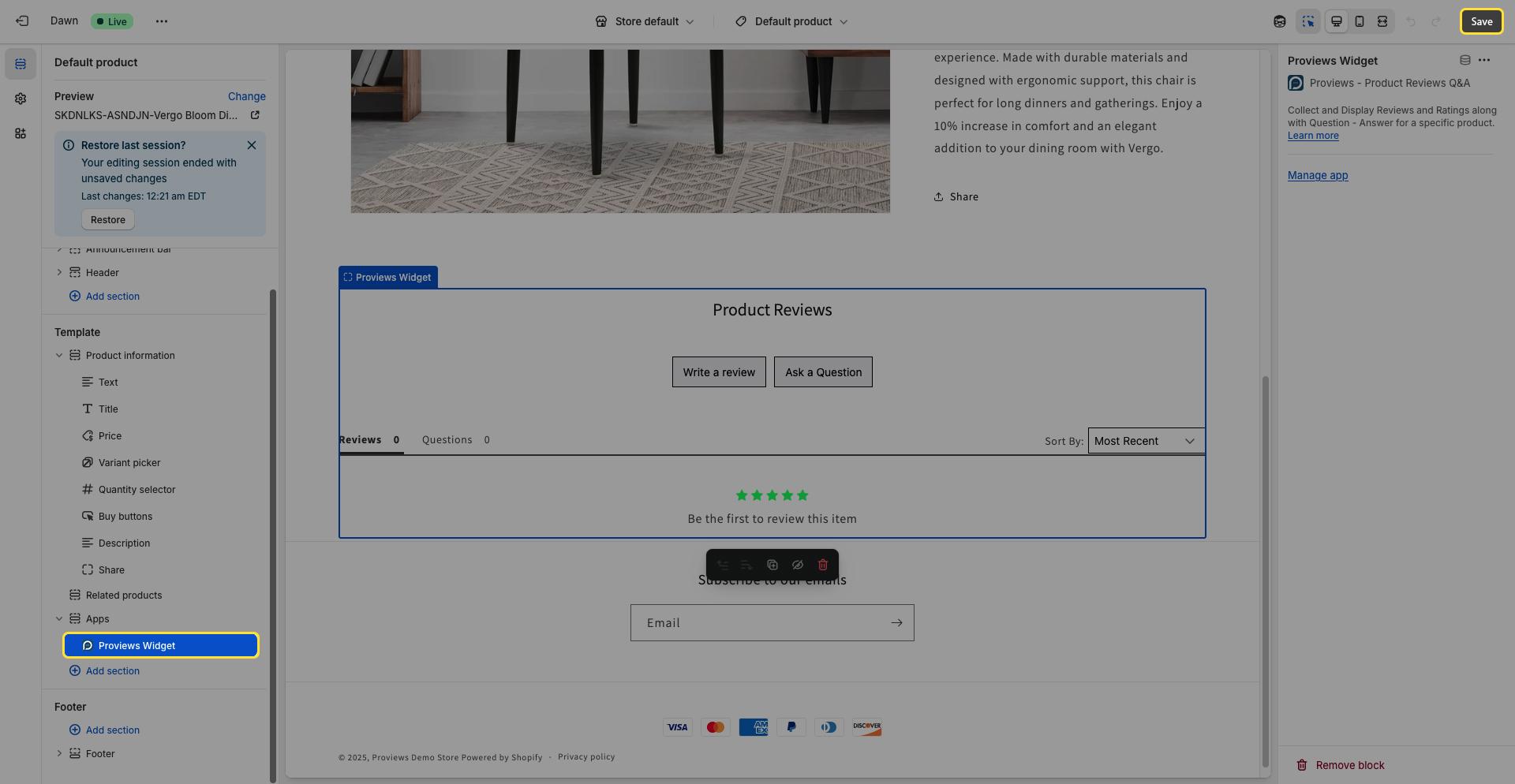
7. Drag the widget to your preferred position — below the product title, description, or price.
8. Click Save to publish your changes.
Shopify Vintage (1.0) Themes
Vintage themes require manual code insertion. Follow these steps to add the Proviews widget to your product template files.
Step 1 — Access the Theme Code Editor
1. In your Shopify admin, go to Online Store → Themes.
2. Click Actions (or the three-dot menu), then select Edit Code.
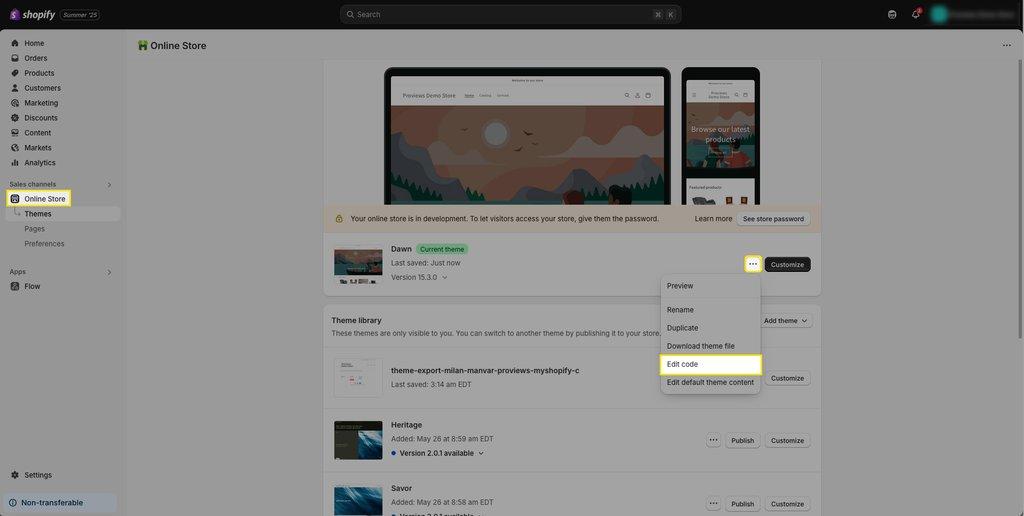
Step 2 — Locate the Product Template File
3. In the left file explorer, open the Sections or Templates directory.
4. Select product.liquid or product-template.liquid.
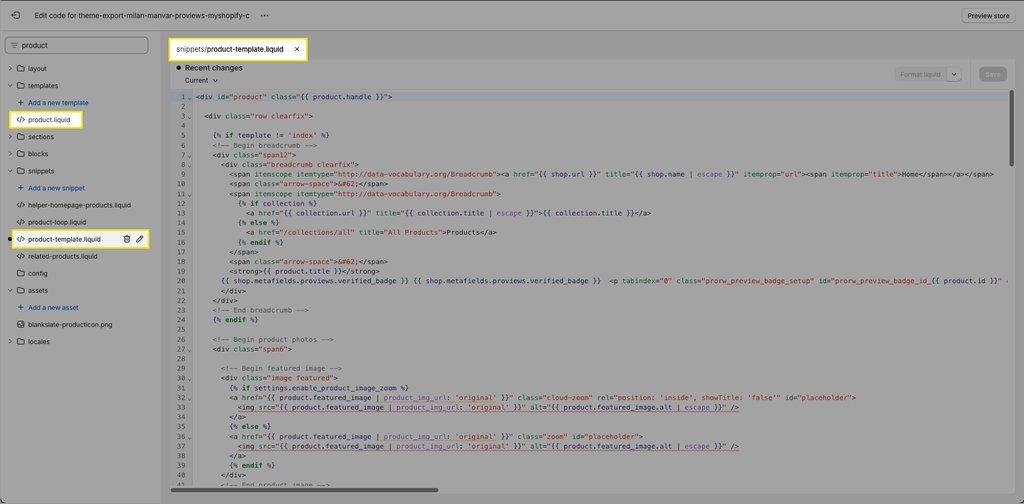
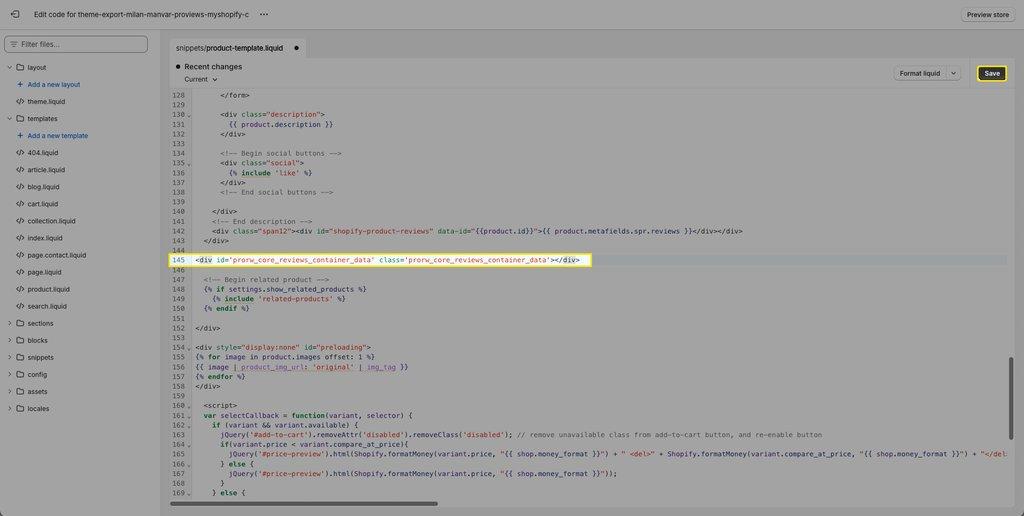
Step 3 — Insert the Proviews Code
5. Paste the Proviews widget code snippet at your preferred location within the product section or before the closing </body> tag.

6. Click Save to apply your changes.
Important Notes
Before You Finish
- Enable App Embeds: Go to Online Store → Themes → Customize → App Embeds and enable the Proviews Snippet. The widget requires this to function.
- Multiple Templates: If your store uses multiple product templates (e.g., product.alternative.liquid), repeat these steps for each one.
- Third-Party Apps: If a third-party app generates your product pages, add the Proviews widget code or block to those files as well.
- Adjust Placement: After installation, check your product pages and adjust the widget position for the best customer experience.
- Test Your Setup: Visit your live store to confirm reviews and star ratings display correctly.
App Embeds Required: The Proviews widget will not display unless you enable the Proviews Snippet in App Embeds. This step applies to both Shopify 2.0 and Vintage themes.
Need Help?
Click “Help Me” and our chatbot will appear. You can then ask questions or request assistance in real time.
For email support, feel free to reach out to us at support@simprosys.com
Previous article

Next article
Proviews ‑ Product Reviews Q&A
Legal Policies
Setup & Configuration
Additional Information
Installation Processes
Feature Policies & Guidelines


