

Proviews ‑ Product Reviews Q&A
Legal Policies

Setup & Configuration
Additional Information
Installation Processes
Feature Policies & Guidelines


Reviews Carousel – Product Reviews Q&A
Aug 27, 2026
Overview
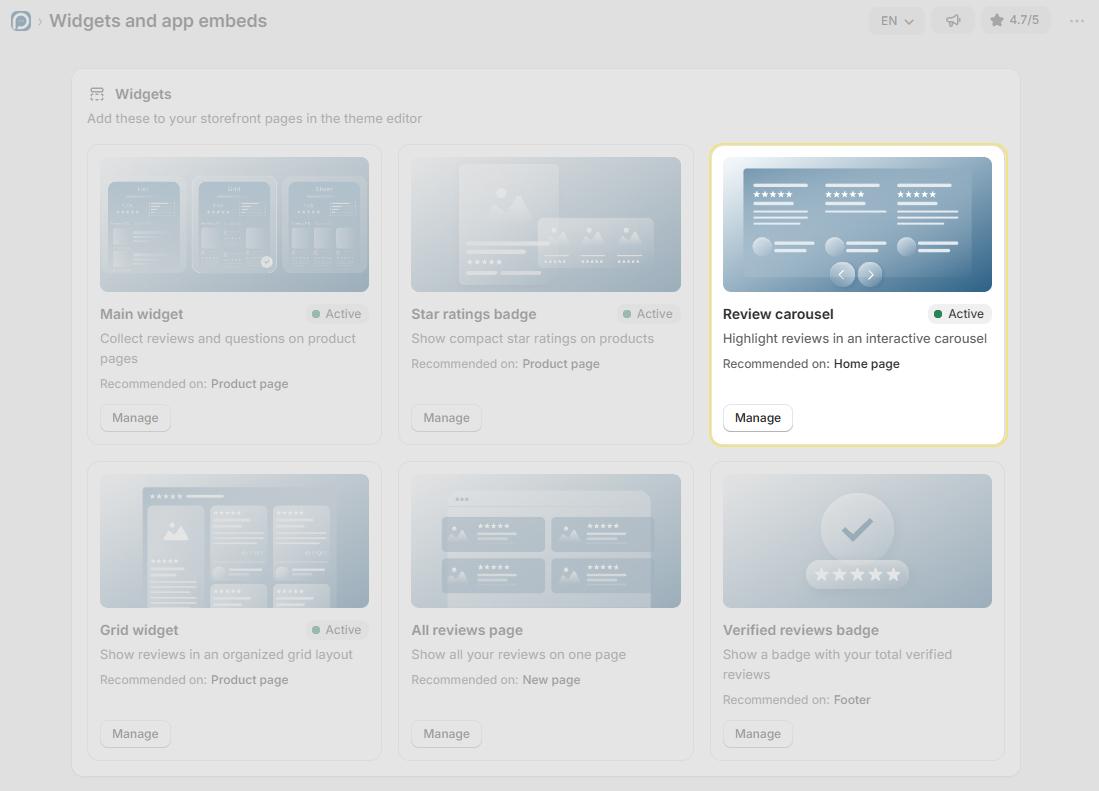
The Reviews Carousel is an interactive widget that showcases your top customer reviews in a dynamic, sliding format. Embedding it on high-traffic pages — such as your homepage or landing pages — amplifies social proof and builds immediate trust with potential buyers.
Before You Begin
Minimum 5 Reviews Required: The carousel needs at least 5 published reviews to function. Ensure your store meets this threshold before proceeding.
Allow Up to 24 Hours: After activation, the carousel may take up to 24 hours to appear on your storefront. New reviews and updates to existing reviews carry the same delay.
Setup Flow
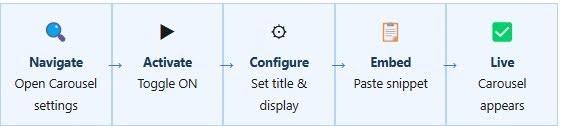
Step 1 – Open the Carousel Settings
- Log in to your Shopify admin and open the Proviews app.
- In the left sidebar, click Widgets.
- Locate the Reviews Carousel card and click Manage.
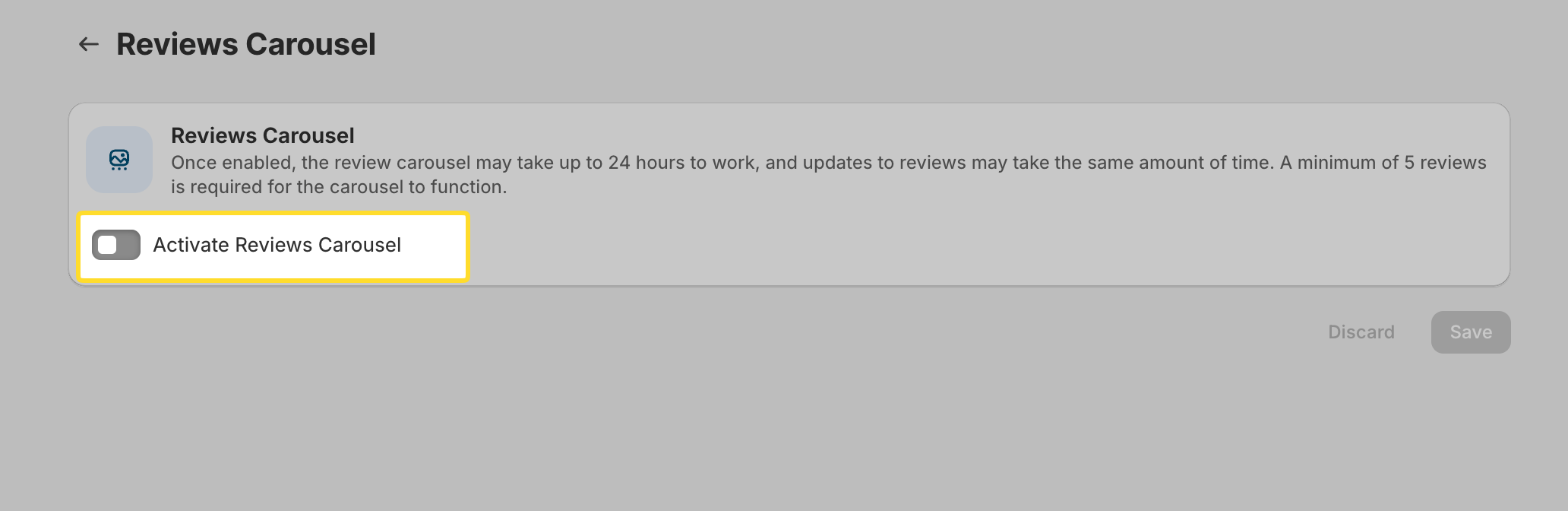
Step 2 – Activate the Carousel
The carousel is deactivated by default. Click the Activate Reviews Carousel toggle to switch it ON. The configuration fields expand automatically once activated.
Confirmed: Once activated, all display settings below become available to configure.
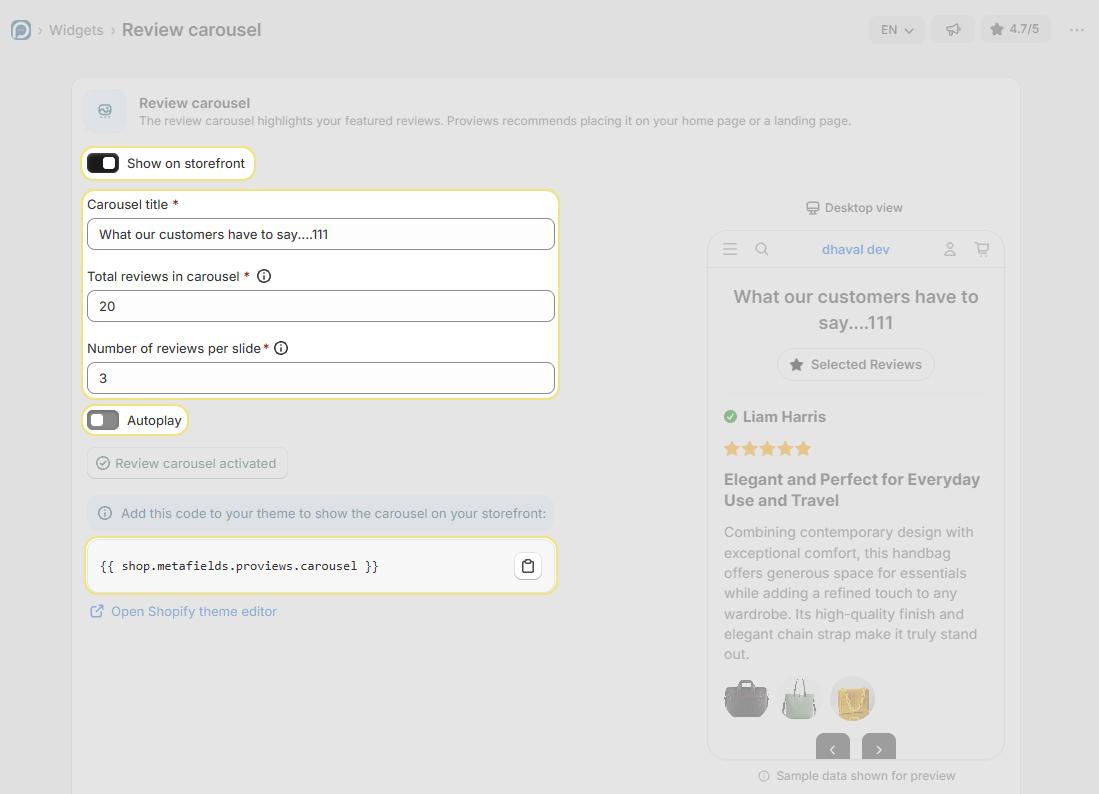
Step 3 – Configure Display Settings
Customize the carousel's appearance and behavior to match your store's design:
| Setting | Description | Recommended |
| Carousel Title | The heading displayed above the carousel on your storefront (e.g., "What Our Customers Say", "Customer Testimonials"). | "What Our Customers Say" |
| Total Reviews in Carousel | The maximum number of reviews included in the carousel rotation. Proviews selects from your published reviews to fill this count. | 12 |
| Reviews Per Slide | The number of review cards visible at once on a single slide. | 3 (desktop); 1–2 for mobile-first stores |
| Autoplay | When enabled, the carousel advances slides automatically without requiring shoppers to click navigation arrows. | On |
Tip: Reduce Reviews Per Slide to 1 or 2 for stores with a predominantly mobile audience — narrower screens display fewer cards more comfortably.
Once configured, click Save at the bottom right of the screen. Click Discard to revert any unsaved changes.
Step 4 – Embed the Carousel on Your Store
To display the carousel on your storefront, paste the following Liquid snippet into your theme code at the location where you want it to appear:
{{ shop.metafields.proviews.carousel }}
Common locations to add the snippet include:
- index.json — Homepage template
- product.liquid — Product page template
- Any custom Liquid block or section in your theme
Note: You can embed the carousel on multiple pages by adding the same snippet to each relevant template — no additional Proviews configuration is required per page.
Best Placement for Maximum Impact
Homepage: The highest-traffic page on your store. Placing the carousel here ensures maximum visibility for every new visitor — ideal for first impressions and trust-building.
Landing Pages: High-intent pages where conversion is the primary goal. Social proof at this stage directly reduces hesitation and improves click-through rates.
Not appearing after 24 hours? Confirm that at least 5 reviews are published in Proviews and that the snippet is saved correctly in your theme. If the issue persists, contact our support team.
Need Help?
Click “Help Me” and our chatbot will appear. You can then ask questions or request assistance in real time.
For email support, feel free to reach out to us at support@simprosys.com
Previous article

Next article
Proviews ‑ Product Reviews Q&A
Legal Policies
Setup & Configuration
Additional Information
Installation Processes
Feature Policies & Guidelines


