

Proviews ‑ Product Reviews Q&A
Legal Policies

Setup & Configuration
Additional Information
Installation Processes
Feature Policies & Guidelines


Review Notification – Product Reviews Q&A
Aug 27, 2026
Overview
The Review Notification widget displays small, non-intrusive pop-ups on your storefront showing recent customer reviews in real time.
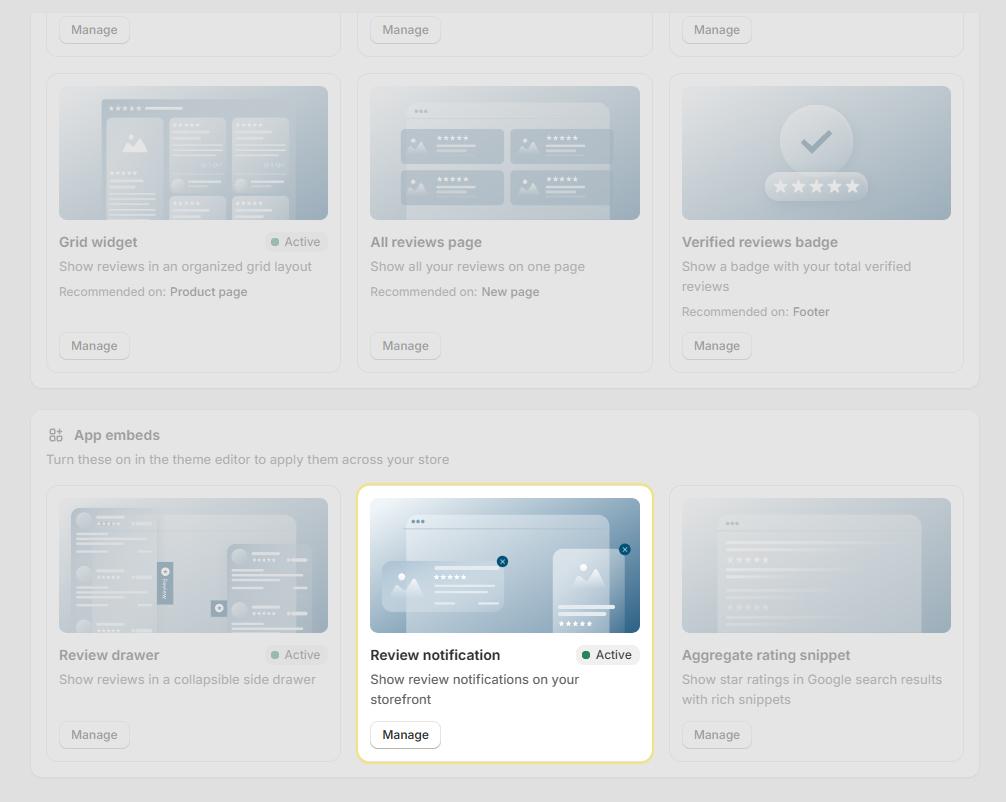
Real-Time Social Proof: Pop-ups simulate live purchase and review activity, building instant credibility with new visitors.
Non-Intrusive Design: Appears as a small notification at the bottom corner of the screen — visible without disrupting browsing or checkout.
Desktop & Mobile Ready: Works across all device types. Control visibility separately for desktop and mobile from the settings panel.
Step 1 – Activate the Review Notification
- In your Shopify admin, go to Apps → Proviews.
- Click Widgets in the left sidebar.
- Locate the Review Notification card and click Manage.
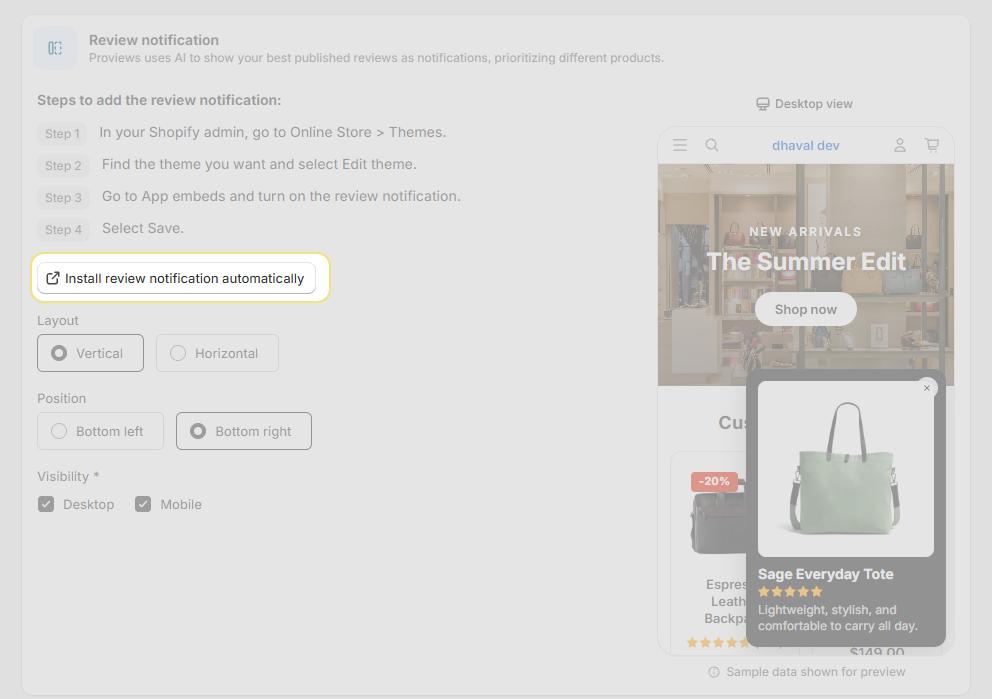
- Click Install review notification automatically. Proviews redirects you to the Shopify Theme Editor with the widget already added to your storefront layout.
- Click Save in the top-right corner of the Theme Editor to apply the changes.
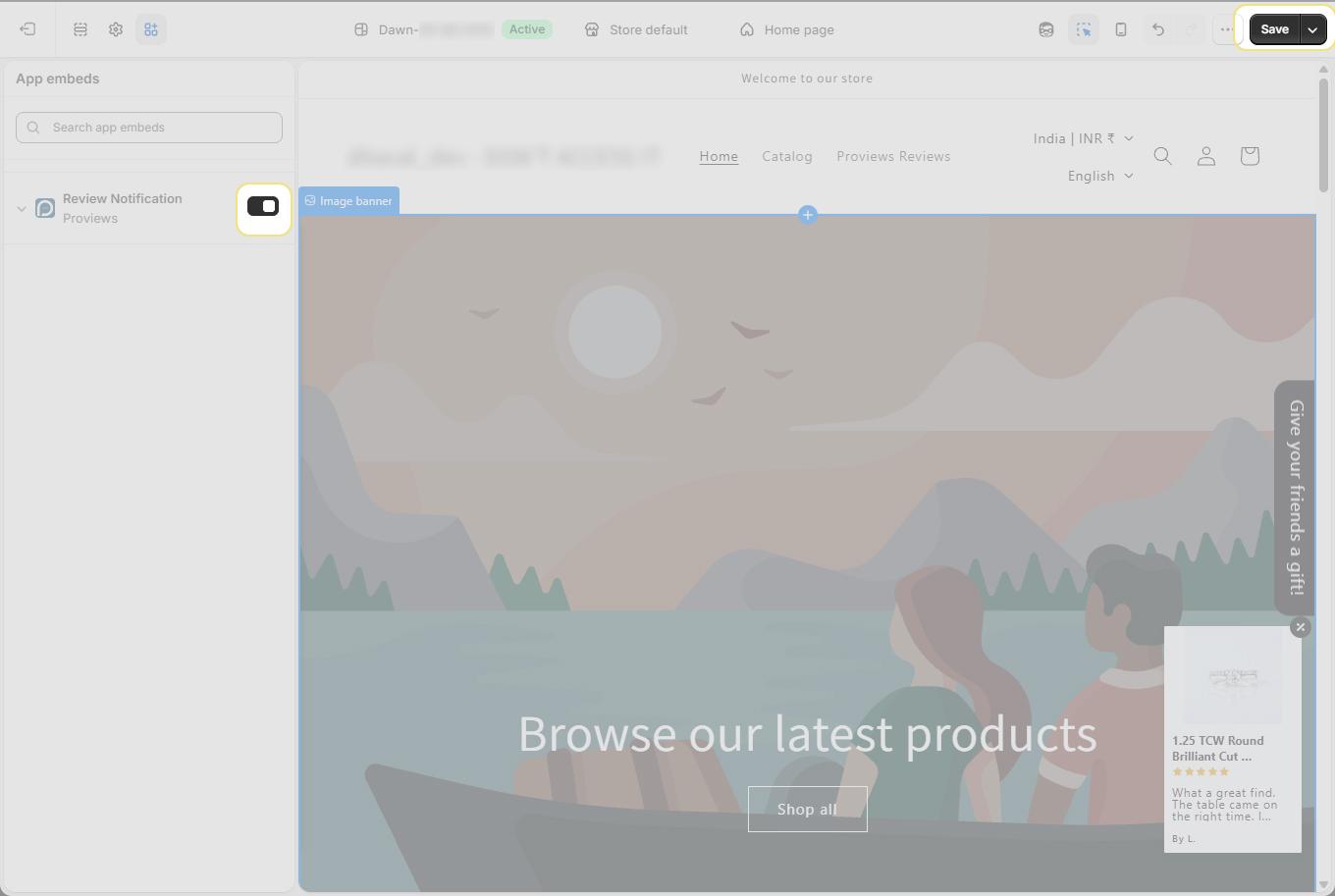
Live! The Review Notification widget is now active on your storefront. Return to Proviews to configure its layout, position, and visibility settings.
Important: At least one published review must exist in Proviews for the notification to display content on your storefront.
Step 2 – Configure Layout & Position
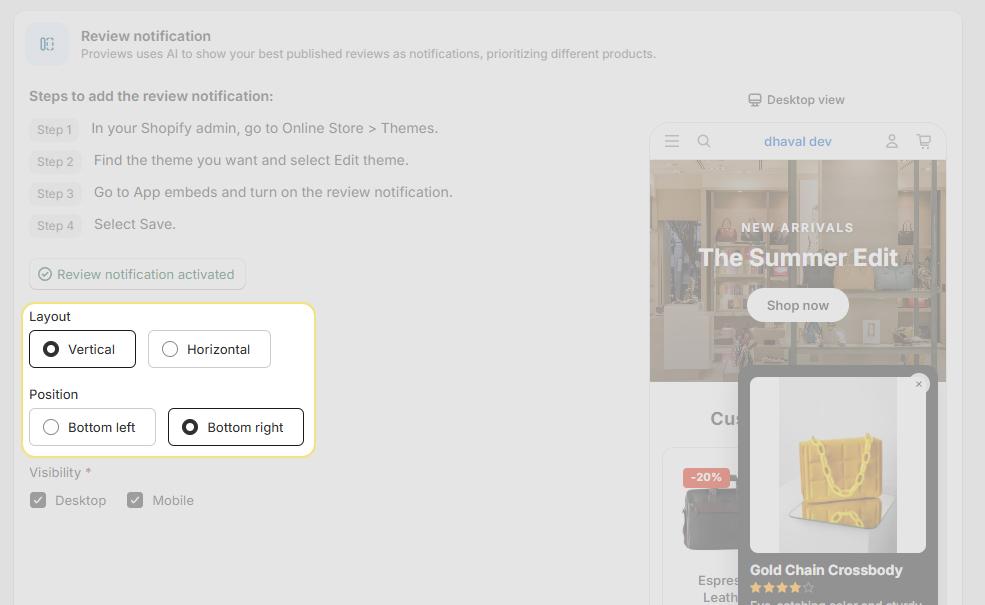
Layout Style
- Vertical Pop-Up: Stacks notification content vertically — recommended for better readability and a cleaner look on all screen sizes.
- Horizontal Pop-Up: Displays notification content in a wider, compact single-row format — suited for stores where screen space is a priority.
Screen Position
- Bottom Left: Notification appears at the bottom-left corner of the screen.
- Bottom Right: Notification appears at the bottom-right corner — recommended for better visibility and less interference with left-side navigation menus.
Step 3 – Set Visibility
Control which devices display the Review Notification widget:
Desktop: Toggle ON to show the notification to shoppers on desktop browsers.
Mobile: Toggle ON to show the notification to shoppers on mobile devices.
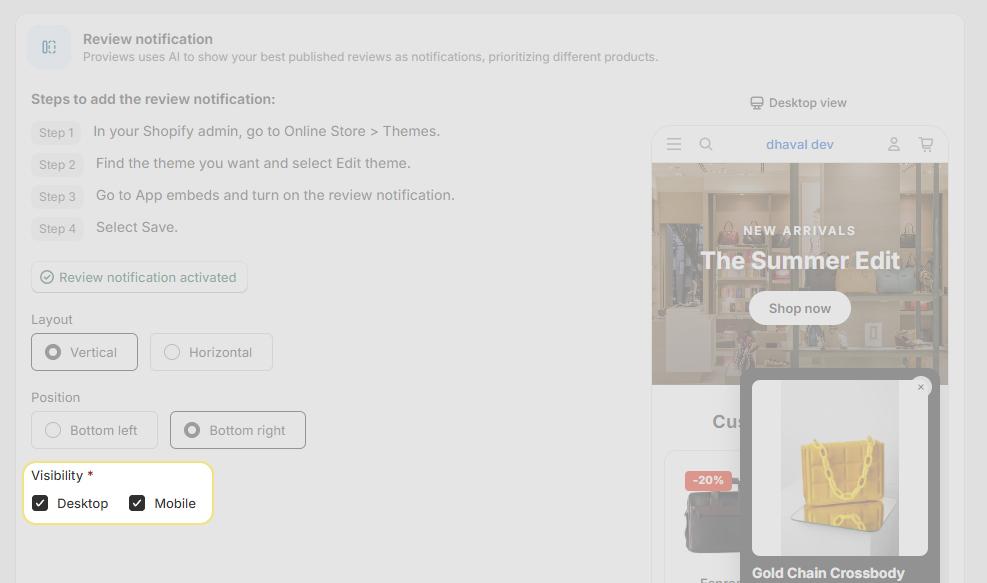
Tip: Enable visibility on both desktop and mobile to reach every shopper regardless of the device they use. The widget adapts its size automatically per screen.
Best Practices
Use Bottom Right position: Right-side placement avoids overlap with left navigation elements and feels natural to most users.
Use Vertical layout: Vertical format is easier to read at a glance and works well across both desktop and mobile viewports.
Enable on all devices: Activating both desktop and mobile ensures no shoppers miss the social proof signals.
Keep reviews published: Regularly approve and publish new reviews to keep the notification content fresh and current.
Need Help?
Click “Help Me” and our chatbot will appear. You can then ask questions or request assistance in real time.
For email support, feel free to reach out to us atsupport@simprosys.com
Previous article

Next article
Proviews ‑ Product Reviews Q&A
Legal Policies
Setup & Configuration
Additional Information
Installation Processes
Feature Policies & Guidelines


