

Simprosys Product Feed for WooCommerce
Pre-Installation

Plugin Setup
Product Submission Controls
Product Attributes & Optimization
Automated Feed Rule
Troubleshooting & Issue Fixes
Advanced Setup Made Easy
Google Merchant Center Setup & Integration
Tracking Tag Setup (Google Ads & Google Analytics 4)
Google Ads & Campaign Setup
Multi-Country
Promotions Feed
Microsoft Advertising Integration & Campaign Setup
META (Facebook) Integration
WooCommerce Store Access & Setup
Billing & Payments
Google Local Inventory Setup

What are Custom Labels and how to assign them in our plugin?
Jan 01, 2026
In this document, we will demonstrate what are custom labels and how to assign them from our plugin.
Custom labels are simply a type of Tag that can be used to filter and organize products in a Google Ads campaign.
You can identify, filter, and arrange products for the shopping campaign according to your advertising preferences based on the custom label values assigned to different groups of products or individual products.
Custom labels are particularly useful if you need product categorization that is not provided by Google.
However, it's important to note that custom labels are not intended to be used for campaign keyword matching, and they cannot be used to enter keywords for specific products.
Custom labels are assigned to products or groups of products, and each custom label can have up to 1000 unique values added to it. You can use up to five custom labels, labeled as custom labels 0 to 4.
Let’s look into an example of how to assign custom labels from our plugin.
1. Please login to our plugin, Go to the “Manage Products” tab, click on “Filter Products” and you can filter the products on the basis of Age Group, Gender, product type, tags, vendor, etc. on which you would like to apply the Custom Labels.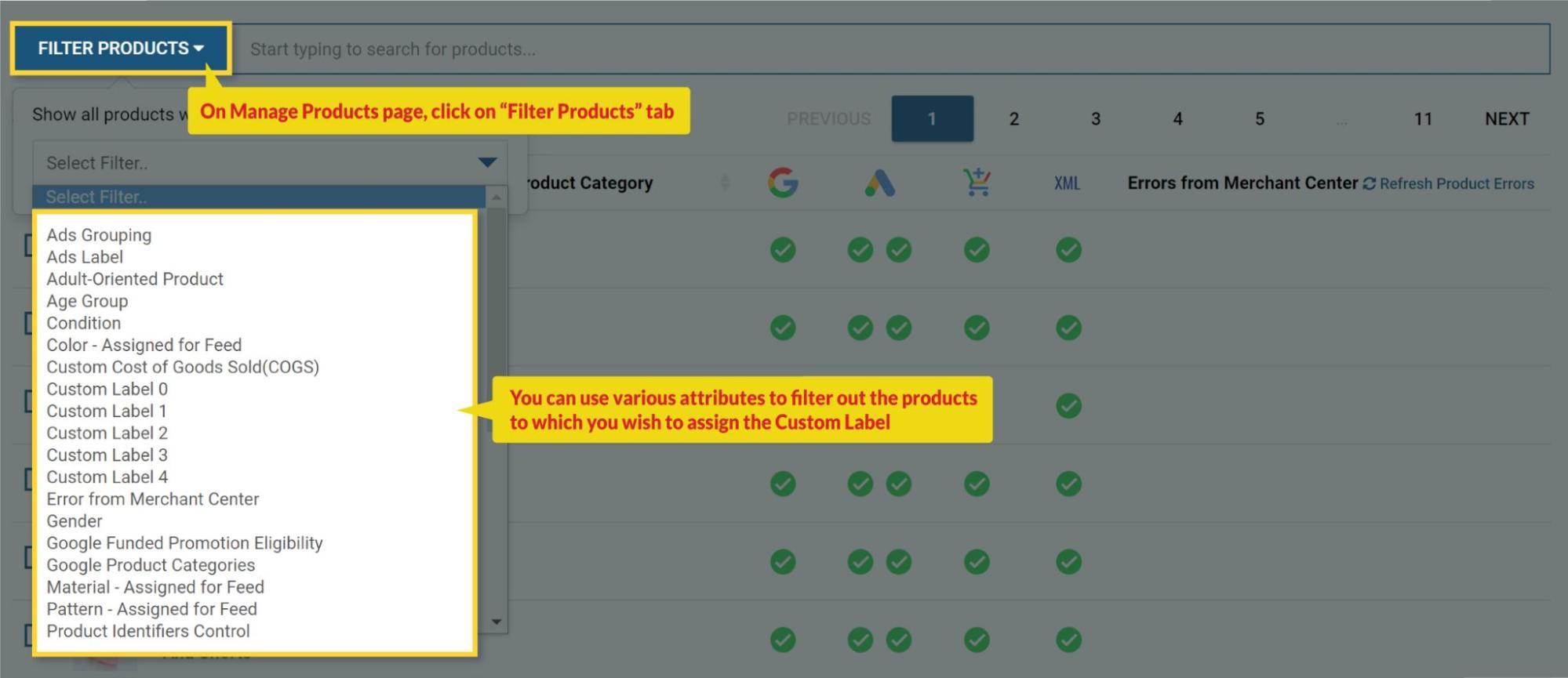
2. We are filtering the products based on the “Product Tags”. For this filter, you will have to type in the tag name and the dropdown list will populate.
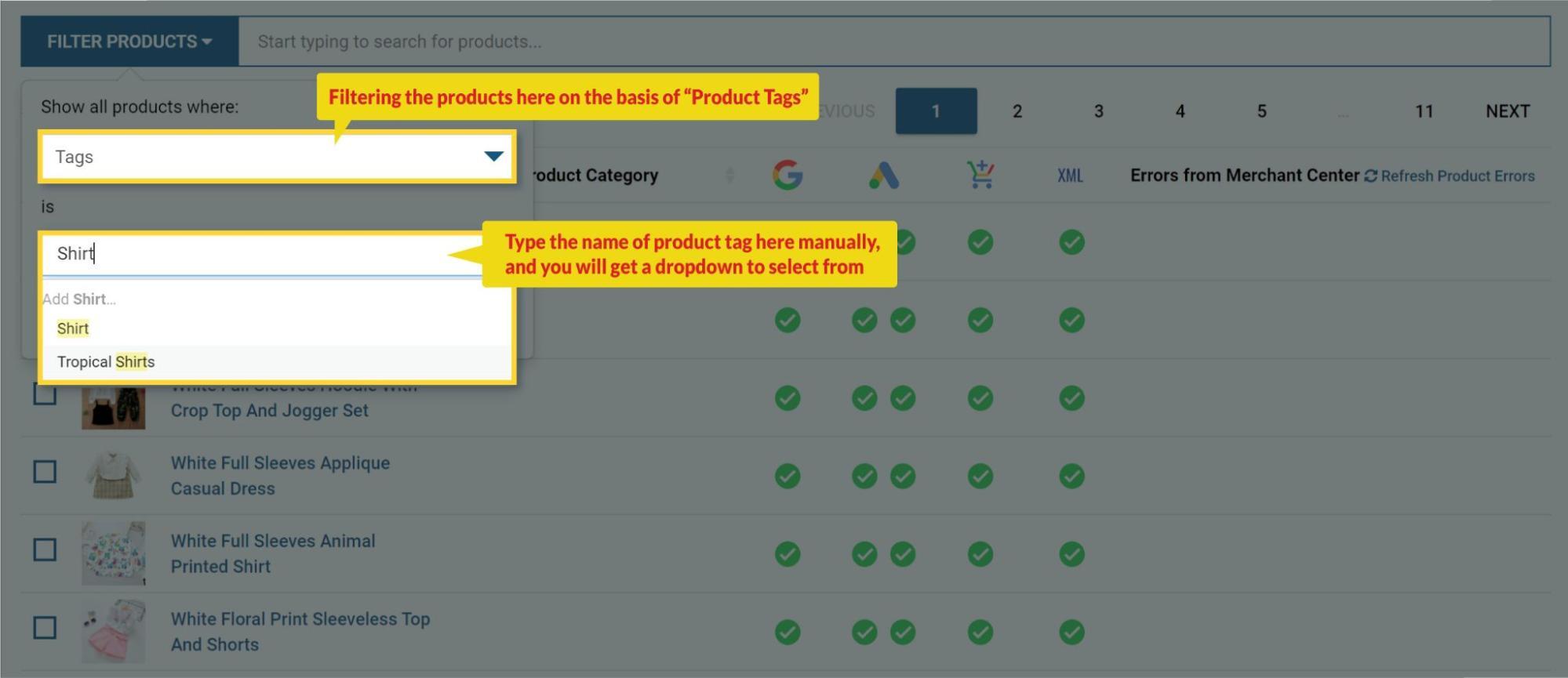
You can use multiple filter options at a time to filter out the desired product list.
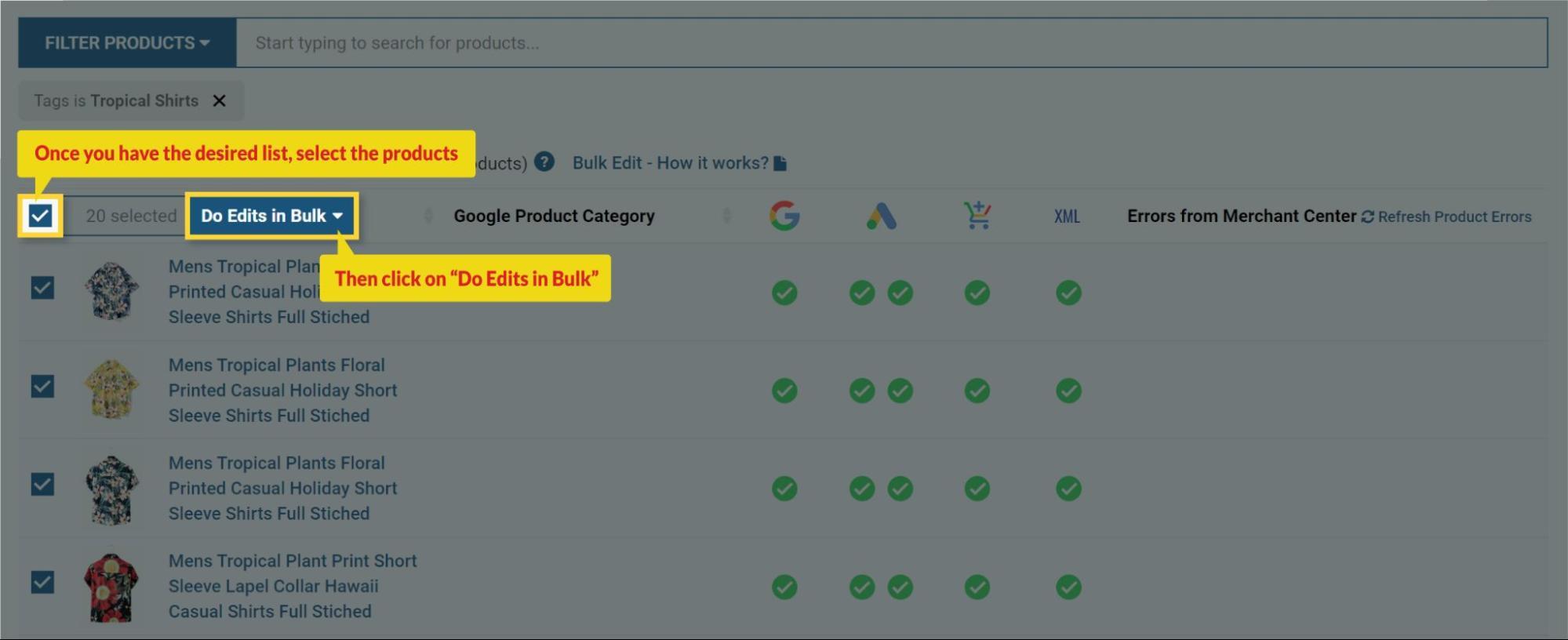
3. Once you get the product list, select all those products or a single product to which you want to assign the custom label and click on “Do Edits in Bulk”
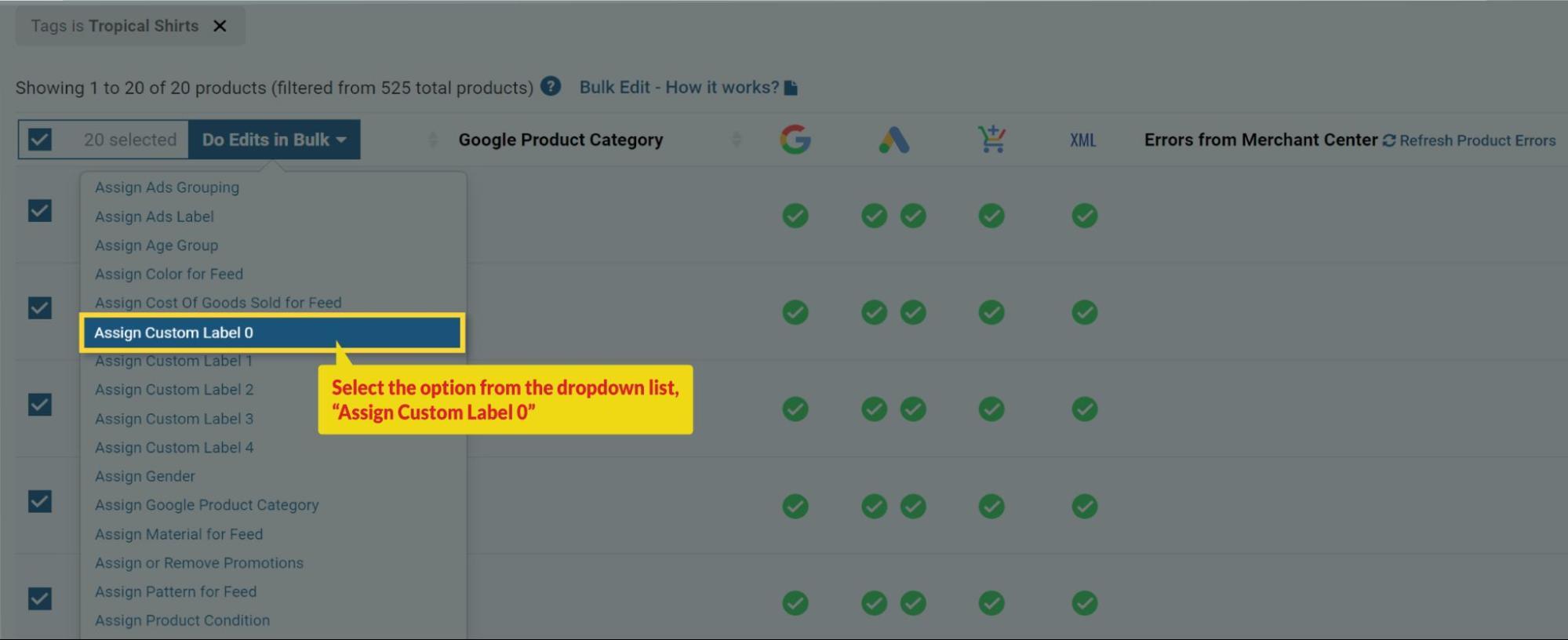
4. Here selecting Assign Custom Label 0 and name the custom label “High Selling” (Give any name which is easier for you to remember and helps you to differentiate why you have created the Custom Label) then click on “Apply in Bulk”
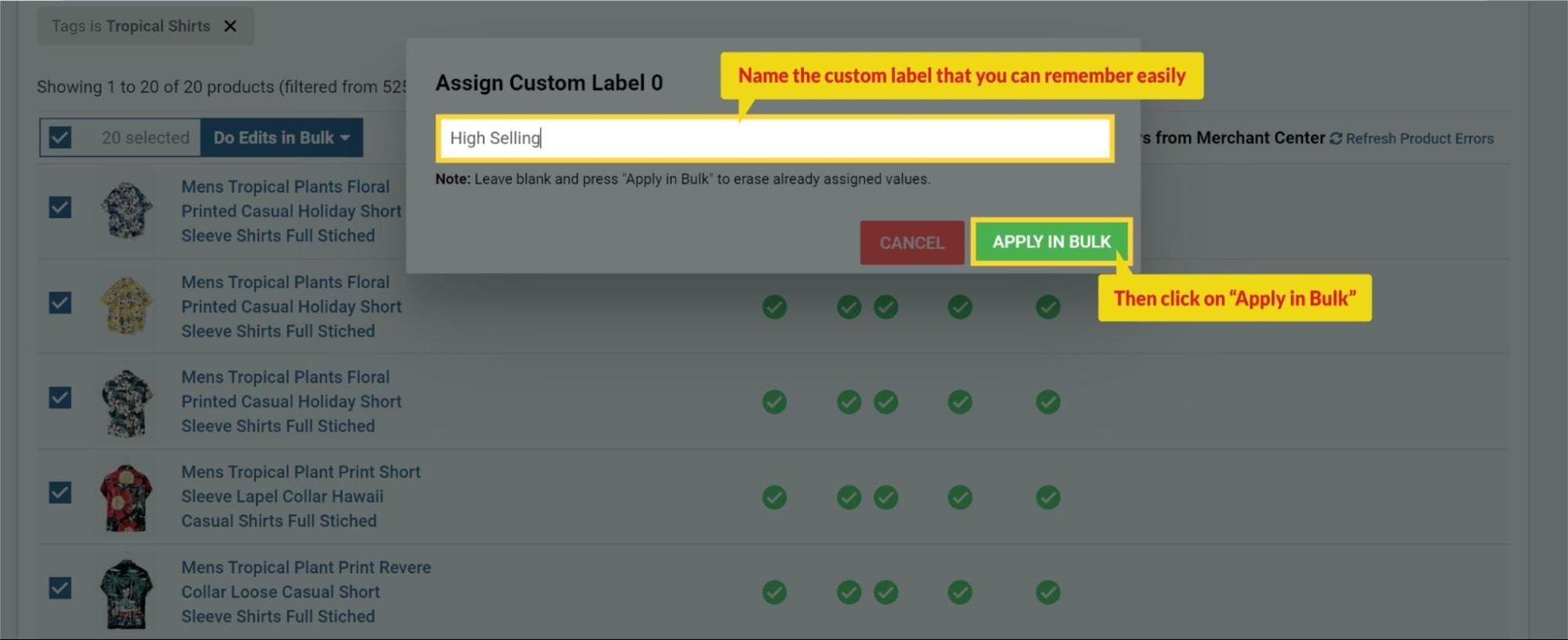
You can use the custom labels while creating the shopping campaign or subdivide an existing campaign and set the strategies in Google Ads as per the custom labels assigned.
You can perform the same procedure for other products as well.
Now, take a look at another example.
Following the same process as above to filter the products based on “product category”.
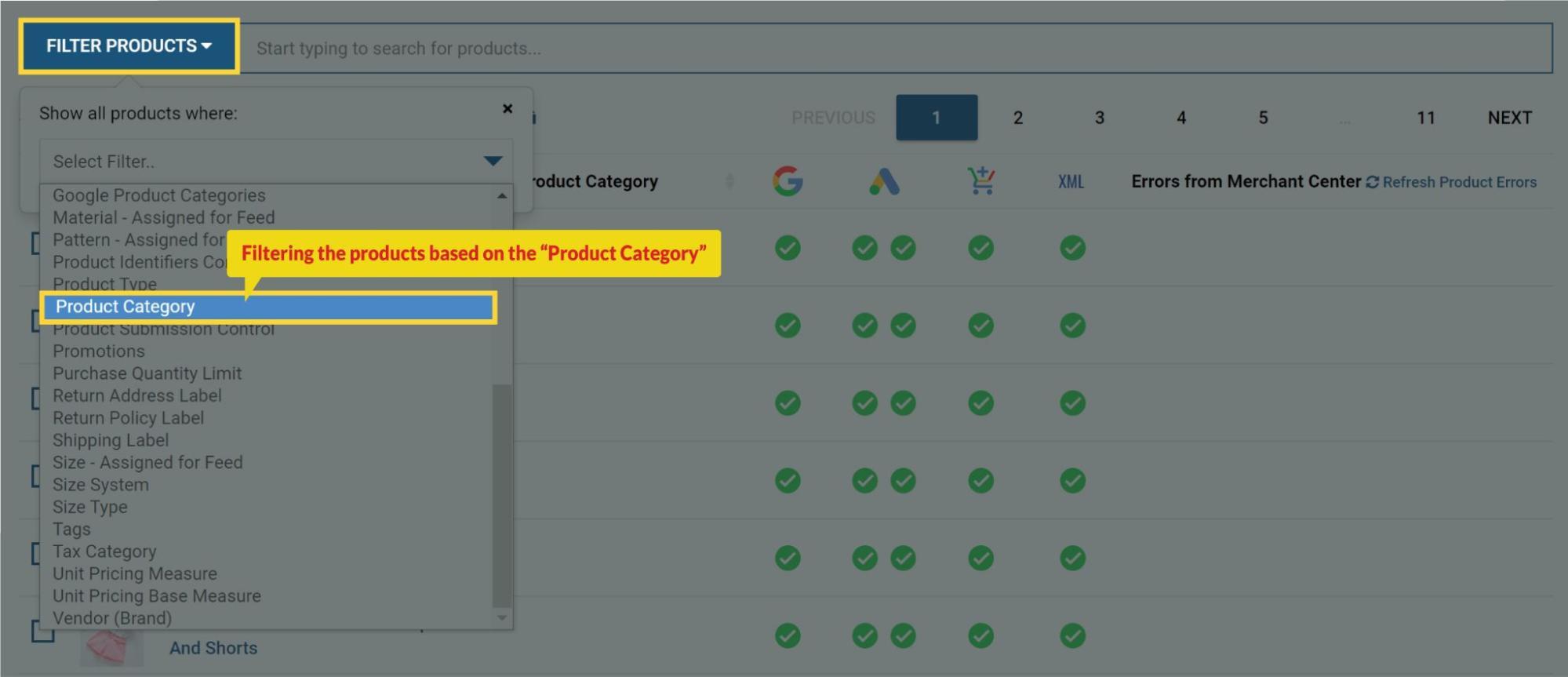
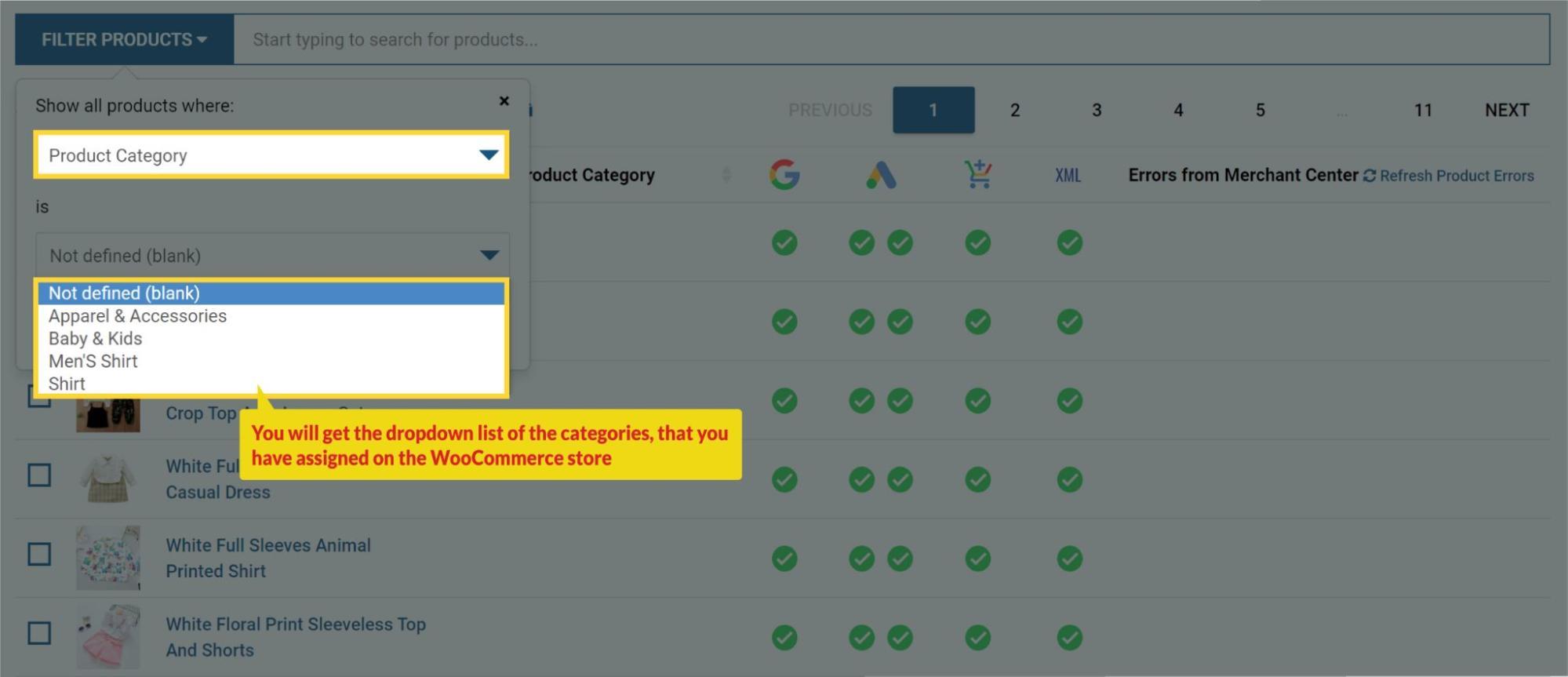
Select all products or any individual/multiple products > click on “Do Edits in Bulk”
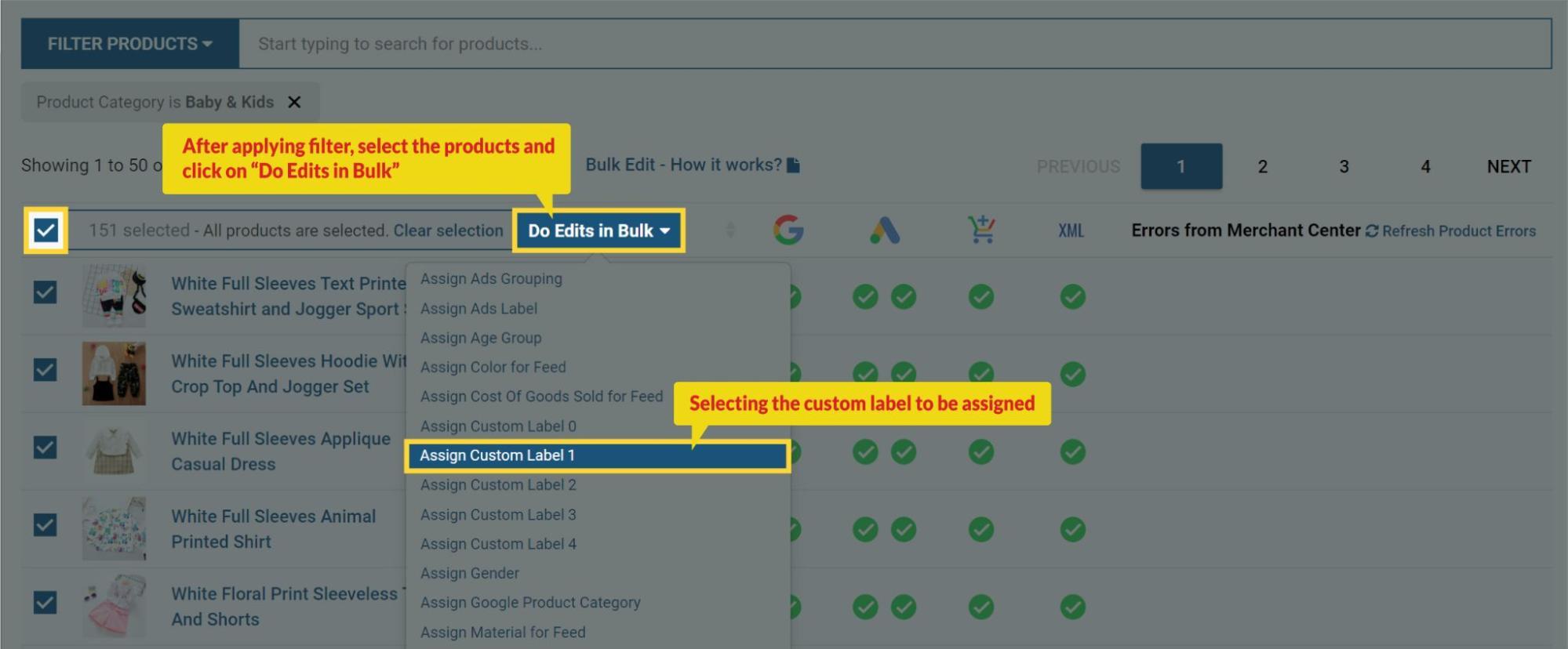
Select Assign Custom Label 1 > naming the custom label as “Low selling” > click on “Apply in Bulk”.
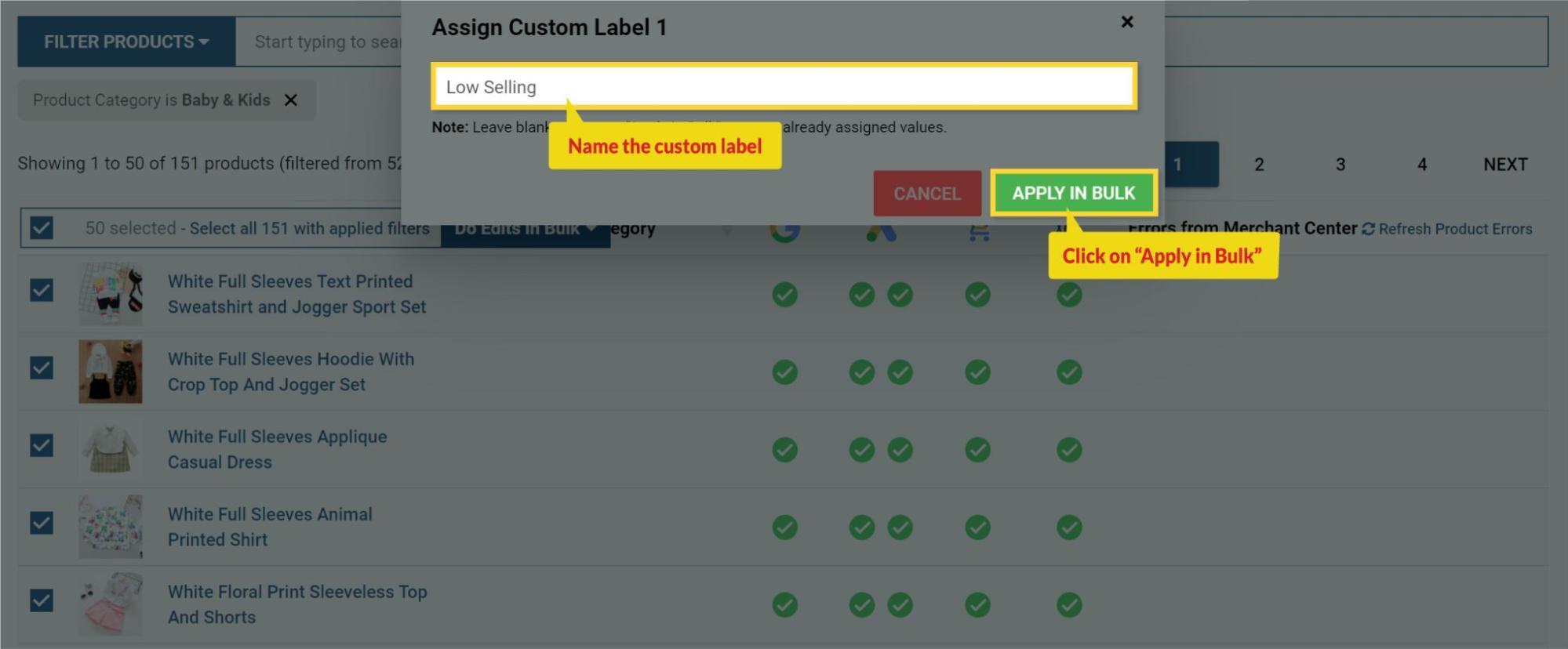
How to filter products with Custom labels in our plugin?
We have assigned Custom Labels for a few products as per our preferences. Now we will check those products on which the Custom Labels are assigned.
When you have assigned the custom labels using the bulk edit feature, you will be able to see them within our app.
To check them, Go to the “Manage Products” tab from the plugin’s dashboard, click on “Filter Products” and select the option of Custom Label 1.
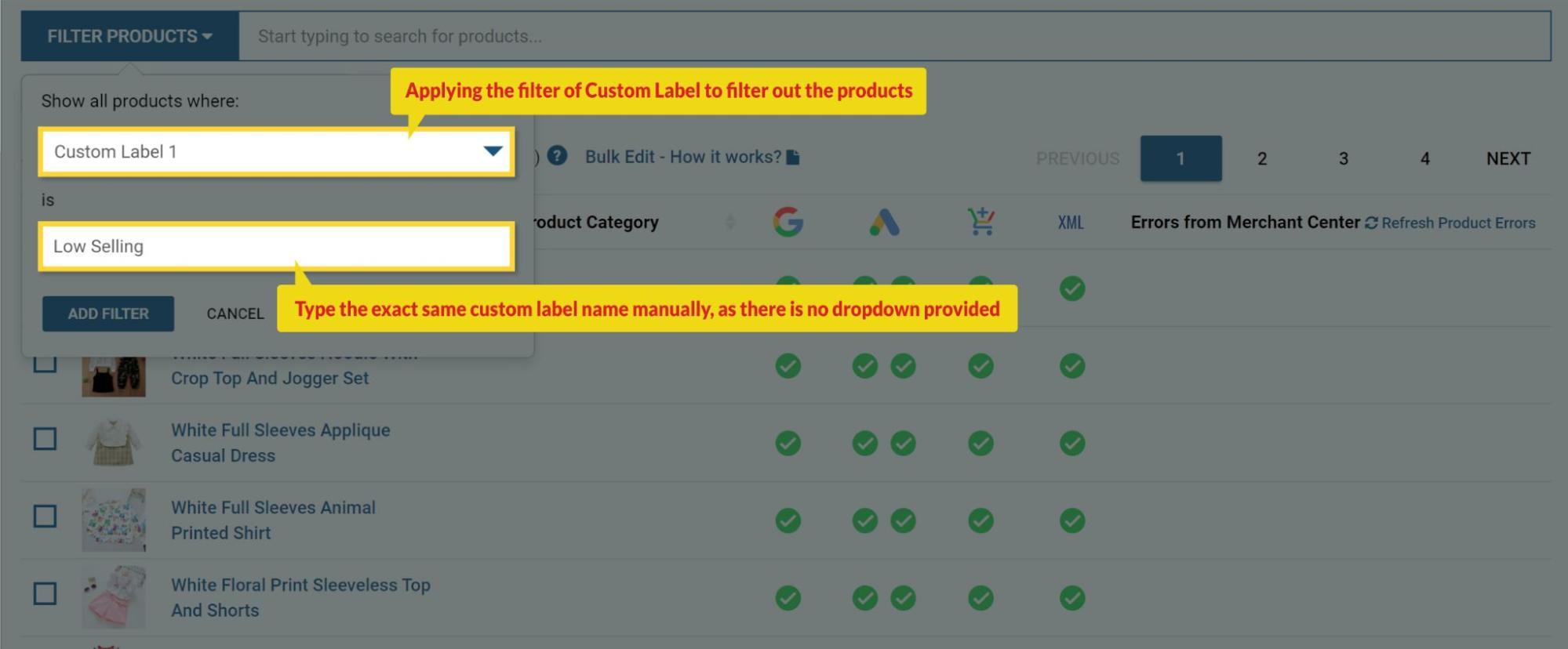
Now, type the name of Custom Label 1 manually as it will not give the dropdown option.
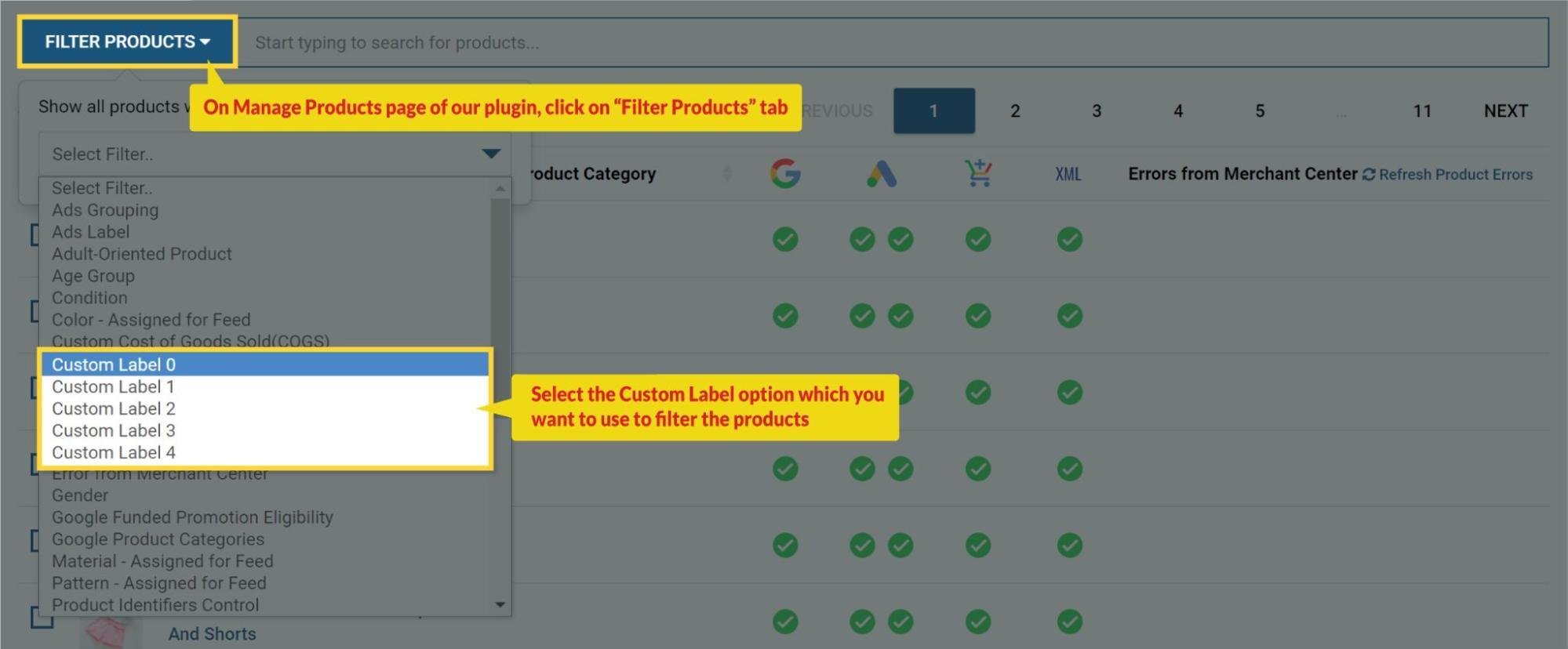
So, the list of the products will be filtered on which Custom Label 1 is applied as “Low Selling”.
This can also be confirmed from the product detail page by clicking on any of the products.

Once you have assigned the Custom Labels, you will have to wait for approx 3-4 hrs for those labels to appear in the Google Ads, after that you can create the shopping campaign and use the Custom Label while subdividing the products.
We hope you found this document informative.
If you have any queries on any of these options you can write to us at support@simprosys.com and we will definitely help you.
Previous article

Simprosys Product Feed for WooCommerce
Pre-Installation
Plugin Setup
Product Submission Controls
Product Attributes & Optimization
Automated Feed Rule
Troubleshooting & Issue Fixes
Advanced Setup Made Easy
Google Merchant Center Setup & Integration
Tracking Tag Setup (Google Ads & Google Analytics 4)
Google Ads & Campaign Setup
Multi-Country
Promotions Feed
Microsoft Advertising Integration & Campaign Setup
META (Facebook) Integration
WooCommerce Store Access & Setup
Billing & Payments
Google Local Inventory Setup


