
SearchGro: Search & Filter
Onboarding Process

App Overview
Analytics
Search Widget Configuration
Search Result Page Configuration
Recently Viewed Widget
Color Families
Product Label
Market
Theme Setting
White Glove Setup
Theme Variable
Filter on Collection
Policies


Multi-Currency and Multi-Language Setup in SearchGro
Jul 16, 2026
If you sell to customers in different countries, Shopify Markets lets you show different prices and languages for each region. SearchGro connects to those settings so your search experience stays consistent when a shopper switches their market or language; search results, prices, and product names update automatically to match.
You can enable:
- Multi-Currency – Show prices in different currencies.
- Multi-Language – Show search results and product information in different languages.
Enable both together for a fully localized shopping experience.
Before You Start
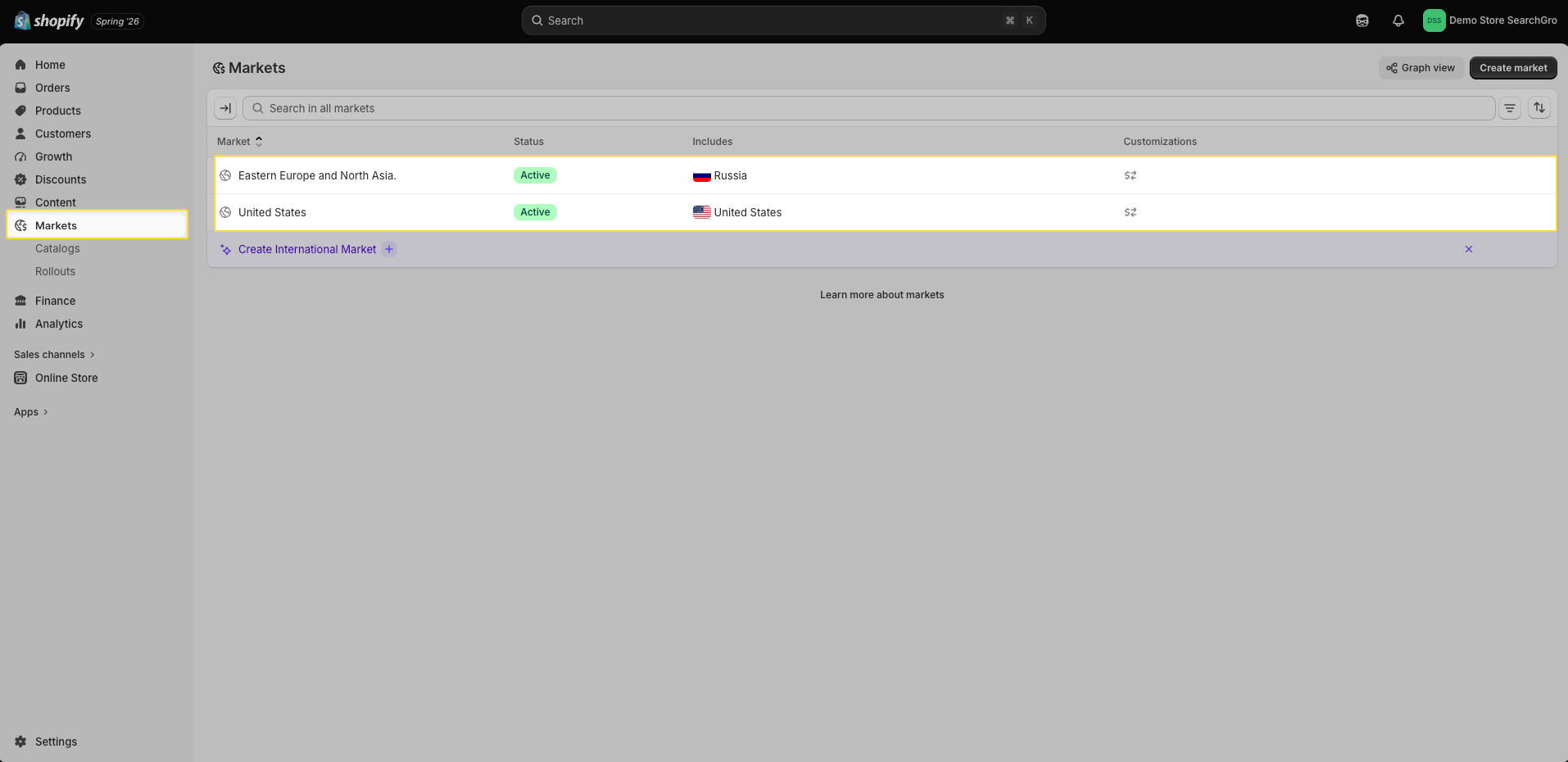
Make sure your Shopify Markets are ready:
- Go to Shopify Admin → Settings → Markets.
- Create the markets where you want to sell. (e.g., "Europe," "Canada" or “United States”).
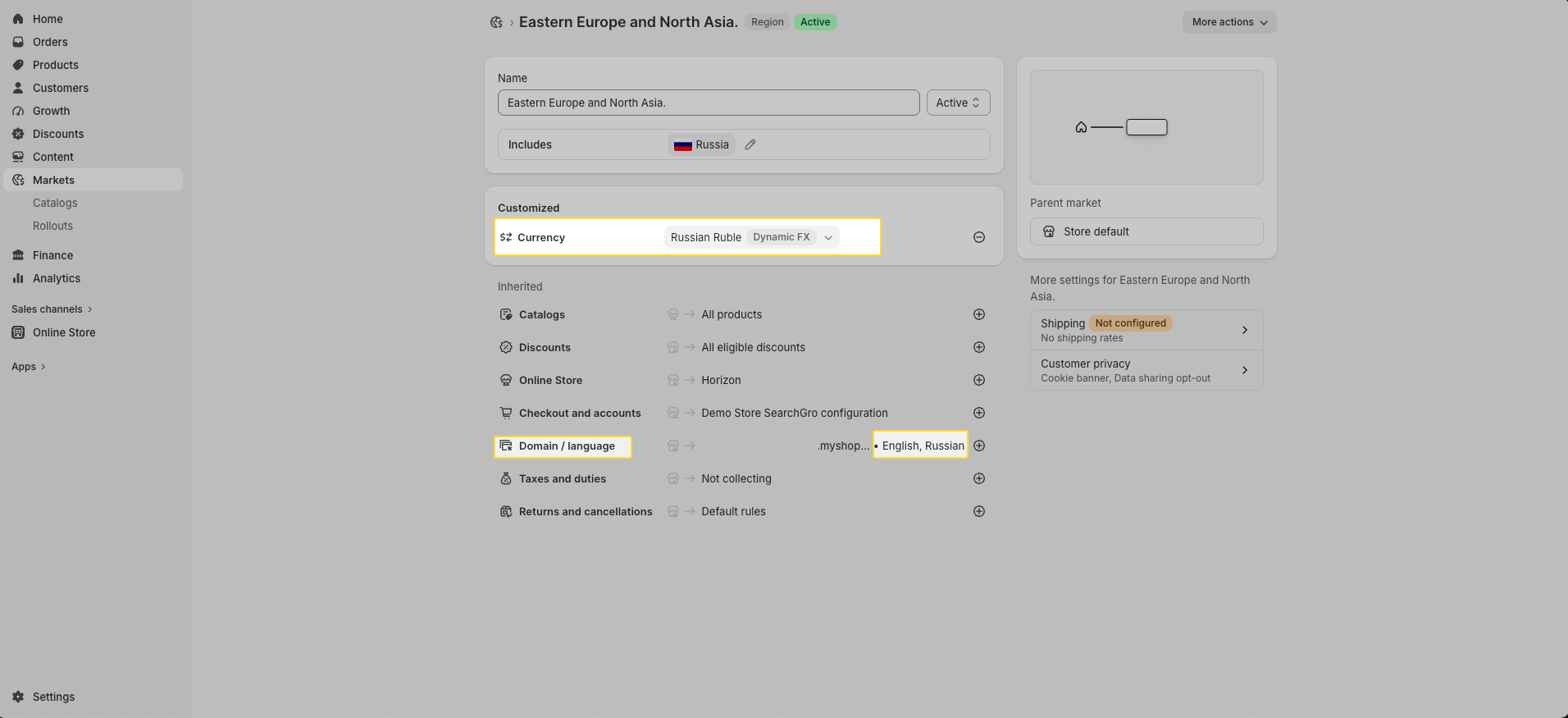
- Add currencies for each market.
- Add languages for each market (if using Multi-Language).
- Translate your products using Shopify's Translate & Adapt app or another translation tool. If your products are not translated, customers will still see product names and details in your store's default language even when browsing in a different language.
Suggestion
Check for below situation
- If you are enabling a right-to-left language such as Arabic or Hebrew, make sure your Shopify theme supports RTL text direction. If your theme does not support RTL layout natively, search widget text may still display left-to-right. In that case, contact us at support@simprosys.com and we can help with a custom CSS fix.
How to Enable This Feature in SearchGro
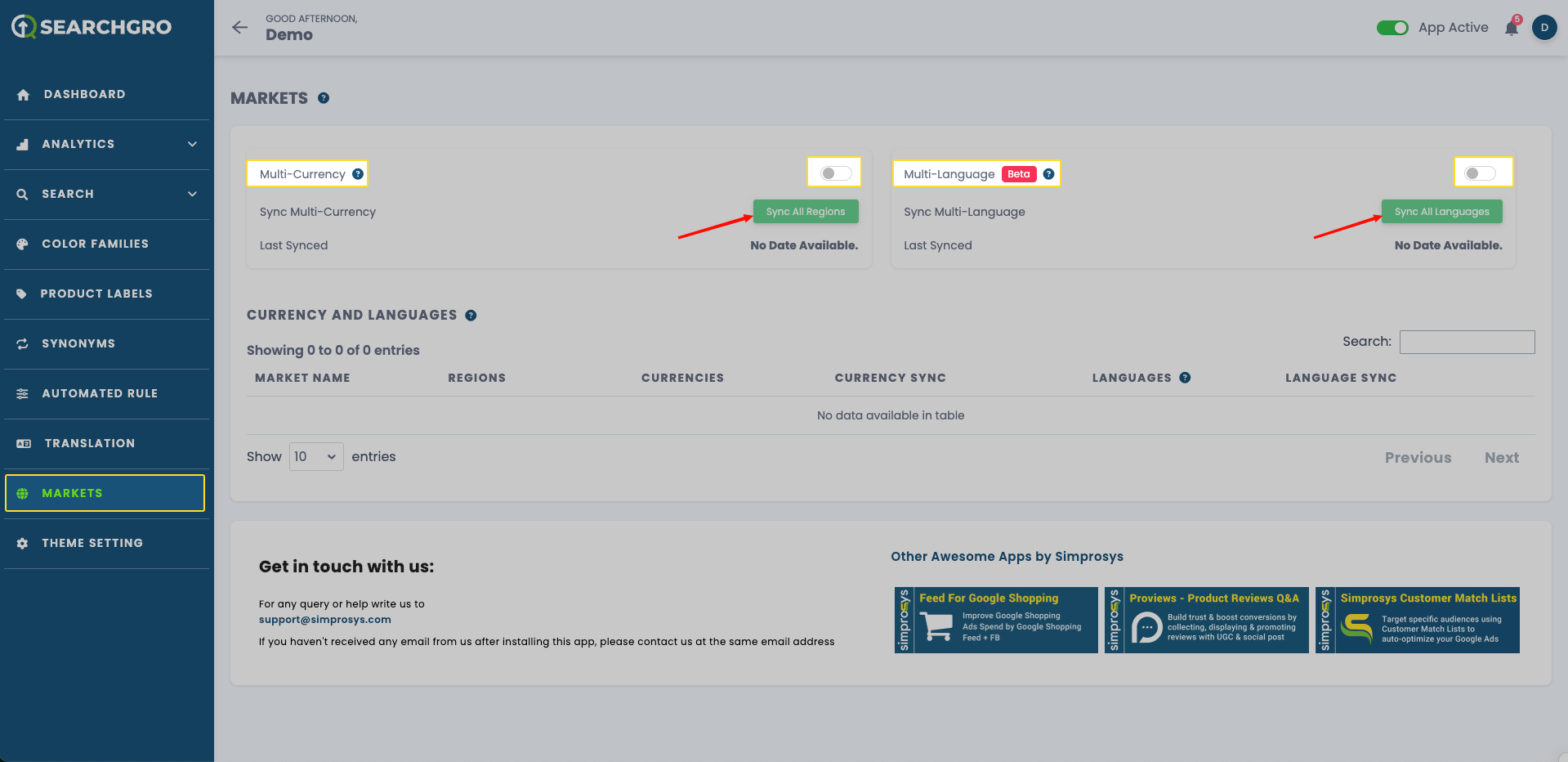
- Open the SearchGro app from your Shopify Admin.
- From the left sidebar, locate the Markets section.
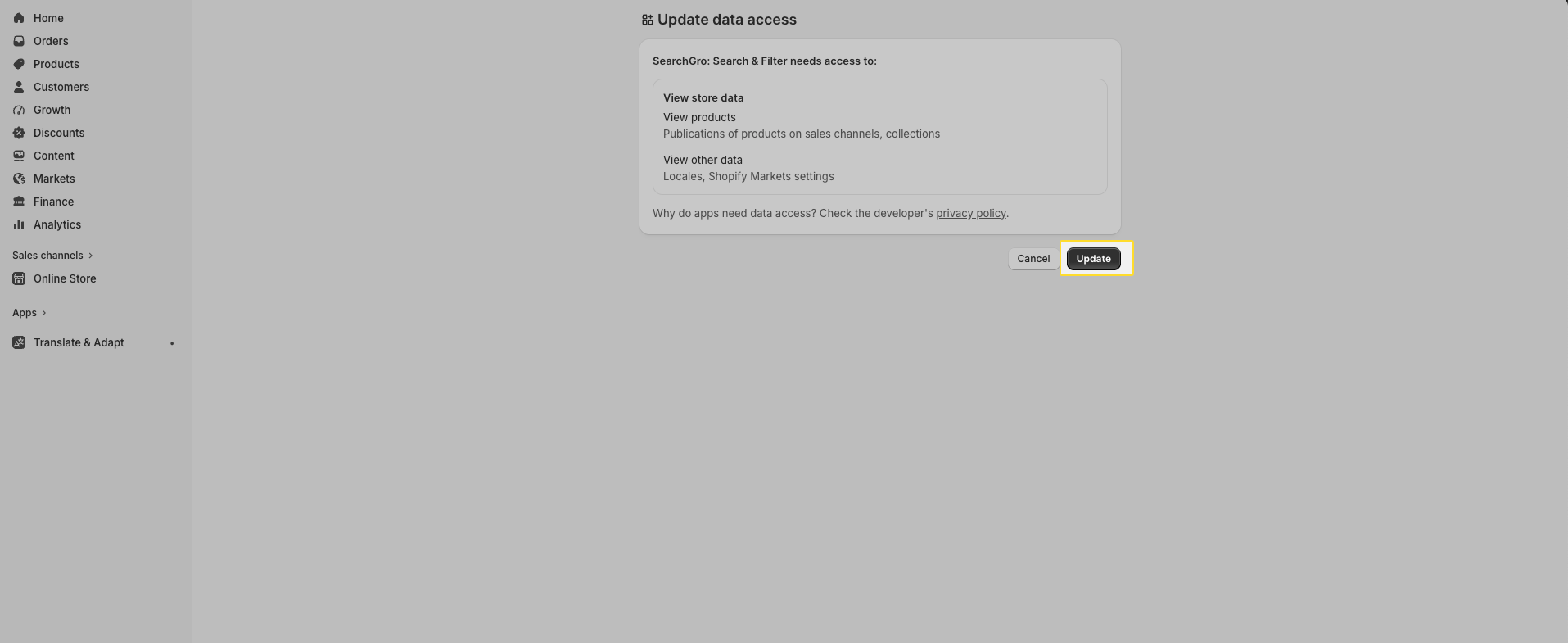
- Turn on Multi-Currency, Multi-Language, or both. When you click the toggle, Shopify will prompt you to update permissions. This is a read-only permission SearchGro will only read your Markets, currency, and language settings to keep search results in sync. It cannot make any changes to your Shopify store, products, or data. Click Update to continue.
- After granting permission, come back to the Markets section in SearchGro and click the sync button:
Sync All Currencies → imports your currency settings.
Sync All Languages → imports your languages and translated products.
Note: Enabling a feature only turns it on. You need to click the sync button to import your Shopify data.
Checking Sync Status
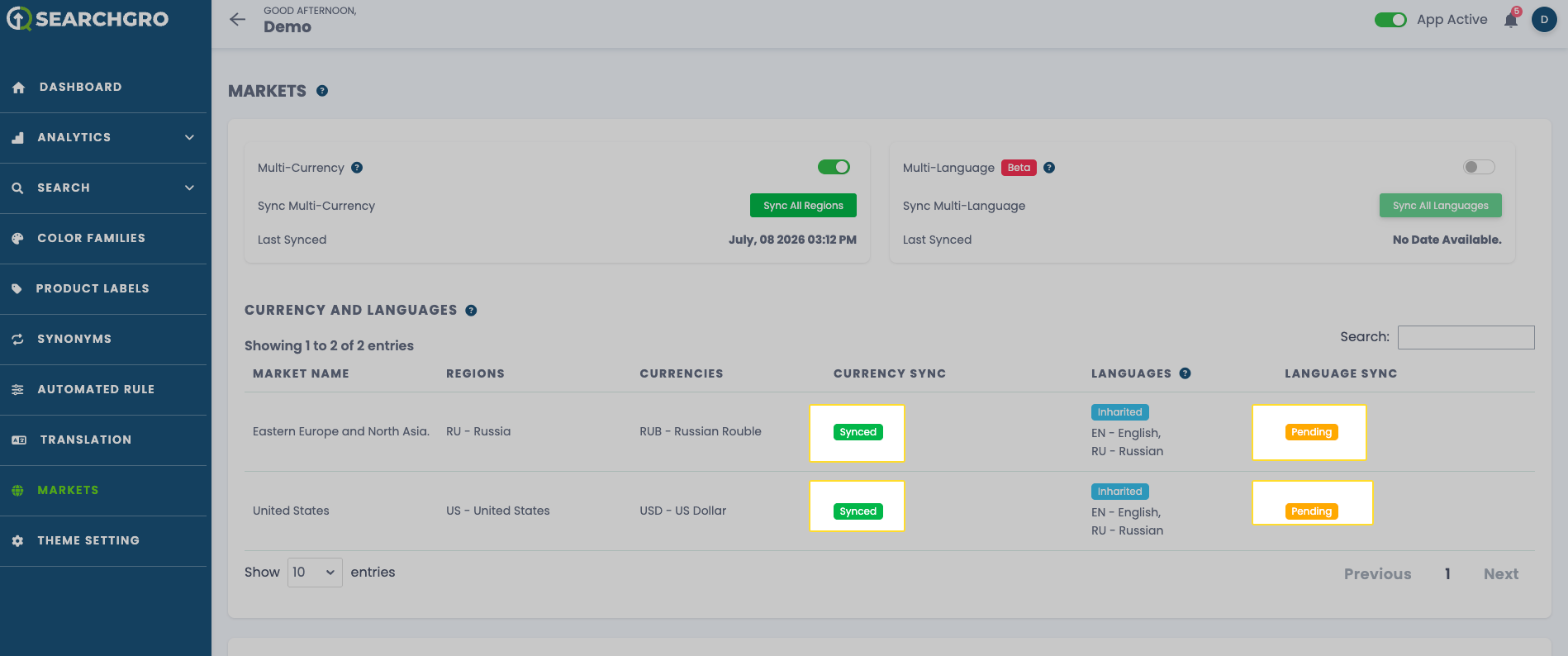
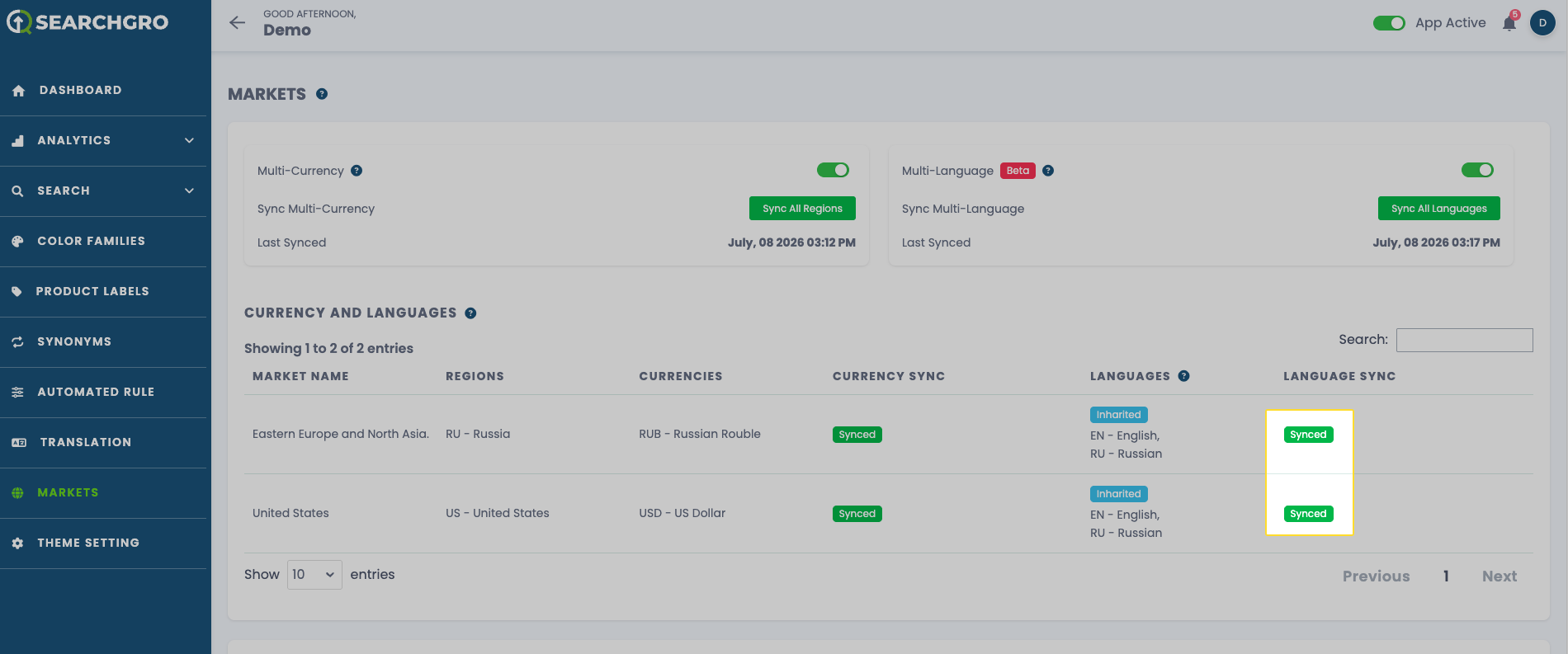
Currency and language sync happen separately, so it's normal to see one marked Synced while the other still shows 'Pending' for the same market.
Pending → Your data is currently syncing.
Synced → Setup is complete and live for shoppers.
You can also check the Last Synced time to confirm when it last updated.
What Changes for Shoppers?
Once synced, shoppers browsing your store will automatically see:
- Prices in their local currency.
- Search results in their selected language.
- Translated product names and details — this only applies if you have already translated your products using Shopify's Translate & Adapt app or another translation tool. See the Before You Start section above.
This applies everywhere shoppers search or browse: the Search Widget, Search Results Page, Collection Page, Recently Viewed Widget, and Top Search Suggestions.
Keeping Things Updated
For your initial setup, you need to click Sync manually after enabling the feature. After that, if you add a new market, currency, or language in Shopify, SearchGro detects it automatically and syncs without any action from you.
You can also sync manually anytime by clicking Sync All Currencies or Sync All Languages.
Troubleshooting
A market is stuck on "Pending."
This is normal; syncing usually finishes within a few minutes. Larger product catalogs may take a little longer.
Shoppers are seeing the wrong currency or language.
1. Check your Market setup and sync status
- Confirm the market is set up correctly in Shopify Admin → Settings → Markets.
- In SearchGro, confirm that market shows Synced, not Pending.
- If you've set fixed local prices for a market in Shopify (instead of using automatic currency conversion), make sure those prices have been re-synced in SearchGro after the last update. SearchGro only reflects fixed prices as of the last sync; any changes made afterward in Shopify won't show up in search results until you sync again.
2. Language shows correctly on the storefront, but not in search results
- Go to Shopify Admin → Apps → Translate & Adapt.
- Confirm the product content is translated and published for that language.
- SearchGro can only display translated content that already exists and is published in your Shopify store it doesn't generate translations on its own.
3. Sync status keeps reverting to Pending
- Click Sync All Currencies or Sync All Languages again from the SearchGro app.
- If it still won't complete, check that the market is active in Shopify Admin → Settings → Markets (an inactive or archived market can cause the sync to stall).
- If the issue continues after these steps, contact us at support@simprosys.com with the market name so we can investigate further.
Make sure no exclusion conditions are set for the market. If you've excluded certain products from a specific market in Shopify Admin → Settings → Markets → Catalogs, those products won't appear in SearchGro's search results for that market. This is expected behavior based on your Catalog settings.
Need Help?
Reach out to us anytime at support@simprosys.com. We're happy to help with setup or troubleshooting.

SearchGro: Search & Filter
Onboarding Process
App Overview
Analytics
Search Widget Configuration
Search Result Page Configuration
Recently Viewed Widget
Color Families
Product Label
Market
Theme Setting
White Glove Setup
Theme Variable
Filter on Collection
Policies