

Simprosys Google Shopping Feed
Initial App Configuration

Troubleshooting & Issue Fixes
Tracking Tags Setup (Google Ads & Google Analytics 4)
Product Optimization & Automated Feed Rules
Advanced Setup Made Easy
Legal Pages


Set Up Dynamic Remarketing & Google Conversion Tracking in Shopline
Mar 25, 2026
In this video, we’ll guide you through how to set up Google Conversion Tracking and Dynamic Remarketing in Shopline using the Simprosys Google Shopping Feed App.
This setup helps you track key user actions like purchase, add to cart, and checkout, and improve your Google Ads performance with better data and remarketing.
First, log in to your Shopline Admin panel and open the Simprosys Google Shopping Feed App.
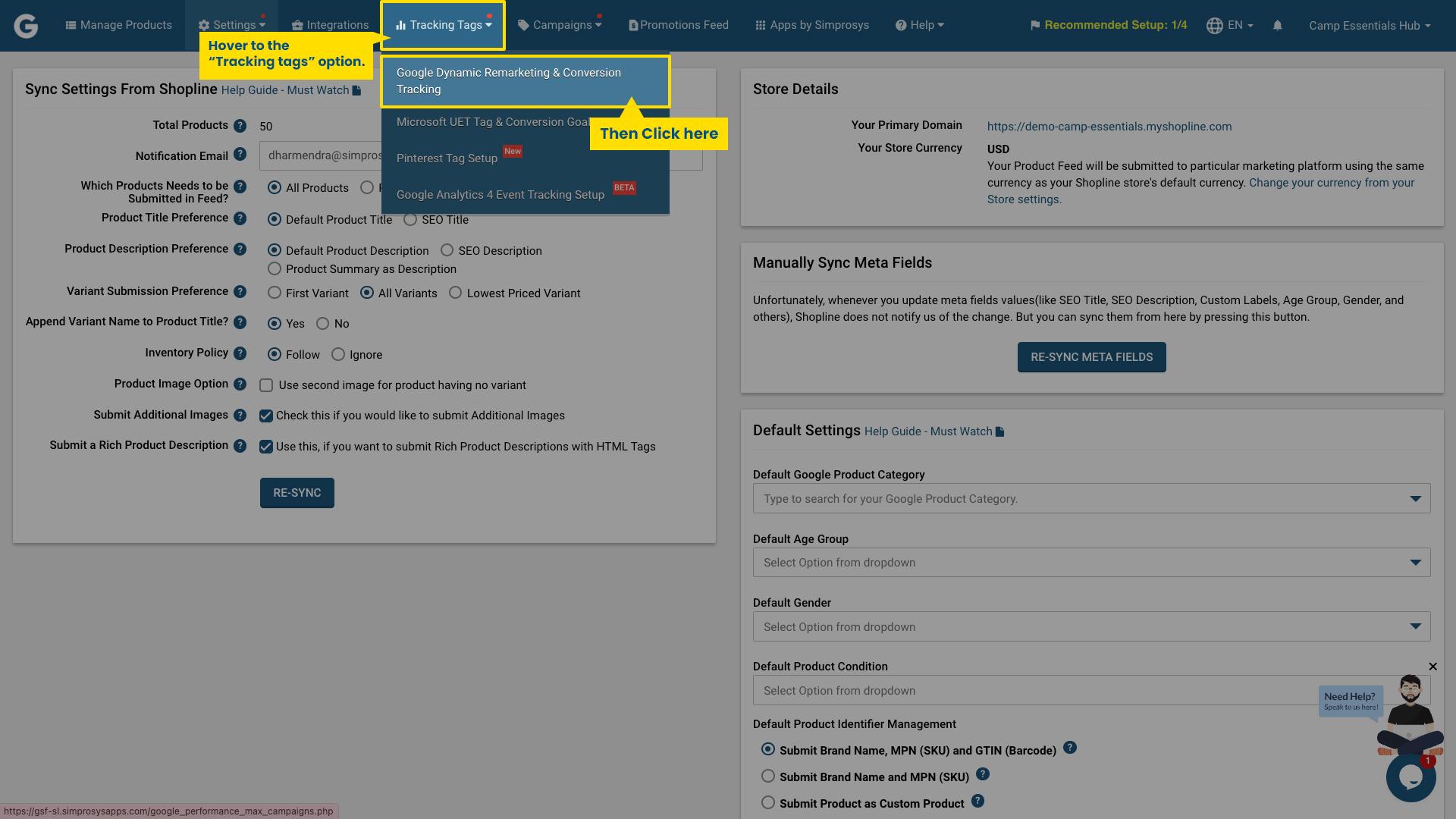
From the dashboard, go to the Tracking Tags section and click on Google Dynamic Remarketing & Conversion Tracking.
Next, select your Google Ads Account ID.
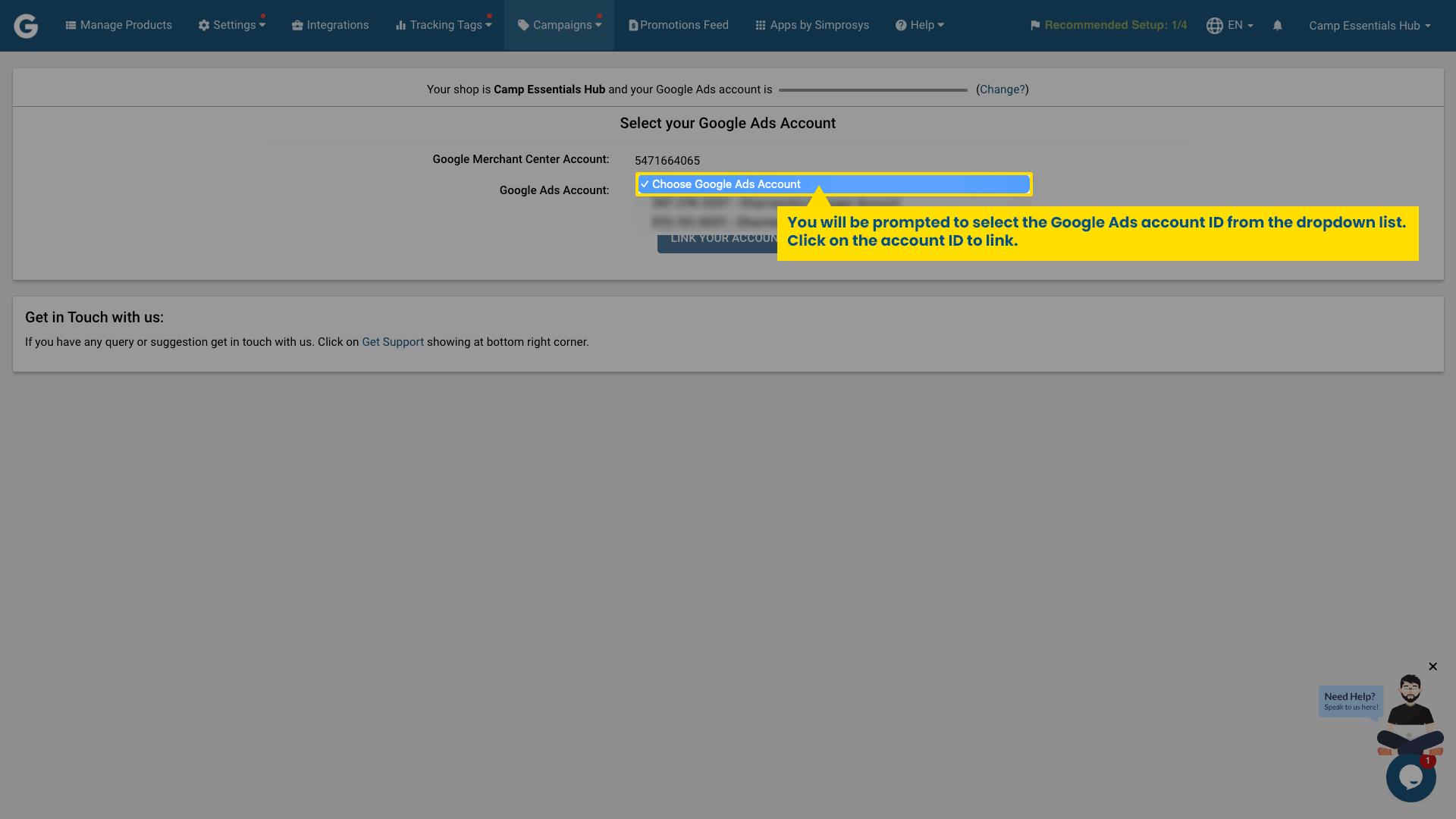
If you’re using an MCC account, select the MCC first and then choose the required sub-account.
Now, enable the following tracking options:
- Dynamic Remarketing in Google Ads
- Google Conversion Tracking
- Add to Cart Tracking
- Begin Checkout Tracking
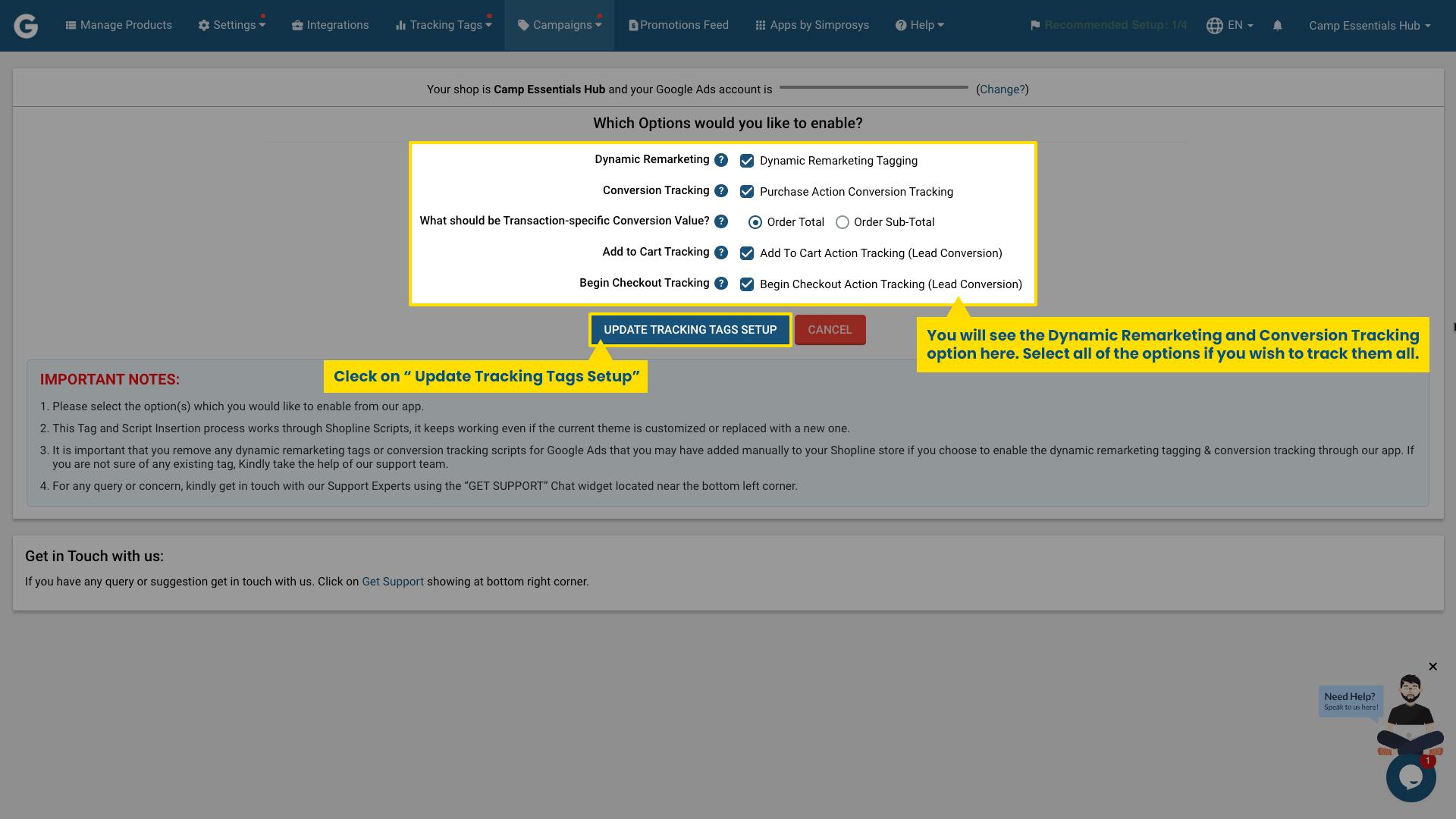
These features allow you to track user behavior and optimize your Shopline Google Ads campaigns.
Next, configure your Google Ads conversion actions.
You can create new conversion actions or select existing ones.
We recommend selecting your existing Purchase conversion action to maintain accurate reporting and historical data.
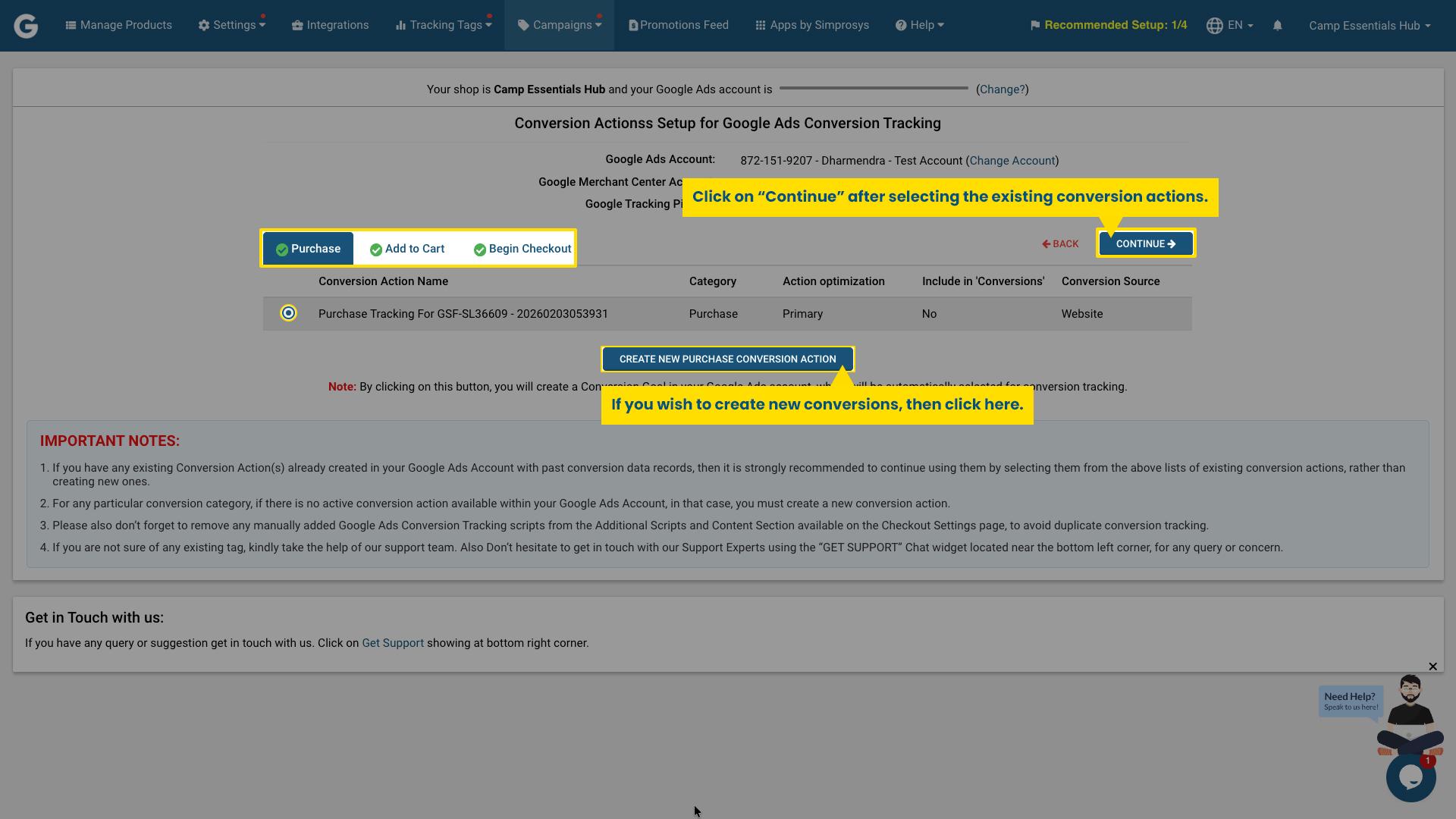
Click on Continue to complete the setup.
Once done, you can review details like your connected Google Ads account, conversion actions, and tracking status.
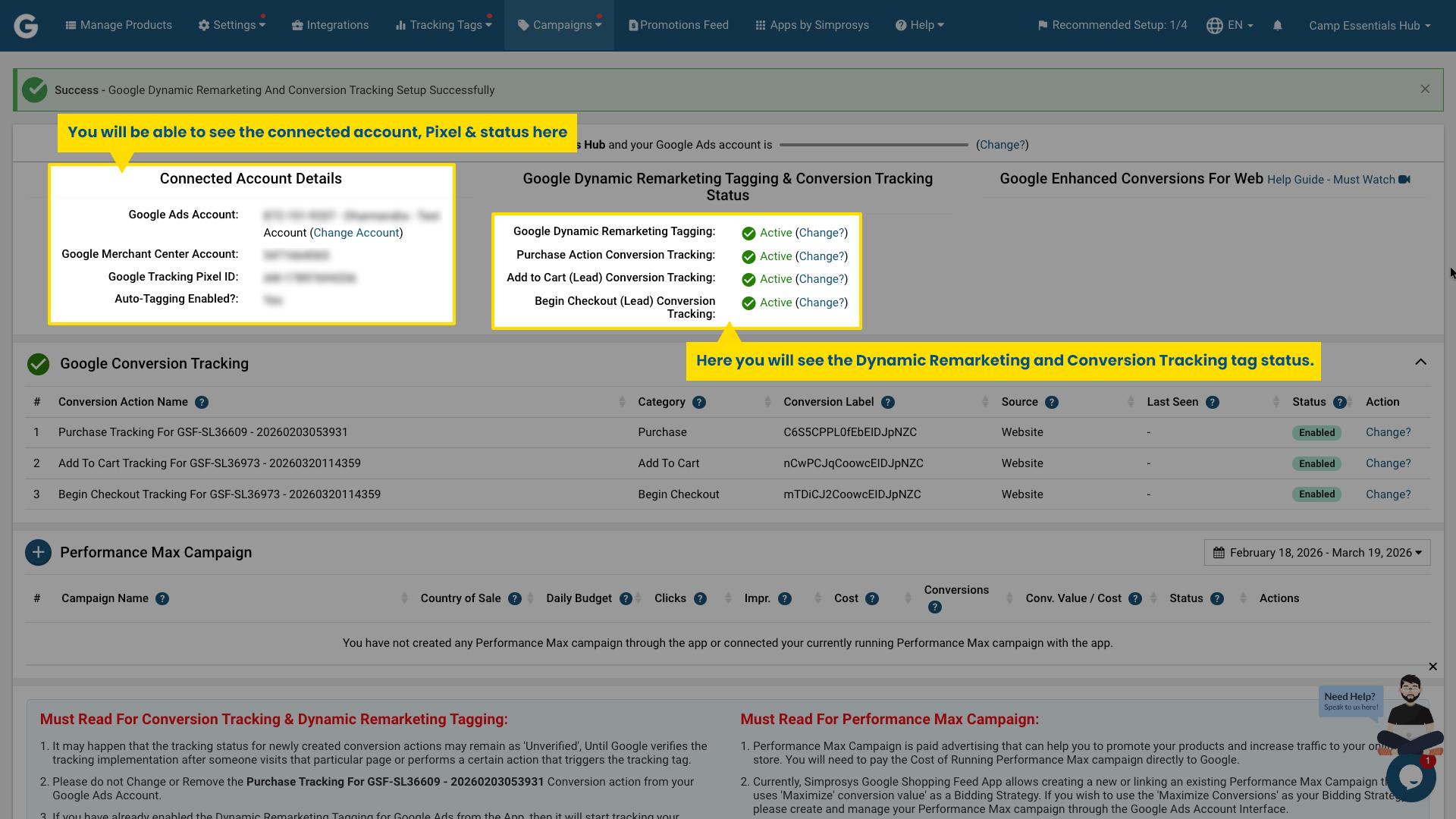
To verify the setup, go to your Google Ads account and check the status under Tools & Settings → Conversions.
That’s it! Your Google Conversion Tracking and Dynamic Remarketing setup in Shopline is now complete.
We hope this will be helpful. If you have any kind of query on any of these options you can write to us at support@simprosys.com and we will definitely help you.
Next article

Simprosys Google Shopping Feed
Initial App Configuration
Troubleshooting & Issue Fixes
Tracking Tags Setup (Google Ads & Google Analytics 4)
Product Optimization & Automated Feed Rules
Advanced Setup Made Easy
Legal Pages


