

Simprosys Google Shopping Feed
Initial App Configuration

Troubleshooting & Issue Fixes
Tracking Tags Setup (Google Ads & Google Analytics 4)
Product Optimization & Automated Feed Rules
Advanced Setup Made Easy
Legal Pages


Channel Submission Control in Simprosys Google Shopping Feed App for Shopline
Mar 19, 2026
The Channel Submission Control feature in the Simprosys Google Shopping Feed App for Shopline allows merchants to control which products are submitted to advertising platforms such as Google, Microsoft, and Pinterest.
In some cases, you may want to continue selling certain products in your Shopline store but prevent them from appearing on advertising platforms. With Channel Submission Control, you can easily include or exclude specific products or product groups from being submitted to these platforms.
This feature gives you better control over your product feed submissions and advertising strategy, ensuring that only the selected products are submitted to advertising platforms.
Note: For this demo, we will walk you through the process using Google. Please note that Microsoft, Pinterest, and XML feeds are not connected in this demo store; however, the same steps will apply if those platforms are connected.
How to Exclude Products from Advertising Platforms Using Bulk Editing
You can exclude multiple products from advertising channels at once using the Bulk Edit feature.
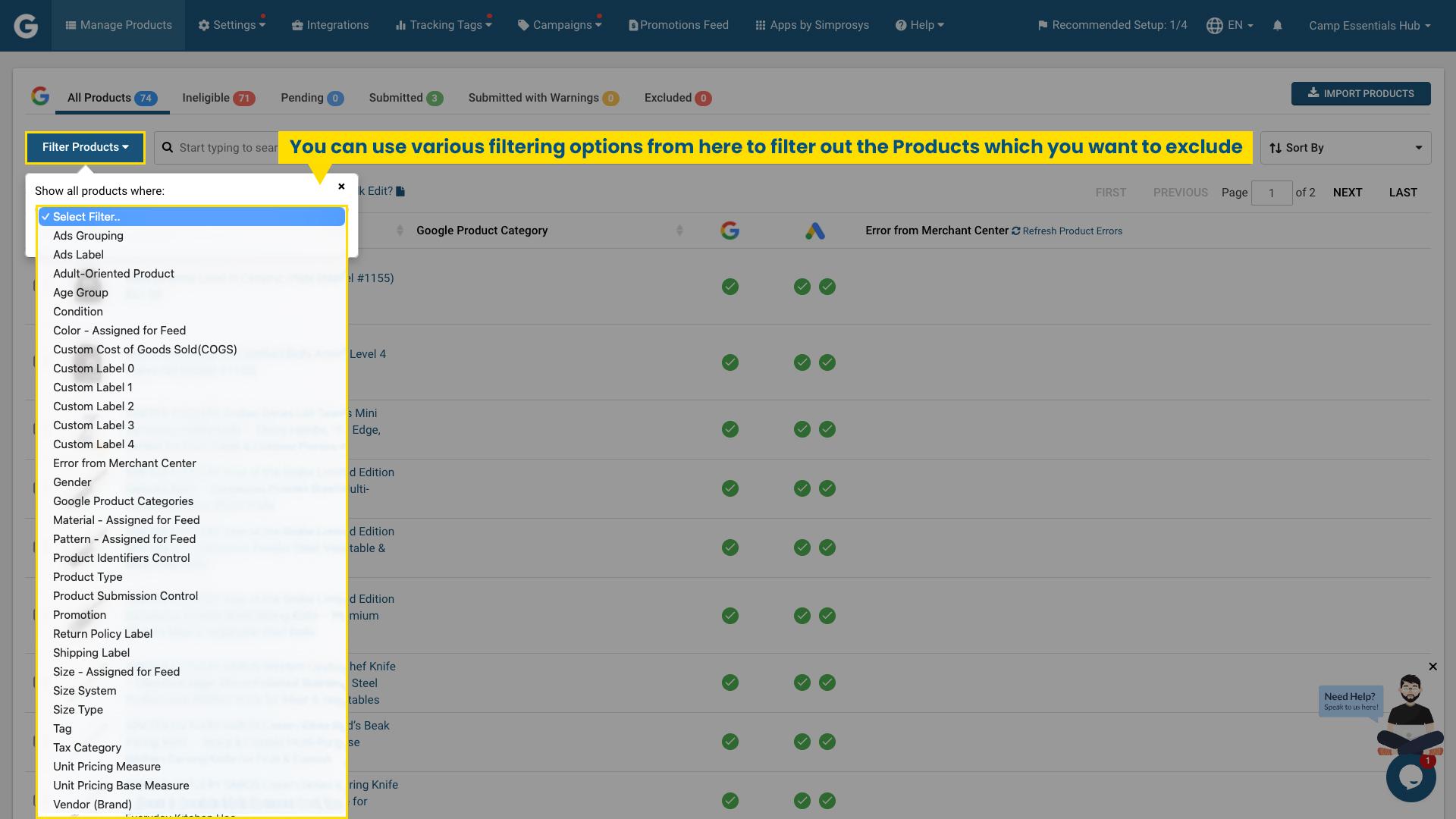
Step 1: Filter or Search Products
Use the available filters to narrow down your product list based on options that best match your requirements. You can also use the search bar to find and exclude products by entering specific keywords from the title.
Additionally, you can manually search for specific products you want to exclude. For demo purposes, we have used Product Type as a filter.
Step 2: Select Products
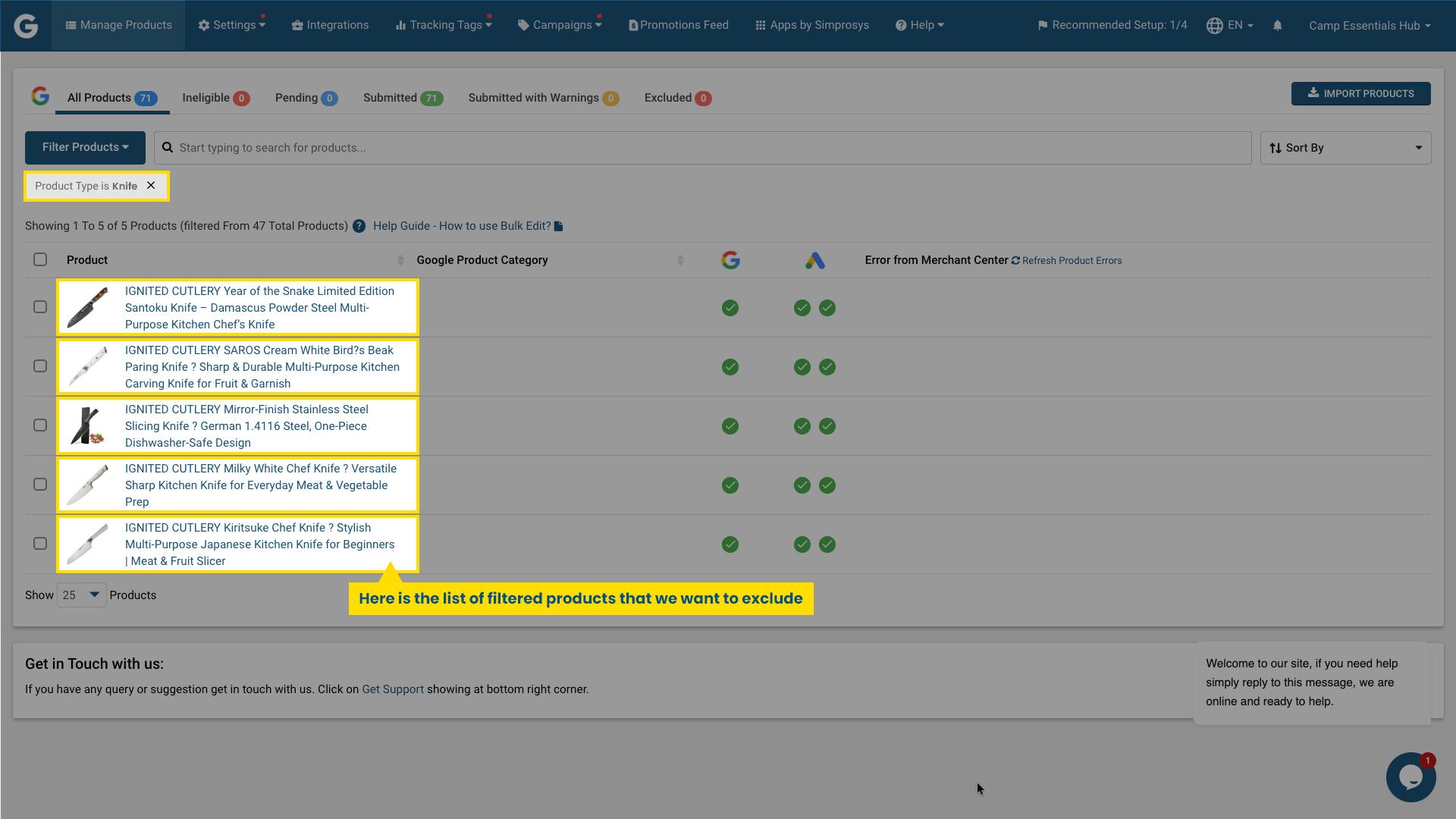
From the filtered results, select the products you want to exclude.
Step 3: Open Bulk Edit Options
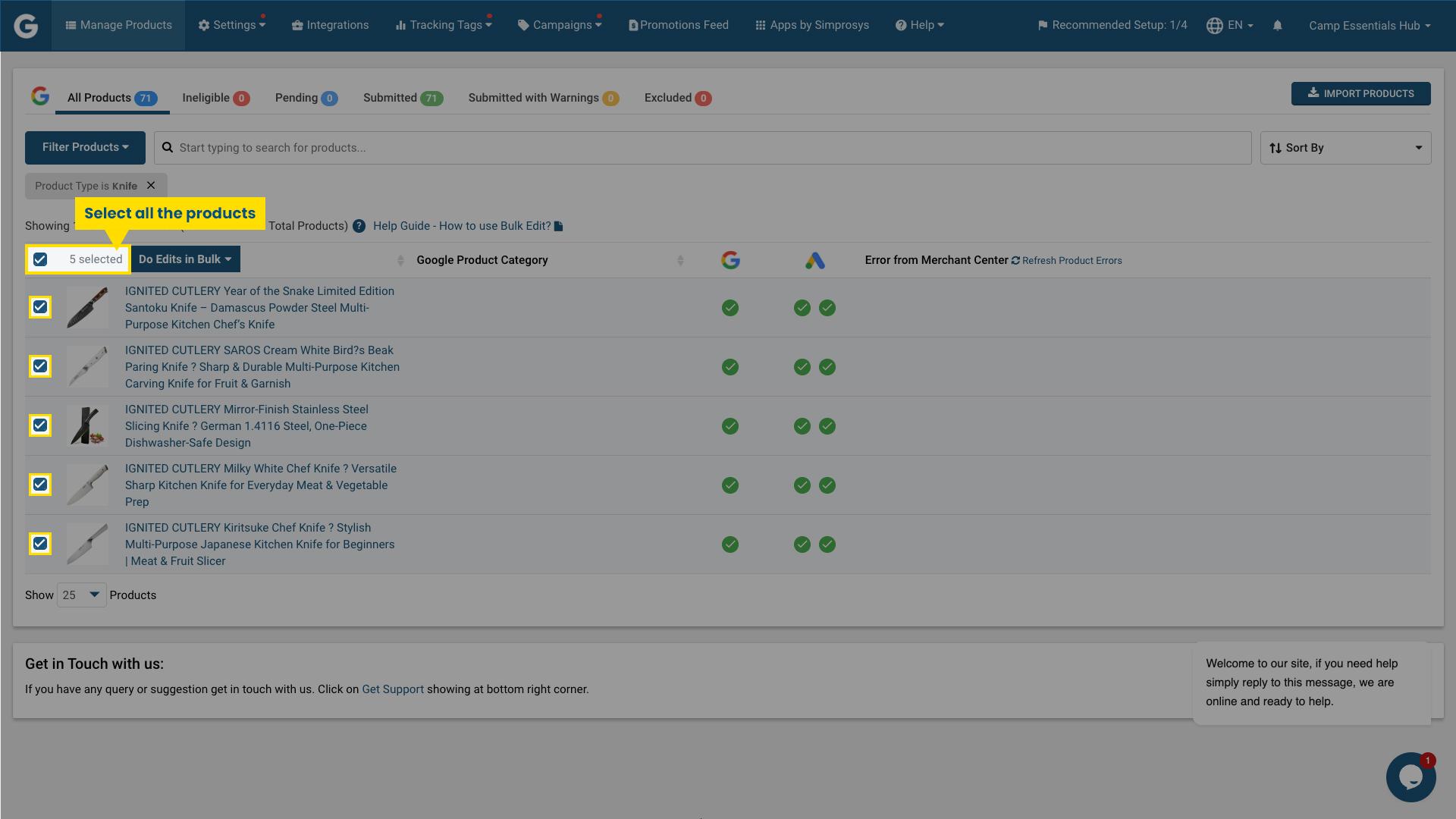
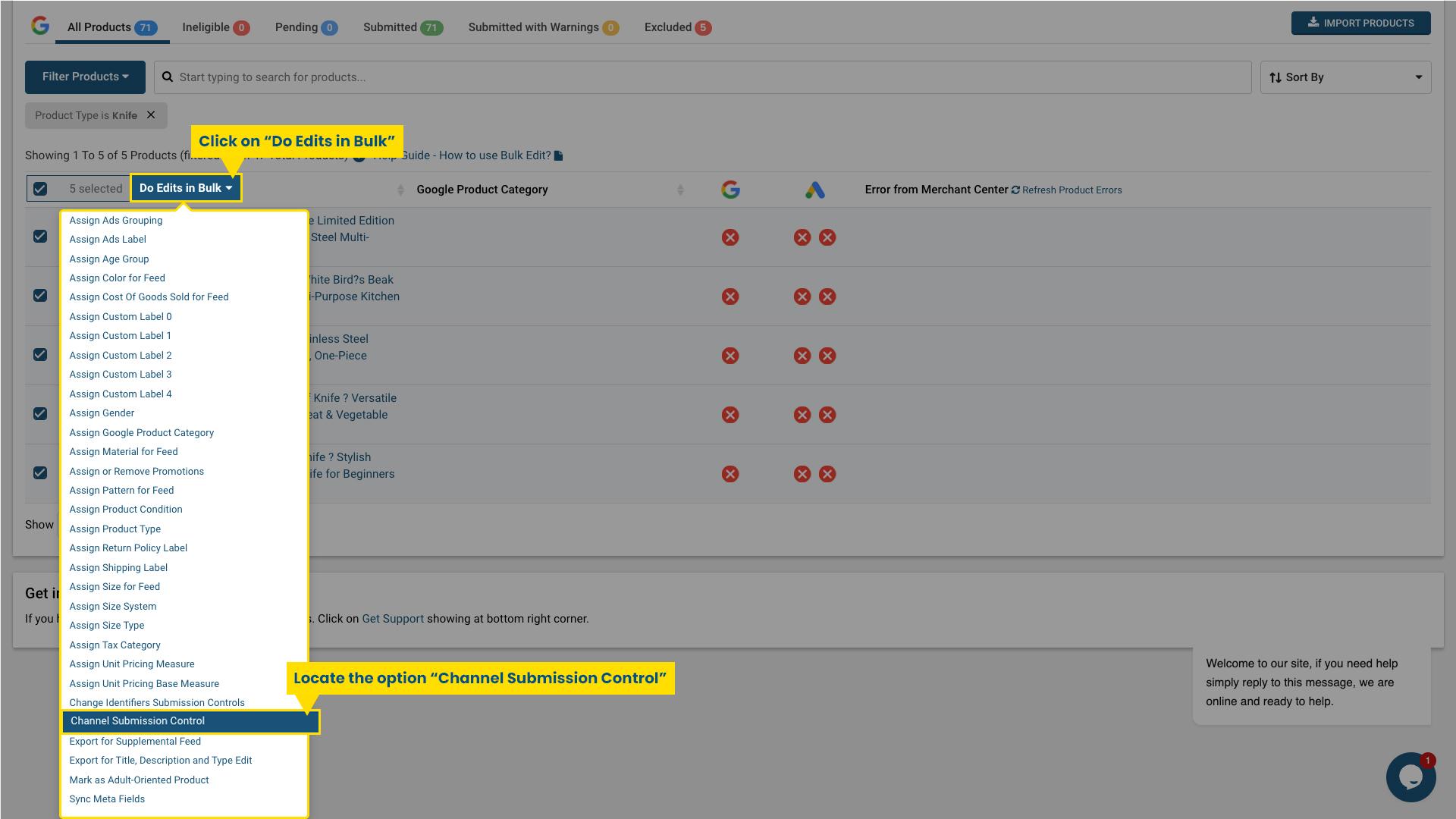
At the top of the page, click “Do Edits in Bulk” and select the Channel Submission Control option.
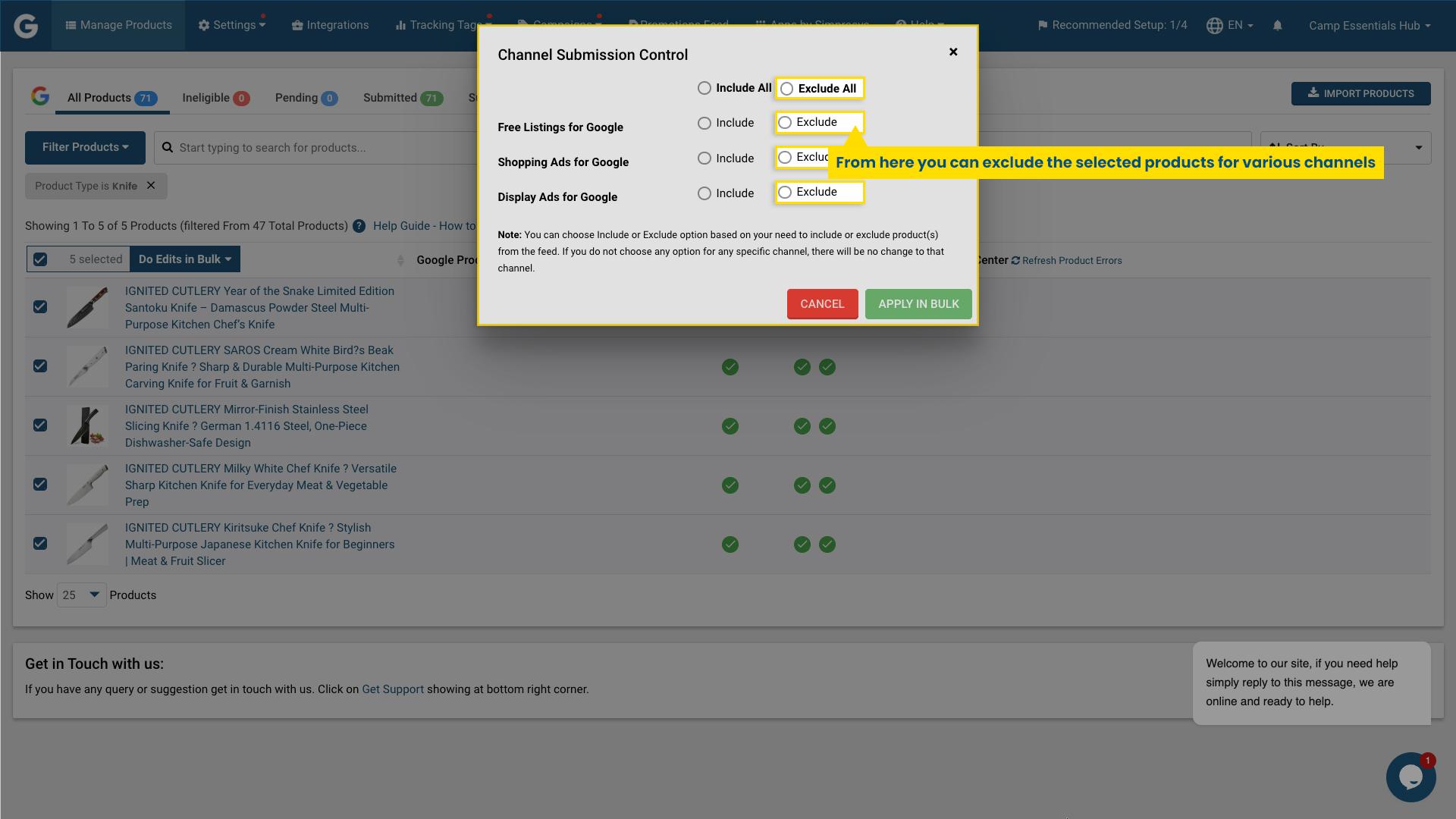
Step 4: Choose Advertising Channels
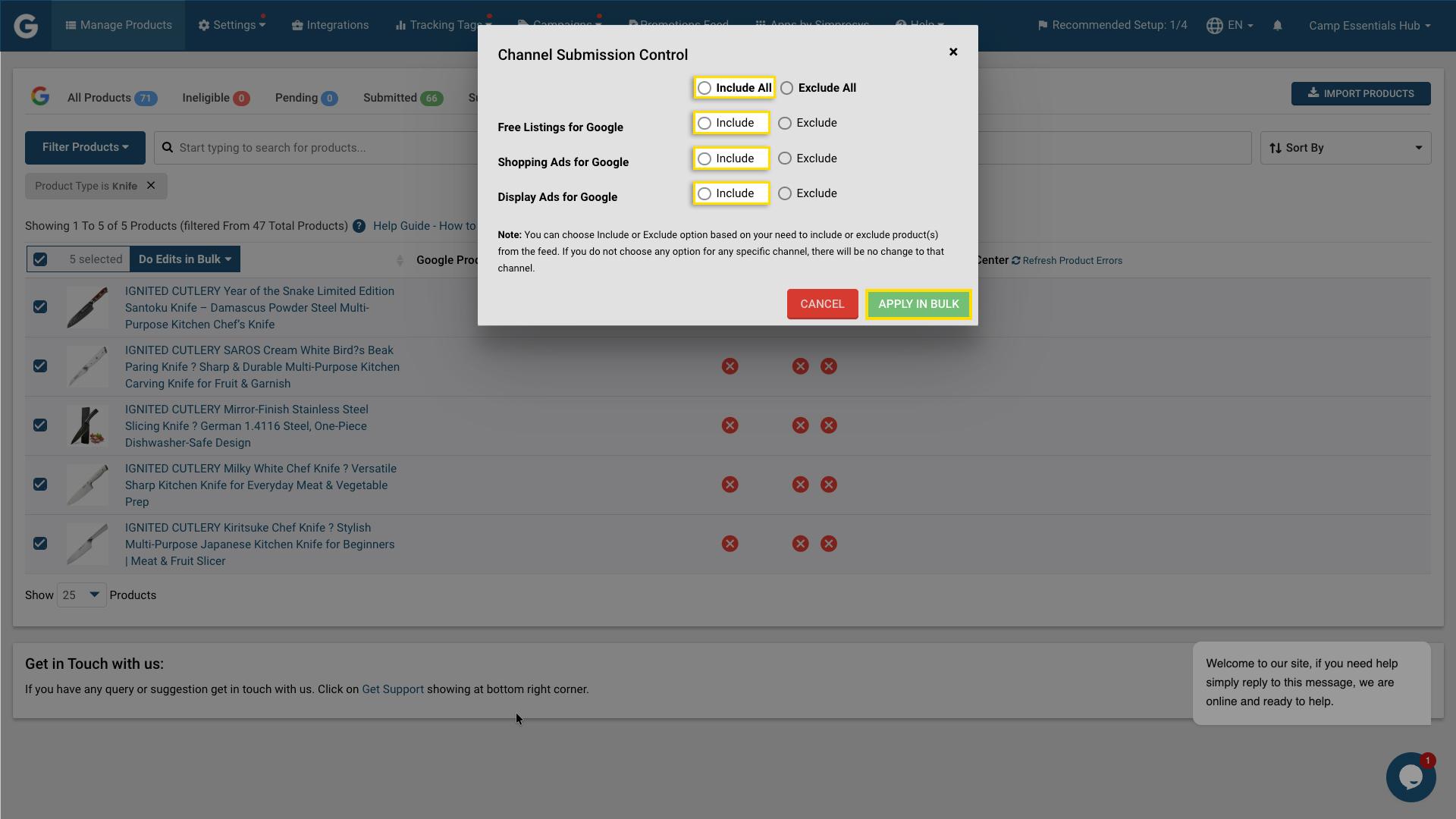
Select this option if you want to prevent the selected products from being submitted to any advertising platform.
If additional platforms are connected to your account in the future, they will also appear in this section.( Microsoft - Pinterest - XML)
If you want to exclude products from only specific platforms, do not select Exclude All. Instead, choose the Exclude option for the individual channels you want to manage.
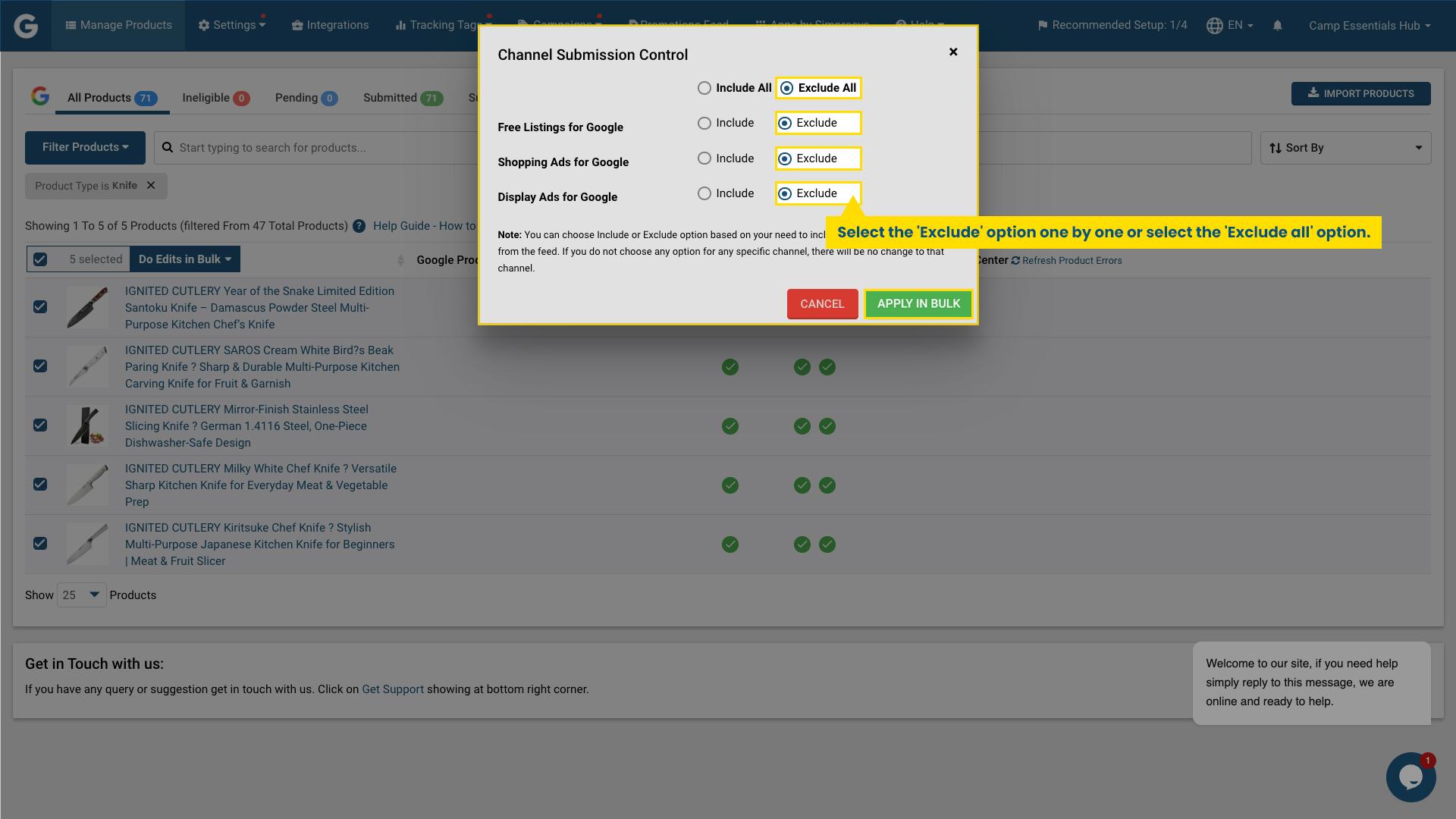
Step 5: Apply Changes
Click Apply in Bulk to confirm.
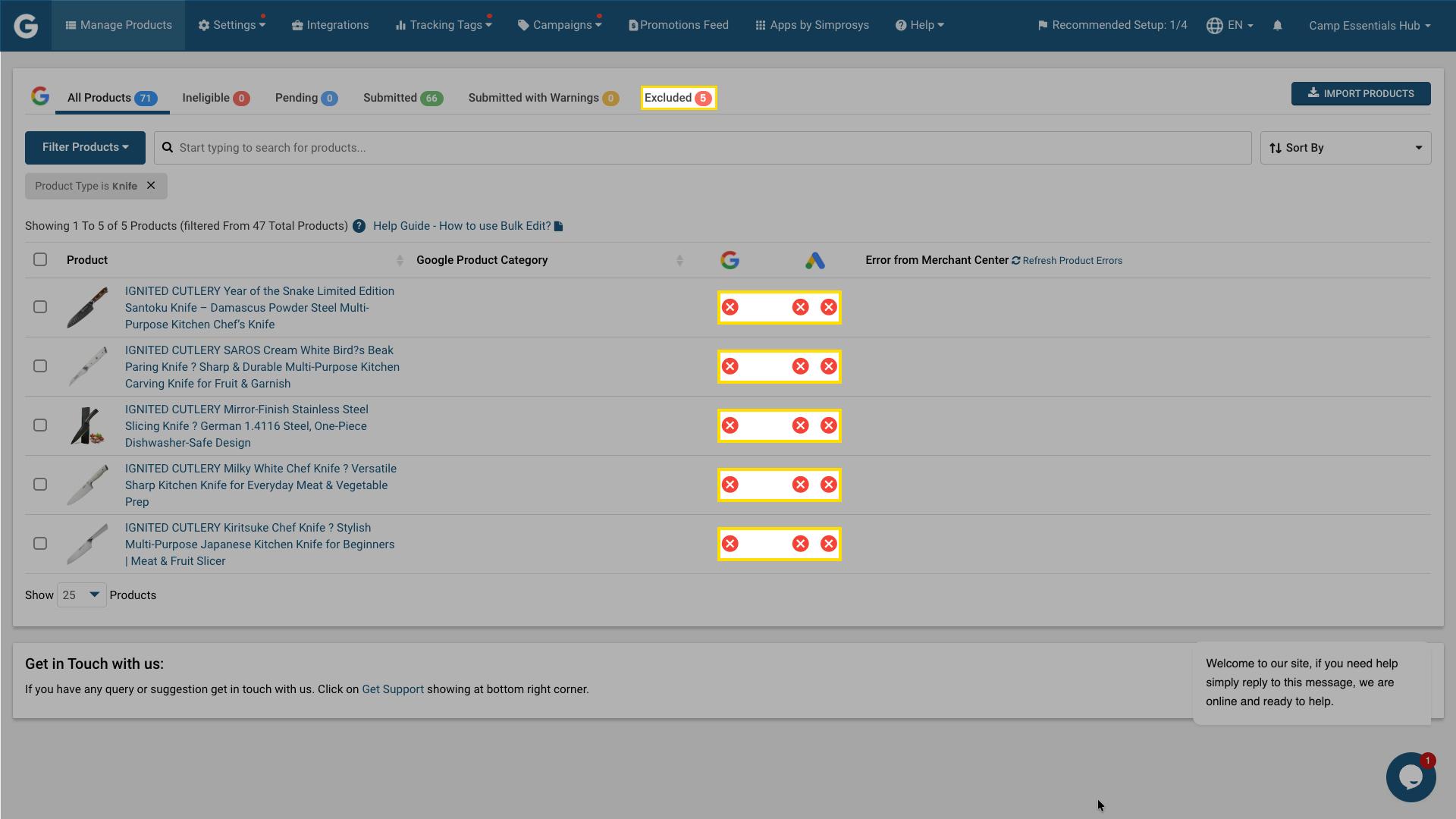
Once applied, the Simprosys Google Shopping Feed App will begin processing the request.
Within 30 minutes, the selected products will be excluded from the selected advertising platforms.
How to Include Products for Advertising Platforms if They Were Previously Excluded
If a product was previously excluded from an advertising platform, you can easily include it again by following the steps below:
1. Click on the Excluded option located at the top-right side of the page. This will display all products that are currently excluded using the channel submission method.
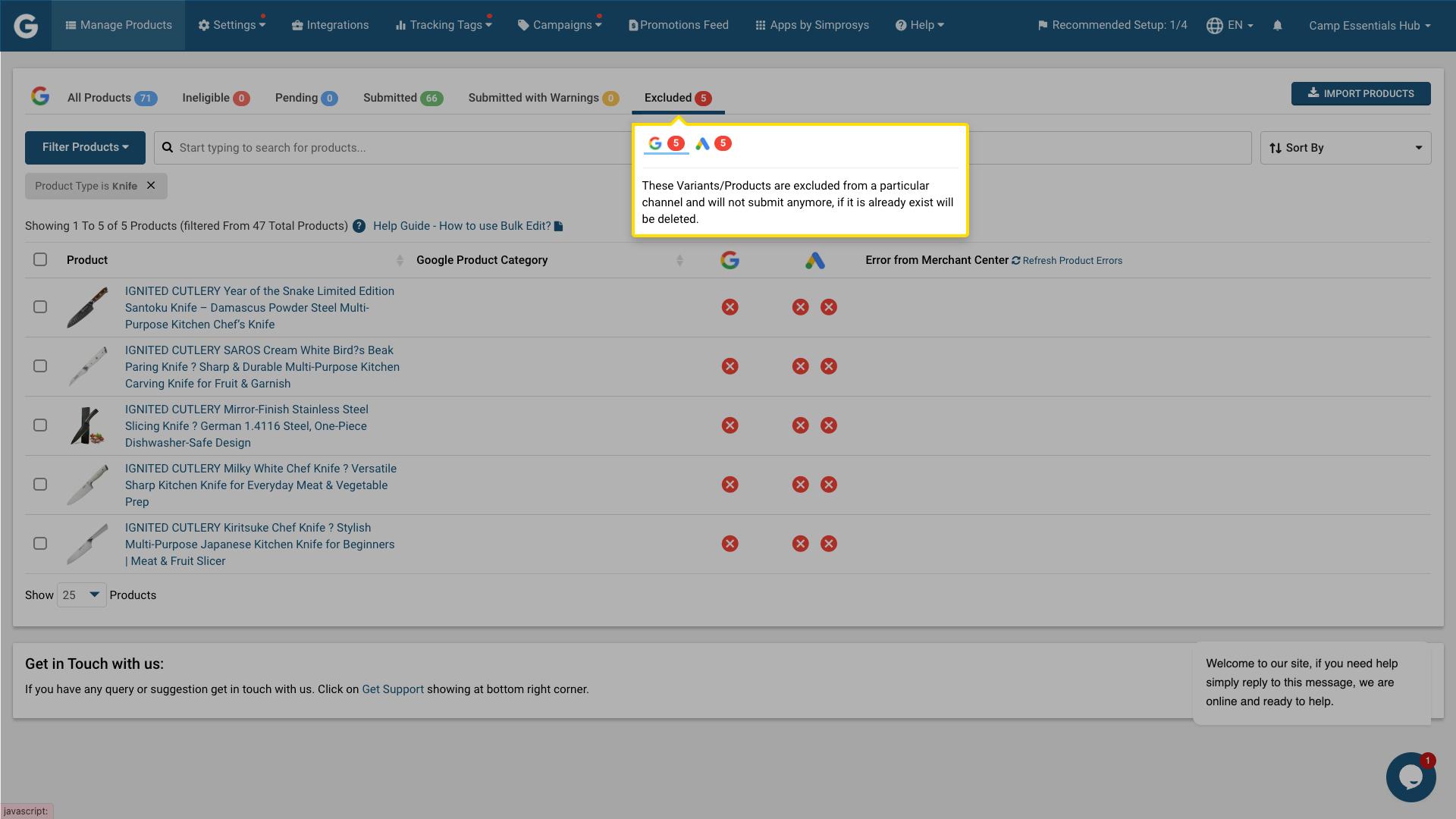
2. Select the products you want to include.
Click on Bulk Edit, then choose the Channel Submission Control option.
Select Include All to allow the selected products to be submitted to the advertising platforms again, then click on Apply in Bulk.
Once the changes are applied, the selected products will be included in the feed submission for the connected advertising platforms in the next 30 minutes.
Using the Channel Submission Control feature, you can easily manage which products should appear on your advertising platforms and which should not.
If you have any questions about this feature, feel free to contact our support team at support@simprosys.com, and we will be happy to assist you.
Previous article

Next article
Simprosys Google Shopping Feed
Initial App Configuration
Troubleshooting & Issue Fixes
Tracking Tags Setup (Google Ads & Google Analytics 4)
Product Optimization & Automated Feed Rules
Advanced Setup Made Easy
Legal Pages


