SimprosysAPIs
Introduction and Account Setup

Channel Integration
Feed Configuration
Product Data Source Setup
Manage Products
Dashboard
Automated Feed Rules
Product Details
Promotions & Discounts
Google-Calculated Delivery Speed Estimates
Legal Polices

Create and Manage Promotion and Discount Feeds in SimprosysAPIs
Nov 18, 2026
Turn browsers into shoppers by promoting your sales and special offers across all your connected marketing channels. With Promotions & Discount Feeds, you can effortlessly run conversion-boosting promotion campaigns like flat discounts, percentage savings, gift offers, and free shipping, making your product listings stand out in search results without changing your primary store data.
Why Use Promotions & Discount Feeds?
- Drive High Click-Through Rates: Highlight eye-catching promotional tags, sale prices, and discount badges on Google Shopping Ads and Google Free Listings to capture shoppers' attention.
- Keep Core Store Data Untouched: Push promotional prices and offer attributes to ad feeds dynamically without making temporary changes to your store product data.
- Automate Promotion Schedules: Set precise display and effective date ranges so discounts launch, run, and expire seamlessly on time.
- Targeted Product Eligibility: Choose whether your promotional offers apply storewide, to custom-filtered brand/product type, or to specific mapped items.
Important Guidelines & Channel Requirements
To ensure your promotional feeds get approved instantly by Google, keep these requirements in mind before publishing:
- Account Eligibility: Ensure your store and connected Merchant Center account meet the platform’s standard promotion participation rules. Review the full criteria on the Google Merchant Center Eligibility Requirements page.
- Editorial Standards: Promotion titles, generic redemption codes, and offer descriptions must follow official formatting standards (e.g., clear discount terms, accurate title wording, and valid expiration dates). Refer to the official Google Merchant Center Editorial Guidelines for complete formatting standards.
- Google Algorithm & Badge Visibility: For Google to display your products on sale with sale price annotations or strikethrough pricing on Google Shopping, your products must satisfy specific platform requirements (refer to Google’s Sale Price Annotations Guidelines). Please note that even after fulfilling these criteria, the display of sale price annotations or strikethrough pricing depends entirely on Google’s automated review process and search algorithms beyond our direct control.
- Date Alignment: The Effective Date (when the discount works on your store) must be valid and align within the Display Date window (when badges show in ad listings).
Step-by-Step Guide: Setting Up a Promotion
Follow these steps to configure and launch a promotional campaign from your dashboard.
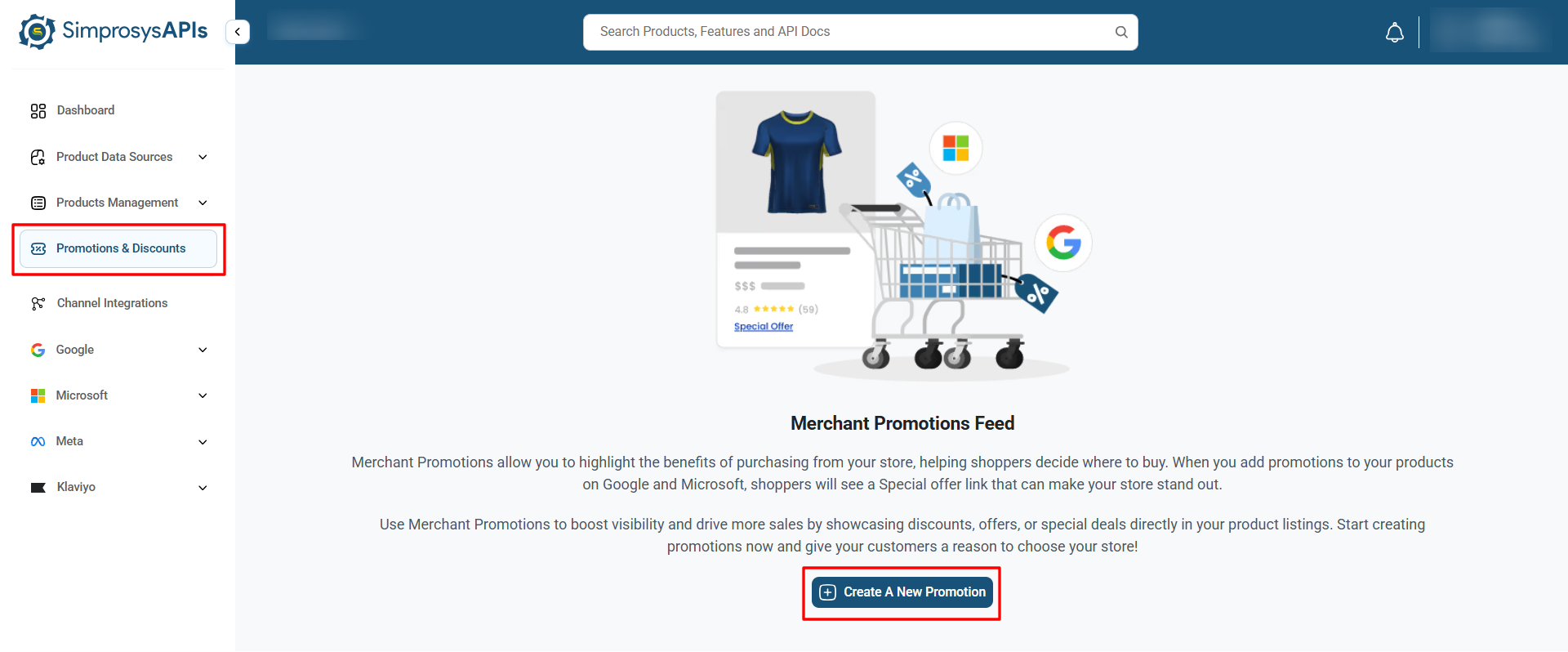
Step 1: Open the Promotions Dashboard
Log in to your platform, navigate to Promotions & Discounts in the left navigation menu, and click Create a New Promotion (or Add Promotion in the top right corner if a promotion has already been created previously).
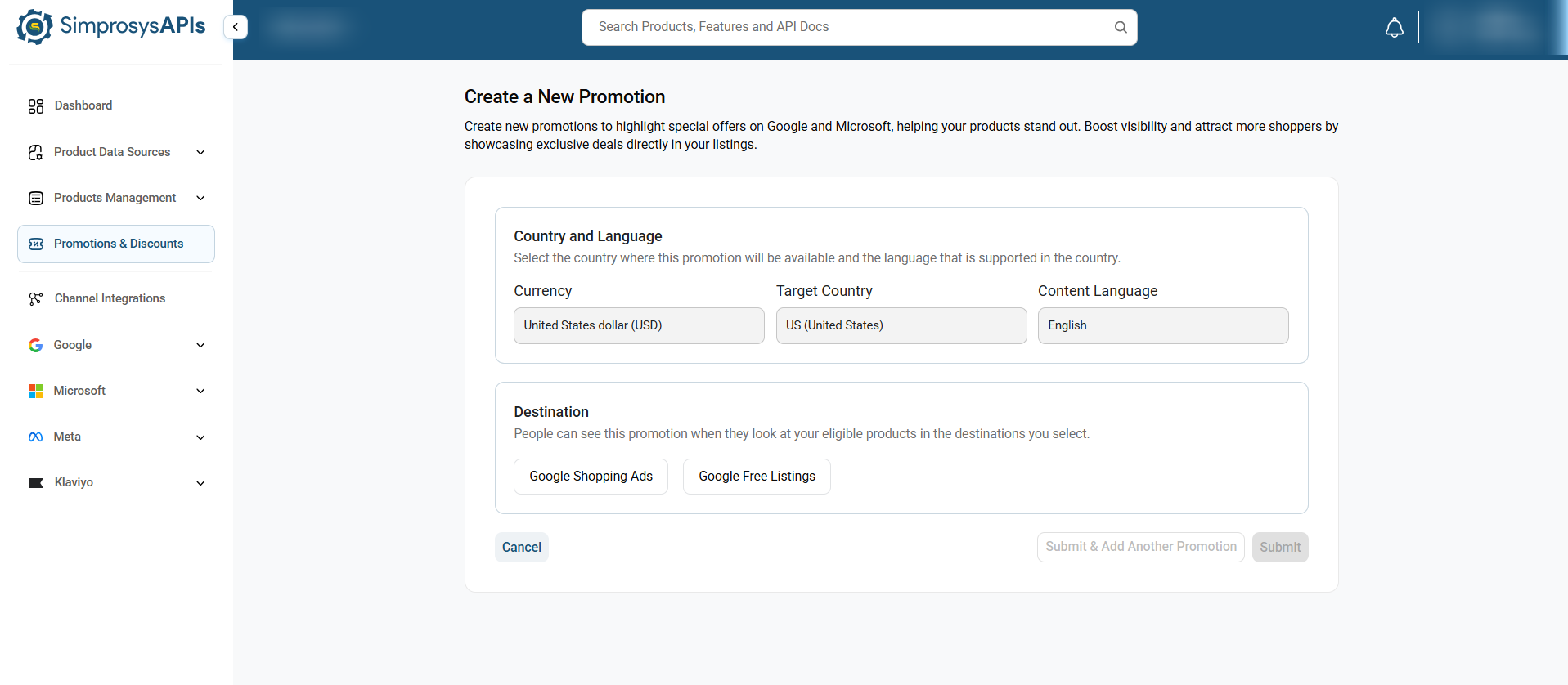
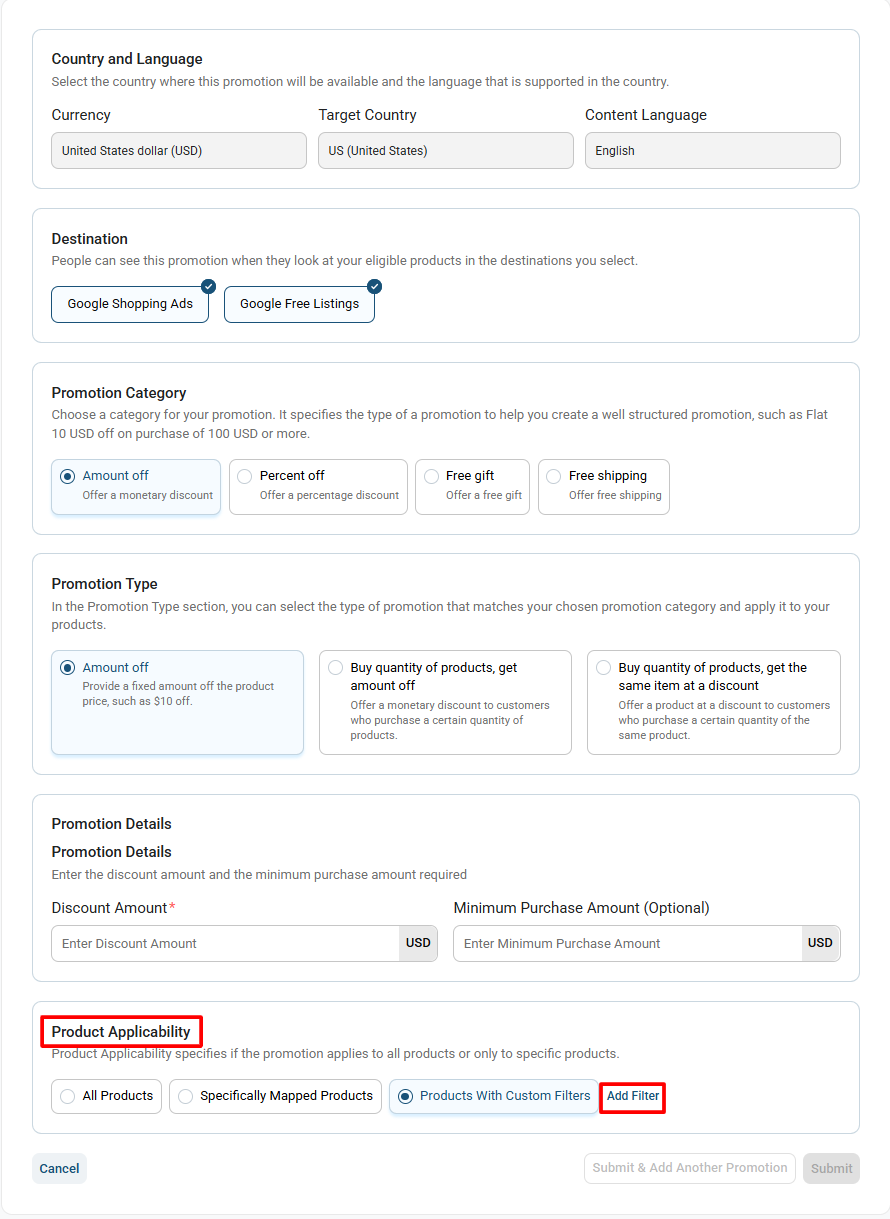
Step 2: Confirm Target Country, Currency & Destinations
Currency & Language: Pre-filled automatically based on your initial store setup parameters.
Destinations: Select where your promotion badges should be shown:
- Google Shopping Ads
- Google Free Listings
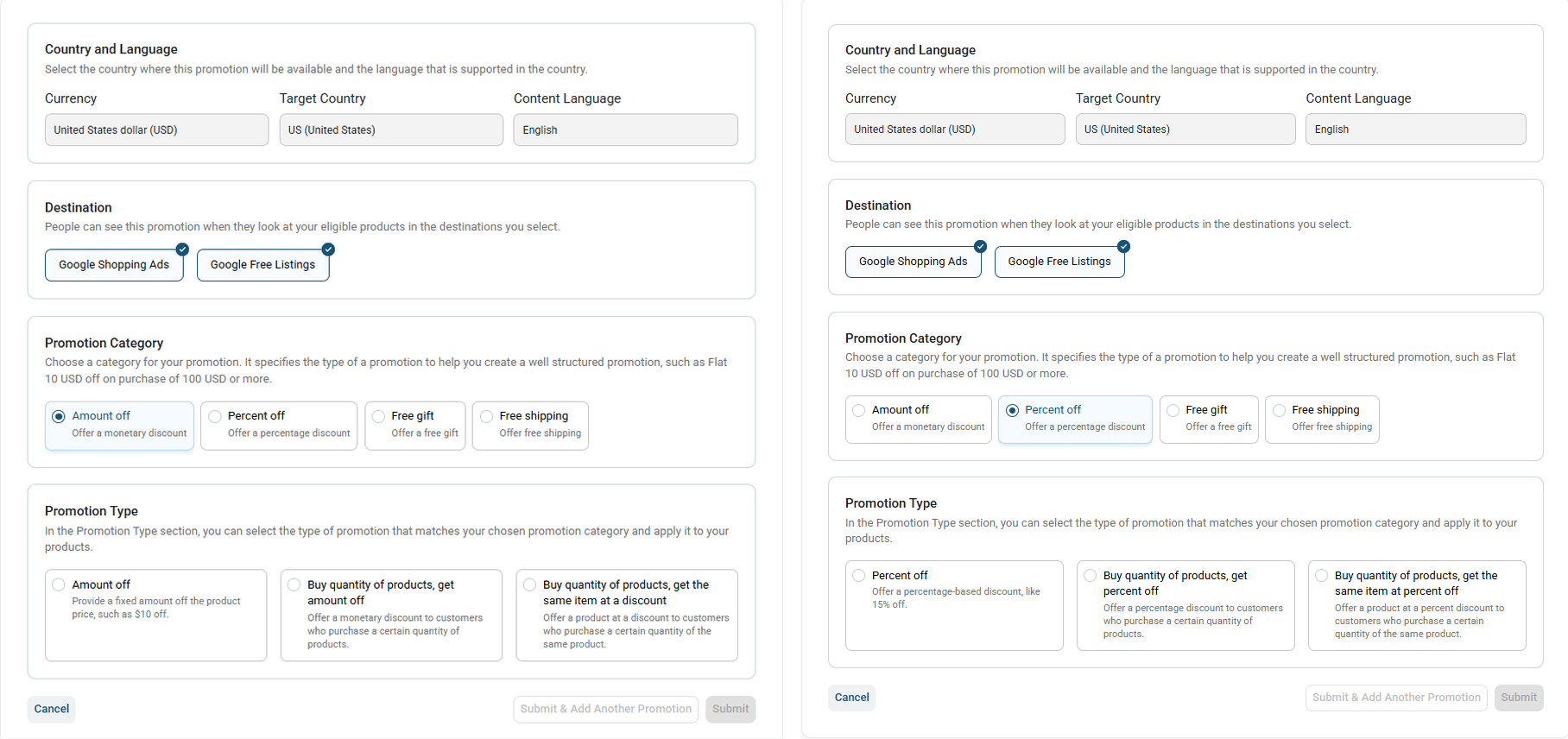
Step 3: Choose Promotion Category & UI Options
Select the primary promotional structure that fits your marketing strategy. Each category dynamically unlocks unique input fields in the interface:
1. Amount Off & Percent Off Categories
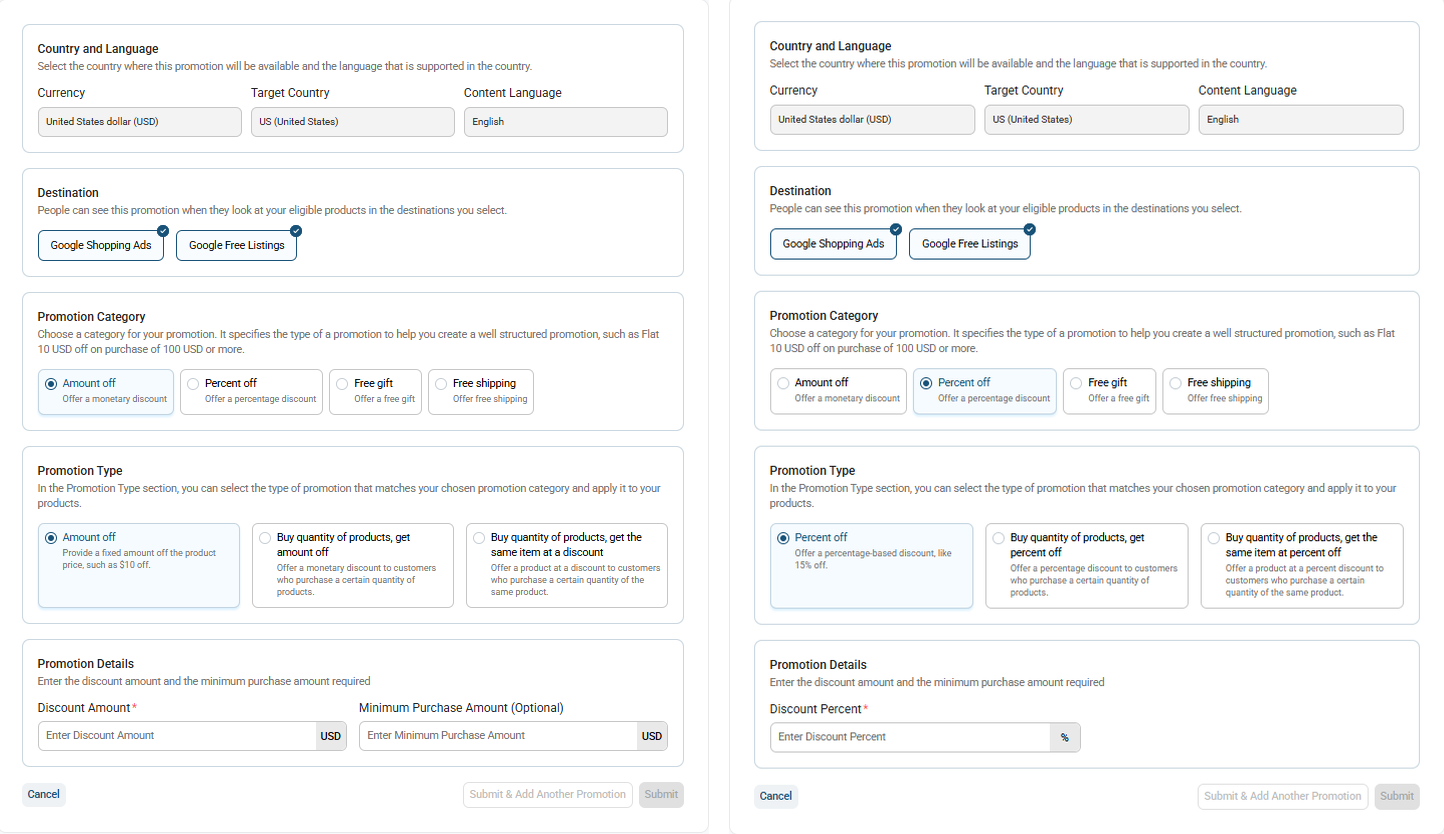
Selecting Amount Off or Percent Off opens flexible pricing and quantity-based discount models. Use this configuration to offer flat savings or reward volume purchases.
- Flat Discount (Amount Off / Percent Off): Requires entering a value in Discount Amount (in your store's primary currency) or Discount Percent (%). You can also specify a Minimum Purchase Amount (optional) to apply the discount.
- Tiered Volume Discount (Buy quantity of products, get amount off / percent off): Requires entering both the minimum Quantity Purchased (e.g., 2 items) and the corresponding discount amount or percentage
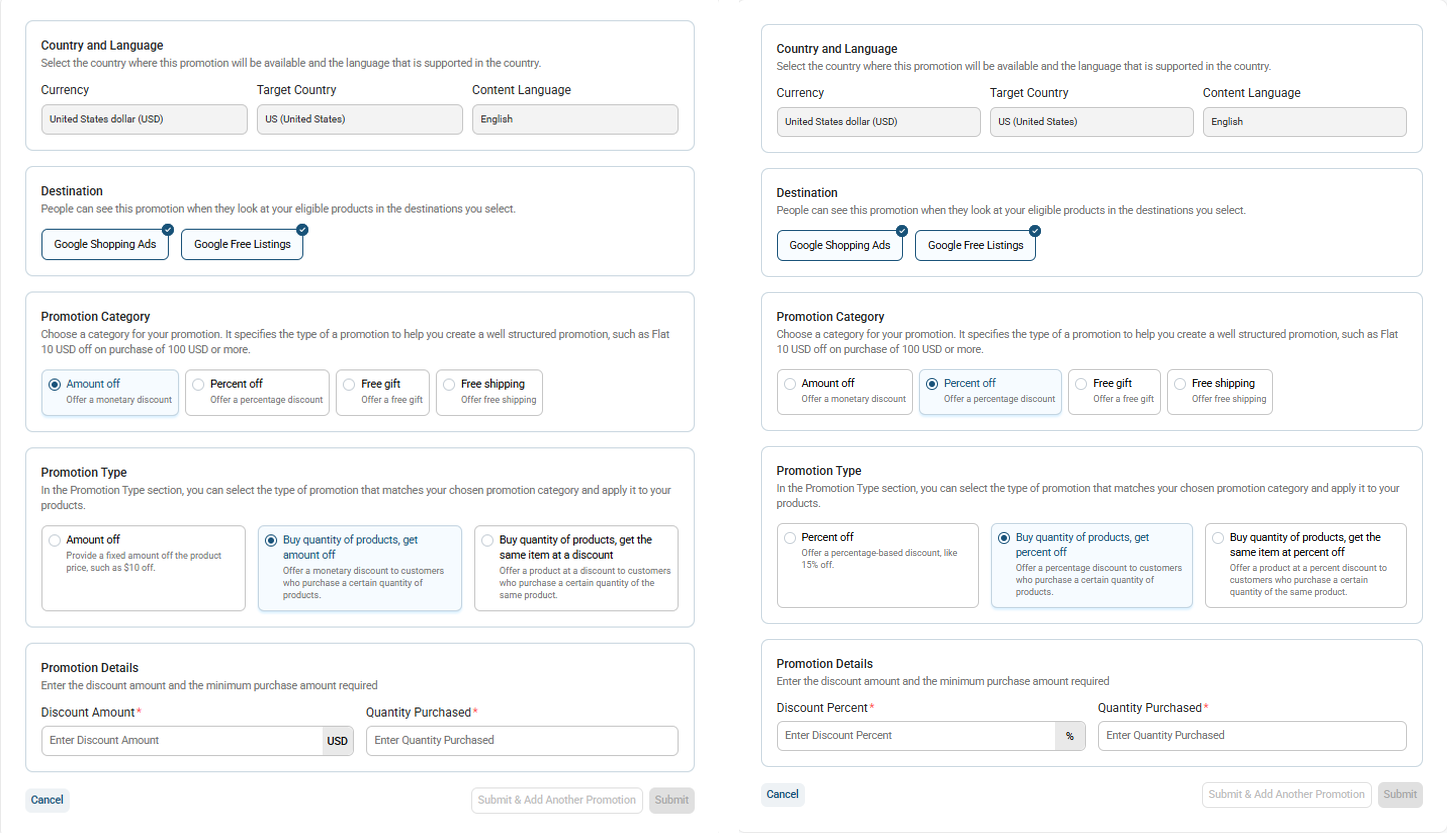
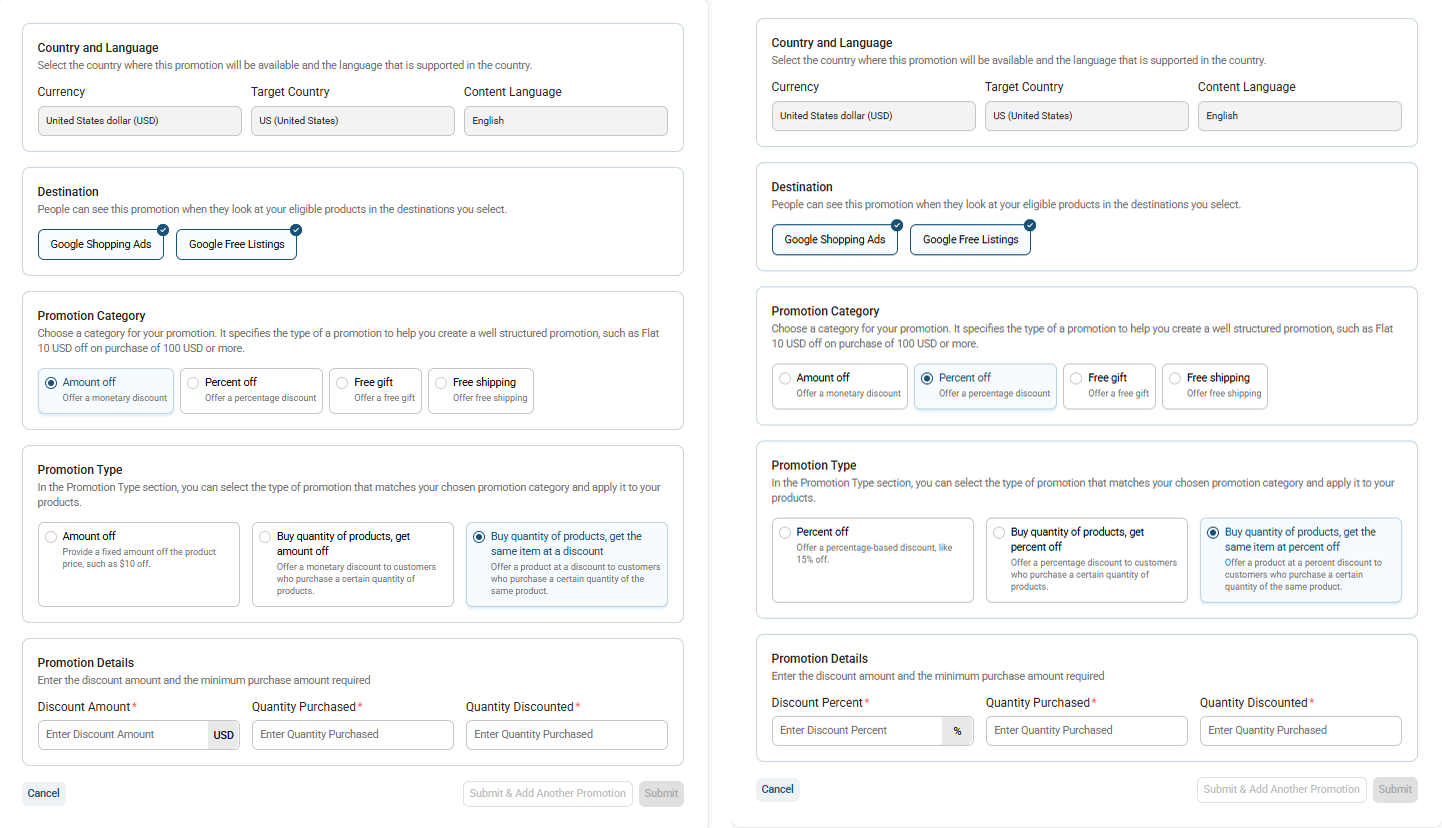
- Same Item Discount (Buy quantity of products, get the same item at a discount): Applies percentage or flat currency savings when multiple units of the same products are added to the cart
2. Free Gift Category
Selecting Free Gift allows you to offer a promotional gift with qualifying customer purchases. This category simplifies setup by focusing on clear gift messaging rather than price calculations.
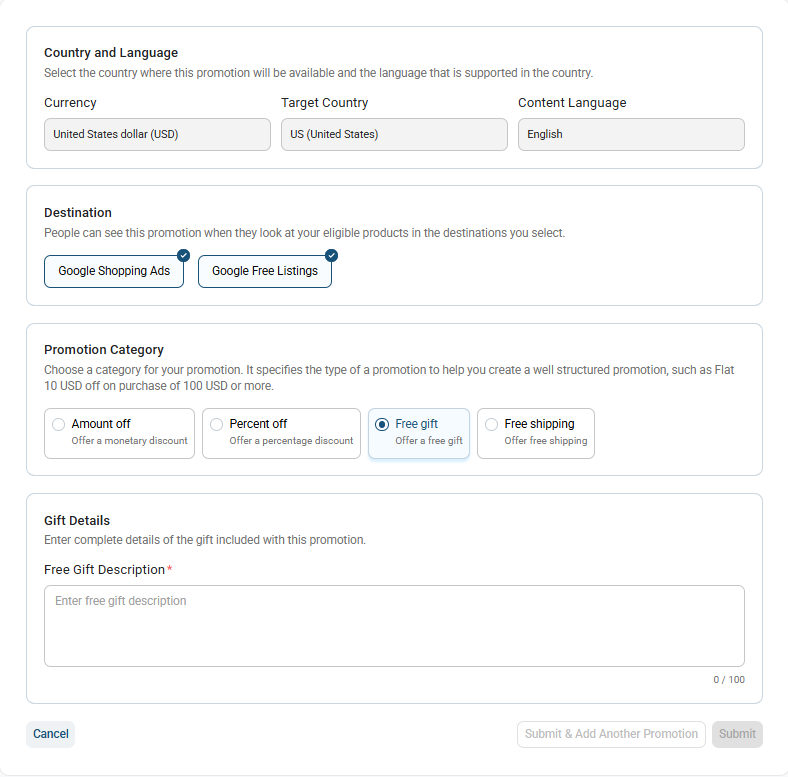
- Gift Details Box: Enter a concise description of the complimentary item (up to 100 characters) that shoppers will see attached to your listing offer.
3. Free Shipping Category
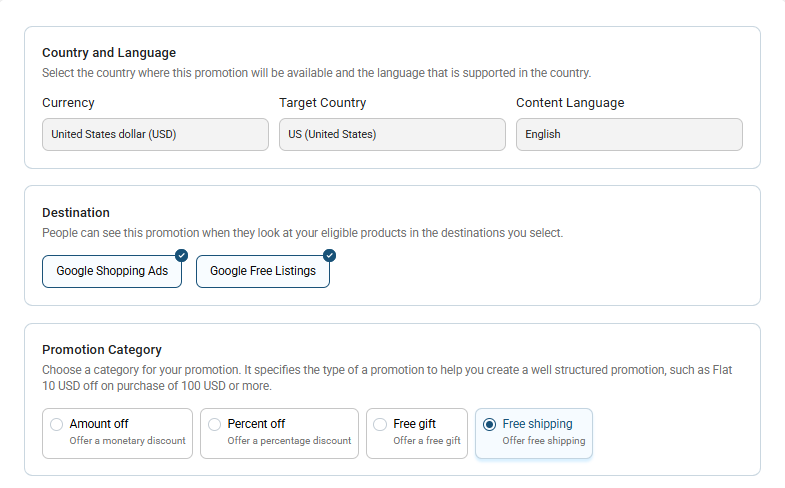
Selecting Free Shipping applies the free shipping badge to eligible products in the feed.
Step 4: Define Product Applicability
Specify which items qualify for the offer:
- All Products: Automatically applies the promotion across your entire catalog.
- Specifically Mapped Products: Select this option if you want to apply the promotion to specific products.
- (Note: After creating the promotion, you must map the generated Promotion ID to your selected products using the app’s Bulk Edit feature before the promotion will go live/be approved on ad channels.)
- Products With Custom Filters: Automatically apply this promotion to specific groups of products using store details like Brand and Product Type. This saves you from having to select products one by one.
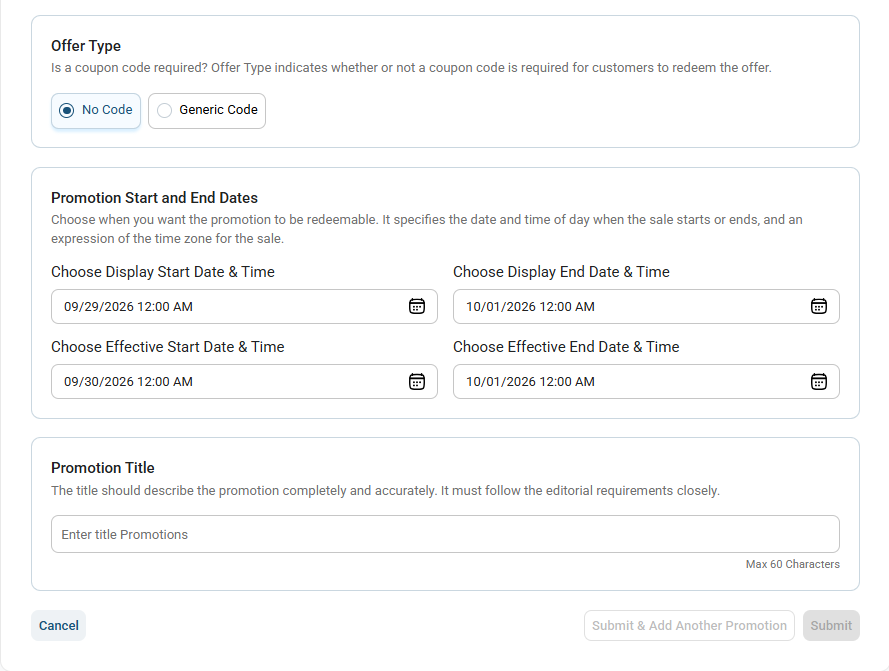
Step 5: Configure Redemption Code & Promotion Dates
Offer Type: Choose No Code (applied automatically at checkout) or Generic Code (requires entering a coupon code like SAVE20).
Promotion Start & End Dates:
- Display Start/End Date & Time: Defines when promotion badges are shown on channel listings.
- Effective Start/End Date & Time: Defines when the promo code is active on your storefront.
Promotion Title: Enter an intuitive title describing the offer clearly (e.g., 20% Off Fall Apparel Collection).
Step 6: Submit Promotion
Click Submit to save and sync your promotion, or click Submit & Add Another Promotion to save and immediately configure your new promotion.
Note: This promotion applies only to your Google channel. If you also want to apply it to Microsoft and have integrated a Microsoft channel, you can download the promotions XML file and upload it directly to Microsoft Merchant Center. 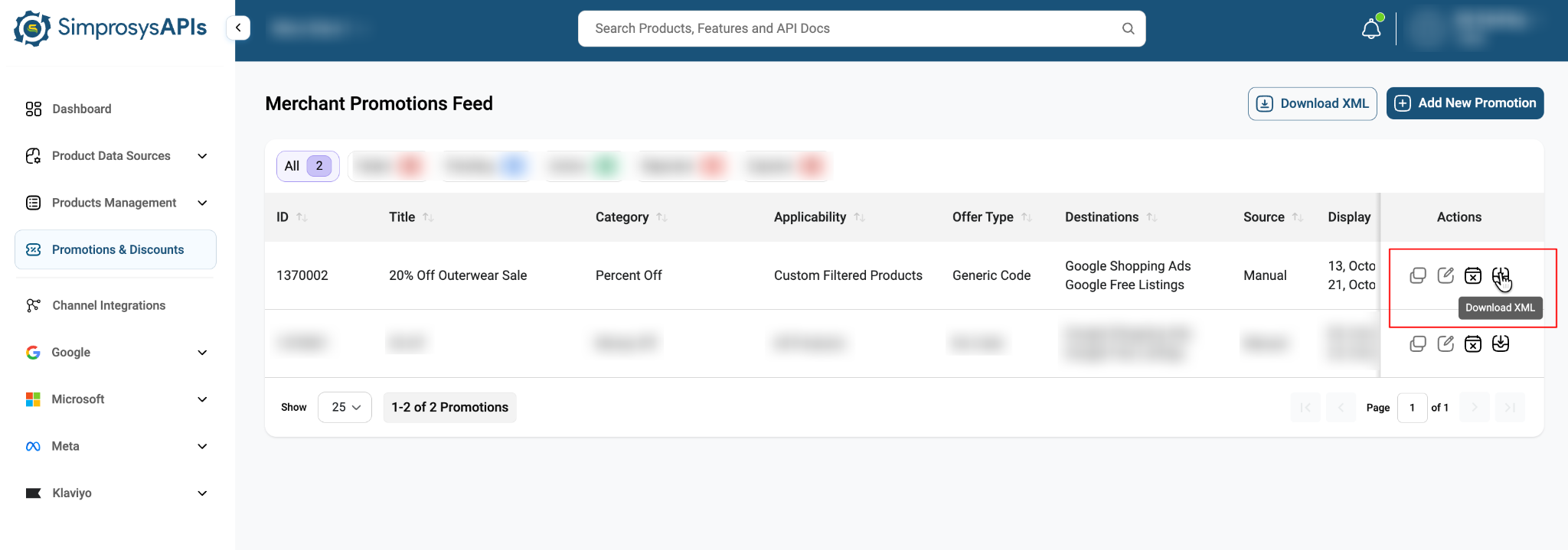
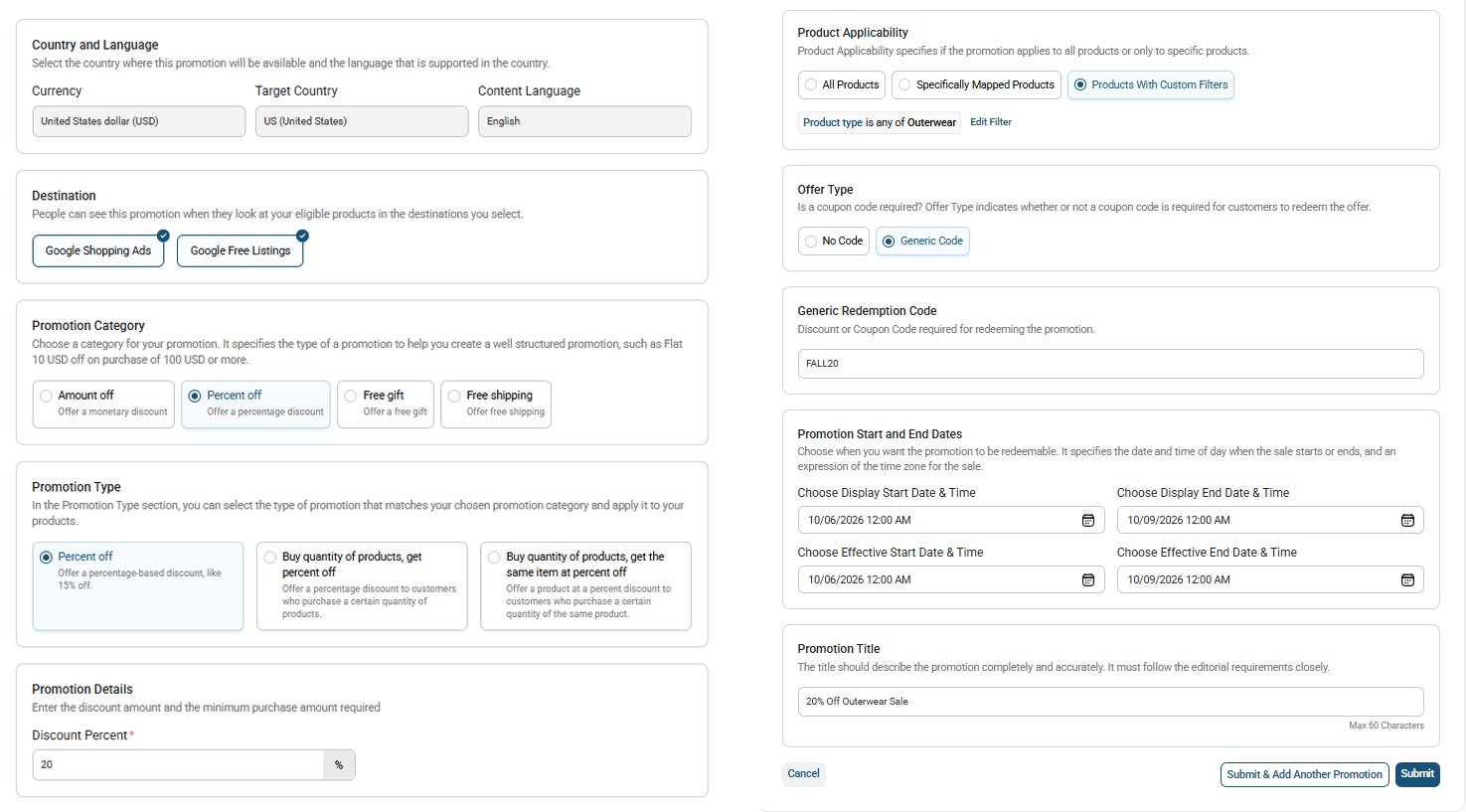
Example: Running a "20% Off" Fall Sale
To see how this configuration comes together in practice, let’s walk through a real-world example from setup to customer-facing ad output.
The Goal
Run a storewide 20% discount on your premium Classic Leather Jacket for an upcoming seasonal promotion, requiring shoppers to use the checkout promo code FALL20.
| Setup Field | Configured Value |
| Destination Channels | Google Shopping Ads & Google Free Listings |
| Promotion Category & Type | Percent Off → Percent Off (Flat percentage discount) |
| Discount Amount | 20% |
| Product Applicability | Products With Custom Filters (Filtered by Product Type: Outerwear) |
| Offer Type & Code | Generic Code → FALL20 |
| Promotion Title | 20% Off Outerwear Sale |
Listing Transformation Result
| Listing Feature | Original Store Listing | Promotional Ad Output |
| Product Title | Classic Leather Jacket | Classic Leather Jacket |
| Price Display | Base Price (e.g., 200.00) | |
| Special Offer Badge | None | "20% OFF" Special Offer Tag + Code: FALL20 |
For email support, feel free to reach out to us at support@simprosys.com

SimprosysAPIs
Introduction and Account Setup
Channel Integration
Feed Configuration
Product Data Source Setup
Manage Products
Dashboard
Automated Feed Rules
Product Details
Promotions & Discounts
Google-Calculated Delivery Speed Estimates
Legal Polices