SimprosysAPIs
Introduction and Account Setup

Channel Integration
Feed Configuration
Product Data Source Setup
Legal Polices
Manage Products

Manage Products and Track Channel Statuses in SimprosysAPIs
Oct 16, 2026
The Manage Products page in the SimprosysAPIs platform provides a centralized interface to view your products/variants list, channel-based product/variant statuses, Global-level search, Product-level search, Filters, Bulk-Edit feature, and Export/Import feature for product attributes across connected channels like Google, Meta, Klaviyo, and Microsoft.
Channel-based product/variant statuses
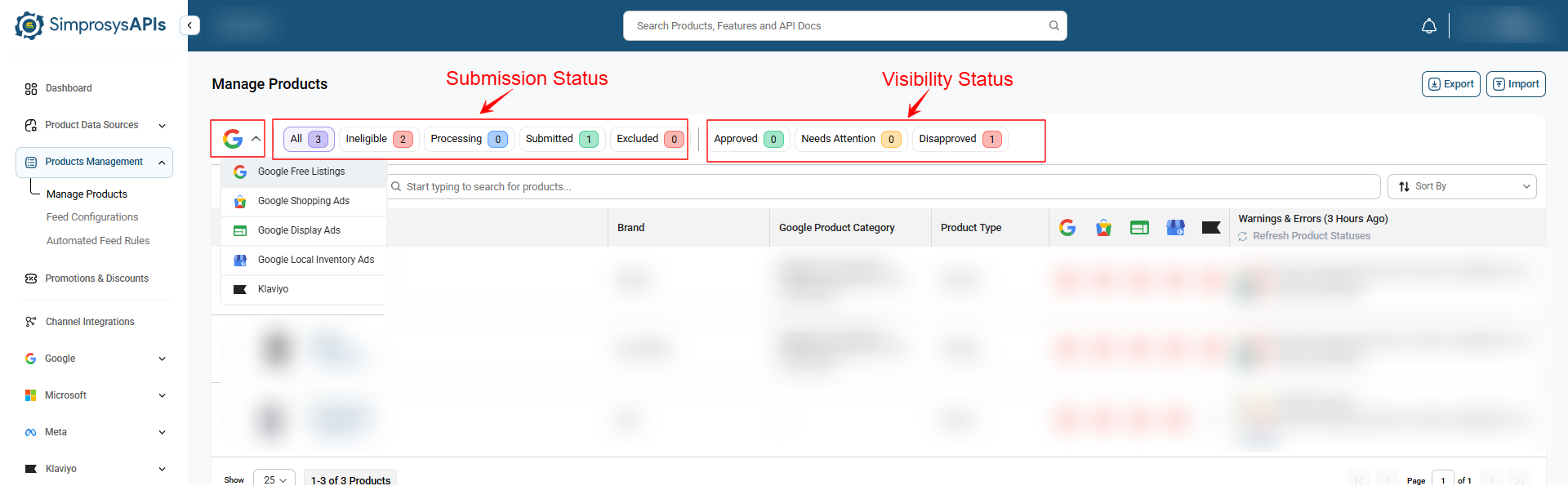
Use the channel dropdown at the top left of the Manage Products table to manage your channel metrics:
- Channel Selector Dropdown: Choose a destination channel (such as Google Free Listings, Google Shopping Ads, Google Display Ads, Google Local Inventory Ads, Meta, Microsoft, Klaviyo) to view its specific variant counts and status responses.
Selecting a channel updates the product counts and status responses across two main categories:
- Submission Statuses:
- All: Total count of all variants synced into the platform.
- Ineligible: This section displays variants missing mandatory fields.
- Processing: This section displays variants currently pending for submission to the selected channel.
- Submitted: This section displays variants successfully submitted to the selected channel.
- Excluded: This section displays variants excluded from submission, either manually or through automated rules.
- Visibility Statuses:
- Approved: This section displays variants successfully verified and actively accepted by the respective marketing channel.
- Needs Attention: This section displays variants that require fixes based on warnings received from the selected channel.
- Disapproved: This section displays variants rejected by the selected channel due to policy violations or critical data errors.
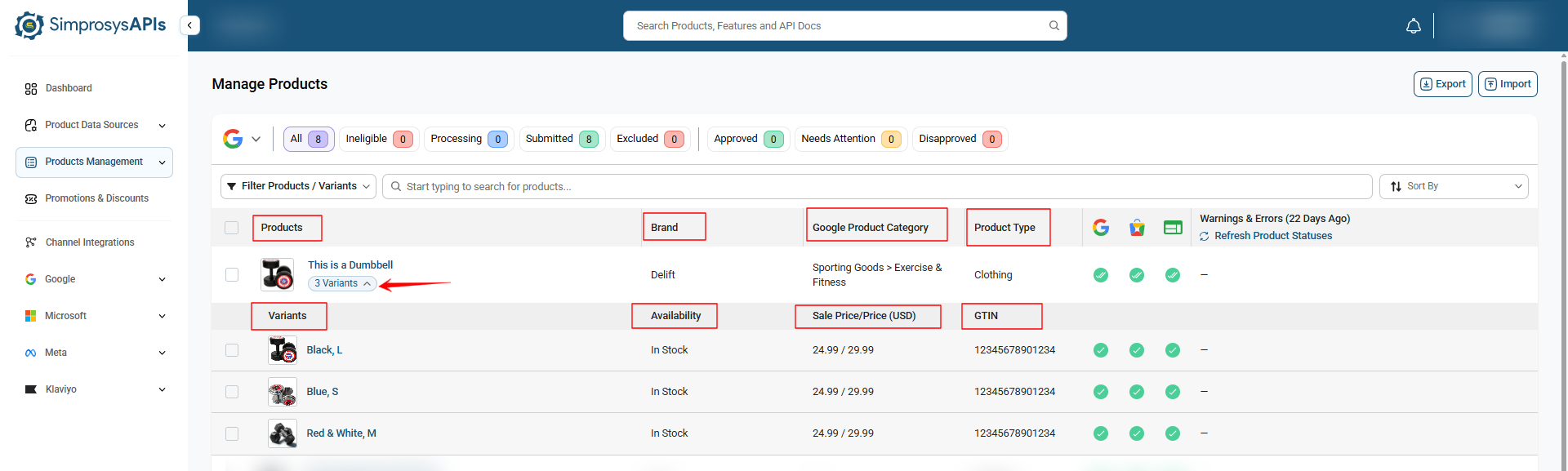
Products/ Variants list
Inspect individual product and variant details directly within the table:
- Product Level Rows: Display main product details including Main Image, Product Title, Brand, Google Product Category, and Product Type alongside overall channel statuses.
- Expand Variants Dropdown: Click the Variant dropdown (e.g., 1 variant) beneath a product title to reveal individual variant rows.
- Variant Level Details: Display specific variant details, including SKU, Availability, Sale Price / Price, GTIN, and individual channel statuses.
Bulk Edit
Select individual product checkboxes or click Select All, then click Do Edit in Bulk to open the Bulk Customization menu. From there, select an attribute and add/ update values for the selected products/varinats in bulk. This feature allows you to customize product attributes for multiple products directly within the platform interface.
For step-by-step instructions on bulk editing product attributes, read our Bulk Editing Help Document.
Filter Products / Variants Options
Click the Filter Products / Variants dropdown next to the product-level search bar to filter your products using specific attributes and conditions.
For a detailed breakdown of all available filtering options, read our Product & Variant Filtering Guide.
Refresh Product Status
Keep product approval statuses, errors, and warnings synced with the channels:
- Locate the Warnings & Errors column on the far right of the table (which displays when the last sync occurred, e.g., 2 days ago).
- Click Refresh Product Statuses.
- Confirm or update the email address in the pop-up modal, then click Refresh Status. Once processing completes, the platform will display the updated warnings and errors, and a summary email will be sent to the entered email address.
Note: Product status can be refreshed manually once every 24 hours to pull the latest errors and warnings directly from the Google channel.
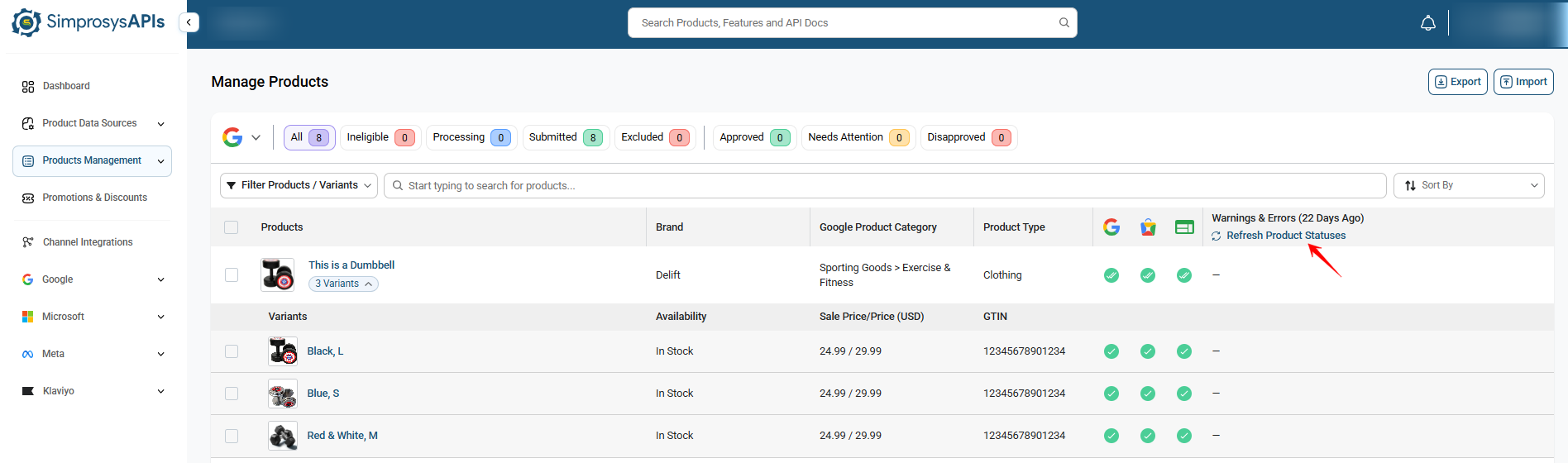
Warnings and Errors
- Initial Fetch: When product data is first loaded, errors and warnings are automatically fetched for all connected channels and displayed under this section.
- Automatic Daily Updates: After the initial fetch, our system automatically checks and updates errors and warnings for Google channels every 24 hours.
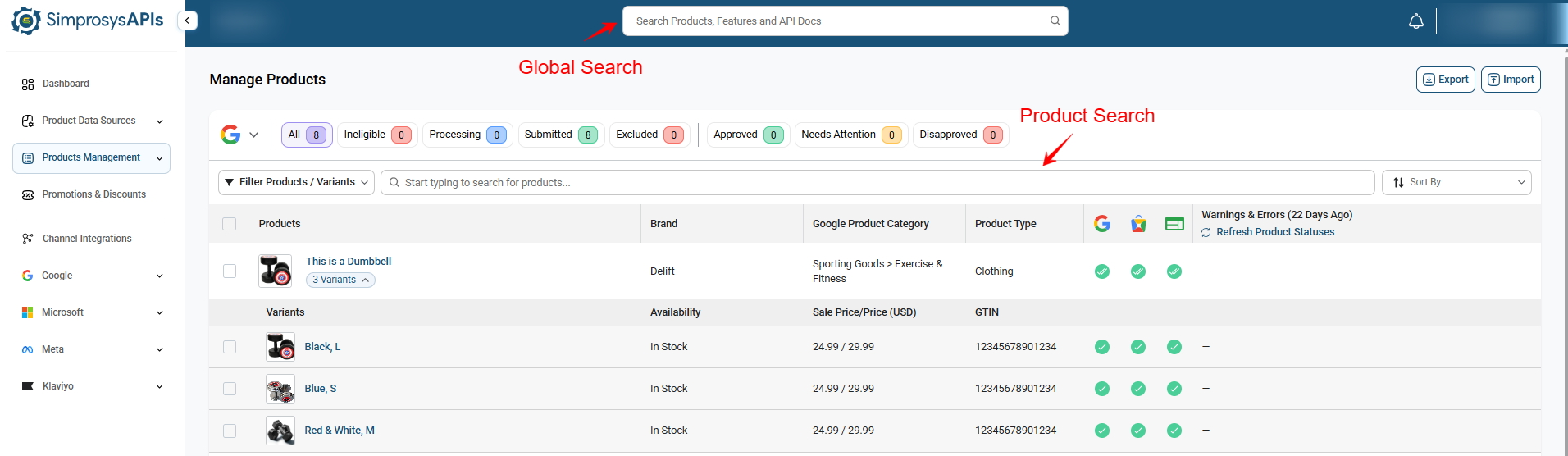
Search Options (Global Search and Product Search)
- Global Search (Top Navigation Bar): Located at the top center (Search Products, Features, and API Docs), this bar searches across the entire platform for products, platform features, or API documentation.
- Product Search: Located directly above the product list table, this bar filters the product table in real time using specific attributes like Product Title, SKU, GTIN, Product ID, or Variant ID.
Sorting and Pagination
Customize the layout and display order of the table:
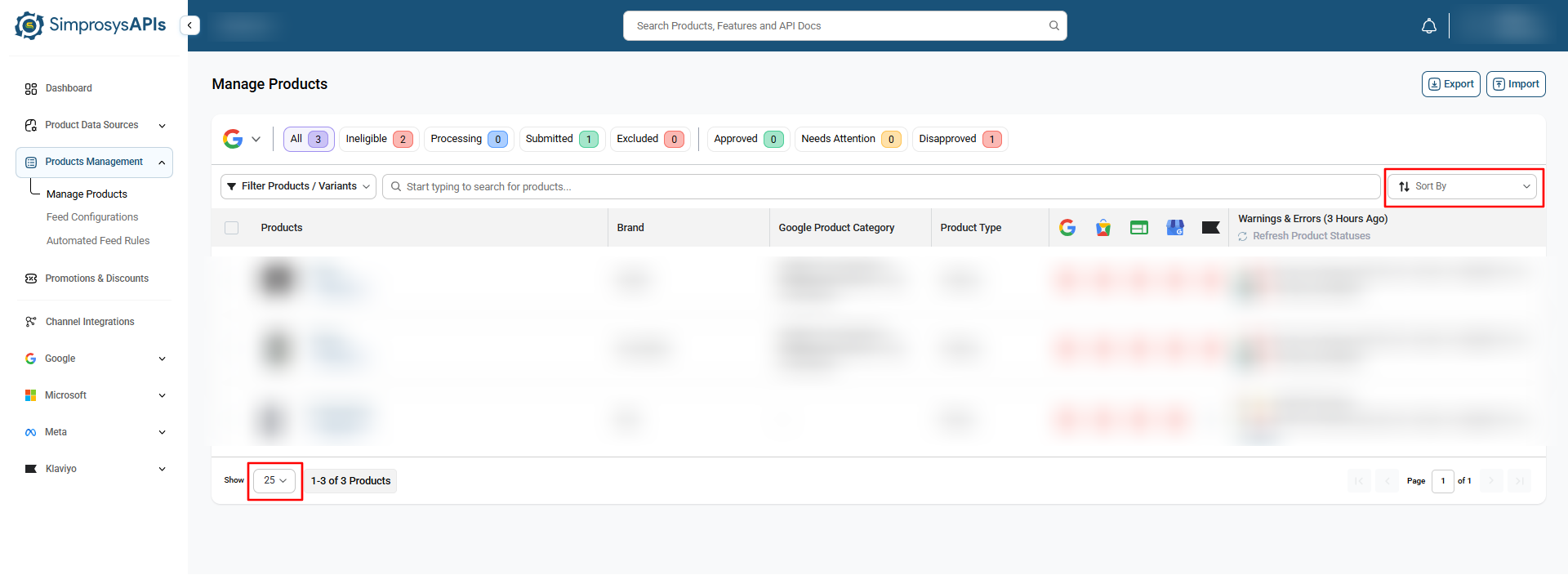
- Items Per Page: Adjust the number of products displayed per page (10, 25, 50, or 100) using the Show dropdown at the bottom left.
- Sort By: Use the Sort By dropdown on the top right to reorder products (e.g., Created: Newest First, Created: Oldest First, Product Type: A to Z, Product Type: Z to A, Brand: A to Z, Brand: Z to A).
Exporting Product Data
Export CSV files to perform bulk updates for product Title, Description, and Product Type:
Option A: Export All Products
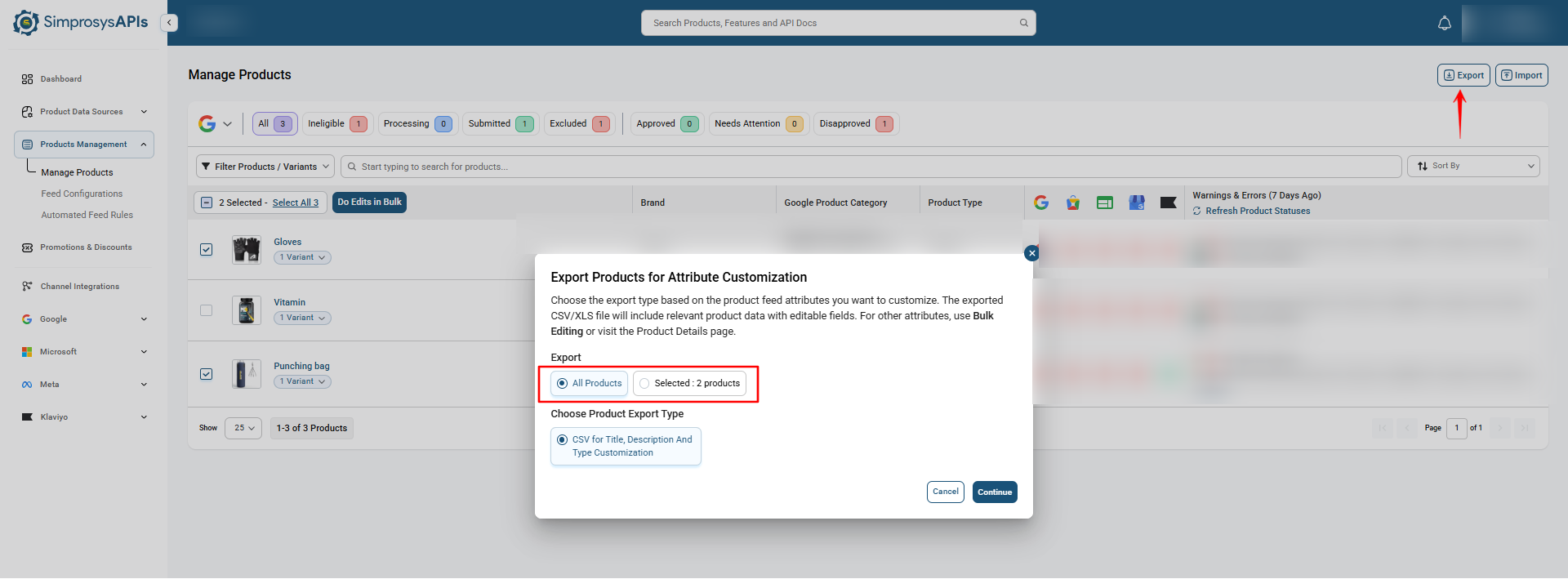
- Click the Export button in the top-right corner of the Manage Products page.
- In the Export Products for Attribute Customization pop-up, ensure the All Products option is selected.
Option B: Export Selected Products
- Select the checkboxes next to the specific products you want to export.
- Click the Export button at the top right.
- Under Export, select either the All Products or Selected Products radio button.
Finalizing the Export
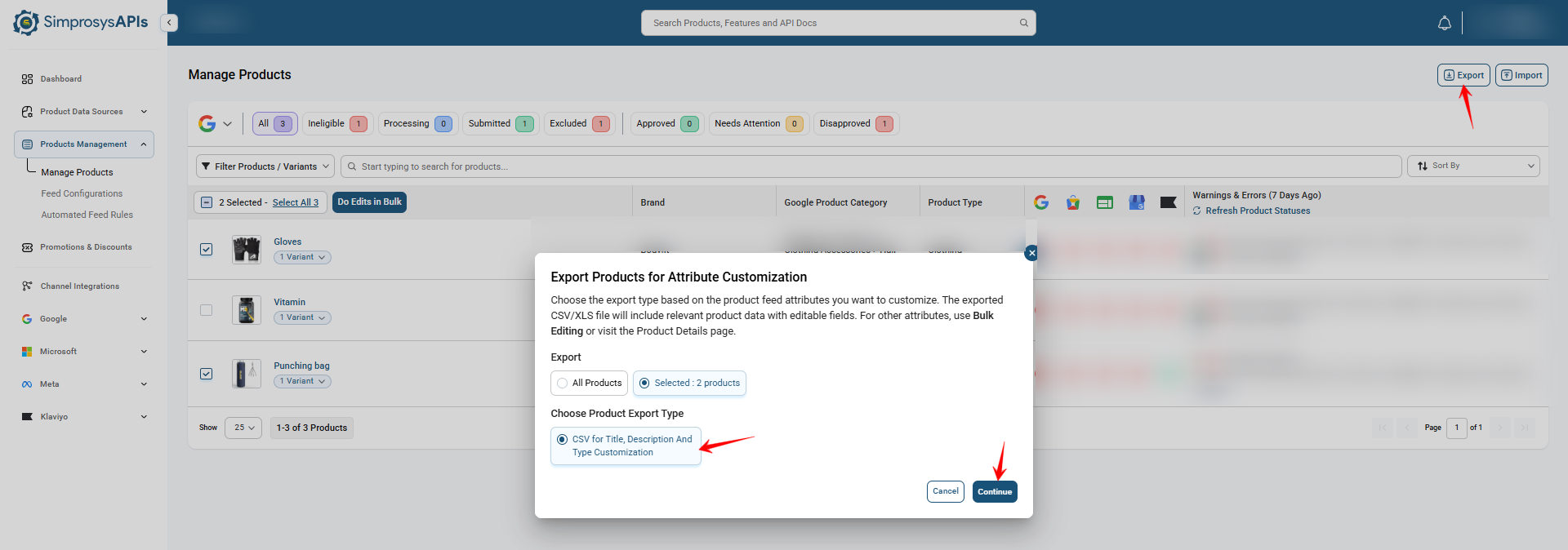
- Under Choose Product Export Type, select CSV for Title, Description, and Type Customization.
- Click Continue.
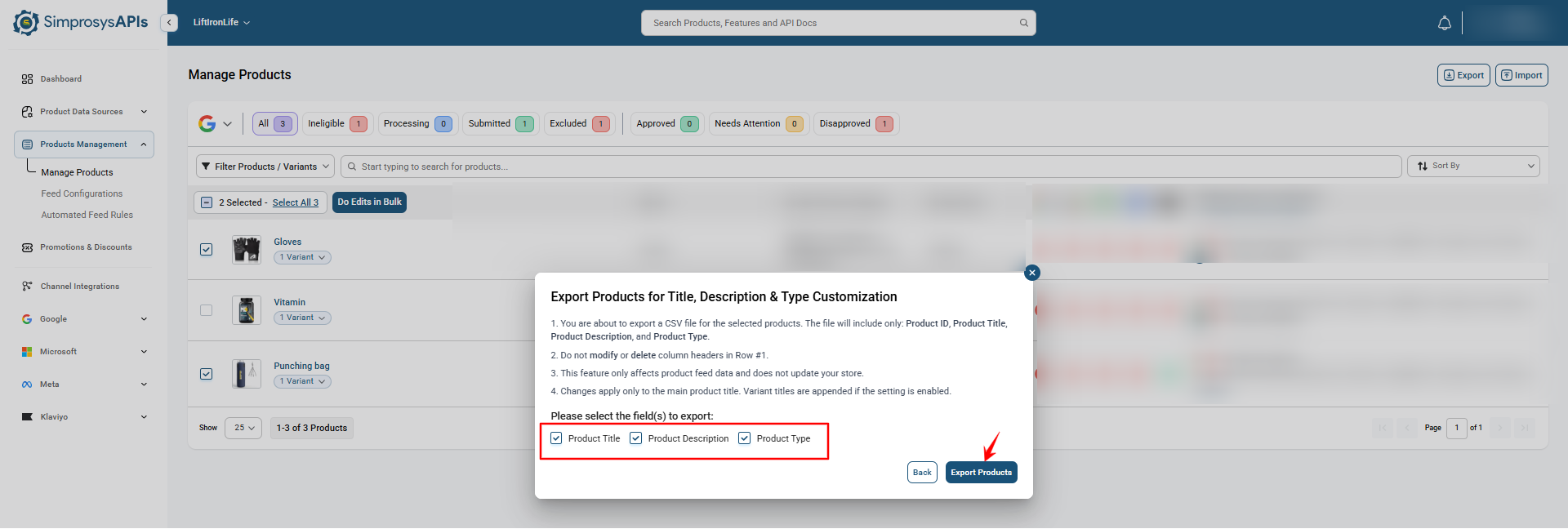
- In the Export Products for Title, Description & Type Customization screen, select the specific field checkboxes you wish to export under Please select the field(s) to Export:
- Product Title
- Product Description
- Product Type
- Click Export Products to generate and download your products.csv file.
Important Notes:
- File Structure: The exported file contains Product ID, Product Title, Product Description, and Product Type. Do not modify or delete column headers in Row #1.
- Feed Only: Changes made via this file update your product feed data only; they do not update your online store.
- Variants: Changes apply to the main product title. Variant titles are appended if the corresponding setting is enabled.
Importing Custom Product Attributes
Upload customized CSV files into the platform to update product Title, Description, and Product Type attributes across your products.
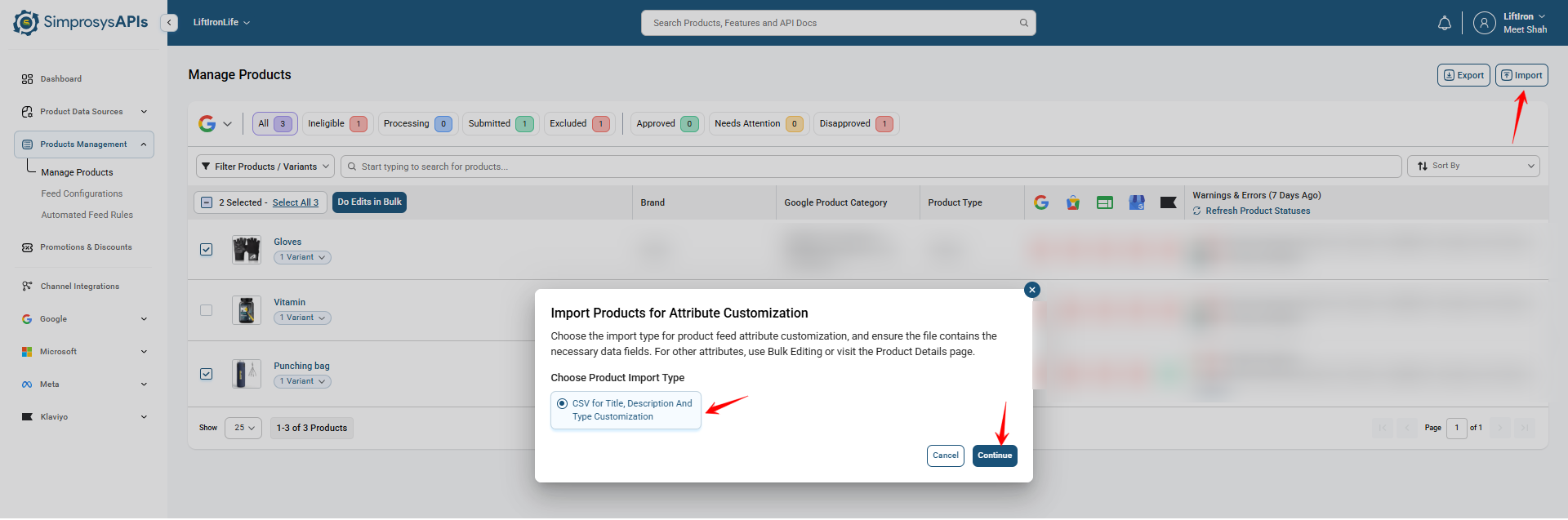
Step 1: Open Import pop-up
- Click the Import button in the top-right corner of the Manage Products page.
- In the Import Products for Attribute Customization modal, ensure CSV for Title, Description, and Type Customization is selected under Choose Product Import Type.
- Click Continue.
Step 2: Upload File and Import
- On the CSV for Title, Description, and Type Customization screen, click Click to upload (or drag and drop your CSV file).
- Supported format: CSV | Maximum size: 20 MB
- (Optional) If you need a template to format your data correctly, click Download Sample CSV File.
- Click Continue with Import to apply your changes.
- A notification banner will appear at the bottom of the screen confirming that the file is being imported, and an email notification will be sent once completed.
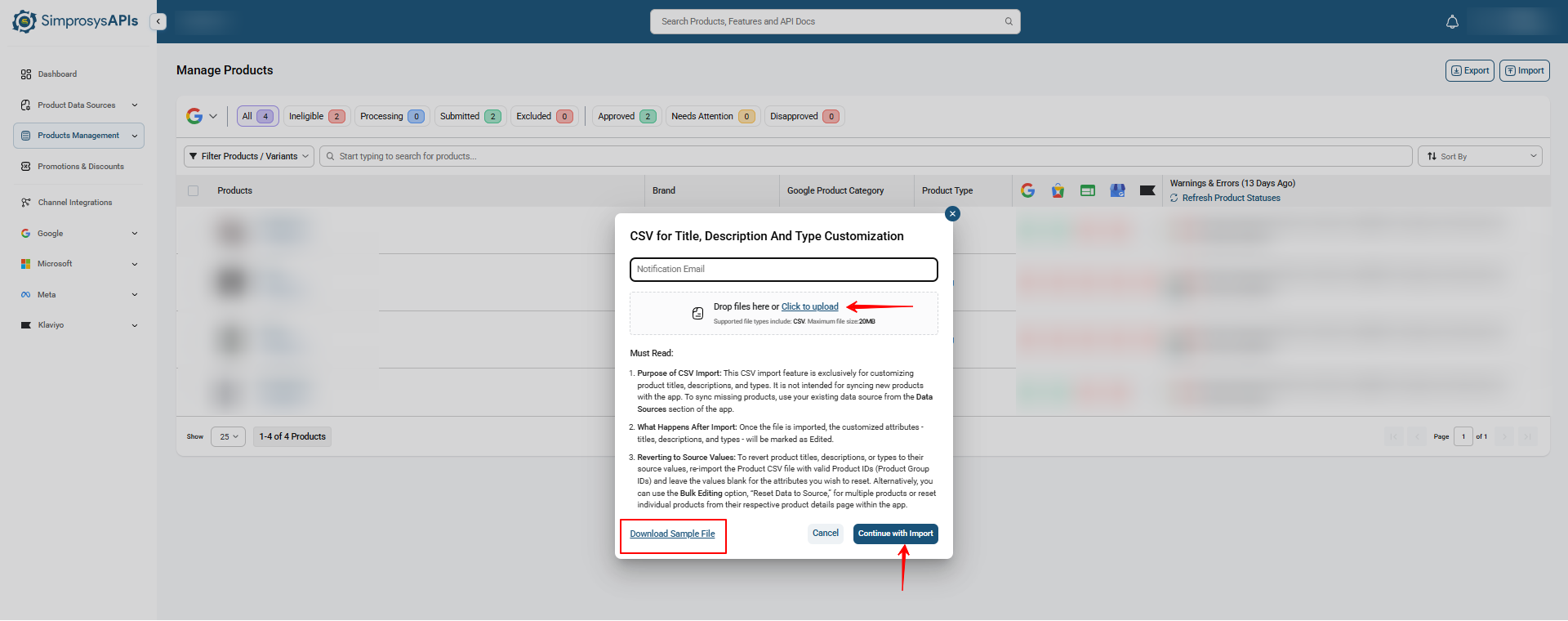
Important Notes (Must Read):
- Purpose of CSV Import: This feature is exclusive for customizing product titles, descriptions, and types. It is not intended for updating store products.
- What Happens After Import: Once the file is imported, the customized attributes (Title, Description, and Product Type) will be changed in our platform only and will be submitted in the feed. These changes will not be reflected in your data source value for these attributes.
- Empty Values & Blank Rows: If an attribute is left empty in the CSV file, no value will be added for that attribute (it will not overwrite existing data with a blank value). Blank rows in the CSV file will be ignored.
Need help?
For email support, feel free to reach out to us at support@simprosys.com

SimprosysAPIs
Introduction and Account Setup
Channel Integration
Feed Configuration
Product Data Source Setup
Legal Polices
Manage Products