SimprosysAPIs
Introduction and Account Setup

Channel Integration
Feed Configuration
Product Data Source Setup
Manage Products
Legal Polices

Filter Products and Variants with Custom Conditions in SimprosysAPIs
Oct 21, 2026
This guide explains how to apply custom filters, save frequently used filter criteria, set default filters, and manage your saved filters within the Products Management section.
1. Applying a Filter
1.Navigate to Products Management > Manage Products from the left navigation menu.
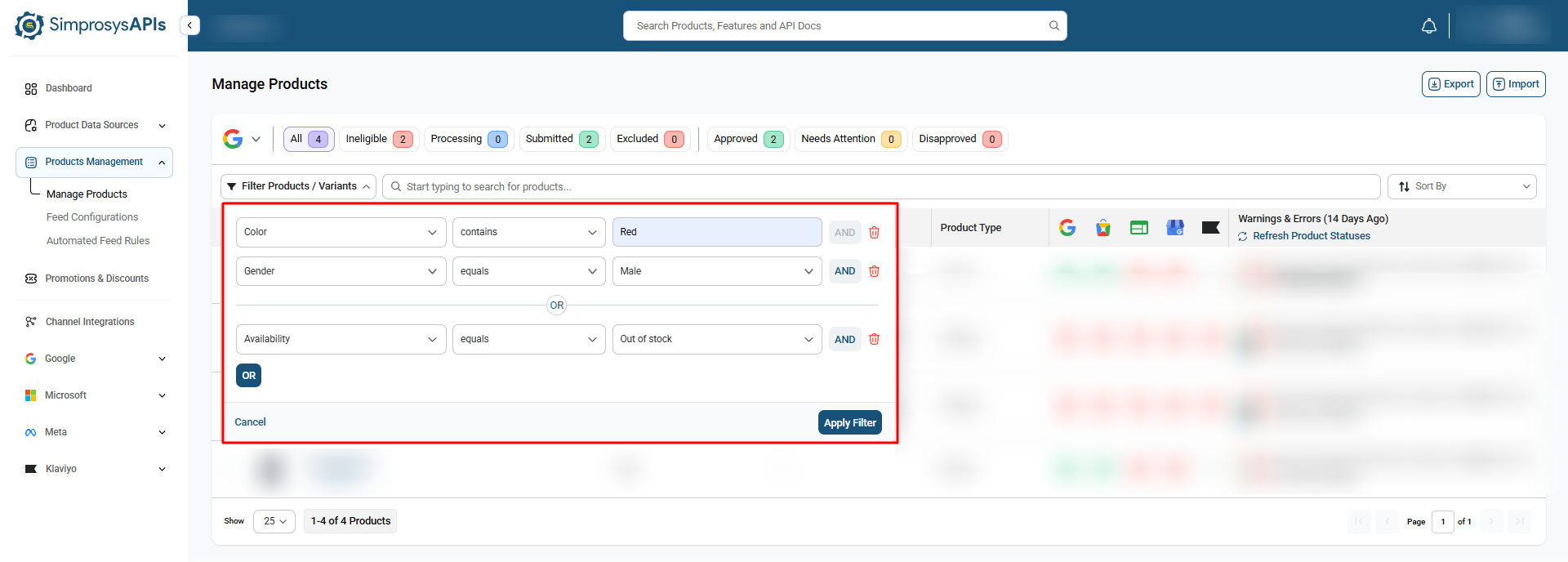
2.Click on the Filter Products / Variants dropdown menu.
3.A filter panel will open with the basic selection fields:
- Select Filter (Attribute): Choose the product attribute you want to filter by (e.g., Color, Brand, Availability, Product Type, Custom Labels, etc.).
- Select Operator: Select the logic operator (e.g., contains, does not contain, equals, does not equal, starts with, ends with, has value, does not have value).
- Value: Enter or select the specific value you are searching for (e.g., red).
4.Combine Multiple Filter Conditions (Optional):
- AND: Click the AND button next to your filter row to add a condition that must also be met alongside the first rule (e.g., Color contains red AND Gender equals Male).
- OR: Click the OR button at the bottom of the filter row to add an alternative condition, where matching either rule will include the product (e.g., Gender contains Male OR Gender contains Female).
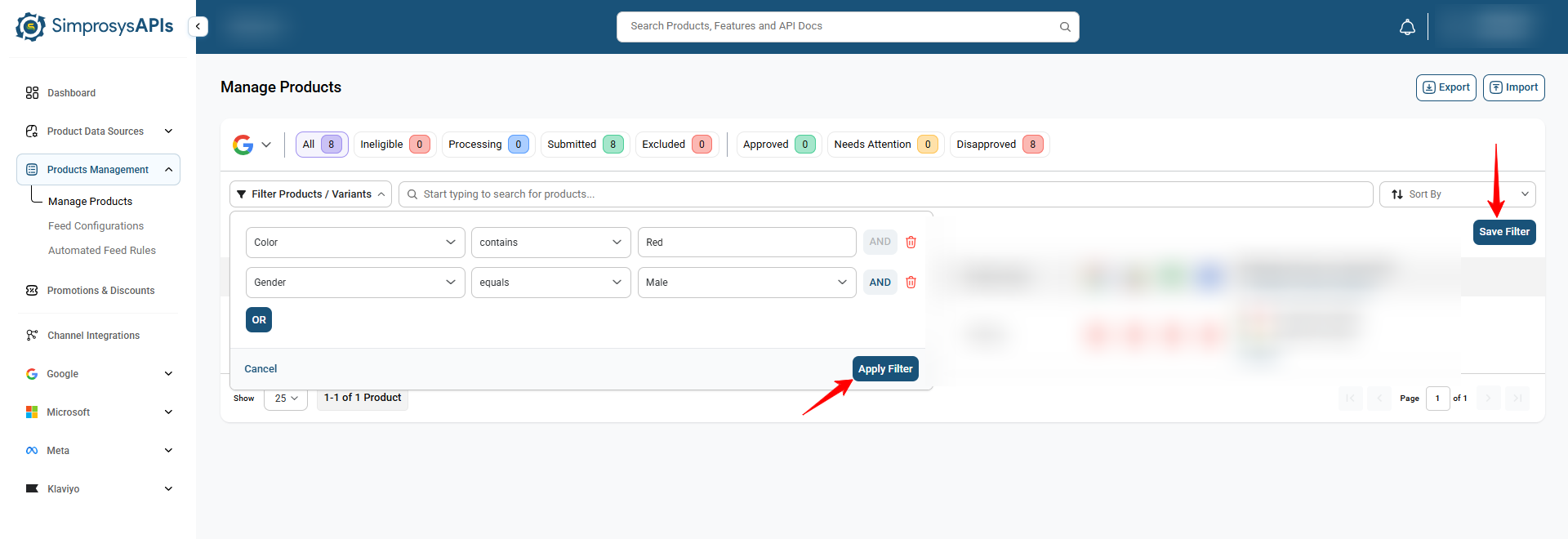
5.Click the Apply Filter button.
6.The product list will update to display only the products matching your specified filter criteria.
2. Saving a Filter Preset
If you frequently filter products using the same criteria, you can save it for quick access:
1.Apply the desired filter using the steps in the “Applying a Filter” section.
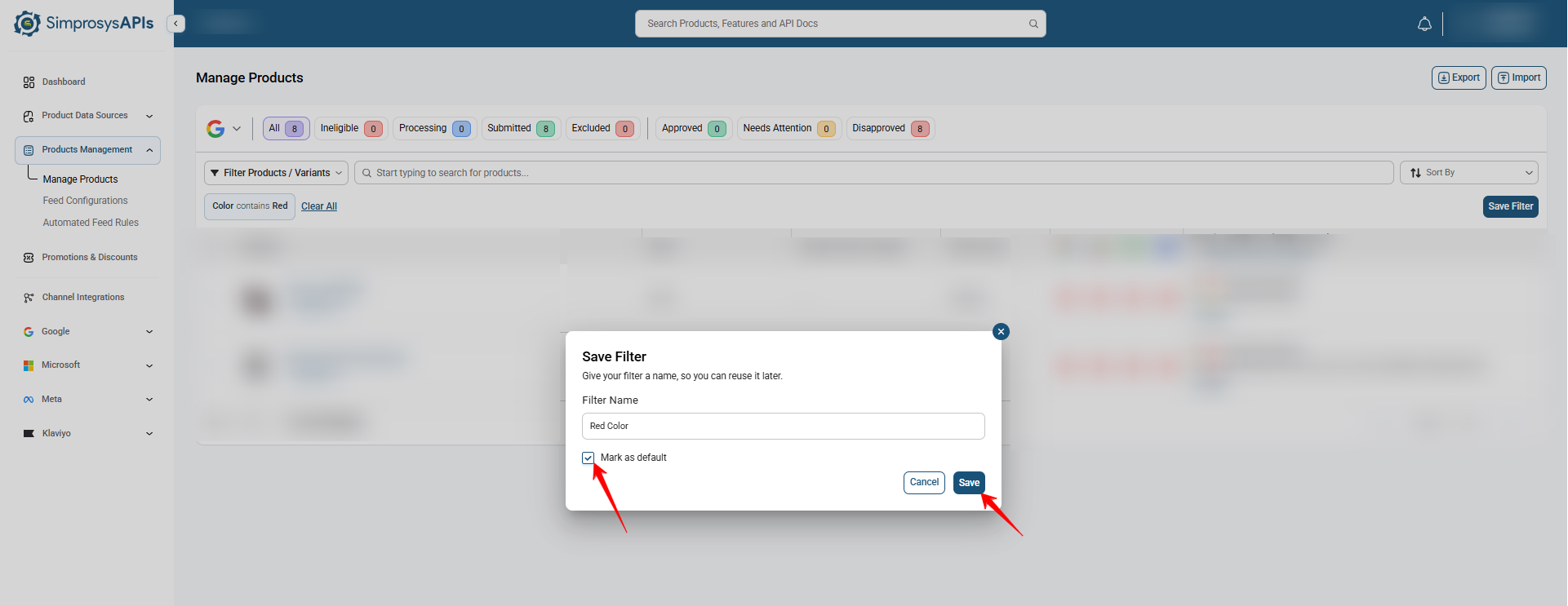
2.On the top right above the table, click the Save Filter button.
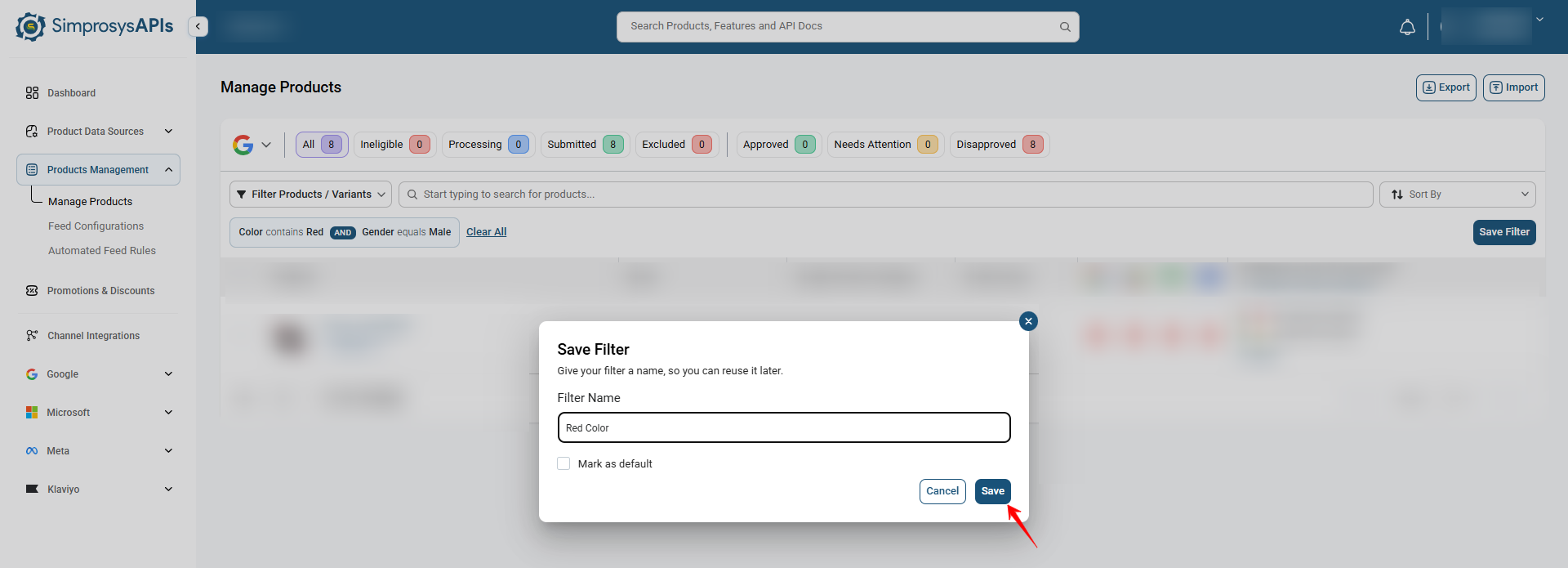
3.In the Save Filter pop-up:
- Enter a recognizable Filter Name (e.g., Red Color or Not Red Color).
- (Optional) Check the Mark as Default checkbox if you want this filter to automatically apply every time you refresh the page or revisit the Manage Products section.
4.Click Save.
3. Setting a Saved Filter as Default
Setting a default filter ensures that whenever you reload or revisit the Manage Products page, your chosen filter criteria automatically apply:
- Click Save Filter (or edit an existing saved filter).
- In the pop-up, check the Mark as Default box.
- Click Save.
- When you refresh the page or revisit the Manage Products.
4. Deleting a Saved Filter
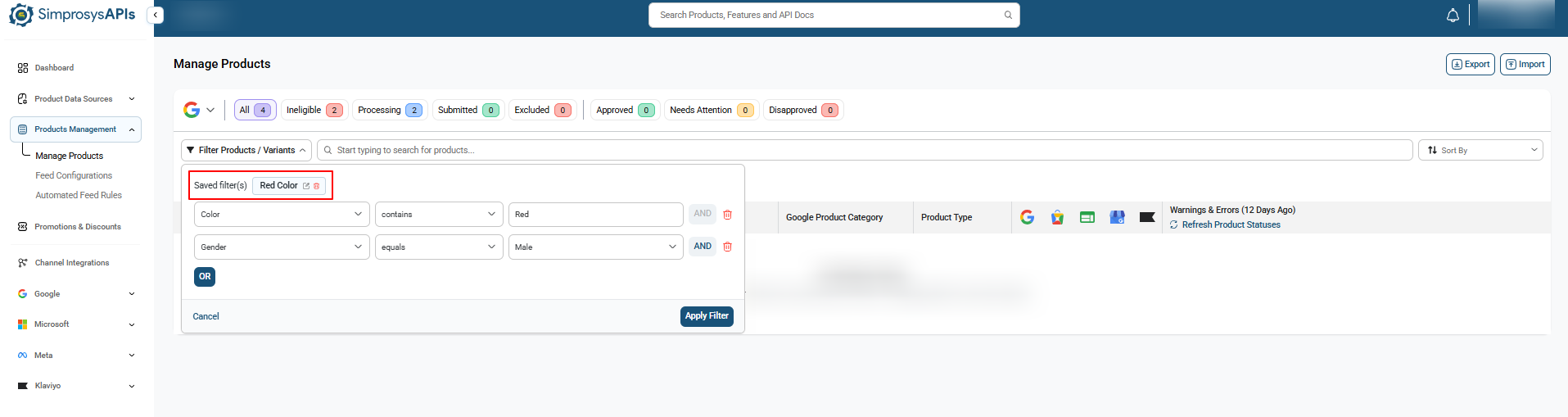
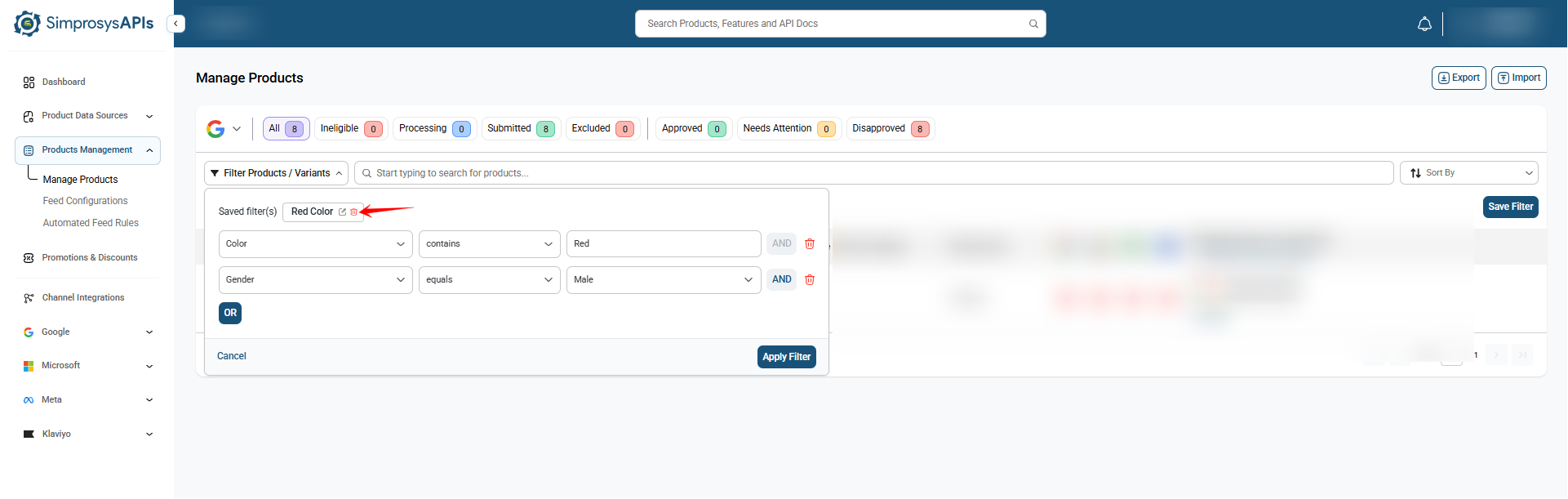
- Open the Filter Products / Variants dropdown.
- Click the Trash / Remove icon next to the filter name you want to delete.
- In the Remove Filter confirmation pop-up ("Are you sure you want to delete the saved filter...?"), click Remove.
- A notification ("Filter deleted successfully") will confirm the action.
Need help?
For email support, feel free to reach out to us at support@simprosys.com
Previous article

Next article
SimprosysAPIs
Introduction and Account Setup
Channel Integration
Feed Configuration
Product Data Source Setup
Manage Products
Legal Polices