SimprosysAPIs
Introduction and Account Setup

Channel Integration
Feed Configuration
Product Data Source Setup
Manage Products
Dashboard
Automated Feed Rules
Product Details
Promotions & Discounts
Google-Calculated Delivery Speed Estimates
Legal Polices

Manage product data for marketing channels in SimprosysAPIs
Nov 17, 2026
The Product Details Page in SimprosysAPIs lets you view and manage individual product data for your connected marketing channels.
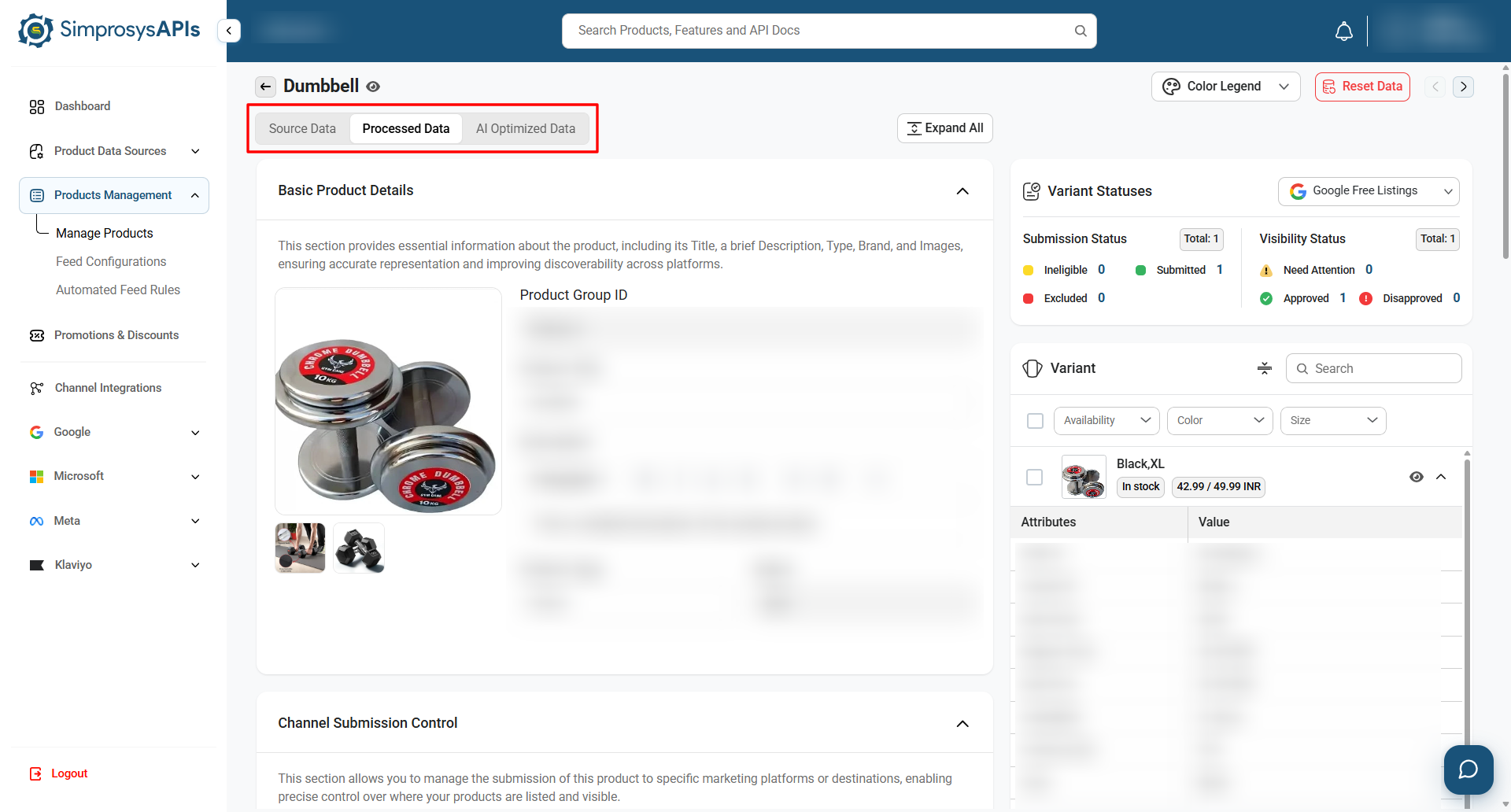
1. Data View Tabs
Located at the top left of the product view, these tabs allow you to review product data across different processing stages:
- Source Data: Displays the raw product and variant attributes received via the API integration / CSV File import, such as Created At, Updated At, Canonical Link, SKU, GTIN, and image URLs.
- Processed Data: The main editing view where you can customize product and variant details, define channel submissions, and set feed attributes tailored for channels like Google Shopping, Meta Ads, Microsoft Advertising, and Klaviyo.
- AI Optimized Data: Displays AI-generated optimizations (if enabled) designed to enrich your product with missing attributes from your source data to boost feed quality and Ad performance.
 2. Top Action Bar Controls
Located at the top-right corner of the Product Details page, these global controls let you see where each product attribute comes from and reset any customized product data to its original value.
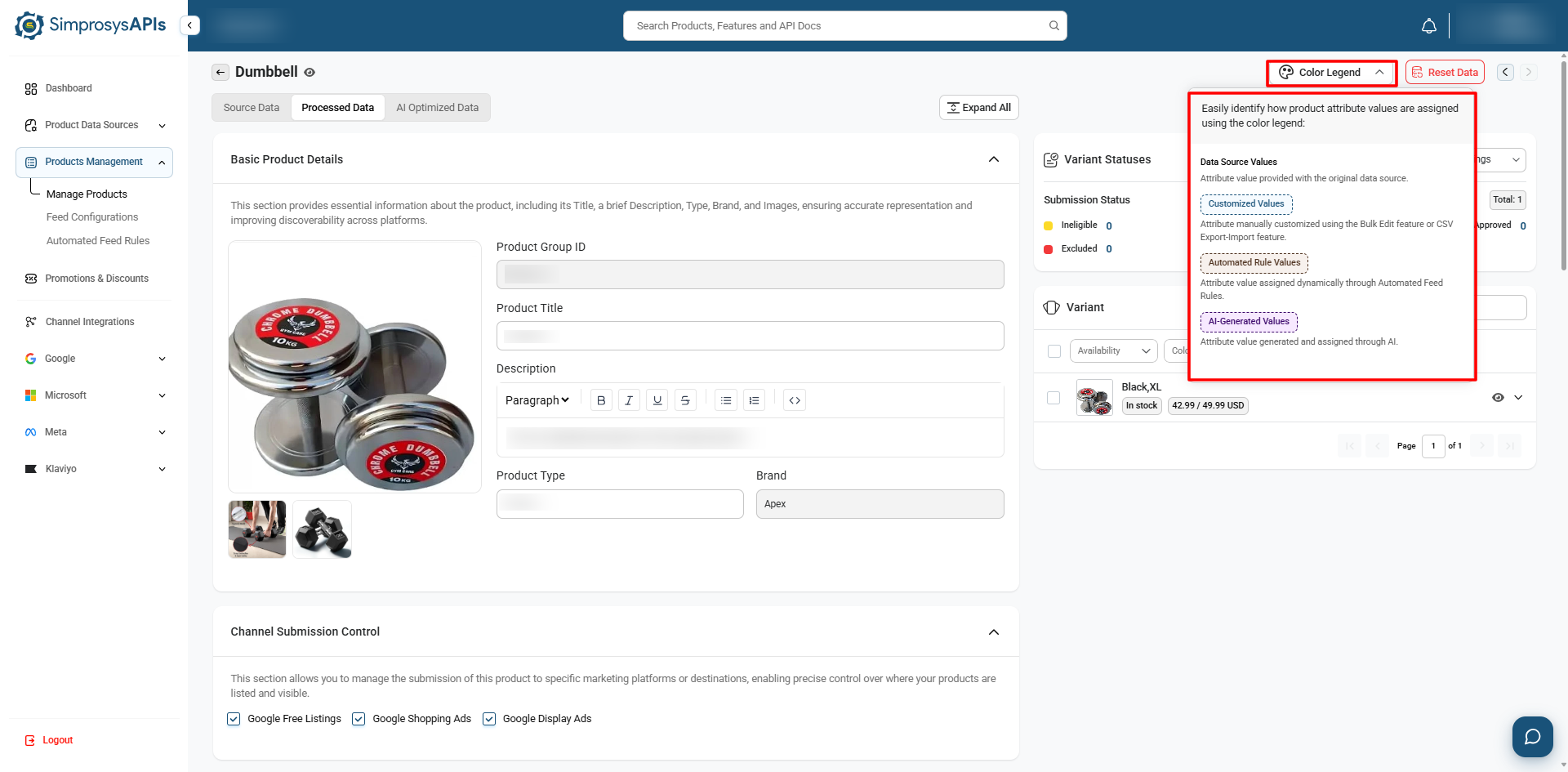
2.1 Color Legend
Clicking the Color Legend dropdown at the top right opens a visual key that identifies how each product and variant attribute value is assigned across the page:
- Data Source Values (Plain / Unoutlined): Attribute value provided directly with the original data source.
- Customized Values (Blue outline): Attribute value manually customized using the Bulk Edit feature, through the User Interface or CSV Export/Import tool.
- Automated Rule Values (Brown outline): Attribute value assigned dynamically through Automated Feed Rules.
- AI-Generated Values (Purple outline): Attribute value assigned dynamically using AI optimization features.
2.2 Reset Data
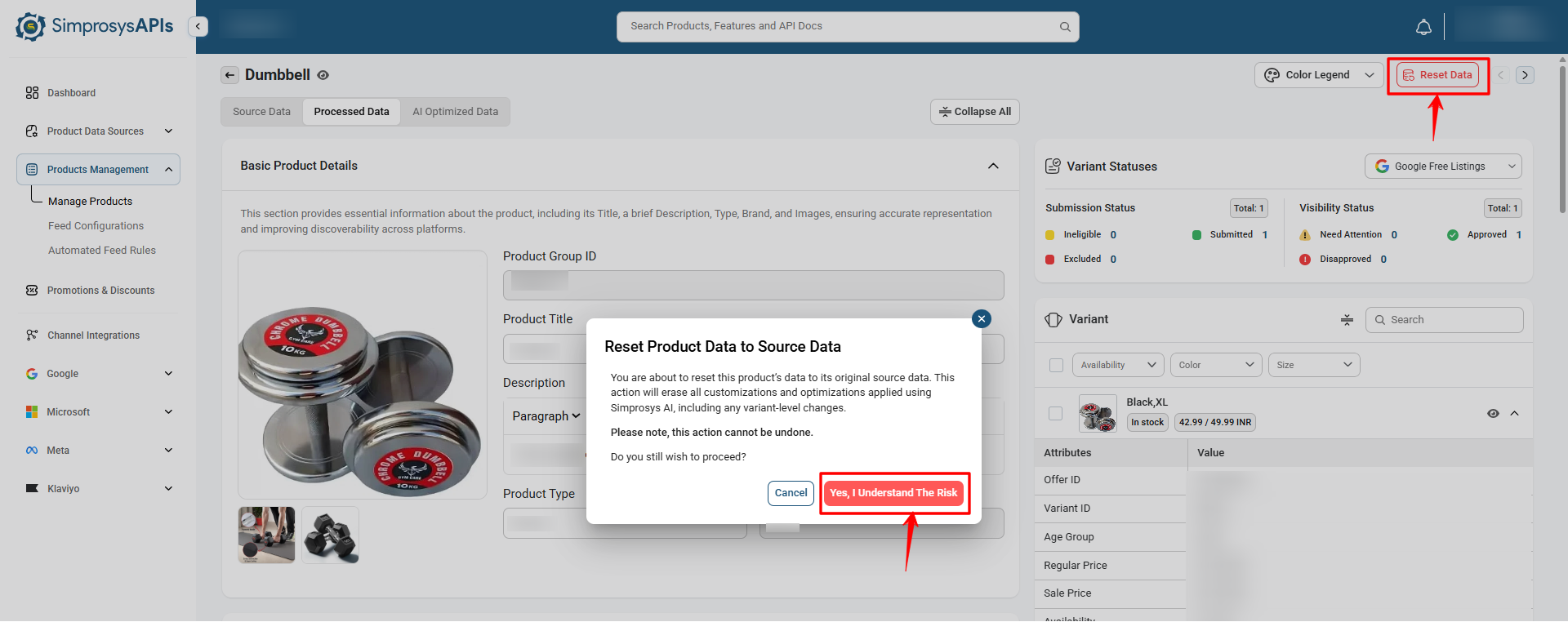
The Reset Data button located in the top-right action bar allows you to discard all customizations and revert the product attributes back to their original raw source state.
Note on Resetting Data:
Resetting product data will permanently clear all custom titles, descriptions, categories, and variant adjustments made within the SimprosysAPIs. This action cannot be undone once confirmed.
3. Processed Data Tab
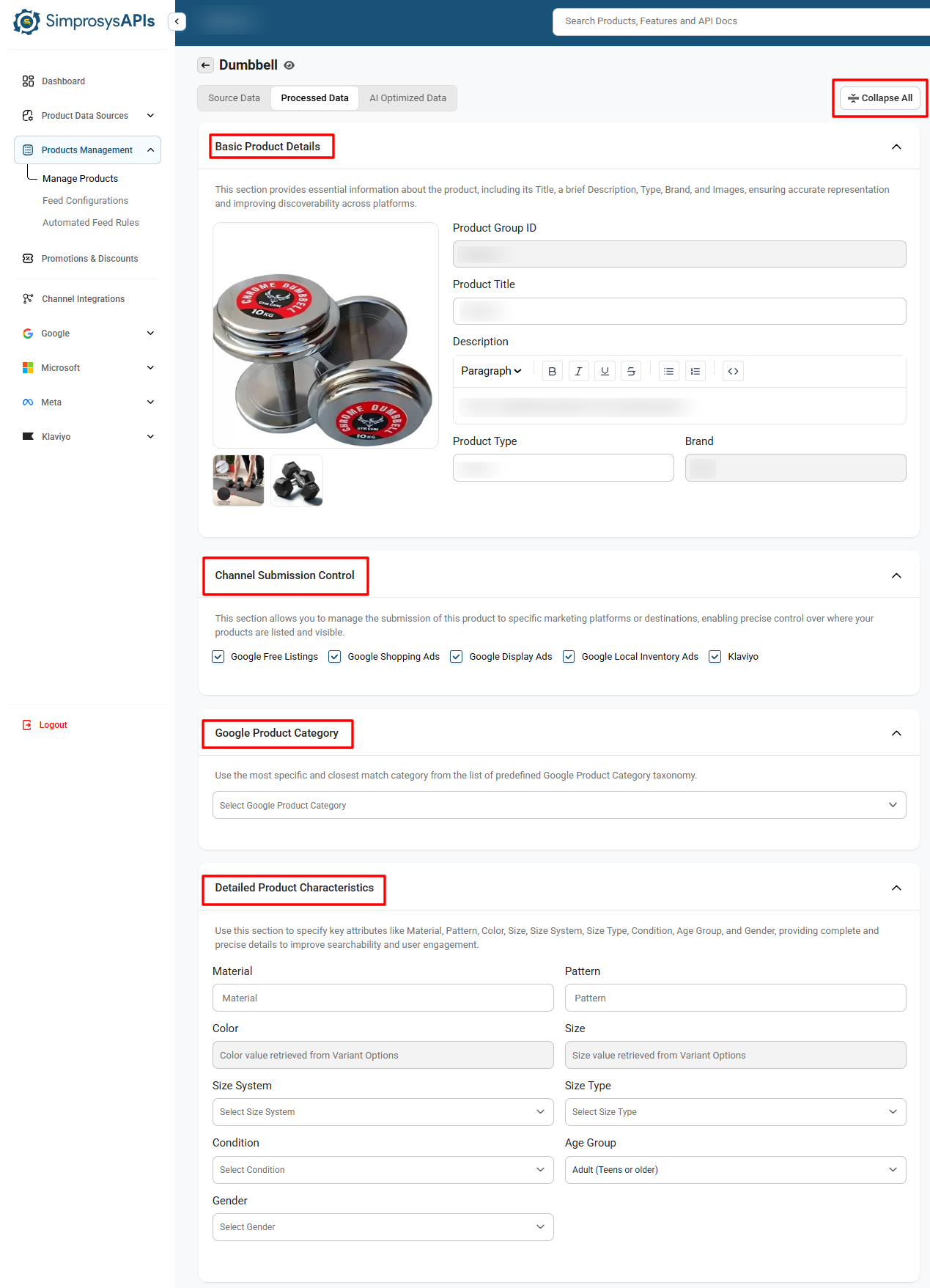
(Click Expand All at the top right to expand all section accordions simultaneously)
3.1 Basic Product Details
Manage core product identity attributes:
- Product Group ID: Unique identifier grouping related product variants.
- Product Title & Description: View/Edit the title and description used in feed listings.
- Product Type & Brand: Categorize products by assigning the appropriate product type and brand name.
- Product Image: View the primary image and any additional images synced for the product.
3.2 Channel Submission Control
Enable or disable product submissions across supported marketing channels:
- Google Free Listings
- Google Shopping Ads
- Google Display Ads
- Google Local Inventory Ads
- Meta Ads
- Microsoft Advertising
- Klaviyo
3.3 Google Product Category & Detailed Attributes
Assign a specific Google Product Category (e.g., Apparel & Accessories > Clothing Accessories) and fill in attributes like Material, Pattern, Color, Size, Gender, and Condition to boost listing visibility and performance.
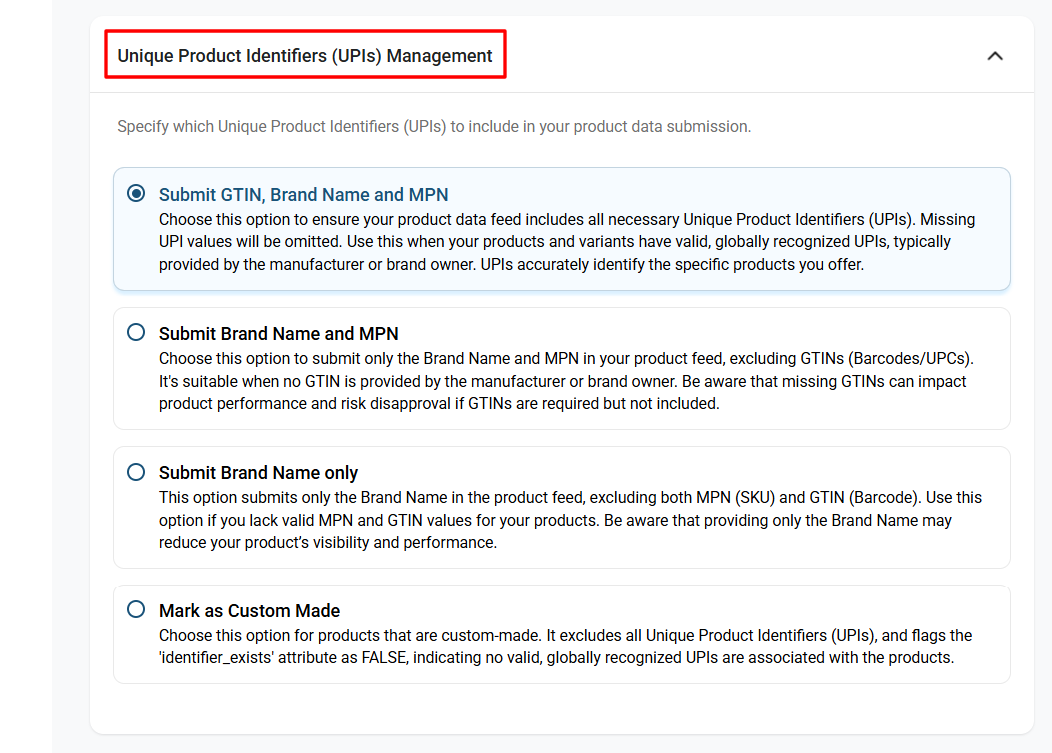
3.4 Unique Product Identifiers (UPIs) Management
Select how Unique Product Identifiers (GTIN, MPN, Brand) are included in your product data submission:
- Submit GTIN, Brand Name, and MPN: Best for standard manufactured products. Submits all valid, globally recognized identifiers available; then you should select this option.
- Submit Brand Name and MPN: Best for products with a manufacturer part number, but no GTIN/Barcode. Submits Brand and MPN while excluding GTINs.
- Submit Brand Name only: Best for branded products that lack both GTINs (Barcodes) and MPNs (SKUs). Submits only the Brand Name.
- Mark as Custom Made: Best for custom-made, handmade, print-on-demand, or antique products. Excludes all UPIs and submits the identifier_exists to FALSE in the feed.
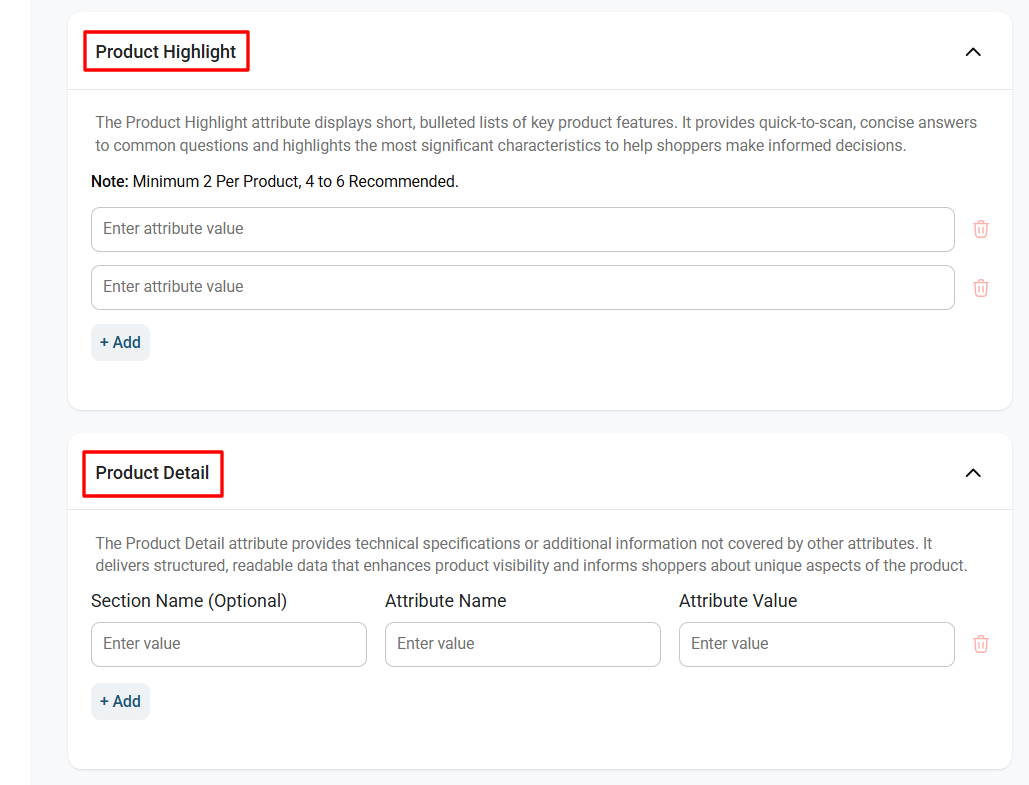
3.5 Advanced Product Sections
(Click Expand All at the top right to expand all section accordions simultaneously)
- Product Highlights: Add bullet-pointed key features and selling points to highlight the top features in ad listings.
- Product Detail: Specify technical parameters and additional specs formatted in Name-Value pairs.
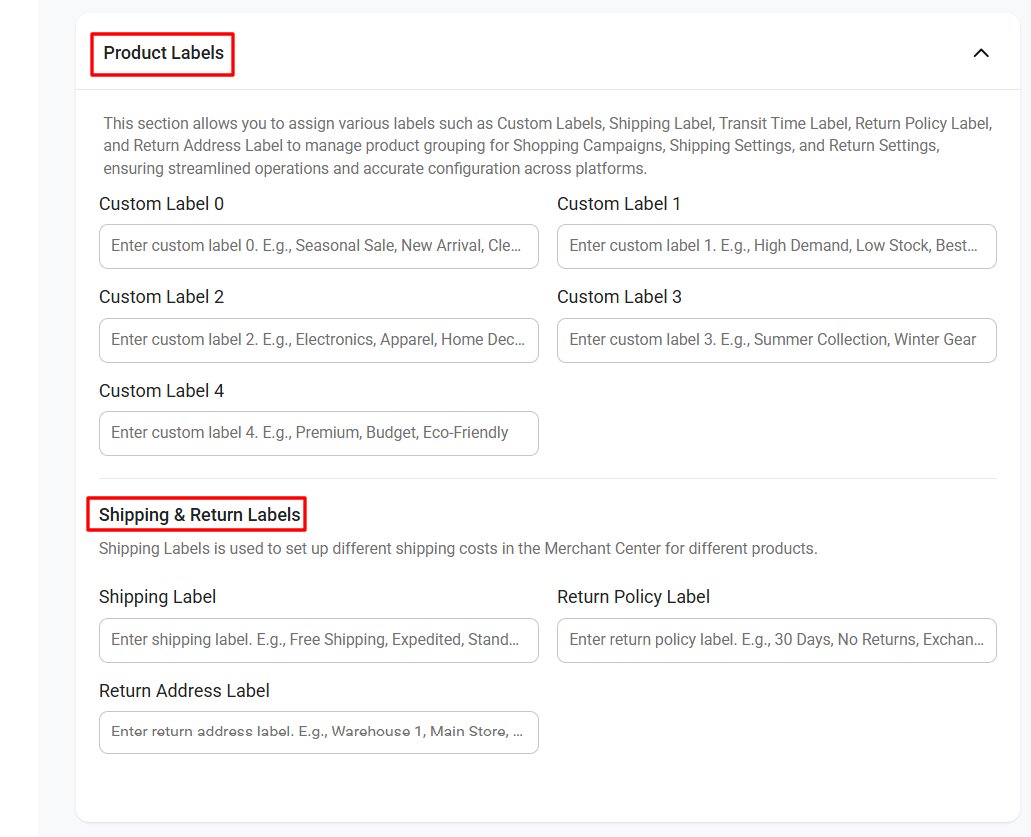
- Product Labels & Shipping Labels: Assign Custom Labels (0–4) for campaign structuring, alongside Shipping Label, Return Policy Label, and Return Address Label.
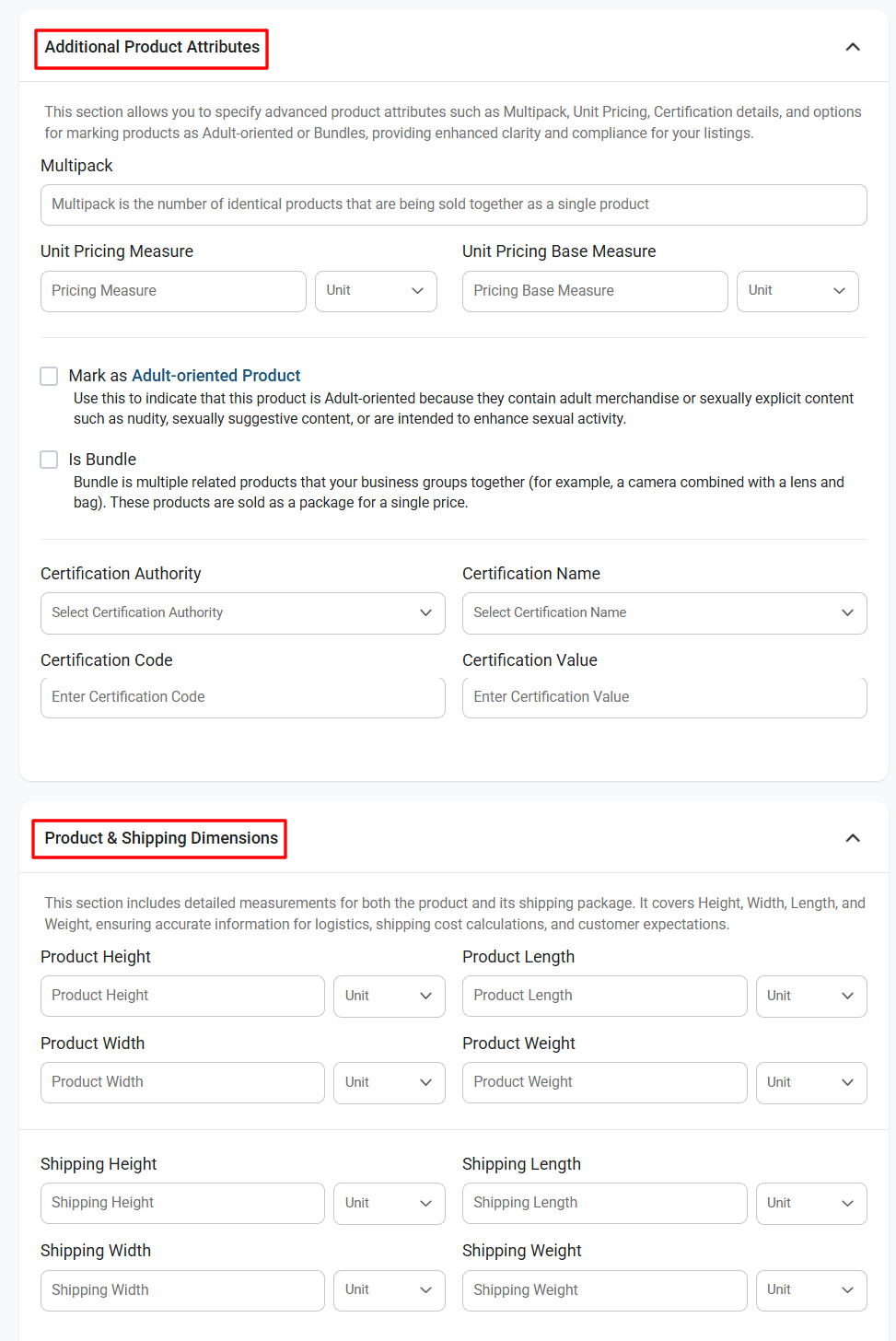
- Additional Product Attributes: Set attributes such as Multipack, Unit Pricing Measure, Unit Pricing Base Measure, Adult Content Flag, Bundle status, and Certification Authority.
- Product & Shipping Dimensions: Add physical package details including Weight, Length, Width, and Height with unit measurements.
4. Right Sidebar Panels
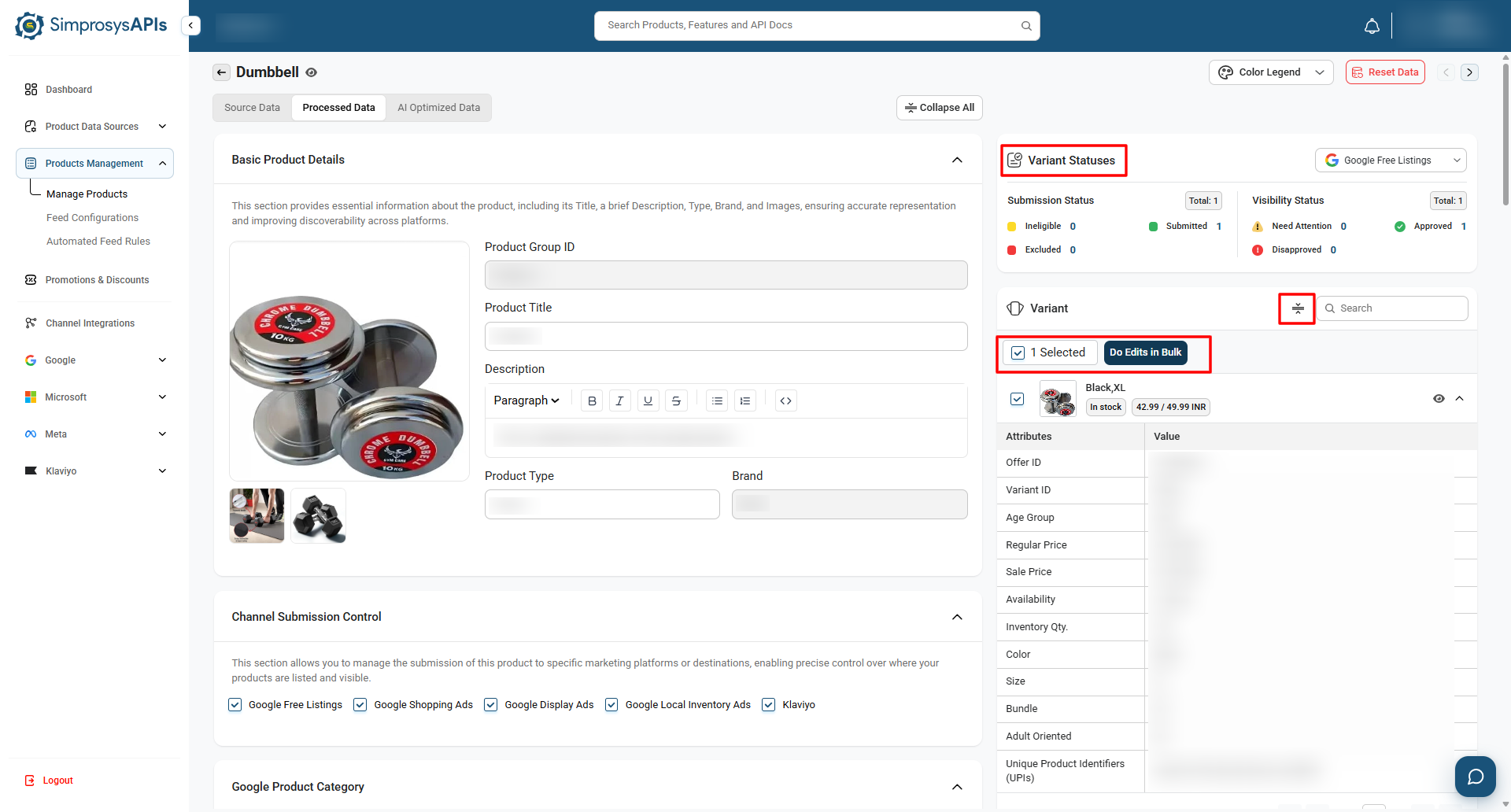
4.1 Variant Statuses
Provides an overview of product submission health and approval status across channels. Allows you to view submission progress (Ineligible, Submitted, Excluded, Approved, Needs Attention, Disapproved) and filter statuses by channel using the channel drop-down menu.
4.2 Variant Selector & Attributes
This right-hand panel lets you view and edit specific variant details:
- Variant Selection & Filtering: Search for specific variants or narrow them down using filters for Availability, Color, and Size. Check the box next to single or multiple variants to select them for editing.
- Variant Attribute Table: Displays key properties for the selected variant (e.g., Offer ID, Variant ID, GTIN, SKU, Regular Price, Sale Price, Inventory Quantity). By default, these values populate directly from source data.
- Editing Variant Data: To change any variant values, select the target variants and click 'Do edits in bulk'. This opens the Bulk Customization menu where you can update specific fields.
Note: Variant attributes cannot be edited directly from the variant table.
4.3 Local Inventory Data
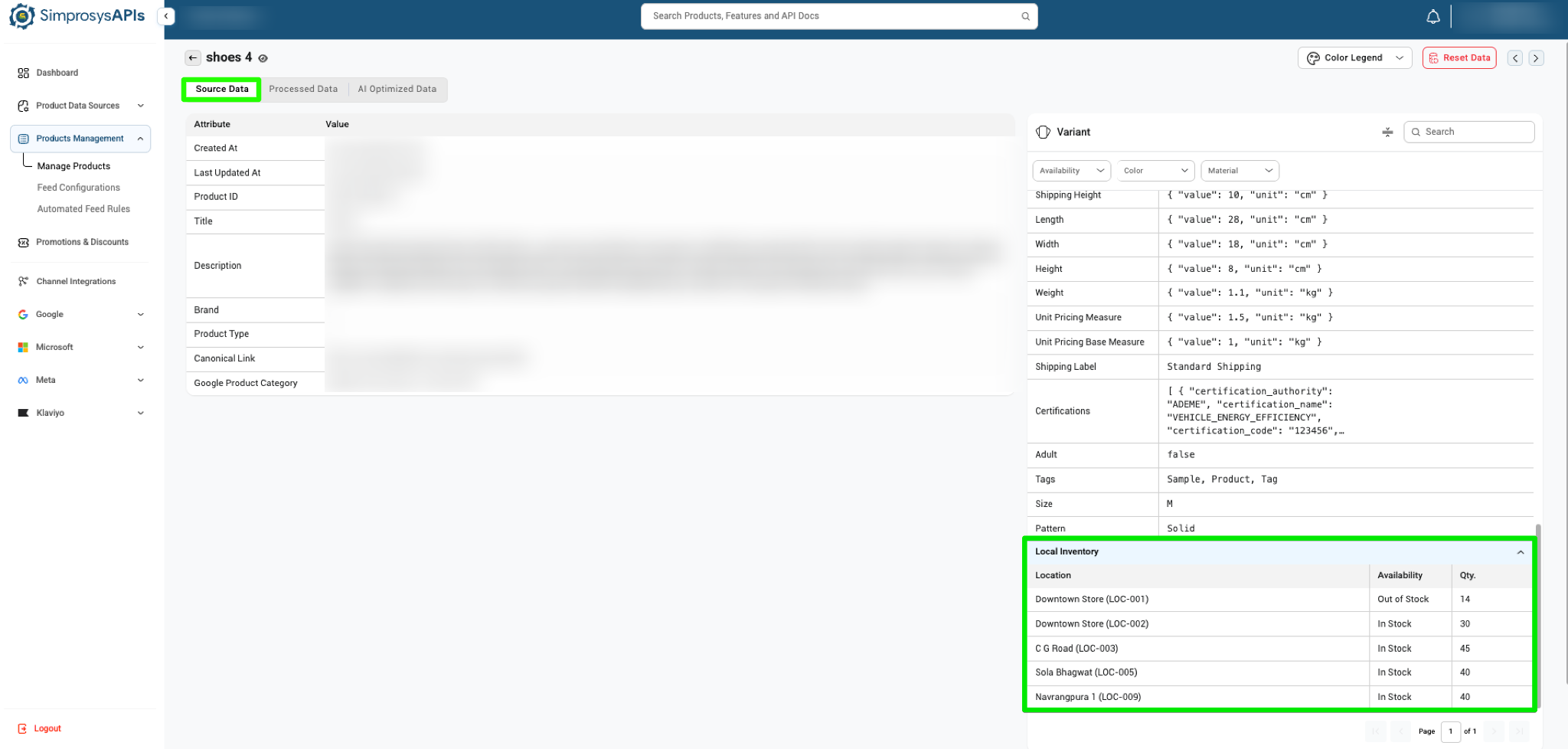
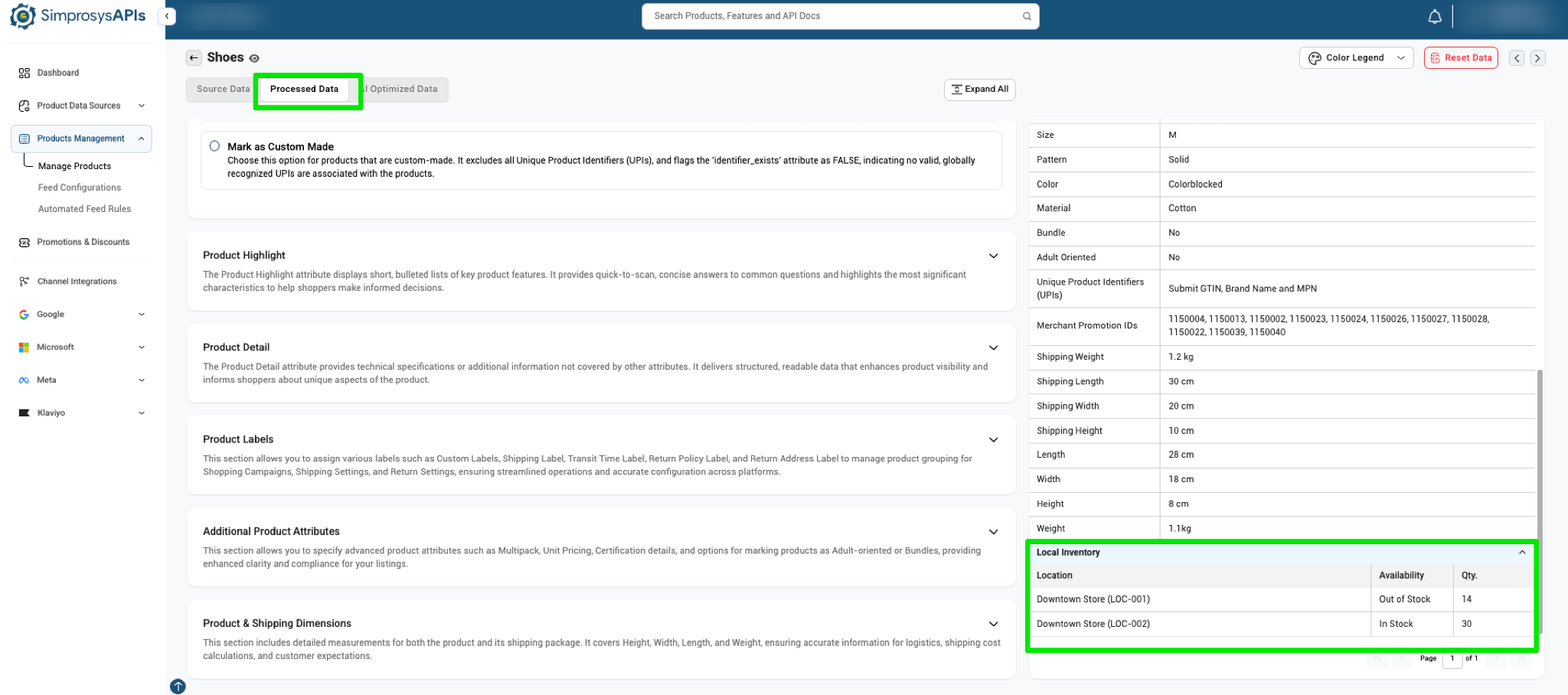
If local inventory data or store locations are linked to your store, a Local Inventory table will be displayed at the bottom of the right-hand Variant panel for each variant in both Source Data and Processed Data tabs:
- Location: Displays the name and code of your connected physical store locations (e.g., Downtown Store (LOC-001)).
- Availability: Shows the real-time stock status (In Stock / Out of Stock) for the selected variant at each specific store location.
- Quantity (Qty): Displays the exact stock quantity available at that physical store for that particular variant.
Note: If a product does not have local inventory connected, this section will not be displayed.
5. Store Landing Page Redirection:
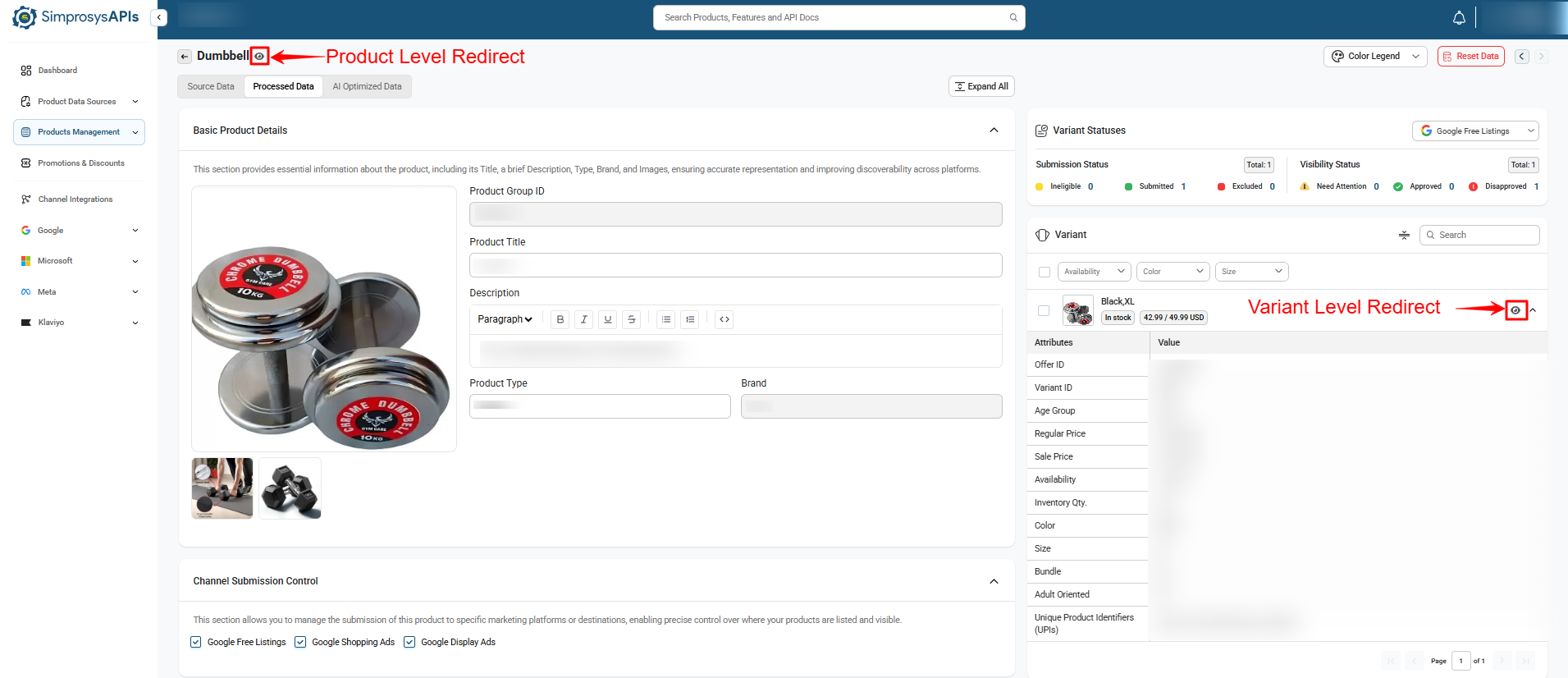
- Product-Level Preview (Main Eye Icon): Located beside the main Product Title at the top-left of the Product Detail page, clicking this eye icon redirects you to the main product landing page on your online store.
- Variant-Level Preview (Variant Eye Icon): Located on the right-side Variant card next to the variant selector dropdown, clicking this eye icon redirects you directly to that specific variant's landing page on your online store.
Need help?
For email support, feel free to reach out to us at support@simprosys.com

SimprosysAPIs
Introduction and Account Setup
Channel Integration
Feed Configuration
Product Data Source Setup
Manage Products
Dashboard
Automated Feed Rules
Product Details
Promotions & Discounts
Google-Calculated Delivery Speed Estimates
Legal Polices