SimprosysAPIs
Introduction and Account Setup

Channel Integration
Feed Configuration
Product Data Source Setup
Legal Polices
Manage Products

How to Integrate SimprosysAPIs account to Google Shopping Step-by-Step Guide
Oct 14, 2026
Connecting your store to Google Shopping allows you to sync your product catalog directly to Google Merchant Center. When your Google Ads account is linked, you can use your synced products to run Google Shopping campaigns.
Prerequisites
- An active Google account with access to your Google Merchant Center account.
- Verified and claimed ownership of your store website domain in Google Merchant Center.
- Configured shipping rates in Google Merchant Center for your selected target market.
Step-by-Step Google Authentication & Channel Integration
1. Initiate Integration
- Log in to the SimprosysAPIs platform.
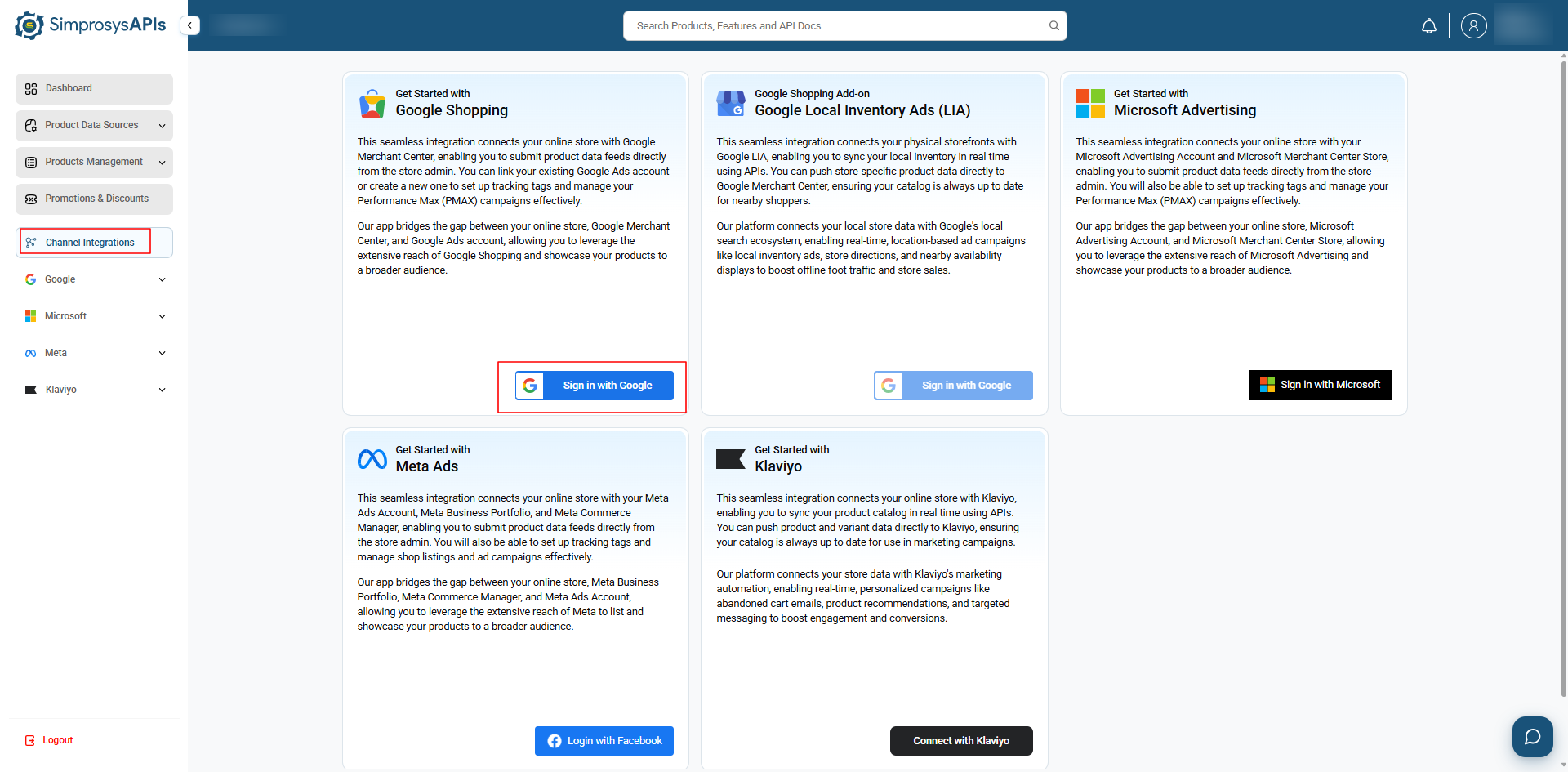
- From the left-side menu, navigate to Channel Integrations.
- Locate the Google Shopping integration card and click Sign in with Google.
2. Google OAuth Authentication
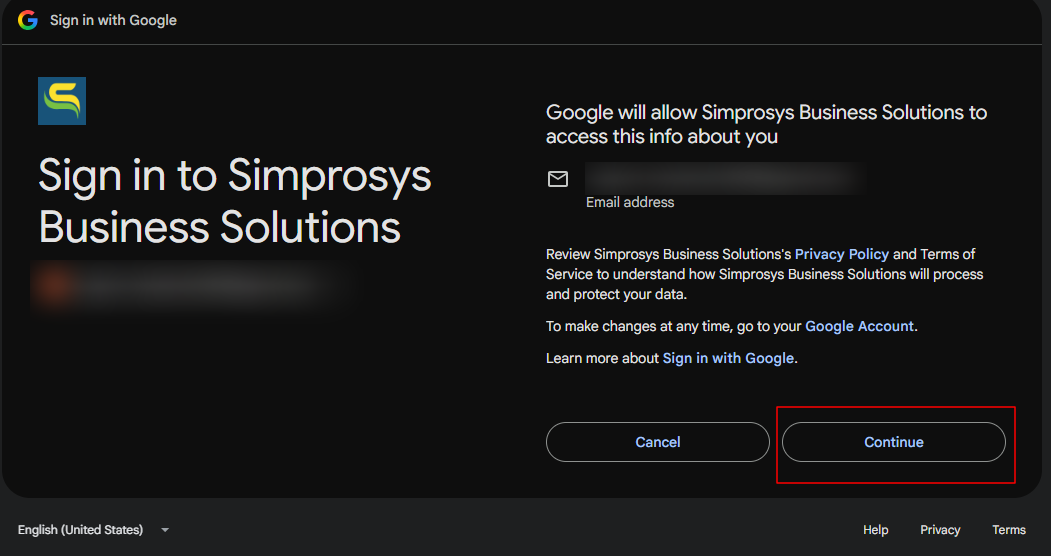
- A Google authorization window will open.
- Select or sign in with the Google account that has admin access to your Google Merchant Center.
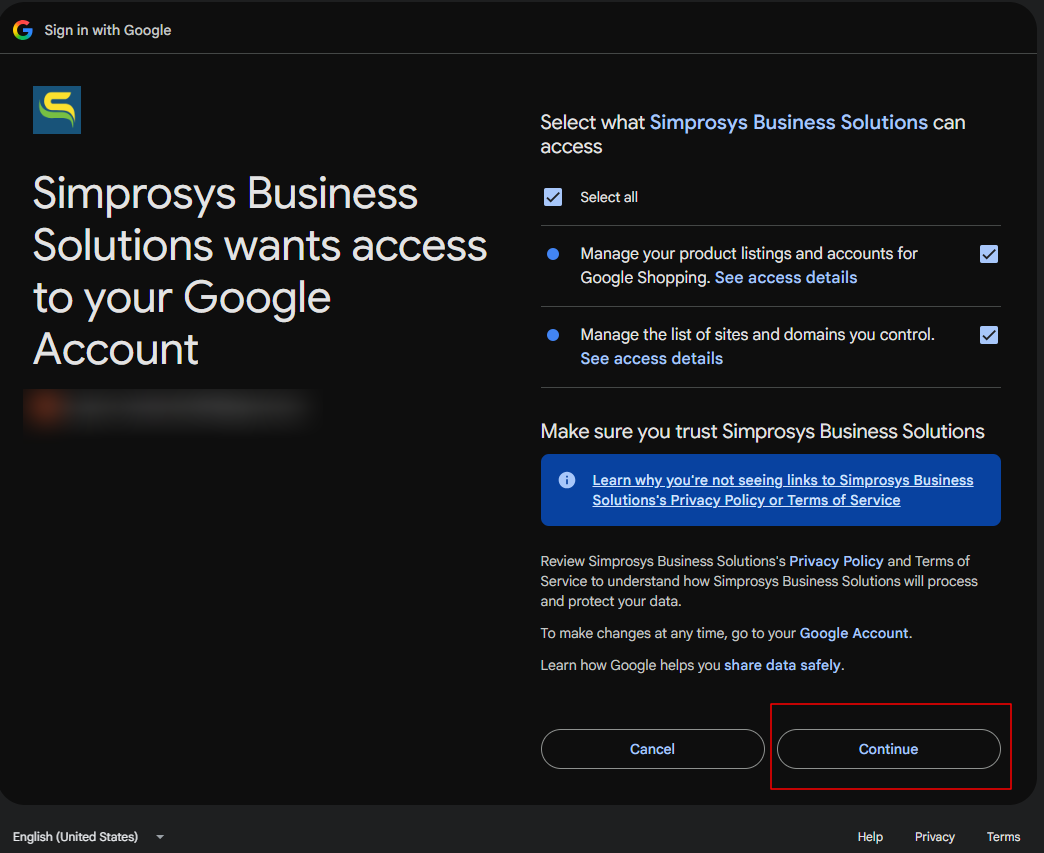
- Review the requested permissions for Simprosys Business Solutions.
- Click Continue to grant the platform permission to manage your account data and product feeds.
3. Select Google Merchant Center Account
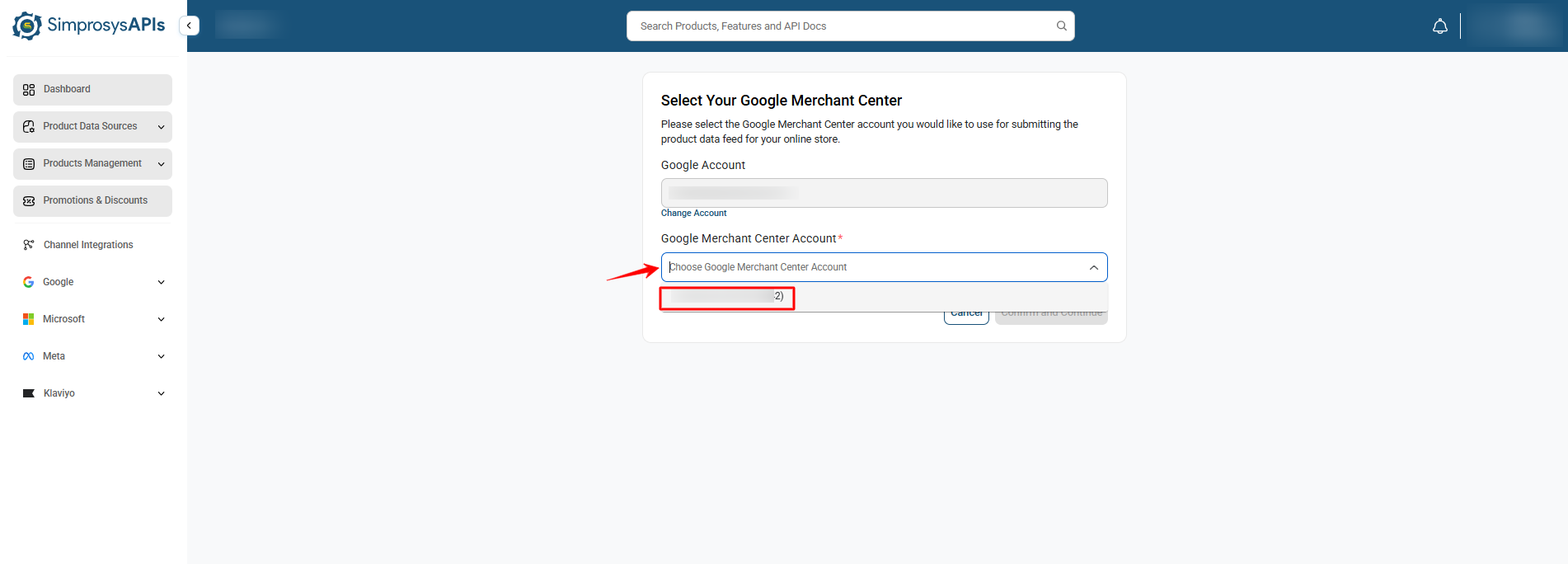
- After OAuth authentication completes, you will return to the platform.
- Choose your desired Google Merchant Center Account ID from the dropdown menu.
- Click Confirm and Continue.
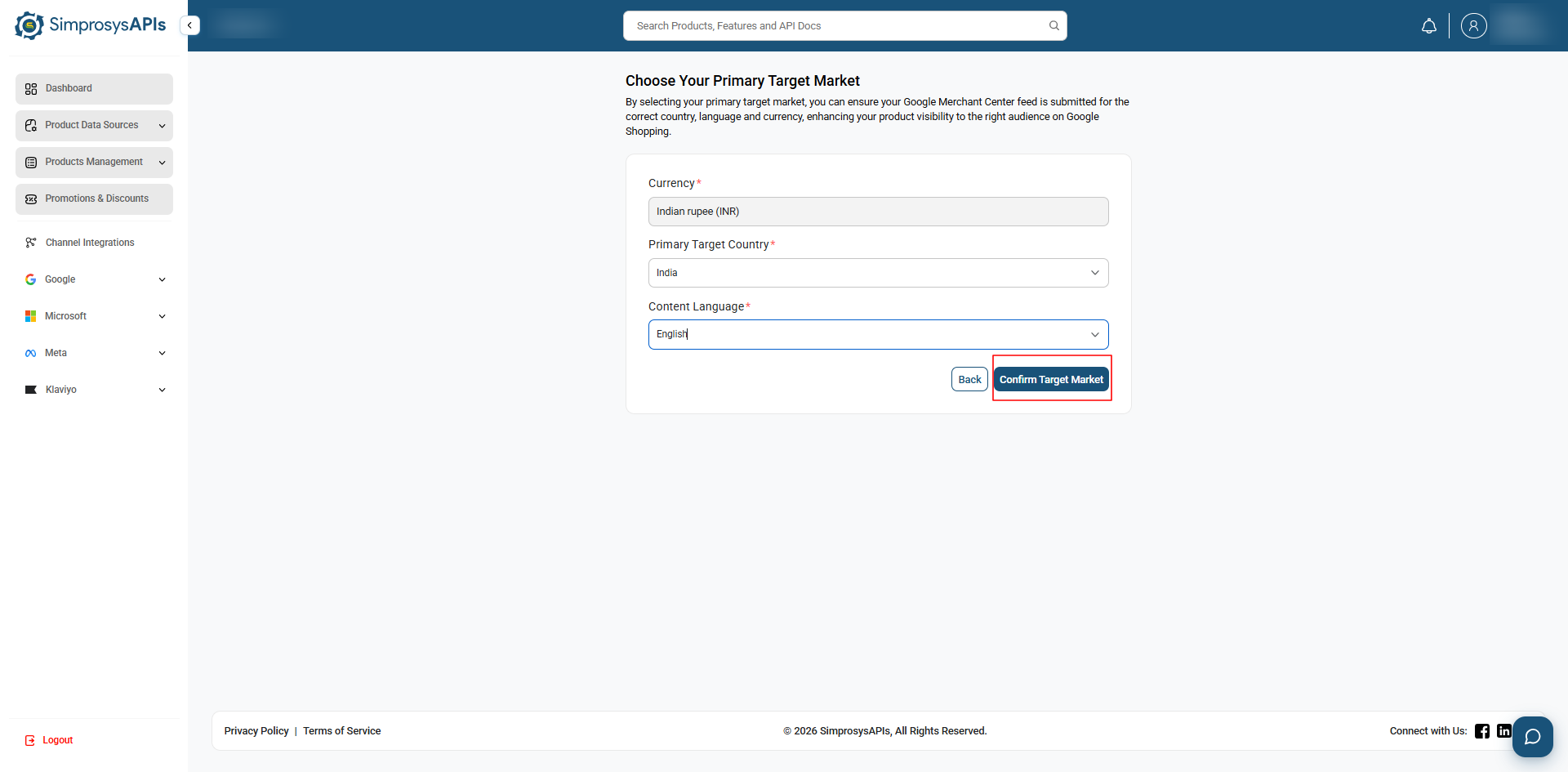
4. Define Target Market Settings
- The Target Market country dropdown populates options based on your store's default currency.
- Select your Primary Target Country (e.g., India, United States).
- Choose the primary Content Language for your feed.
- Click Confirm Target Market.
5. Automatic Program & Domain Validation
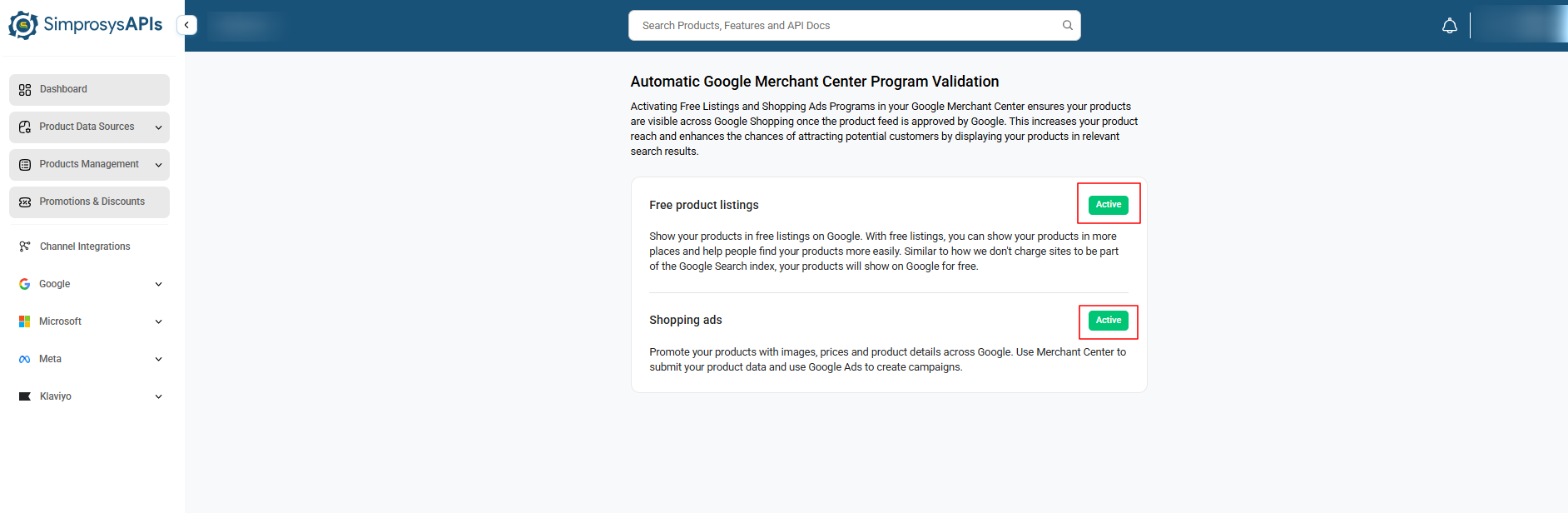
Program Validation: The system automatically validates account access for Free Product Listings and Shopping Ads.
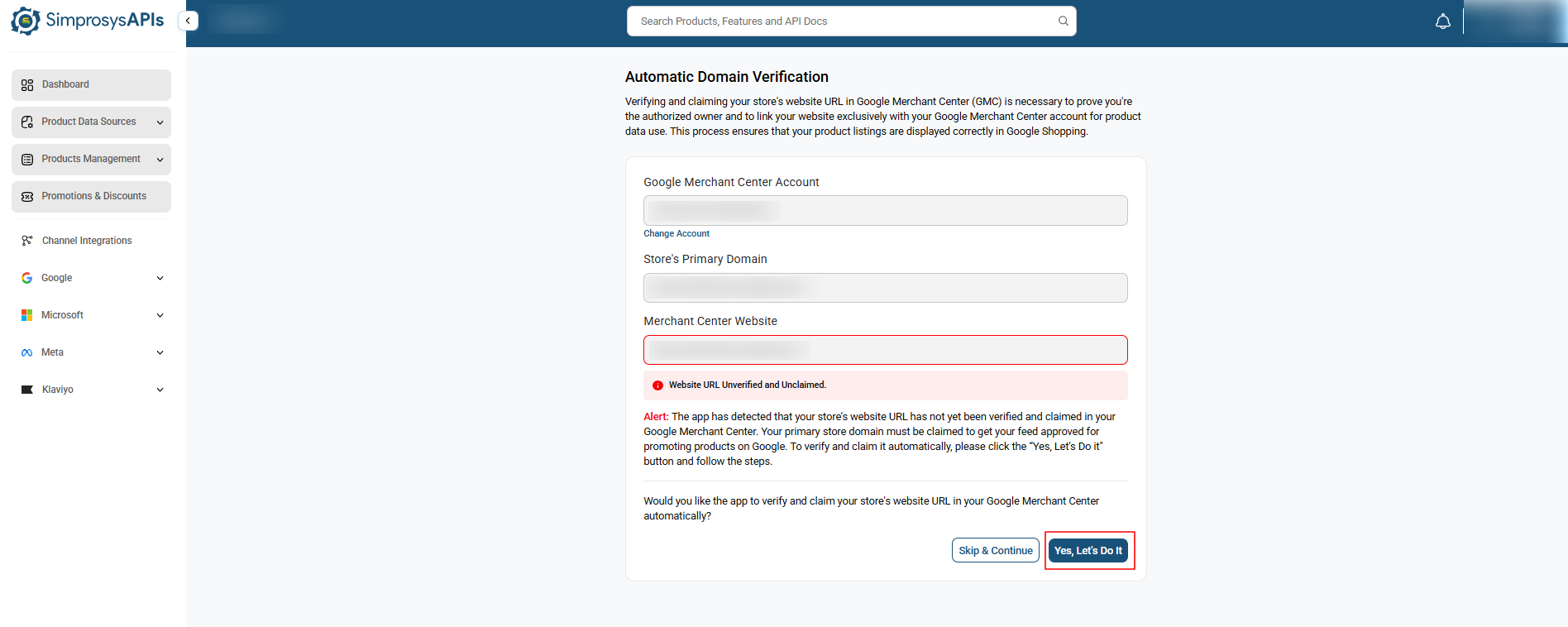
Domain Check: The platform verifies whether your store’s primary domain matches the domain verified and claimed in your Google Merchant Center account. (If the domain is successfully verified and claimed, a success message will appear, and you will be automatically redirected to the Account-Level Shipping Validation page.)
Verification Actions:
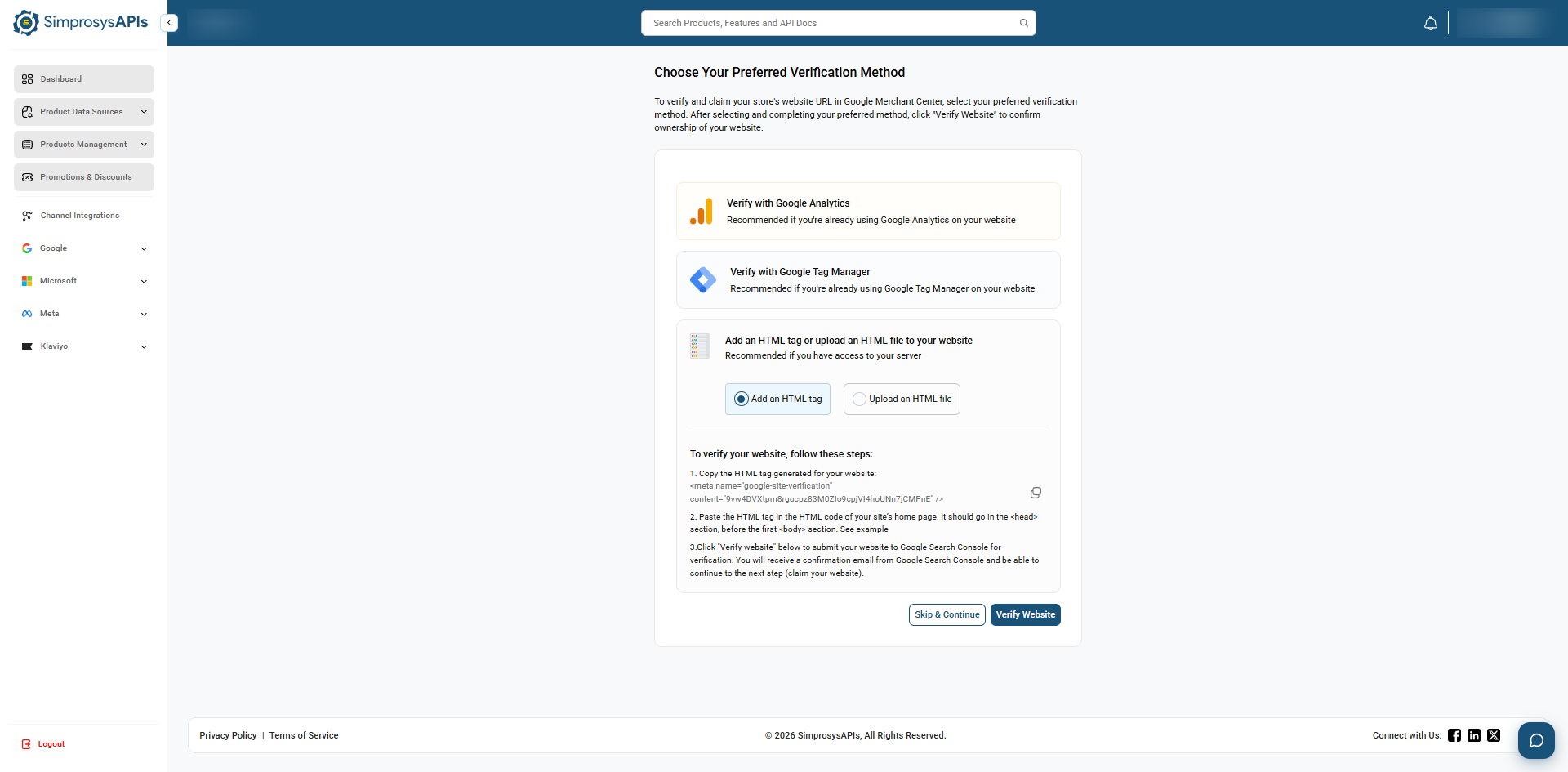
Verify Domain: If your domain is unverified or unclaimed, click Yes, Let's Do It to choose a verification method:
- Verify with Google Analytics: Uses your existing Google Analytics tracking setup on your website.
- Verify with Google Tag Manager: Uses your installed Google Tag Manager container setup.
- Add an HTML Tag or File: Allows you to paste a generated HTML meta tag into your site's header or upload an HTML file to your website.
- After completing the steps for your chosen method, click Verify Website to finalize verification.
- Skip Option: If you prefer to verify or claim your domain manually inside Google Merchant Center later, click Skip & Continue to proceed to the next setup step.
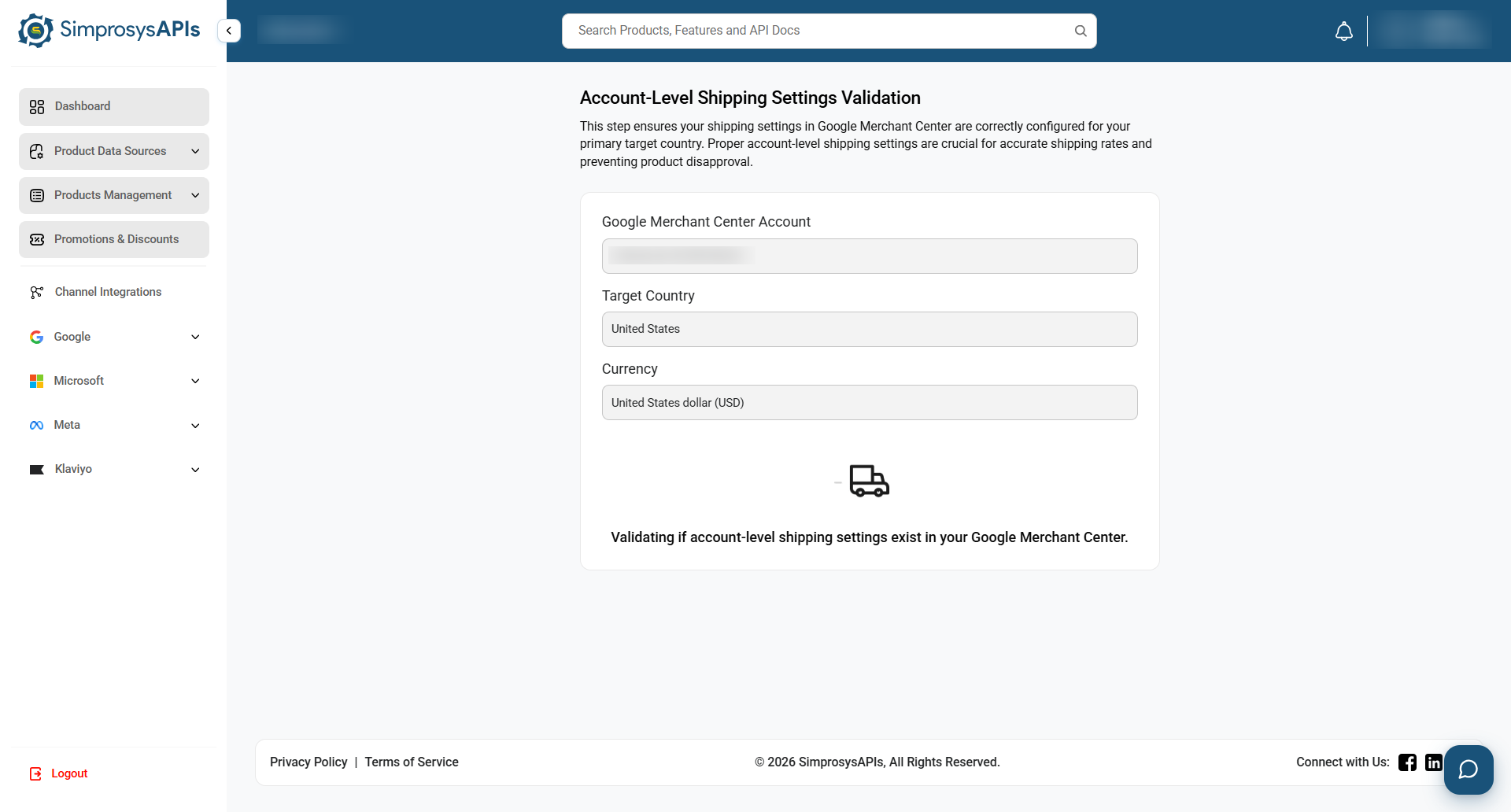
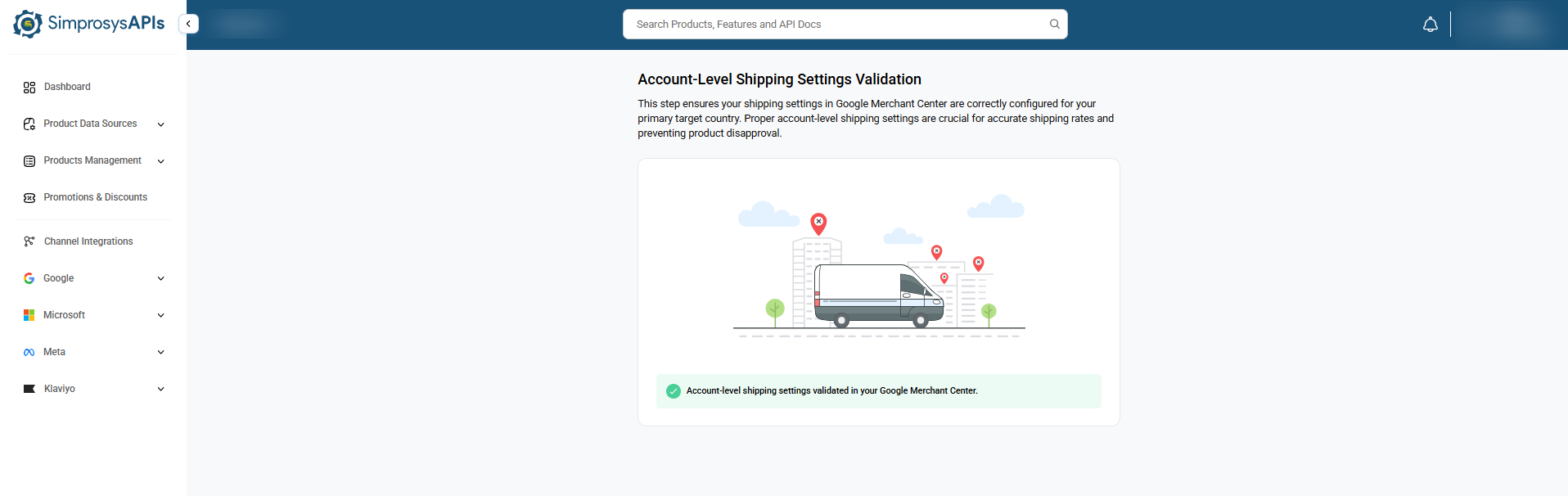
6. Account-Level Shipping Validation
- The platform checks whether valid shipping settings exist for your target country and currency in Google Merchant Center.
- Once validated, the system completes the channel linking process.
7. Verify Channel Status
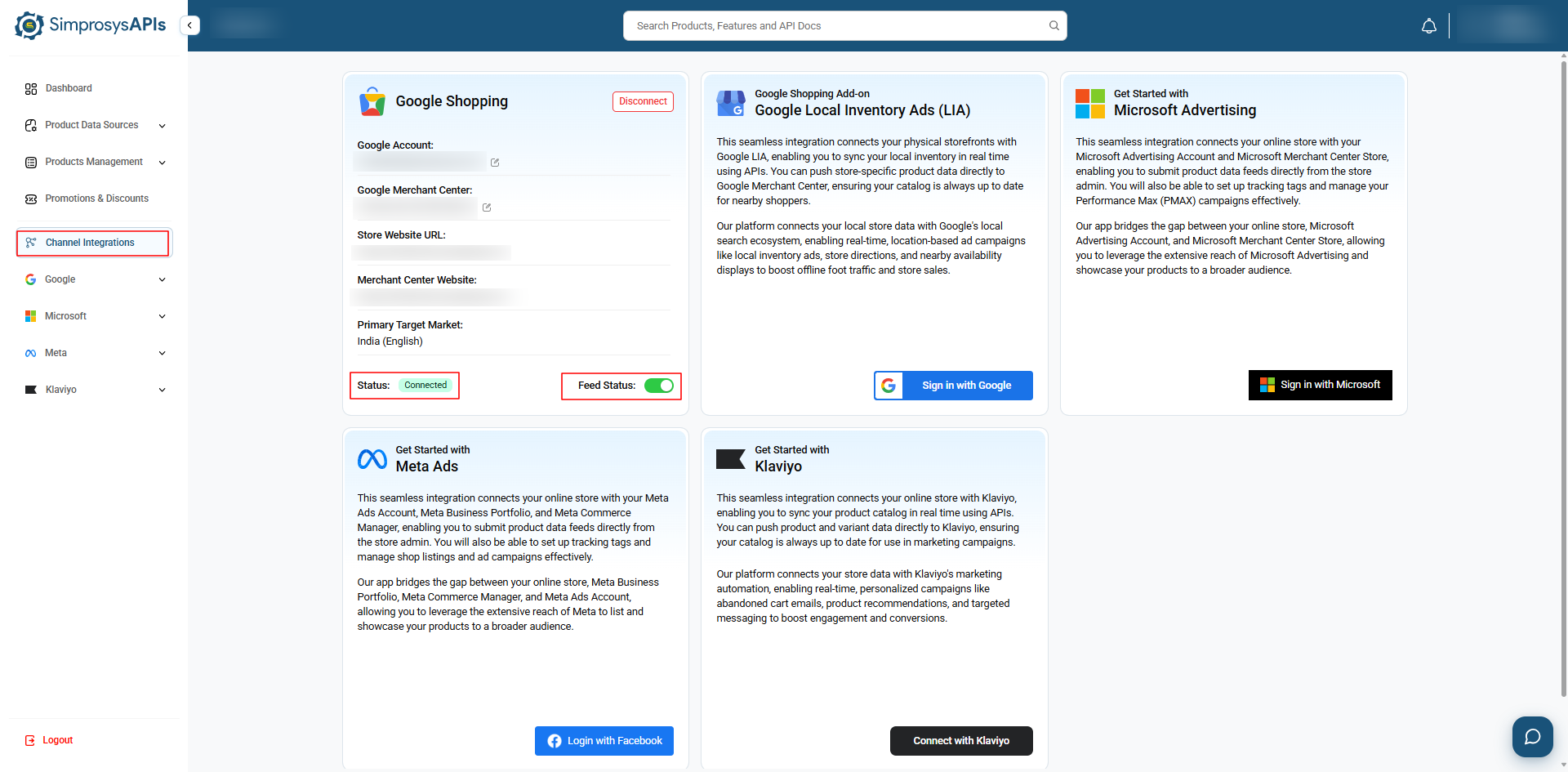
- Upon successful setup, you will be redirected to the Manage Products section.
- Under Channel Integrations, the Google Shopping card status will now display as Connected with the Feed Status toggle switched to ON.
Need help?
For email support, feel free to reach out to us at support@simprosys.com
Previous article

Next article
SimprosysAPIs
Introduction and Account Setup
Channel Integration
Feed Configuration
Product Data Source Setup
Legal Polices
Manage Products