SimprosysAPIs
Introduction and Account Setup

Channel Integration
Feed Configuration
Product Data Source Setup
Legal Polices
Manage Products

How to Integrate SimprosysAPIs account to Meta Ads - Step-by-Step Guide
Sep 09, 2026
The app connects your online store with Meta Business Portfolio, Meta Commerce Manager, and Meta Ads Account, enabling you to sync and showcase your products across Meta’s shopping and advertising platforms.
Prerequisites
- Facebook Personal Account: An active personal Facebook account with admin-level access.
- Facebook Page: An active Facebook Page is required to represent your business on Meta.
- Meta Business Portfolio: A created Business Portfolio in Meta Business Manager.
- Active Meta Ad Account: An active Meta Ad Account linked to your Business Portfolio.
Step-by-Step Setup
1. Initiate Integration
- Open the Simprosys Google Shopping Feed app from your Ecwid store.
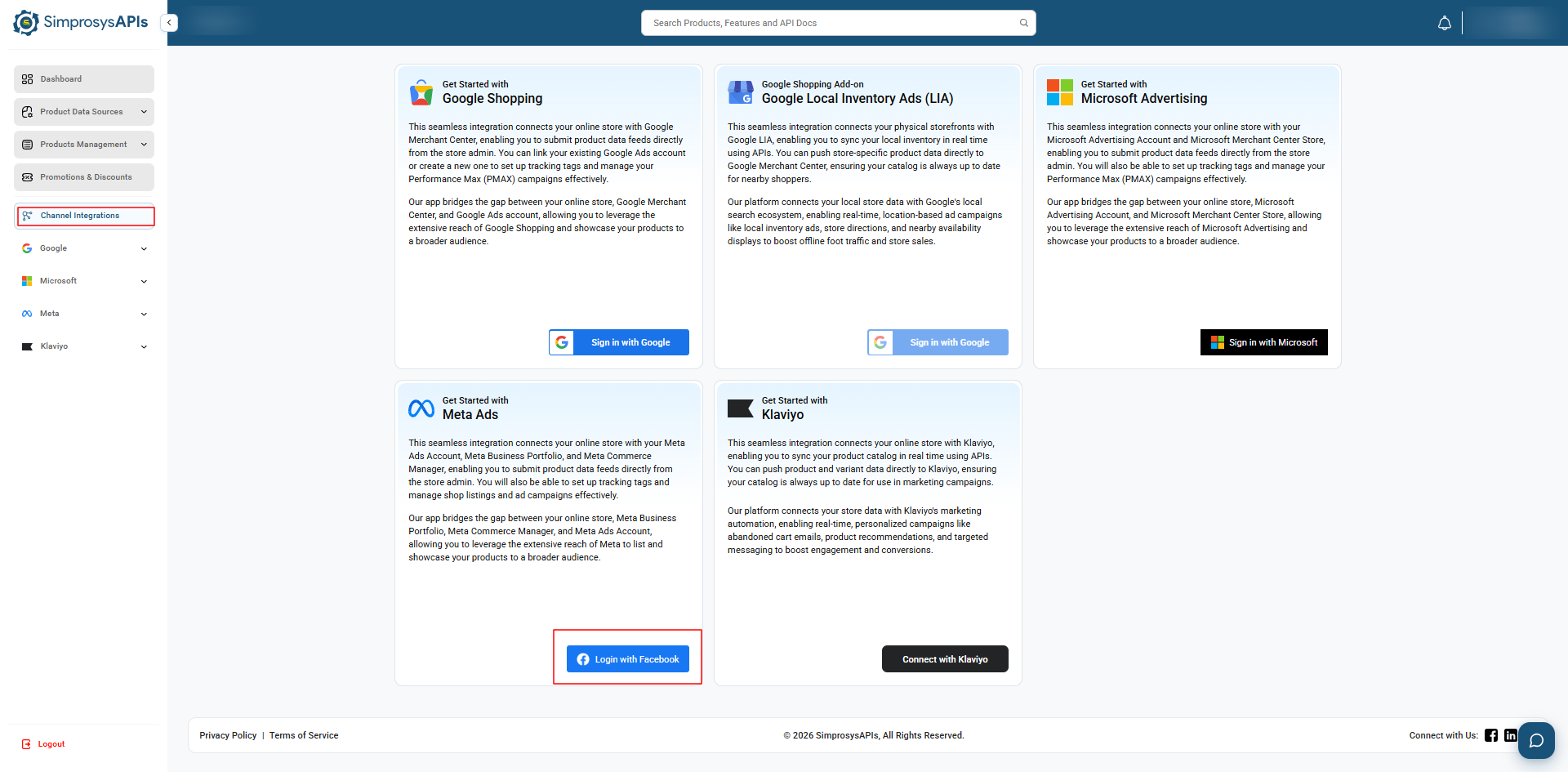
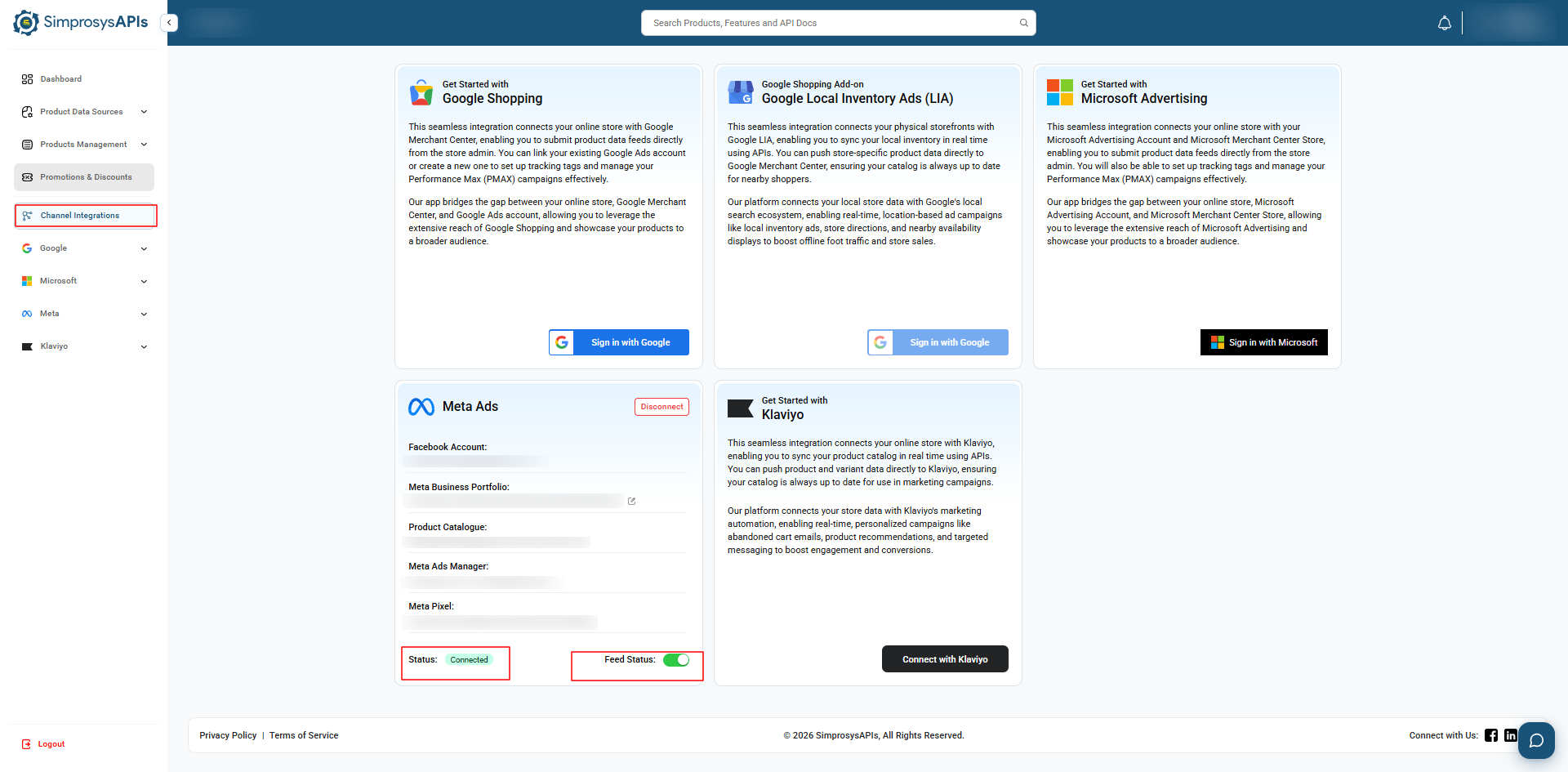
- From the left navigation menu, click Channel Integrations.
- Locate the Get Started with Meta Ads integration card and click Login with Facebook.
2. Facebook Authentication & Authorization
- Enter your Email address or mobile number and Password, then click Log In.
- Complete the CAPTCHA verification if prompted.
- Review the connection permissions summary and click Next.
3. Select or Create Meta Business Assets
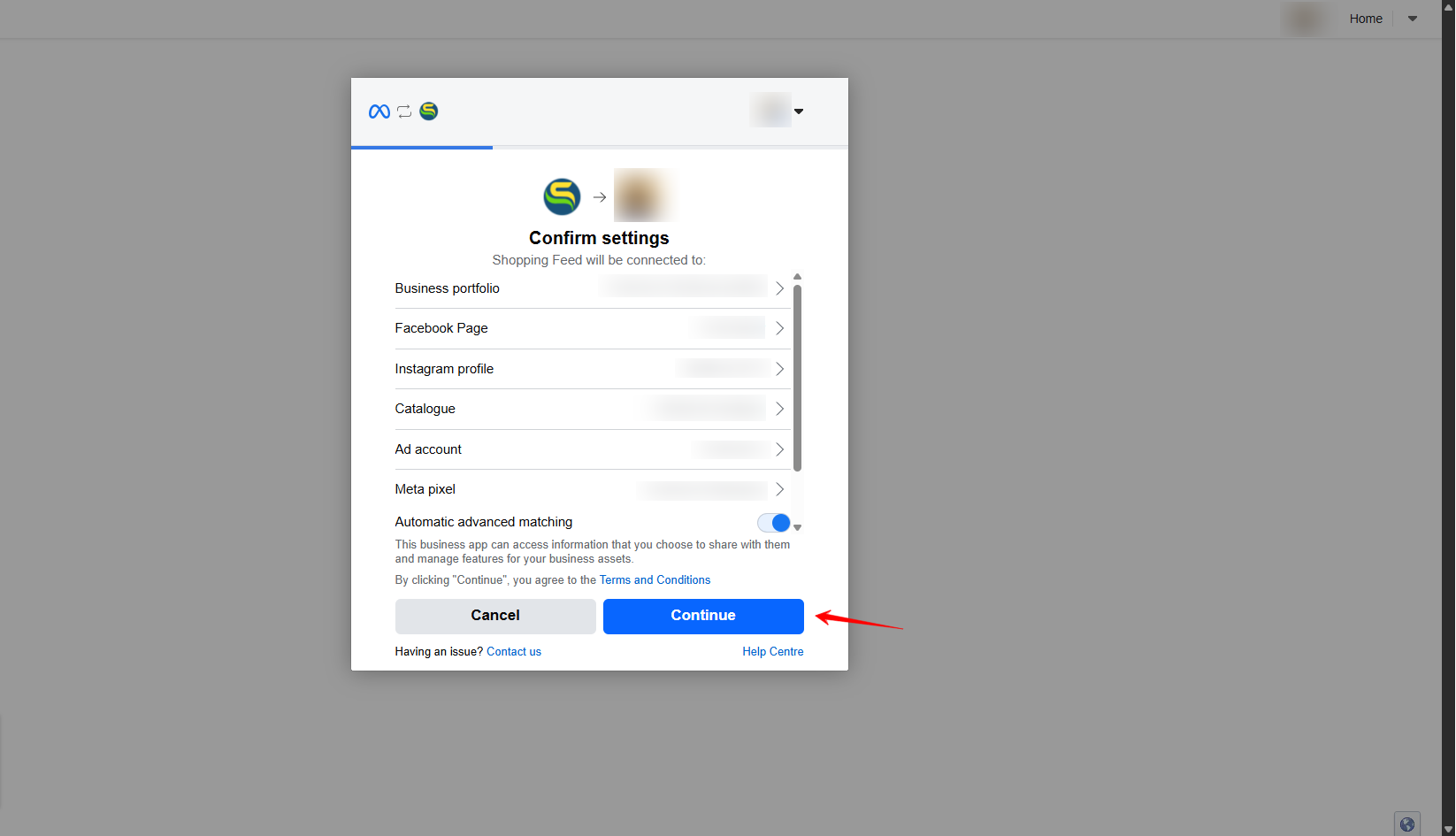
- On the Confirm settings screen, review your Meta assets:
- Business Portfolio: Select your Meta Business Portfolio.
- Facebook Page: Select your primary Facebook Page.
- Instagram Profile: Select your connected Instagram business account.
- Catalogue: Select an existing catalogue or click Create new to set up a new catalogue
- Ad Account: Select your active Meta Ad Account.
- Meta Pixel: Select your Meta Pixel tracking tag.
- Click Continue.
4. Grant Business Integration Permissions
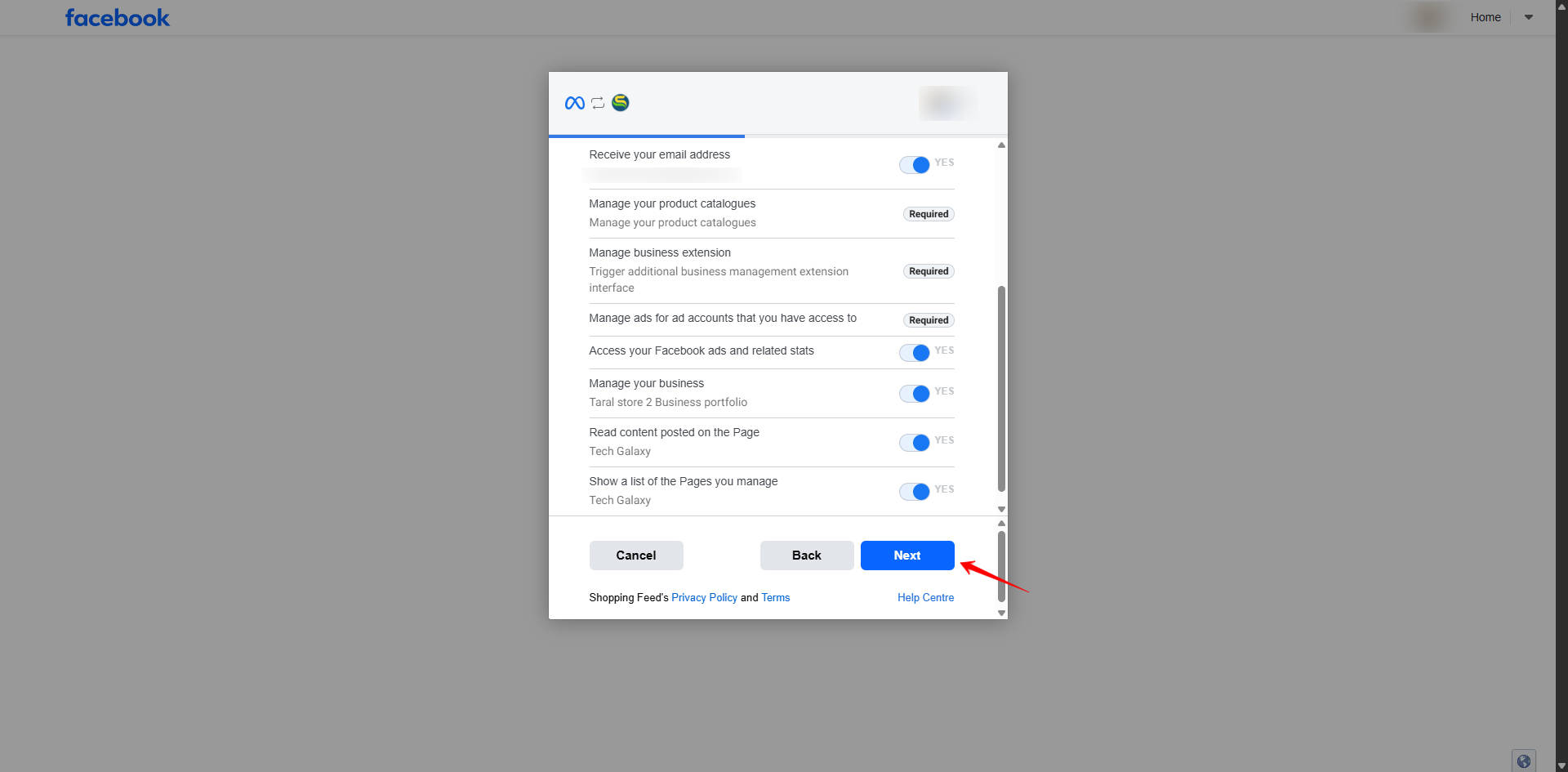
- Review the required app permissions for managing catalogues, business extensions, and ad accounts.
- Ensure all required toggles remain turned ON.
- Click Next to proceed.
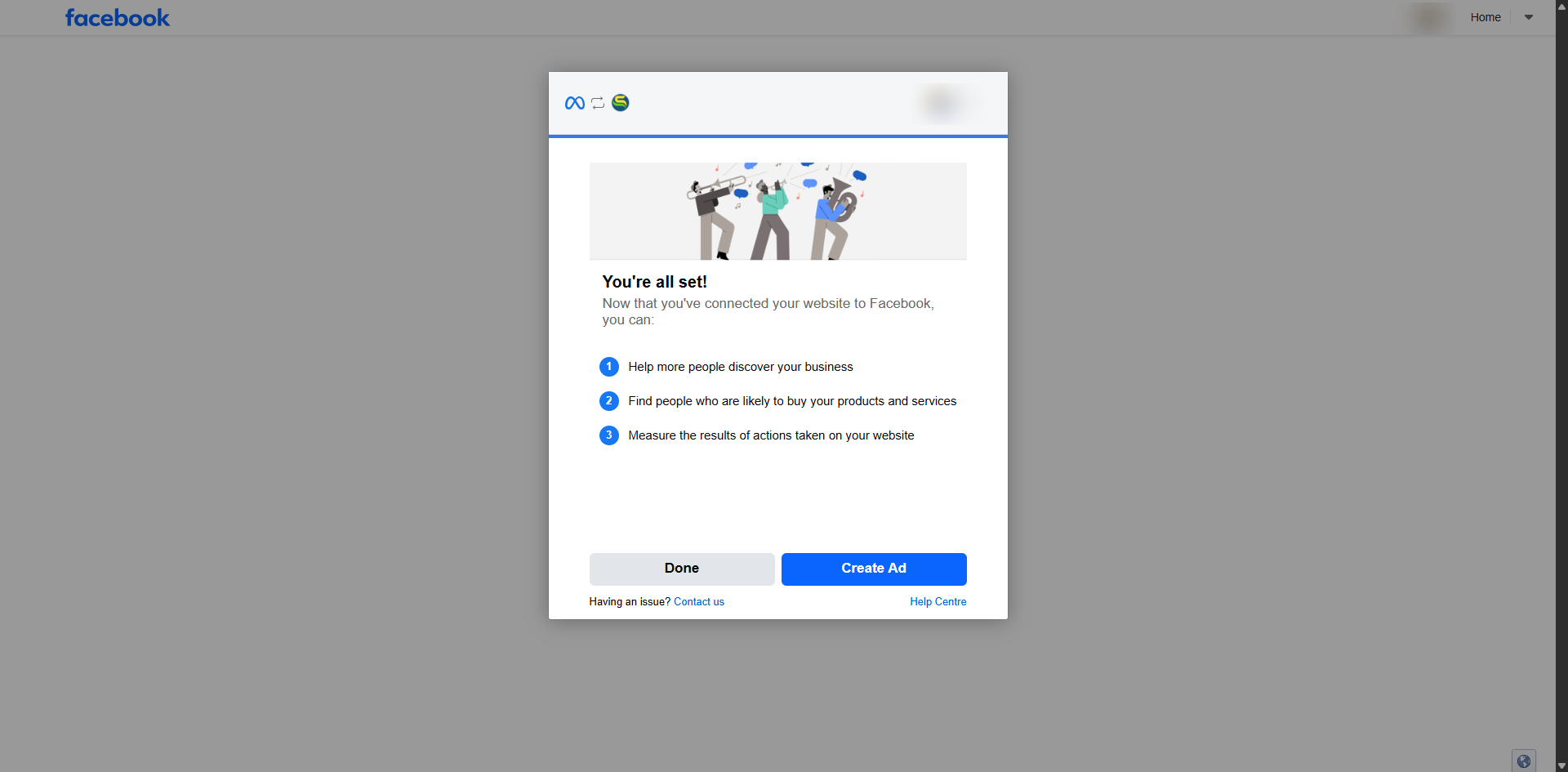
- Wait for the account linking process to complete, then click Done on the "You're all set!" confirmation screen.
5. Verify Integration Completion
- You will be automatically redirected back to your Simprosys Google Shopping Feed app.
- Confirm the green toast notification at the bottom: "Successfully integrated with Meta".
- Navigate to Channel Integrations to verify that Meta Ads displays Status: Connected and Feed Status: ON
Need help?
For email support, feel free to reach out to us at support@simprosys.com
Previous article

Next article
SimprosysAPIs
Introduction and Account Setup
Channel Integration
Feed Configuration
Product Data Source Setup
Legal Polices
Manage Products