SimprosysAPIs
Introduction and Account Setup

Channel Integration
Feed Configuration
Product Data Source Setup
Legal Polices
Manage Products

How to Integrate SimprosysAPIs account to Microsoft Advertising - Step-by-Step Guide
Sep 17, 2026
Connecting your store to Microsoft Advertising allows you to sync your product catalog directly to Microsoft Merchant Center. You can use your synced products to run Microsoft Shopping ads.
Prerequisites
- Microsoft Advertising Account: An active Microsoft Advertising account with admin permissions.
- Microsoft Merchant Center Store: A created Microsoft Merchant Center store linked to your Microsoft Advertising account.
- Verified Domain: Your store website domain verified and claimed within Microsoft Advertising.
Step-by-Step Setup
1. Initiate Integration
- Log in to your SimprosysAPIs Platform.
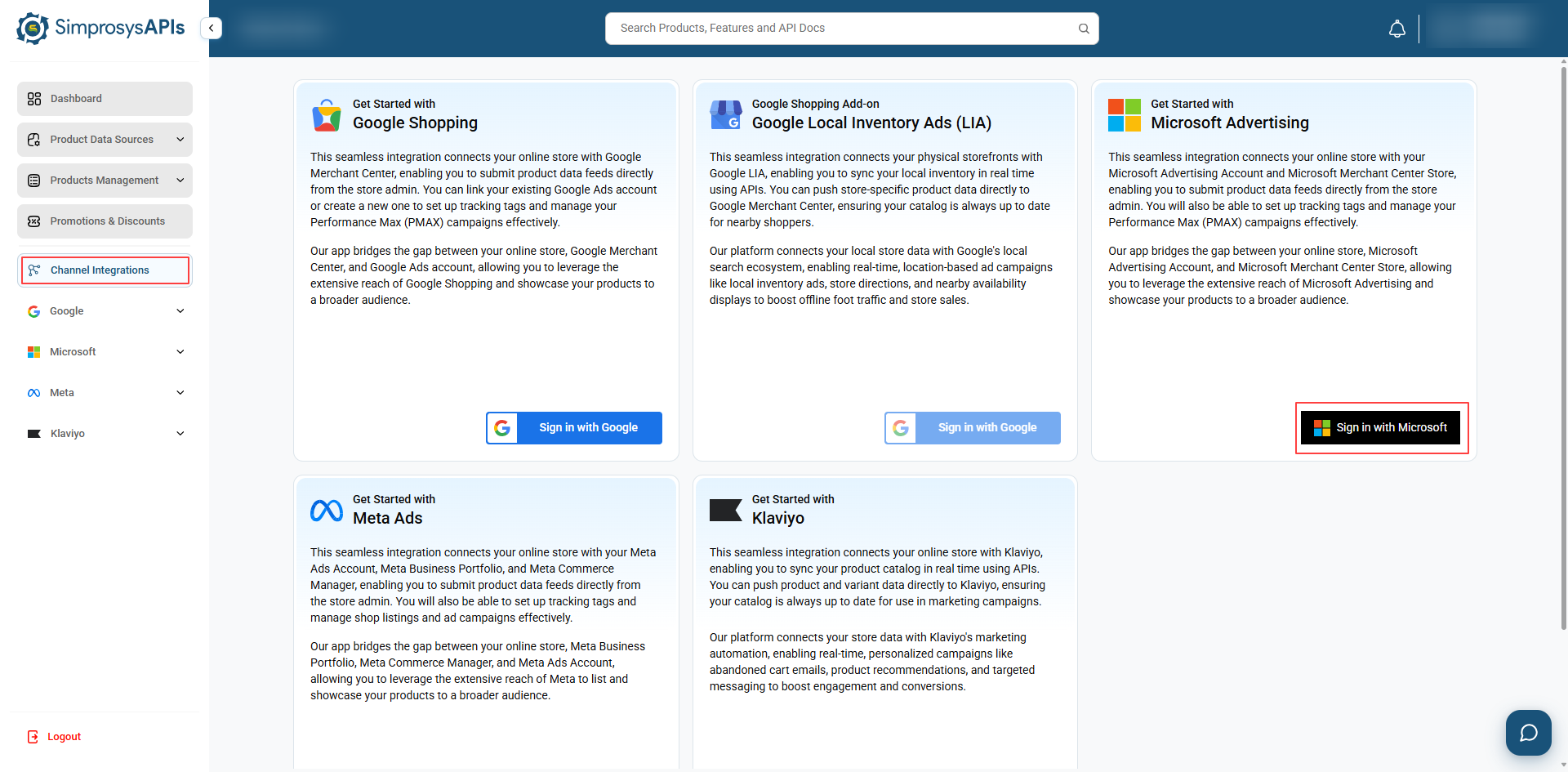
- From the left navigation menu, click Channel Integrations.
- Locate the Get Started with Microsoft Advertising integration card and click Sign in with Microsoft.
2. Microsoft OAuth Authentication
- A Microsoft account authentication pop-up window will open.
- Sign in with the Microsoft account associated with your Microsoft Advertising account.
- Review requested permissions and click Accept to grant authorization.
3. Select Microsoft Advertising & Merchant Center Store
- After authentication completes, return to the SimprosysAPIs platform.
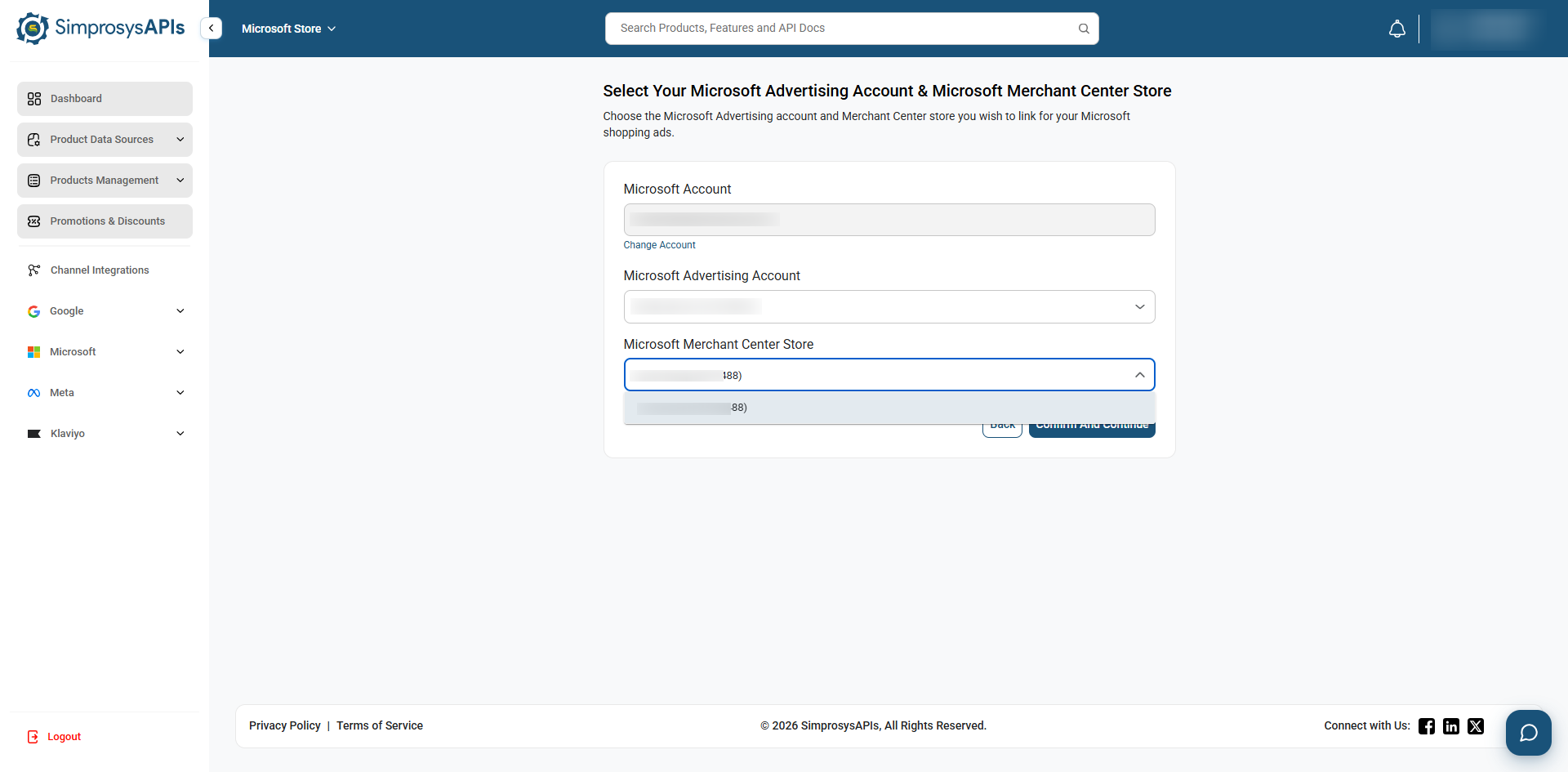
- Under Microsoft Advertising Account, select your desired advertising account from the dropdown menu.
- Under Microsoft Merchant Center Store, select your corresponding store name/ID.
- Click Confirm and Continue.
4. Automatic Store Verification & Claim Status
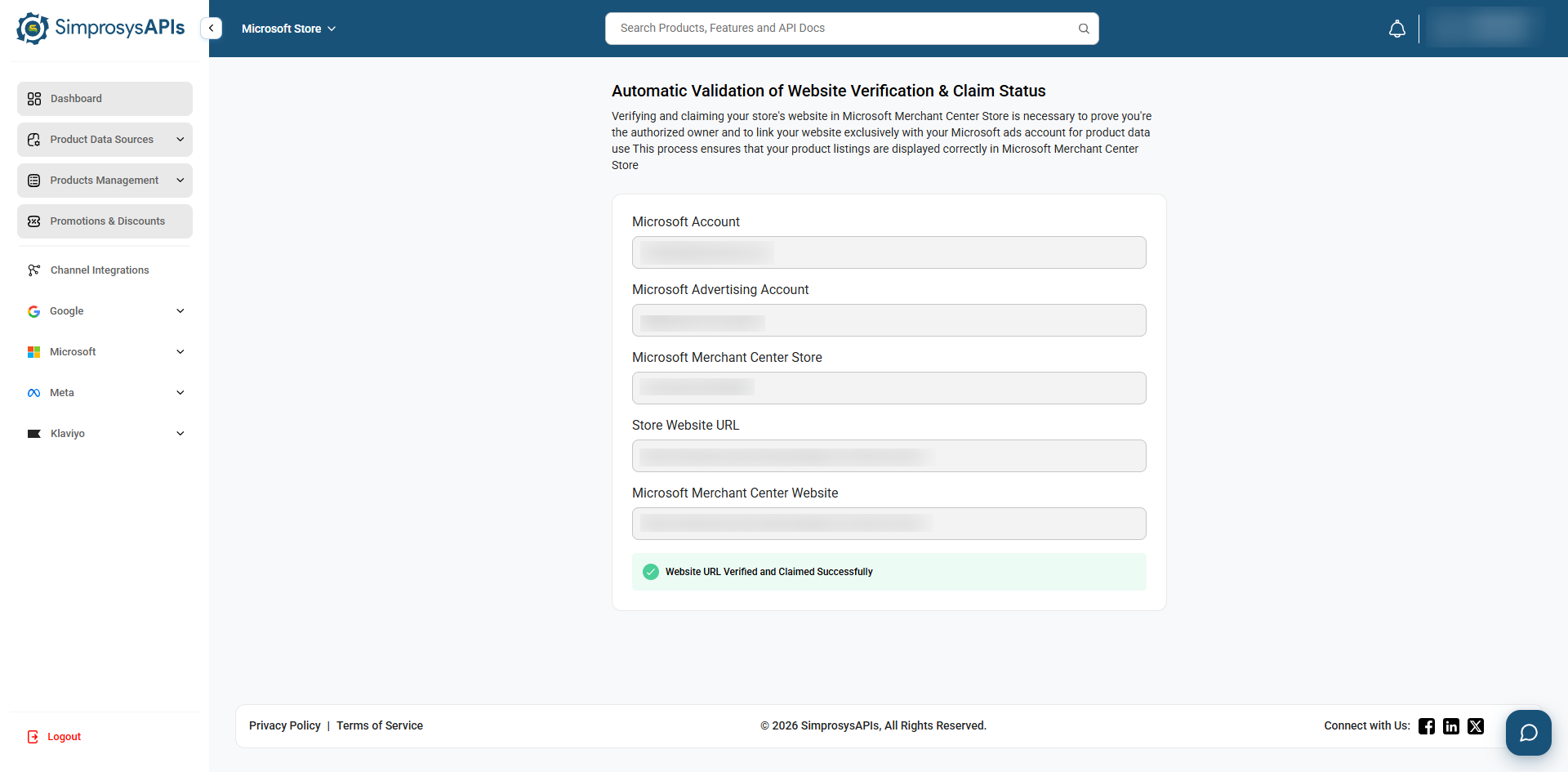
- The system automatically verifies that your store website domain (Store Website URL) matches the website claimed in your Microsoft Merchant Center Store.
- Wait for the green confirmation banner: "Website Verified and Claimed Successfully".
5. Choose Your Primary Target Market
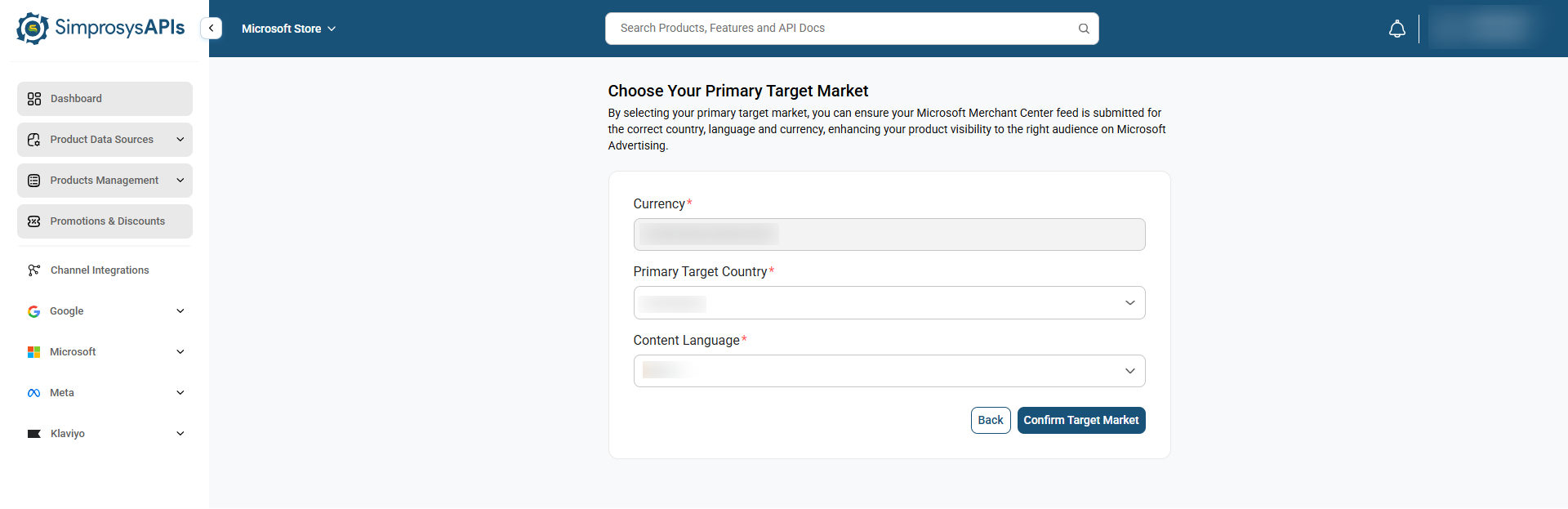
- Currency: The store’s default currency will be displayed.
- Primary Target Country: The Primary Target Market country dropdown populates options based on your store's default currency.
- Content Language: Choose the primary language for your catalog (e.g., English)
- Click Confirm Target Market.
6. Verify Integration Completion
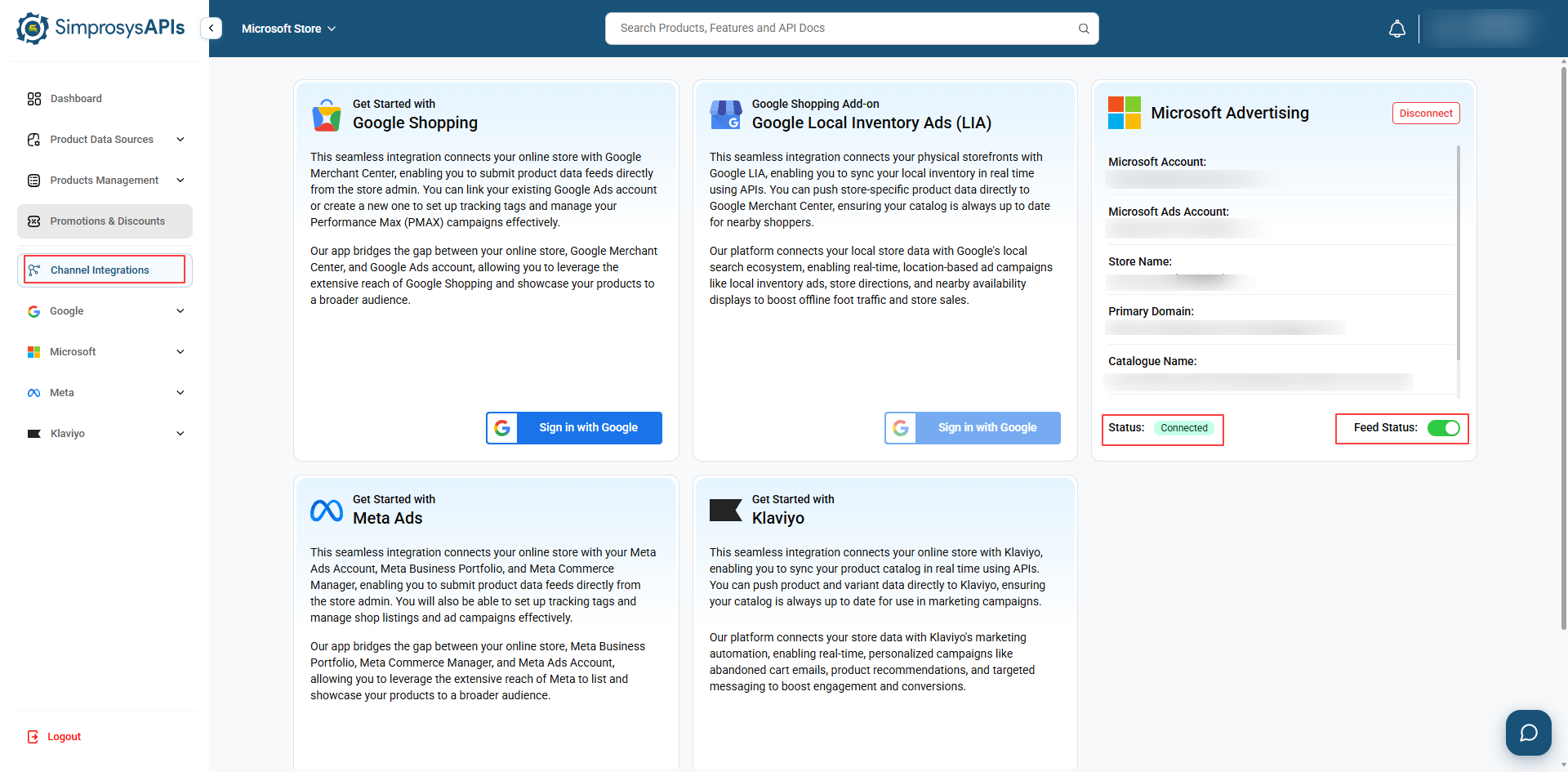
- Return to the Channel Integrations page.
- Locate the Microsoft Advertising card and verify that:
- Microsoft Account: Displayed correctly
- Microsoft Ads Account: Displayed correctly
- Status: Connected
- Feed Status: Toggled to ON
Need help?
For email support, feel free to reach out to us at support@simprosys.com
Previous article

Next article
SimprosysAPIs
Introduction and Account Setup
Channel Integration
Feed Configuration
Product Data Source Setup
Legal Polices
Manage Products