SimprosysAPIs
Introduction and Account Setup

Channel Integration
Feed Configuration
Product Data Source Setup
Manage Products
Dashboard
Automated Feed Rules
Legal Polices

Create and Manage Automated Feed Rules in SimprosysAPIs
Oct 22, 2026
Overview
Automated Feed Rules allow you to dynamically update product attributes for your marketing channels. You can create rules based on specific conditions to update product attributes without manually editing individual products/variants.
For example, you can use an Automated Feed Rule to set a missing Color Attribute, update a Google Product category, or modify other supported product attributes based on your requirements.
How Automated Feed Rules Work
To create an Automated Feed Rule, define a condition to select the products/variants the rule applies to, and an action to specify the changes to be made.
Product Attributes → Condition → Action → Updated Feed Data to Marketing Channels
For example:
- Condition: Product Type equals “T-shirt” AND Brand equals “Nike”
- Action: Set Custom Label 0 to “Summer Collection”
When a product meets the defined condition, the selected action is automatically applied to the product data before it is submitted to the connected marketing channel.
Create an Automated Feed Rule
1.Navigate to Feed Rules Manager
- Click Products Management in the left sidebar menu.
- Select Automated Feed Rules.
- Click Create Your First Automated Feed Rule (or + Add New Rule if rules already exist).
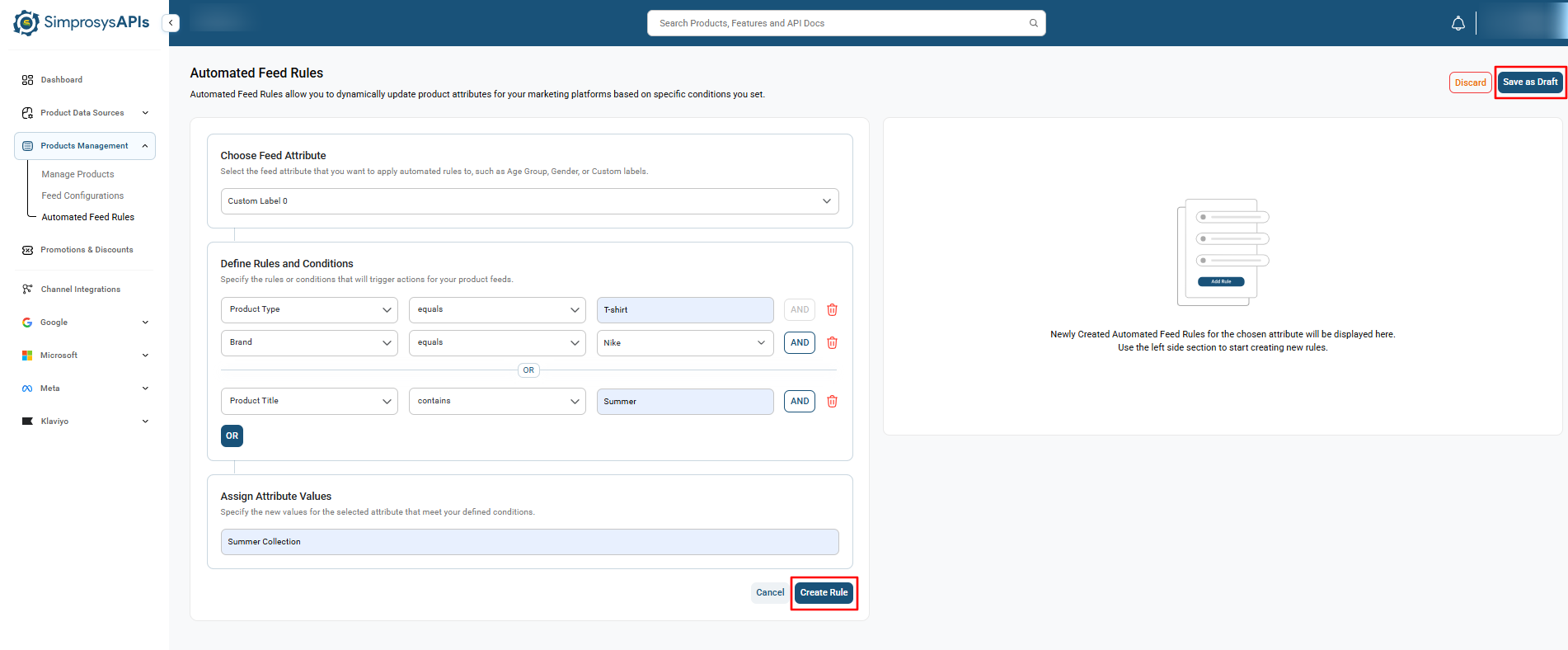
2.Select the Target Feed Attribute
- Under Choose Feed Attribute, click the Select Feed Attribute dropdown.
- Select the attribute you want to dynamically update (e.g., Custom Label 0).
3.Define Rules and Conditions (Using AND / OR Logic)
- Under Define Rules and Conditions, set your primary condition:
- Select the attribute from the first dropdown (e.g., Product Type).
- Select an operator from the second dropdown (e.g., equals).
- Enter or select the value in the Value box (e.g., T-shirt).
Adding Multiple Conditions (AND / OR Operators):
To add an AND condition (All conditions must be met):
- Click the AND button next to the rule row.
- Set the secondary condition (e.g., Brand equals Nike).
- Products must match both conditions for the rule to apply.
To add an OR condition (Any condition can be met):
- Click the OR button below the rule block.
- Set the alternative condition in the new rule box (e.g., Product Title contains Summer).
- Products matching either condition group will trigger the rule.
4.Assign the New Attribute Value
- Under Assign Attribute Values, enter the replacement or dynamic value into the Value field (e.g., Summer Collection).
- Click Create Rule at the bottom right of the section.
5.Save and Apply the Rule
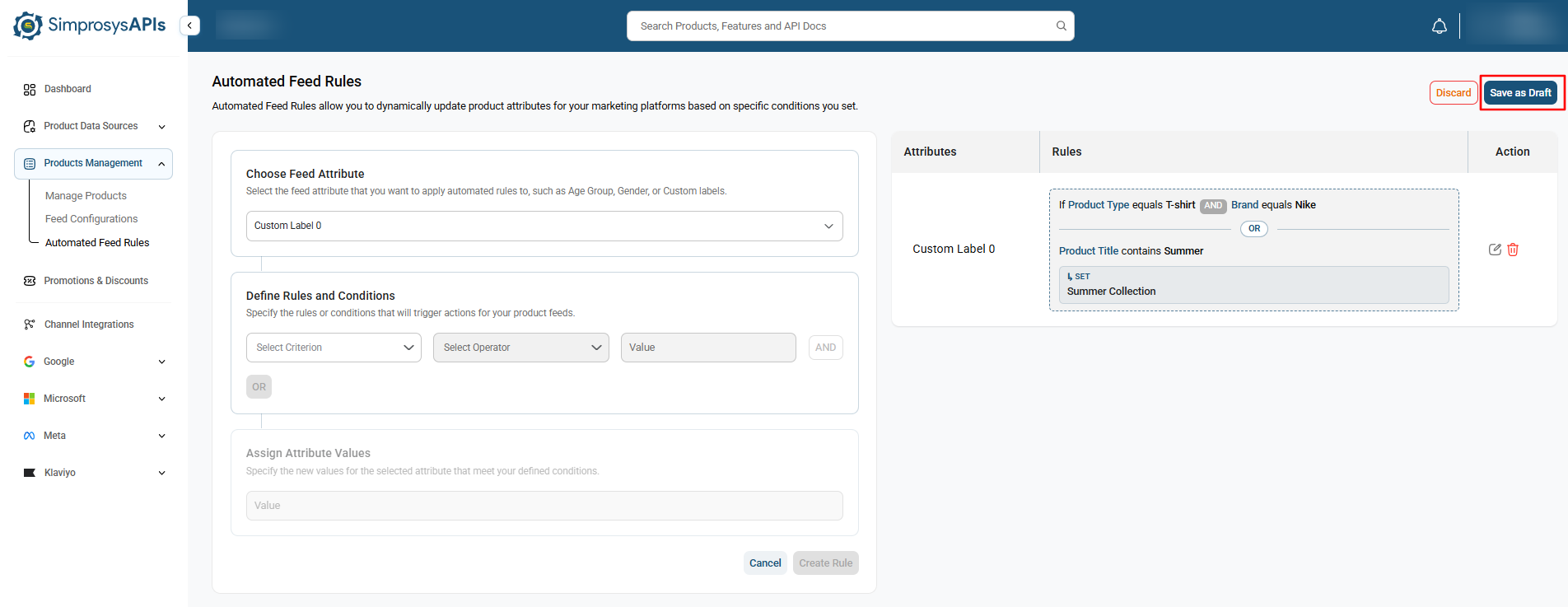
- Review your configured conditions in the right-side preview panel.
- Click Save as Draft in the top-right corner.
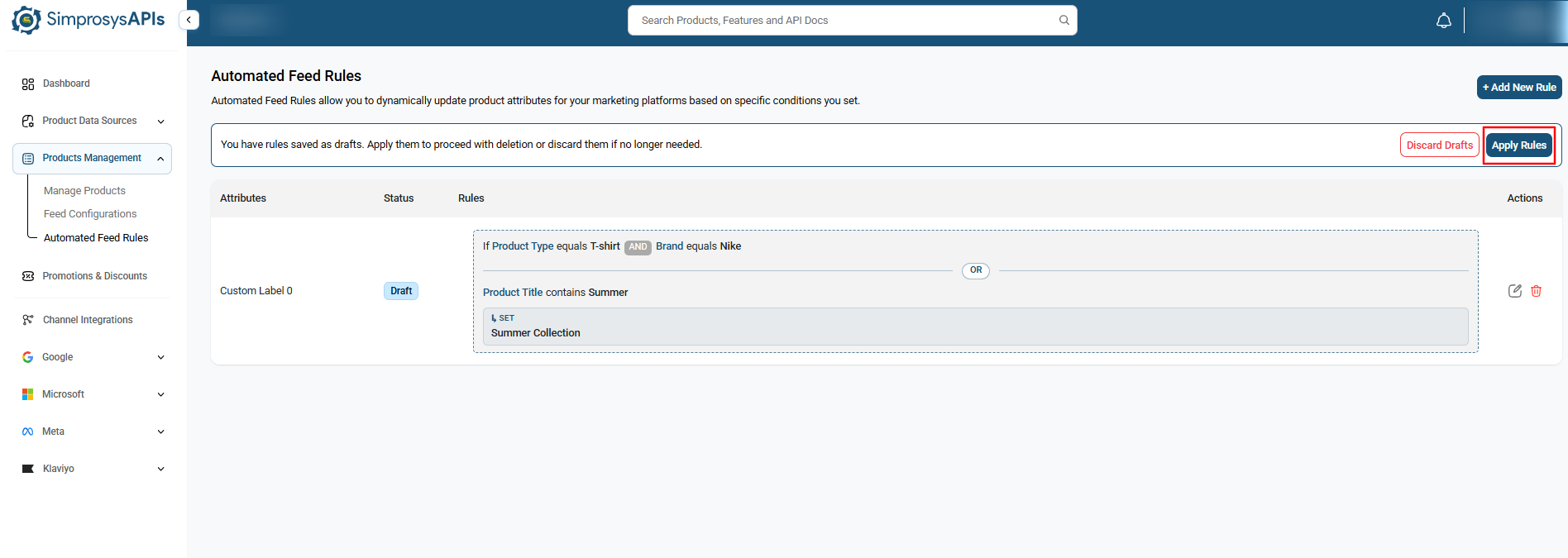
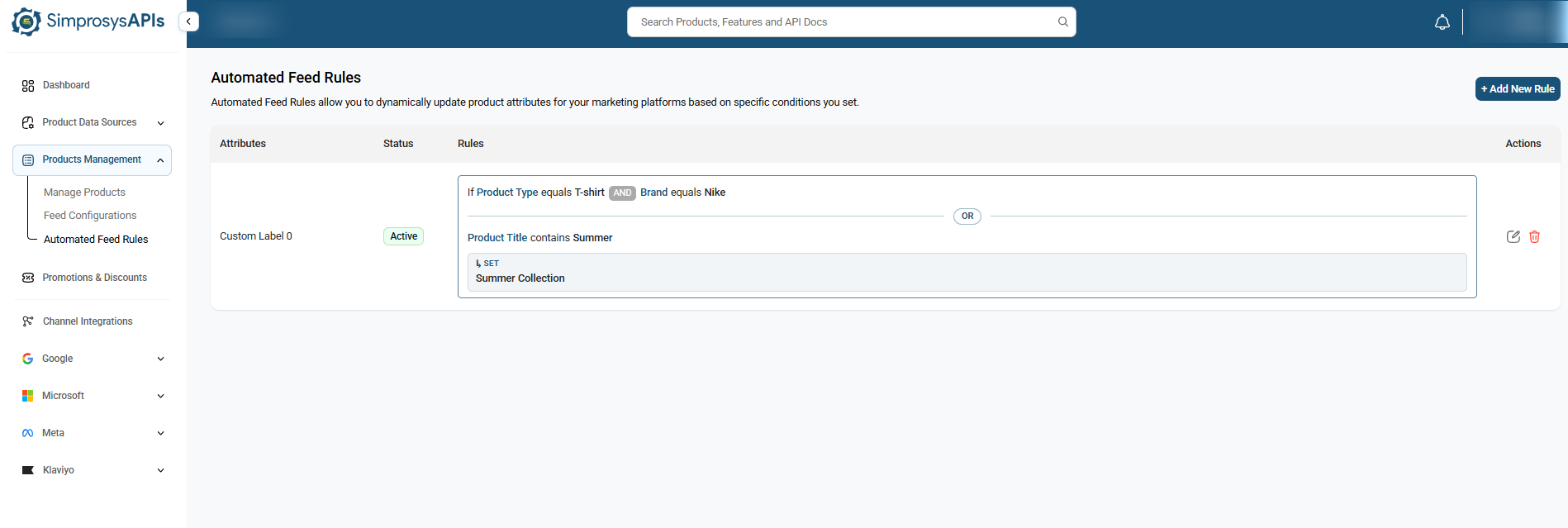
- On the rules overview table, click Apply Rules in the top banner to change the rule status from Draft to Active.
Manage Automated Feed Rules
After creating a rule, you can manage it from the Automated Feed Rules section.
You can:
- View Existing Automated Feed Rules
- Edit an Automated Feed Rule
- Delete an Automated Feed Rule
View Existing Automated Feed Rules
1.Navigate to Automated Feed Rules
Go to Products Management in the left sidebar menu and select Automated Feed Rules.
2.Review the Rules Table
All active and draft rules are displayed in the main table grid:
- Attributes: Displays the targeted feed attribute being updated (e.g., Custom Label 0).
- Status: Indicates whether the rule status is Active (applied to feed submissions) or Draft (staged for review).
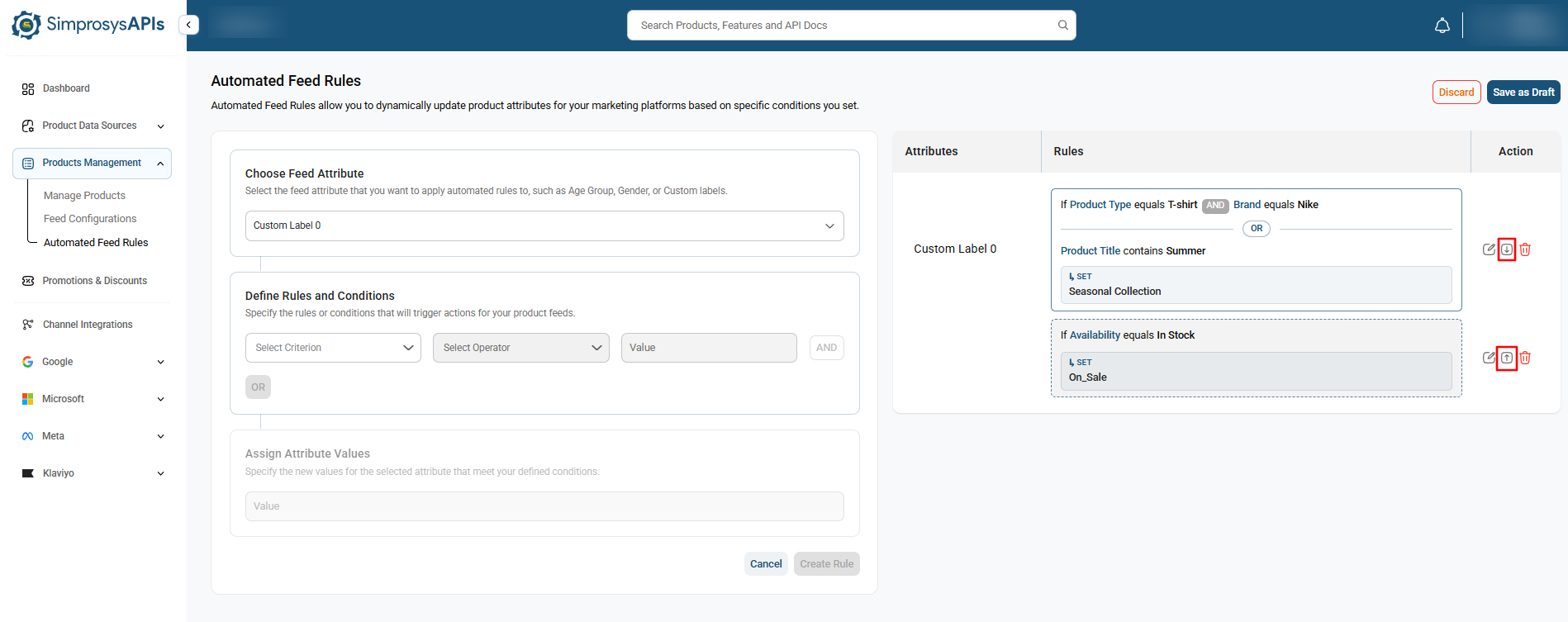
- Rules: Shows the specific conditional triggers with AND/OR logic (if AND/OR conditions are available) and the assigned target value
- (e.g., If Product Type equals T-shirt AND Brand equals Nike OR
Product Title contains Summer → SET Summer Collection).
- Actions: Contains pencil and trash can icons to edit or delete the corresponding rule row.
Edit an Automated Feed Rule
1.Navigate to Automated Feed Rules: Go to Products Management in the left sidebar menu and click Automated Feed Rules.
2.Click Edit on Target Attribute: Locate the specific attribute row in the main table and click the Edit (pencil) icon under the Actions column on the right side.
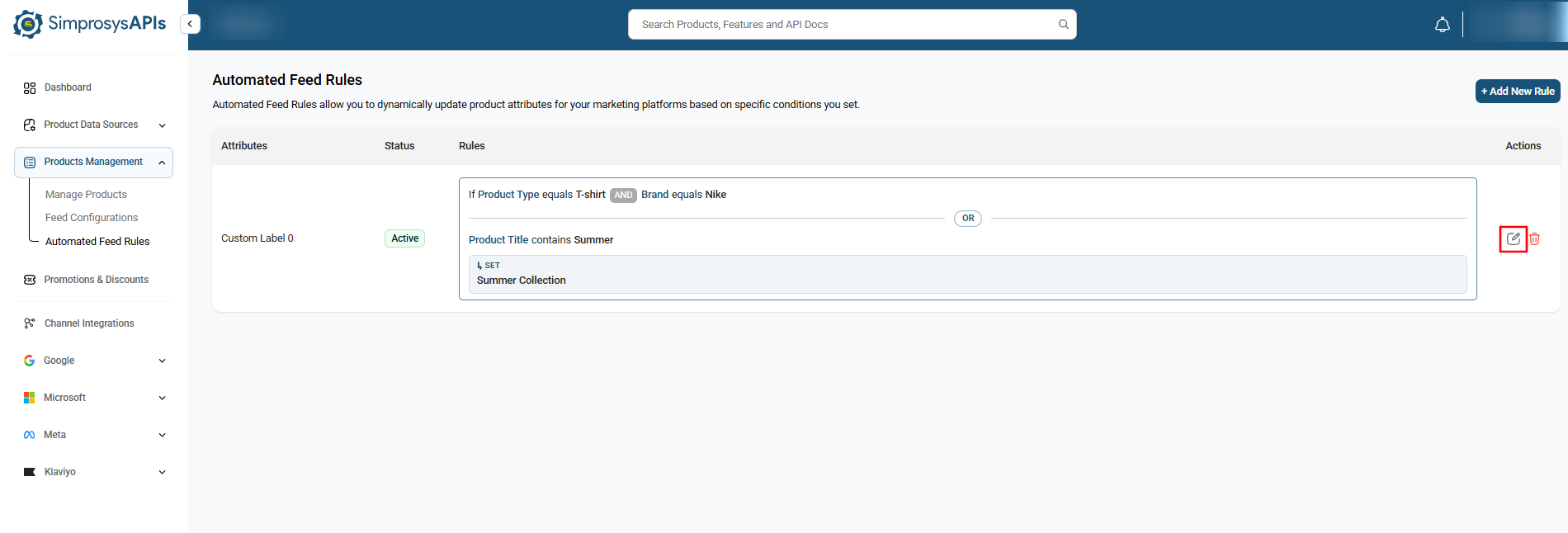
3.Redirect to Overview Page: You will be redirected to the overview page where you can add more rules. The rule(s) for the selected attribute will appear on the right-side panel.
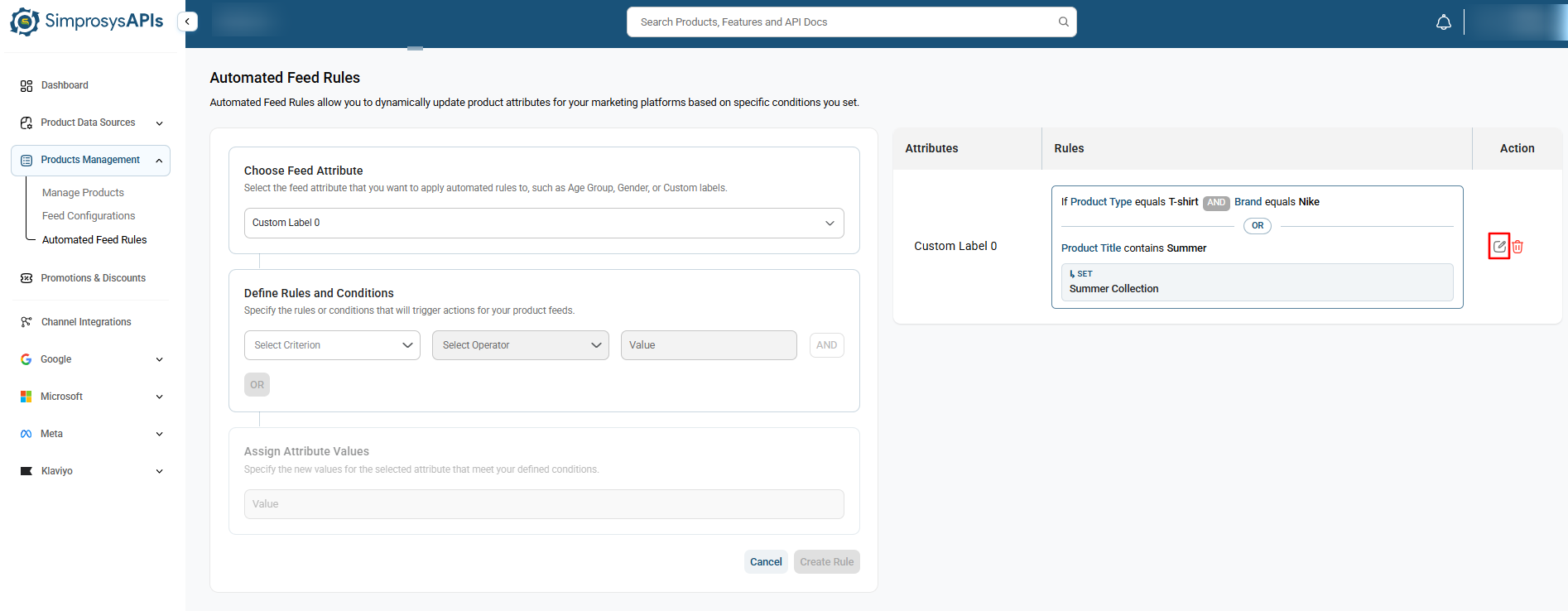
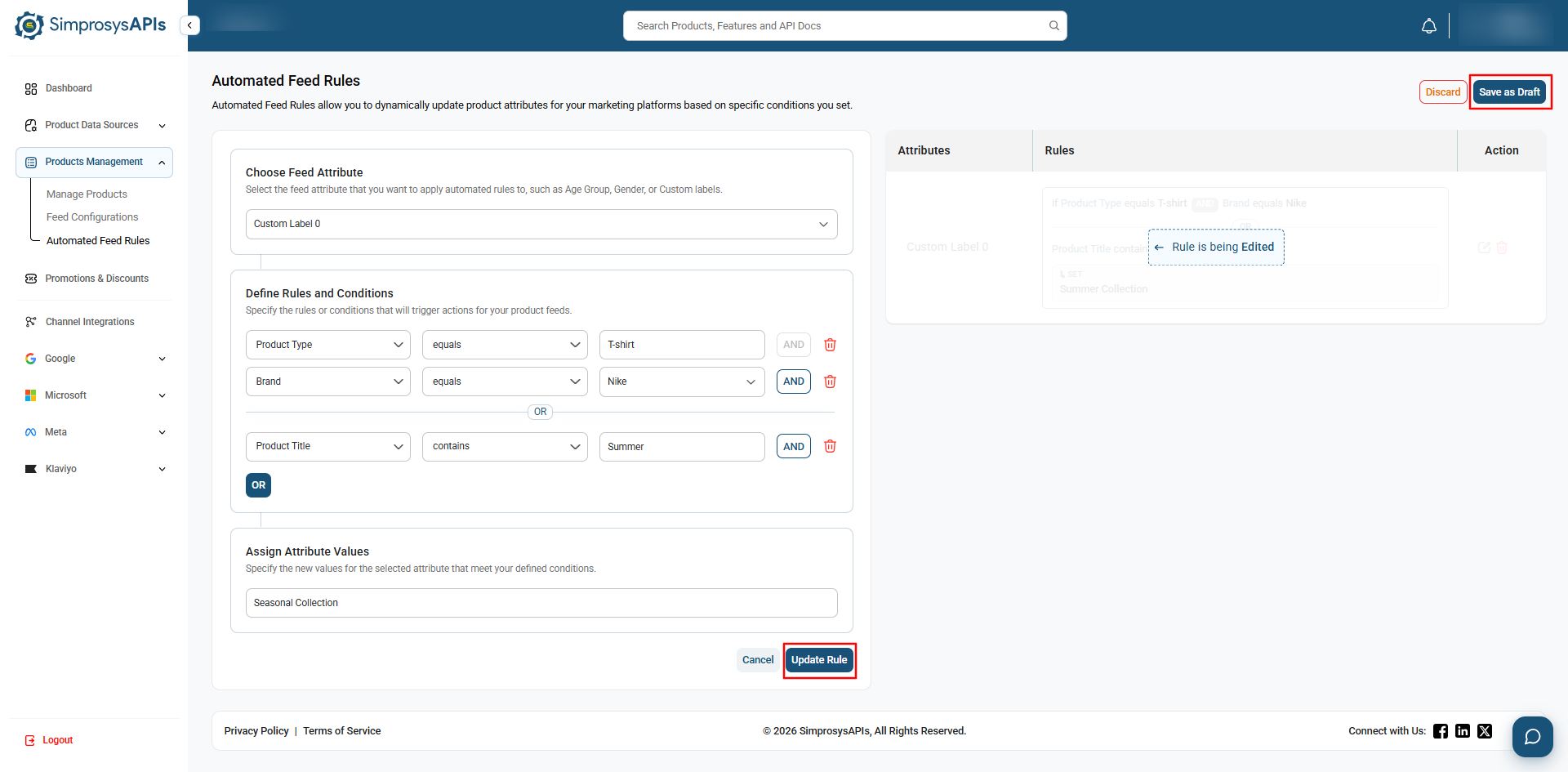
4.Enable Rule Editing: Locate the target rule on the right panel and click the Edit (pencil) icon beside it to actually edit that rule. A "Rule is being edited" badge will appear, and its details will populate in the left panel.
5.Modify Conditions or Values: Adjust the conditions, operators, or values as needed. For example, change the Assigned Attribute value from “Summer Collection” to “Seasonal Collection”
6.Update Rule and Save: Click Update Rule, click Save as Draft, and then click Apply Rules in the top banner to commit and activate the changes.
Delete an Automated Feed Rule
1.Navigate to Automated Feed Rules
Go to Products Management in the left sidebar menu and select Automated Feed Rules.
2.Locate the Target Rule
Find the specific rule you want to delete in the rules table.
3.Delete the Rule
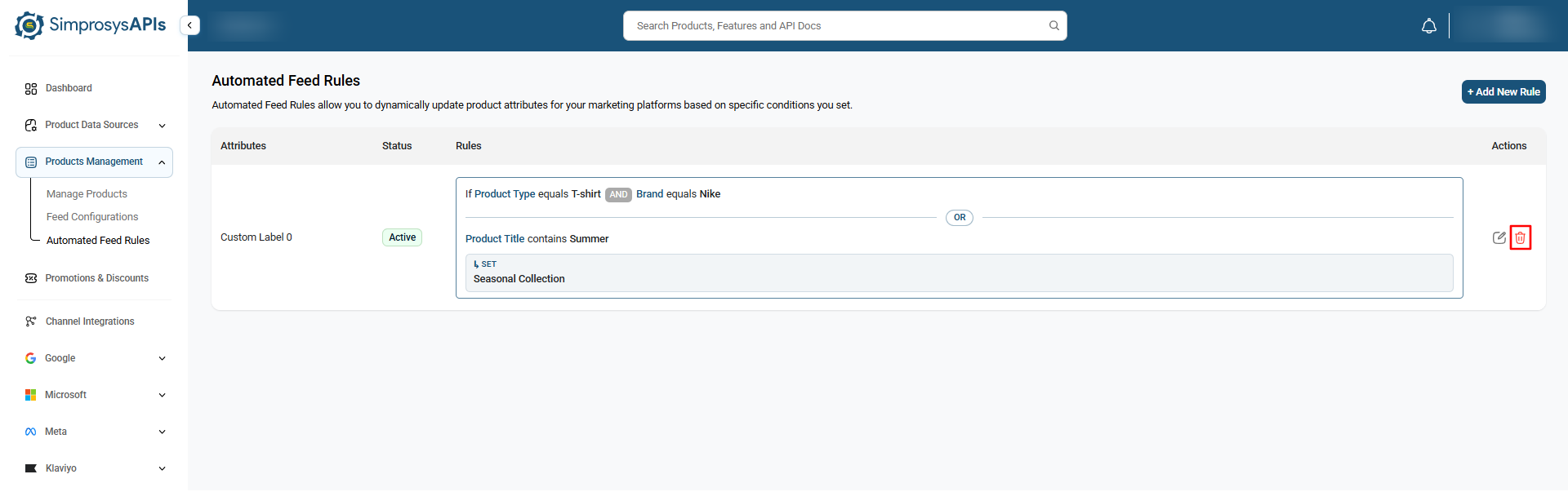
Locate the Actions column on the right side of the rule row and click the red Delete (trash bin) icon associated with the rule.
4.Confirm and Apply Changes
Confirm the deletion in the prompt, then click Apply Rules in the top action banner to apply the changes to your feed configuration.
Rule Priority & Reordering
When you create multiple rules for the same Feed Attribute (e.g., multiple rules targeting Custom Label 0), the platform evaluates them sequentially based on their priority order.
How Priority Works
- Top-to-Bottom Execution: Rules are processed in order from top to bottom.
- Highest Priority First: The rule at the top of the list has the highest priority and will be evaluated first.
- Rule Matching: If a product meets the condition of the top rule, that rule applies. Subsequent rules for the same attribute will only take effect if preceding higher-priority conditions are not met.
Reordering Rule Priority
1.Select the target attribute from the Choose Feed Attribute dropdown or edit an existing rule row.
2.In the right-side preview panel, locate the list of rules configured for that attribute.
3.Use the Up () and Down () arrows beside each rule to adjust its execution order:
- Click the Up arrow to move a rule higher in priority (evaluated first).
- Click the Down arrow to lower its priority.
4.Click Save as Draft and then click Apply Rules in the top banner to activate the updated priority order across your feed.
Important Notes
- Conditions determine which products/variants the rule applies to.
- Actions determine what changes are made to matching products/variants.
- Automated Feed Rules modify the data used for the feed and do not change the original product data source of your store.
- Make sure the condition and action are configured correctly to avoid unintended changes to products/variants data.
Need help?
For email support, feel free to reach out to us at support@simprosys.com

SimprosysAPIs
Introduction and Account Setup
Channel Integration
Feed Configuration
Product Data Source Setup
Manage Products
Dashboard
Automated Feed Rules
Legal Polices