Simprosys Google Shopping Feed
Introduction and Account Setup

Channel Integration
Feed Configuration


How to Install the Simprosys Google Shopping Feed App on Ecwid
Sep 10, 2026
Step-by-Step Installation
1. Access the Ecwid App Market
- Navigate to your Ecwid Control Panel.
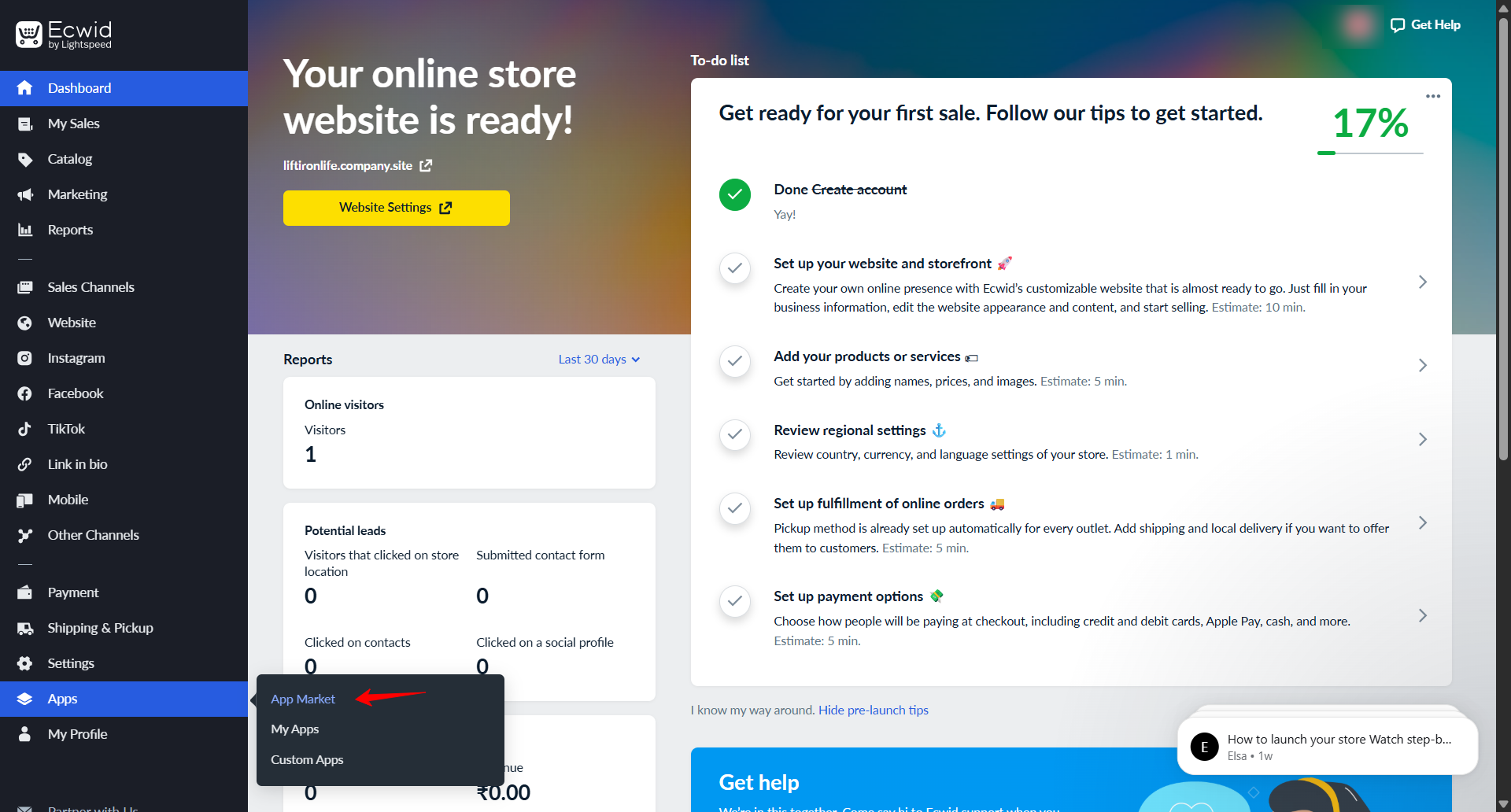
- From the left navigation sidebar, expand Apps and click App Market.
2. Search for the App
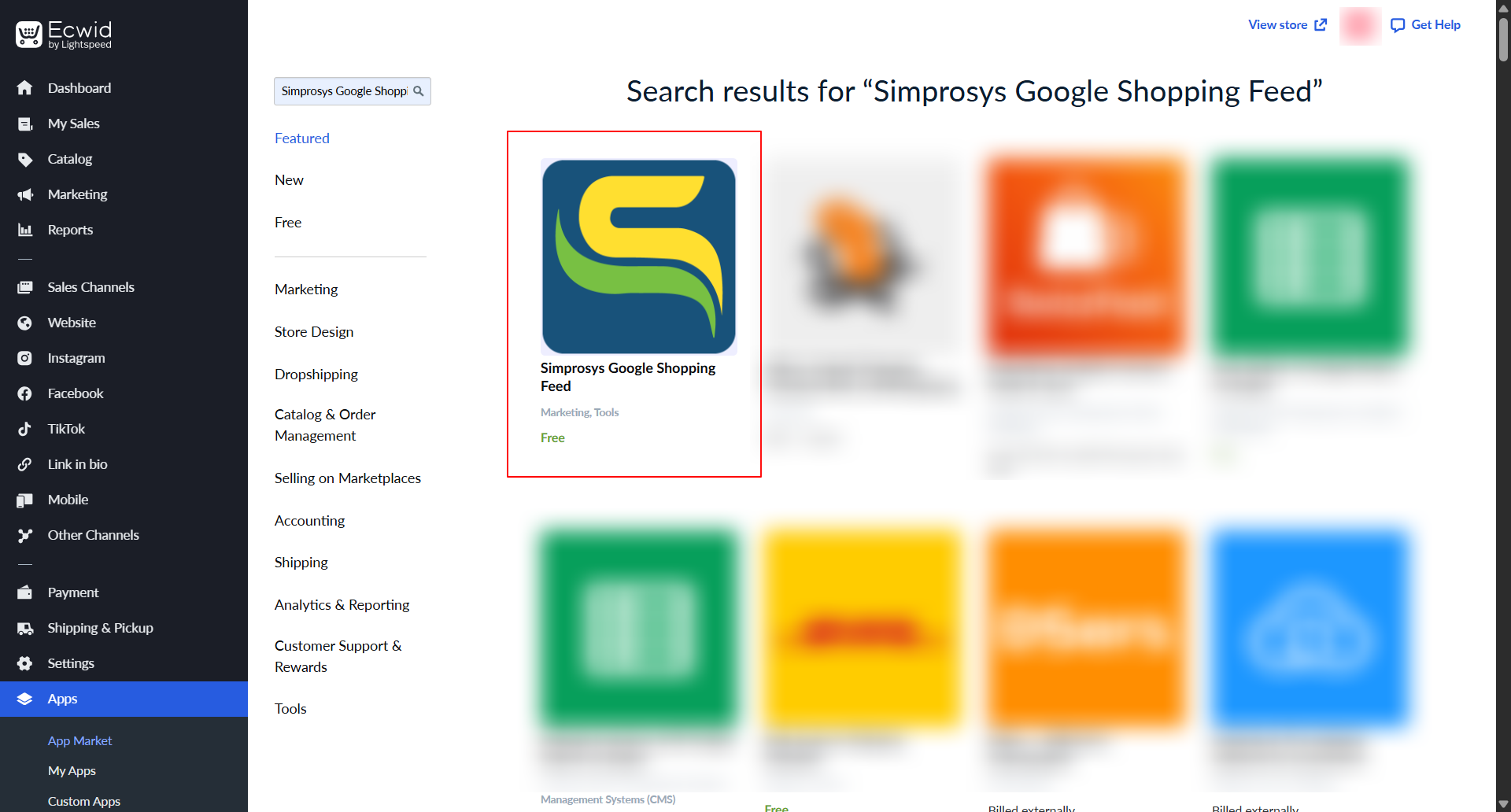
- In the App Market search bar, type Simprosys Google Shopping Feed.
- Locate Simprosys Google Shopping Feed in the search results and click on the app listing card.
3. Install the Application
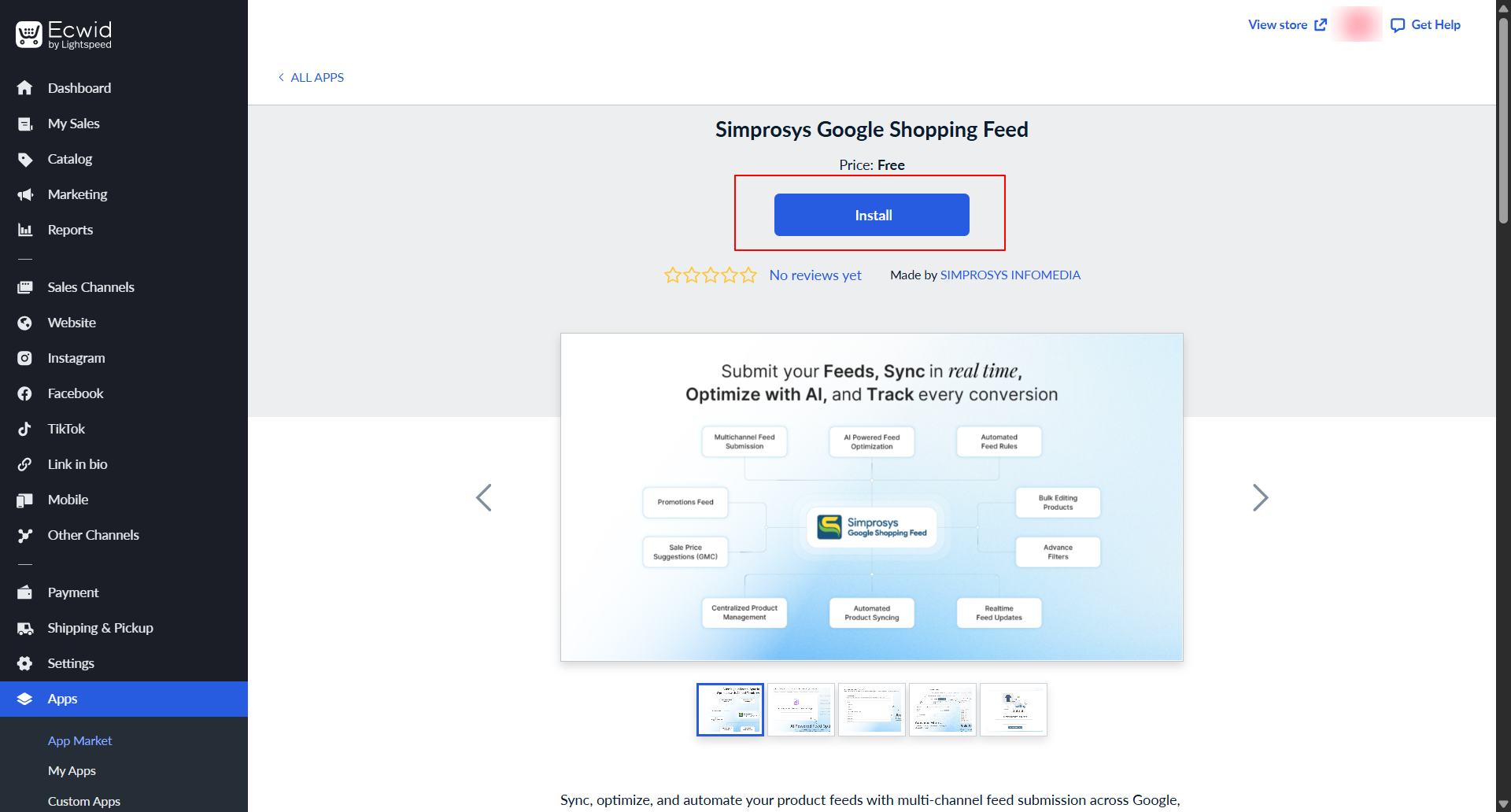
- On the app listing page, review the app details and click the Install button.
- Review the requested account permissions (access to store profile, products, orders, etc.) on the authorization prompt.
- Click Install to confirm.
4. Authenticate & Access Dashboard
- The system will automatically authenticate your Ecwid store.
- Once authentication is complete, a green "Successfully authenticated!" notification will appear.
- You will be redirected directly to your Simprosys Google Shopping Feed Channel Integration page.
Re-opening the App from Ecwid
To access your Simprosys Google Shopping Feed dashboard anytime directly from your Ecwid admin:
- Go to your Ecwid Control Panel.
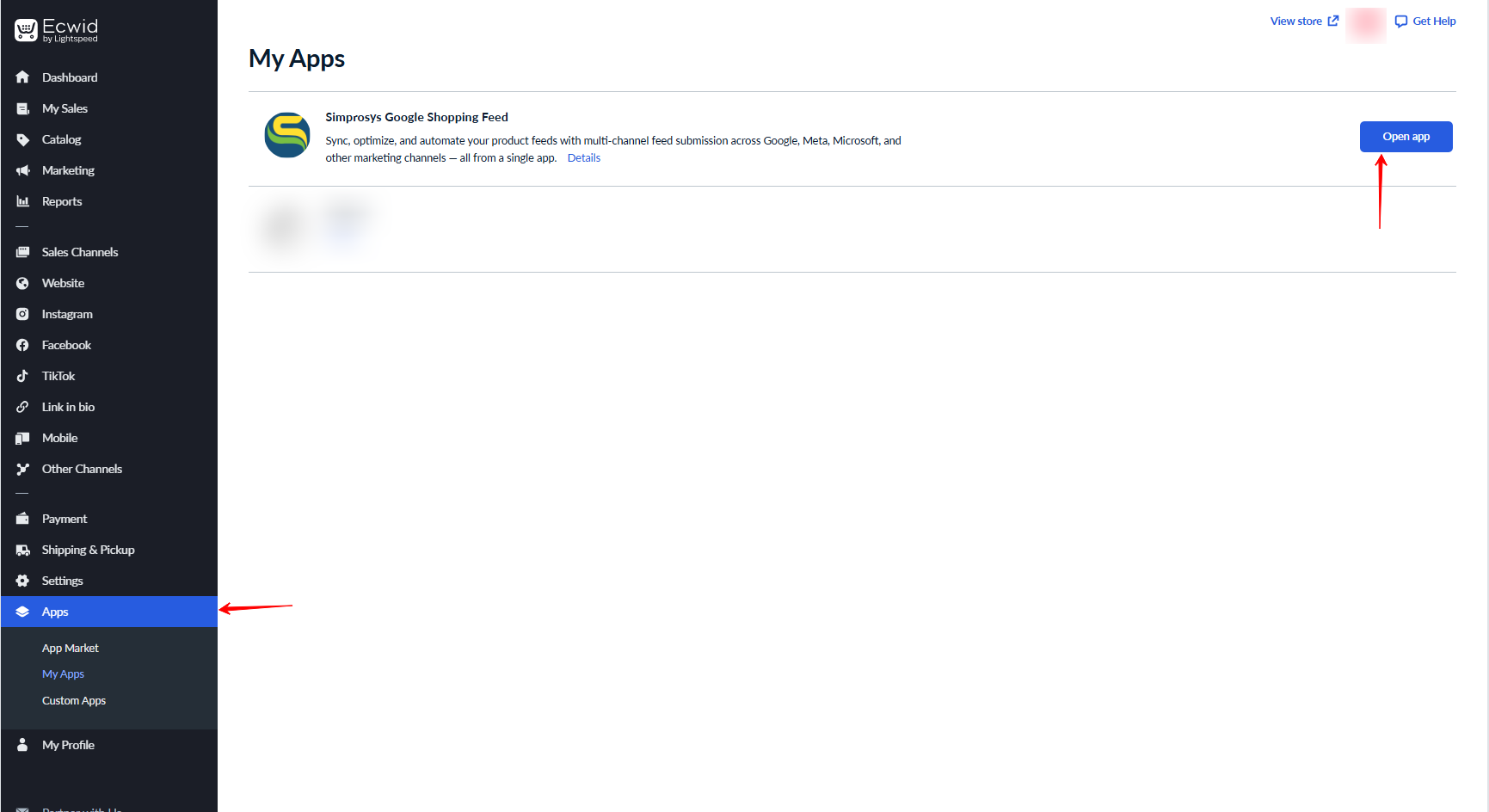
- Navigate to Apps > My Apps.
- Locate Simprosys Google Shopping Feed and click Open app.
Note: The app can only be accessed through the Ecwid platform. It cannot be opened directly using a URL.
Need help?
For email support, feel free to reach out to us at support@simprosys.com

Simprosys Google Shopping Feed
Introduction and Account Setup
Channel Integration
Feed Configuration