Simprosys Google Shopping Feed
Introduction and Account Setup

Channel Integration
Feed Configuration
Manage Products


Bulk Edit for Product and Variant Attributes in Your Ecwid Store
Oct 29, 2026
Overview
The Bulk Edit feature in the Simprosys Google Shopping Feed app for Ecwid allows you to update, assign, or override attributes across multiple products simultaneously.
Because the app automatically syncs products directly from your Ecwid store, the Bulk Edit layer sits between your store data and destination channels (Google Shopping, Meta Ads, Microsoft Advertising, and Klaviyo). This enables you to refine marketing attributes in bulk directly within the app without altering your native Ecwid store data.
Supported Feed Attributes for Bulk Editing
| Attribute Category | Supported Attributes & Values |
| Primary Feed Attributes | Google Product Category (GPC), Custom Labels (0-4), Shipping Label, Promotion ID |
| Demographic & Variant Overrides | Gender (Male, Female, Unisex), Age Group (Adult, All Ages, Teen, Kids, Toddler, Infant, Newborn), Feed Color, Material, Pattern, Feed Size, Condition (New, Refurbished, Used) |
| Identifiers & Classification | Brand, Identifier Exists (Yes/No), Multipack, Is Bundle |
| Others | Return Policy Label, Return Address Label, Size Type, Size System, Unit Pricing, Certification, Product Submission/Exclusion Control, Pause(For Google only), Adult-Oriented |
Supported Feed Attributes for Bulk Editing
Use this workflow to edit attributes across multiple distinct products synced from your Ecwid store at once.
Step 1: Open Product Management
Log in to your Simprosys Google Shopping Feed app dashboard and select Manage Products from the main navigation menu.
Step 2: Select Products to Edit
Note: The Do Edits in Bulk action button remains hidden until at least one product is selected in the product table.
- Manual Selection: Check the individual selection box next to each product row you wish to modify.
- Store-Wide Selection: Select a product checkbox or the master checkbox in the table header, or click Select All to target your entire product catalog at once.
Step 3: Open the Bulk Edit Menu
Once target products are selected, click the Do Edits in Bulk button located on the top action bar.
Step 4: Assign Attribute Values & Apply
1. Select the target attribute you wish to modify from the Bulk Edit menu (e.g., Set Custom Label 0, Set Gender, Set Google Product Category).
2. Choose or type the intended attribute value into the prompt.
3. Click Apply to confirm your changes.
Step 5: Background Processing & Channel Sync
Selected products will enter a Pending status while changes are processed. Once the process is completed, the updated attributes will be submitted to your connected destination channels.
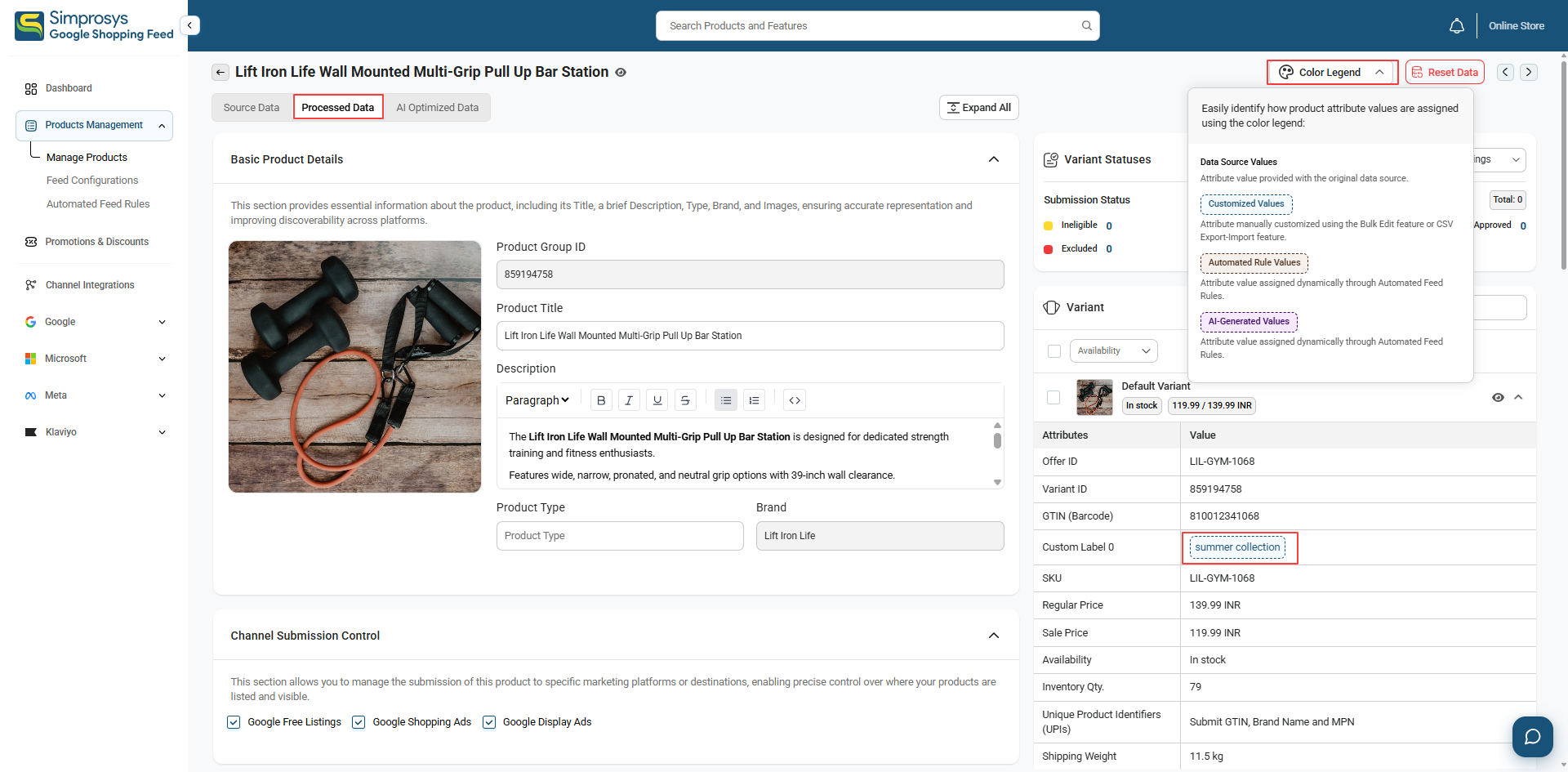
Step 6: Attribute Value Color Coding
Blue Outline: Indicates a manual update applied directly via Bulk Edit.
Quick Reference: Click Color Legend in the top action bar on the Processed Data tab for an on-screen key.
Reverting Changes: If you need to remove manual Bulk Edit changes, click Reset Data to instantly restore the original values from the Ecwid store.
Variant-Level Bulk Edit Workflow
Use this workflow when a product has multiple options or variants (e.g., Sizes, Colors, SKUs) and you want to update the value through bulk edit for specific or all variants for the product.
Step 1: Open Product Details
From the Manage Products page, click directly on the Product Title of the product you want to configure.
Step 2: Select Target Variants
Scroll down to the Variants section:
• Specific Variants: Check the box next to individual variant rows (e.g., target only specific sizes or colors).
• All Variants: Check the master selection box at the top-left of the variant table header to select all variants for the product.
Step 3: Apply Variant Bulk Edits
1. Click the Do Edits in Bulk button located directly above the variant table.
2. Select the variant-level attribute to modify (e.g., Age Group, Gender, Material, Pattern, Custom Labels).
3. Enter or select the new attribute value and click Apply.
Note on Grayed-Out Attributes: Attributes automatically derived from your synced Ecwid variant options (such as Color or Size) will appear grayed out with an information icon (i). These fields cannot be overwritten manually in Bulk Edit because your variant structure is built directly from those option values in your Ecwid admin. |
Managing Bulk Attribute Changes & "Save as Draft"
Whether you perform bulk edits at the Product Level or Variant Level, the Bulk Customization menu provides flexible action modes and staging capabilities before changes are processed.
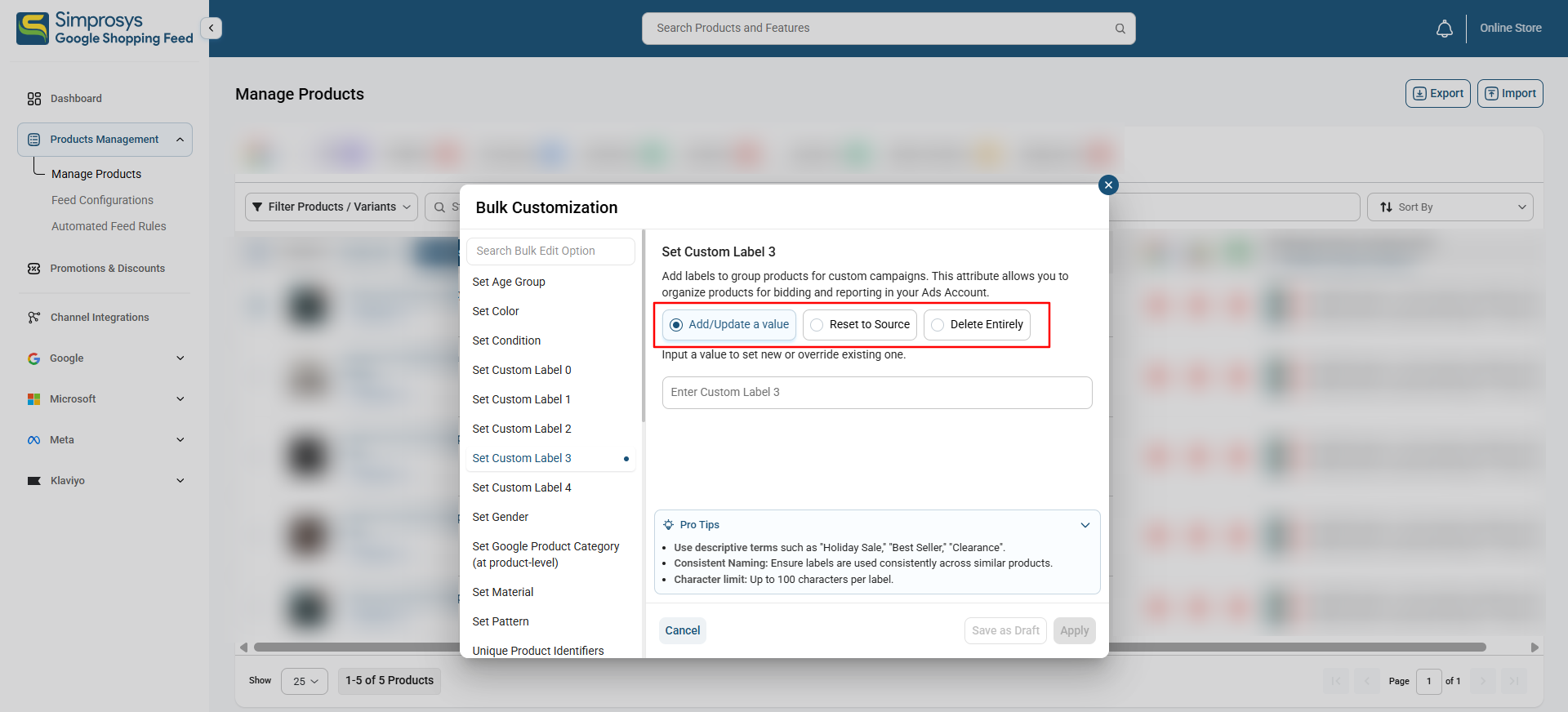
1. Attribute Action Modes
When editing an attribute, choose one of three action modes:
- Add Value or Update: Enter a new value or edit an existing one to update or override attribute values for your selected Products/variants.
- Reset to Source: Reverts modified attribute values back to the original values received from your Ecwid store.
- Delete Entirely: Clears all values for the applicable attribute across all selected products.
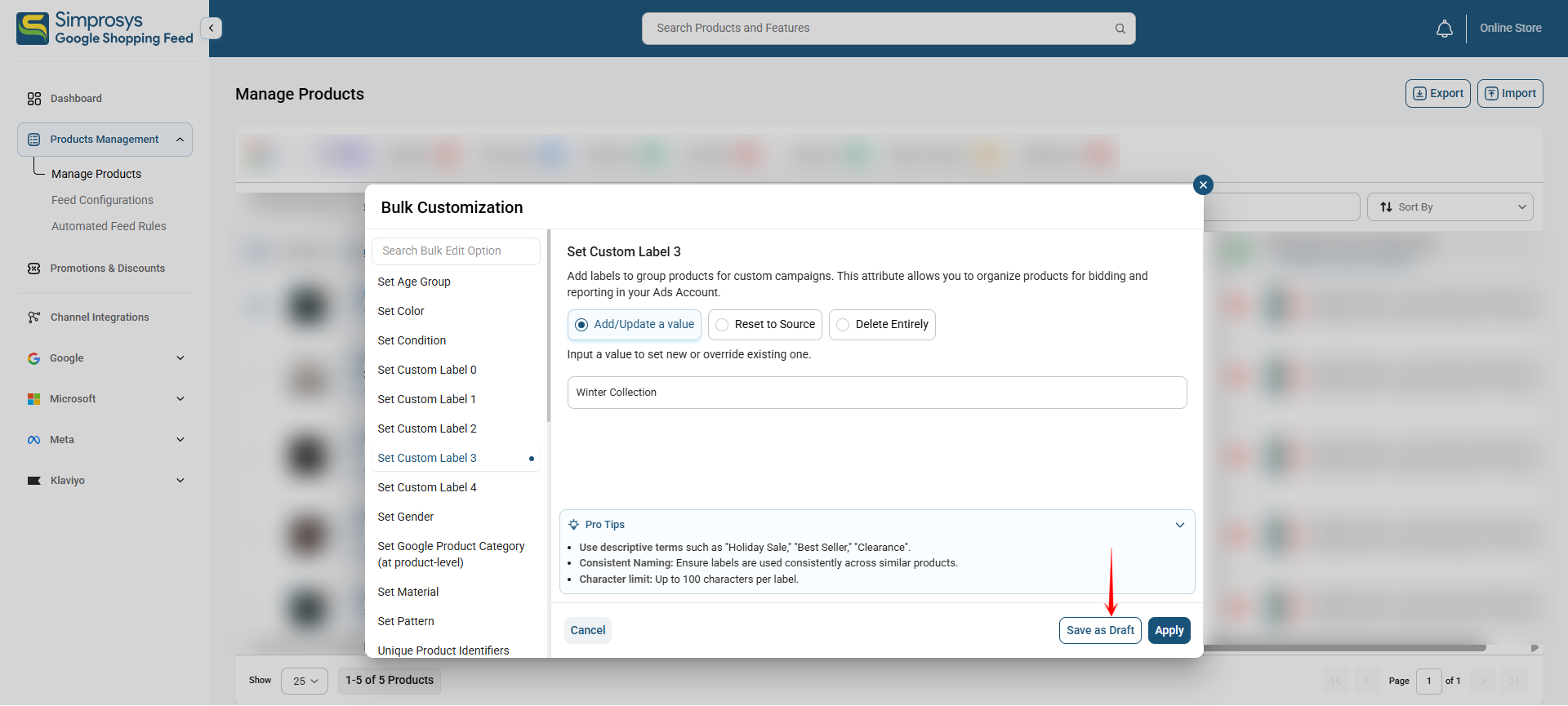
2. Staging Changes with "Save as Draft"
Instead of applying changes to one attribute at a time, you can stage multiple attribute edits in a single session before submitting:
- Configure & Save Draft: Select an attribute from the left menu, choose your action mode (Add Value, Reset to Source, or Delete Entirely), enter/select the required value, and click Save as Draft.
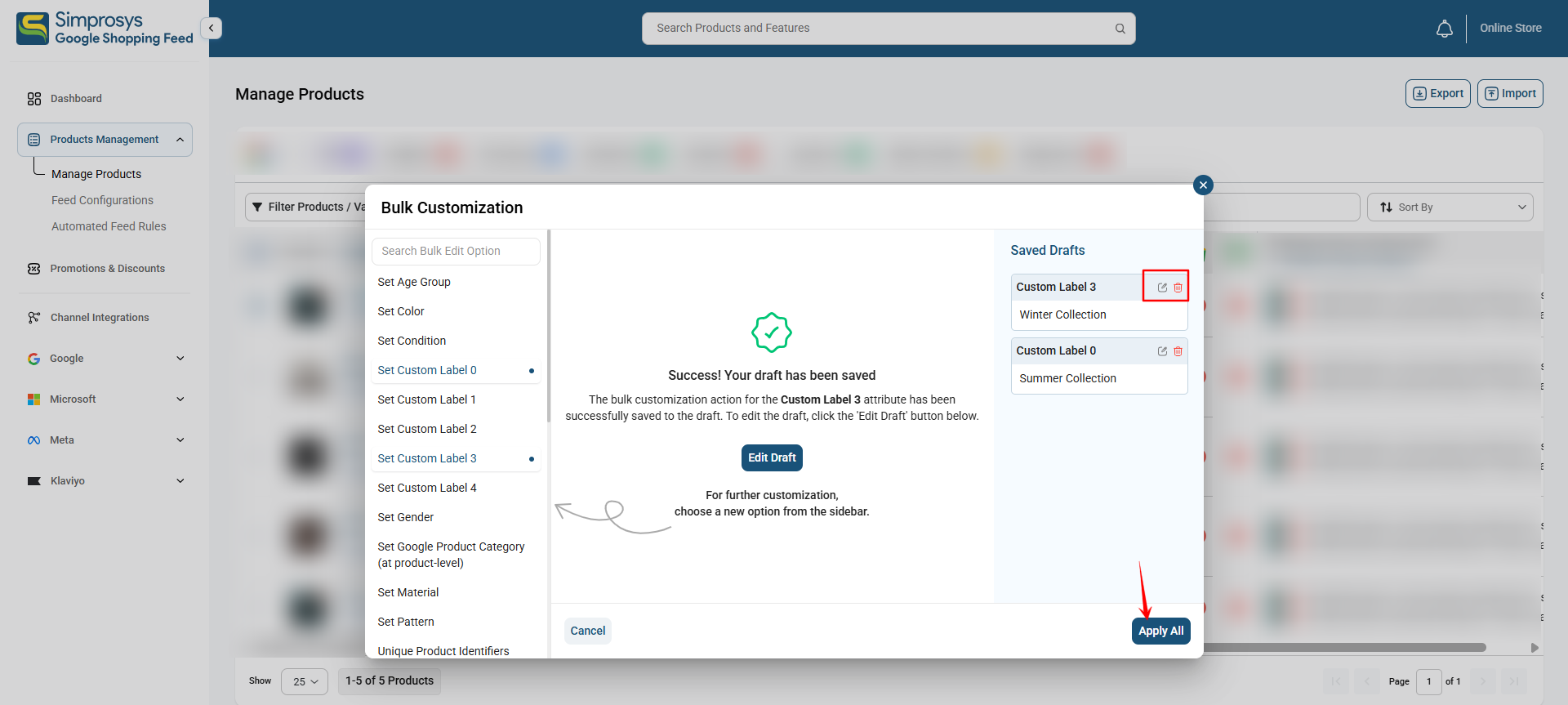
- Confirmation & Queue: A pop-up message will confirm "Success! Your draft has been saved." The saved update will instantly appear in the Saved Drafts sidebar on the right.
- Stage Additional Attributes: Choose another attribute from the left menu, set its value or action, and click Save as Draft again. You can stack as many attribute drafts as needed.
- Review, Edit, or Remove Drafts: Review your queued changes in the Saved Drafts sidebar. To edit or modify a staged draft before applying, click the Edit Draft icon next to the saved draft attribute(s). To discard it, click the Trash Can (Delete) icon.
- Batch Apply: Once all intended attribute edits are staged, click Apply All (or Apply) at the bottom right of the window. All queued updates will process simultaneously for your selected products.
Key Operational Guidelines
• Feed-Level Scope: Edits made within Simprosys update the data submitted to advertising and marketing channels; they do not override your primary Ecwid store data.
• Partial Attribute Updates: Updating a single bulk attribute leaves all other pre-existing product and variant parameters intact.
• Reverting Values: You can revert attribute values at any time by selecting Reset to Data Source in the Bulk Edit feature. This restores the values from your Ecwid store values.
Need help?
For email support, feel free to reach out to us at support@simprosys.com
Previous article

Simprosys Google Shopping Feed
Introduction and Account Setup
Channel Integration
Feed Configuration
Manage Products